
Understanding Mobile Approvals in General Ledger
This topic presents an overview of PeopleSoft Mobile Approvals for PeopleSoft General Ledger, prerequisites, and discusses how to:
Configure General Ledger for PeopleSoft Mobile Approvals.
Access and approve pending journals using mobile devices.
Approve multiple journals using Mobile Approvals.
View attachments using Mobile Approvals.
PeopleSoft Mobile Approval Framework allows approvers the flexibility to approve transactions on the go. For example, you can access the PeopleSoft system from a mobile device, such as a tablet or smart phone, and approve journals that are pending your approval. Once you have enabled your system for PeopleSoft Mobile Approvals, you can
Approve, deny, or push back pending journals at the header level from a mobile device.
Preview a graphical representation of the transaction approval flow, view other approvals, and see comments that previous approvers have entered.
Select and view attachments, and add comments to pending journals.
Perform mass journal approvals using a mobile device.
Prerequisites
You should meet the following prerequisites In order to use PeopleSoft Mobile Approvals:
PeopleTools 8.52 is the minimum requirement for PeopleSoft Mobile Applications.
PeopleSoft Mobile Applications have been tested for the following mobile devices:
Android Phone (Samsung Galaxy SIII
Apple iPhone 4 & 4S (iOS 5.1)
Apple iPad 2 and iPad 3 (iOS 5.1)
Google Nexus Tablet (Android Jelly Bean)
Samsung Galaxy Tablet 10.1 (Android Honeycomb)
PeopleSoft supports the Google Chrome browser (version 21 or above) for PeopleSoft Mobile Applications.
Note: For Android phone and tablet devices, it is recommended that you use the latest Google Chrome browser instead of the default device browser.
Configuring General Ledger for PeopleSoft Mobile Approvals
To implement PeopleSoft Mobile Approvals for General Ledger, you must
You must first configure PeopleSoft Approval Framework for General Ledger. See Understanding Configurable Workflow.
Configure system-wide setup of Mobile Approval Framework.
Set up mobile approval options specific to General Ledger. Use the Installation Options - General Ledger page.
Grant security access to users for PeopleSoft Mobile Approvals. PeopleSoft delivers two permission lists (EOAW2000 and EOAW2100) for use with PeopleSoft Mobile Approvals. See Granting Security Access to Users for PeopleSoft Mobile Approvals.
Both delivered permission lists grant user access to the iScript functions in the WEBLIB_FIN_MBL record in order to access the application. Be sure to assign these permission lists to roles according to your organization’s requirements for administrator and user access.
For more information on granting security, see PeopleTools Security Administration.
Accessing and Approving Pending Journals Using Mobile Devices
When using a mobile tablet, (iPad), you can launch the Approvals homepage: From there, when you select the Journal Entry button, you access the Approvals page:
Image: Approvals - Transaction List page - (tablet view)
This example illustrates the fields and controls on the Approvals - Transaction List page. You can find definitions for the fields and controls later on this page.
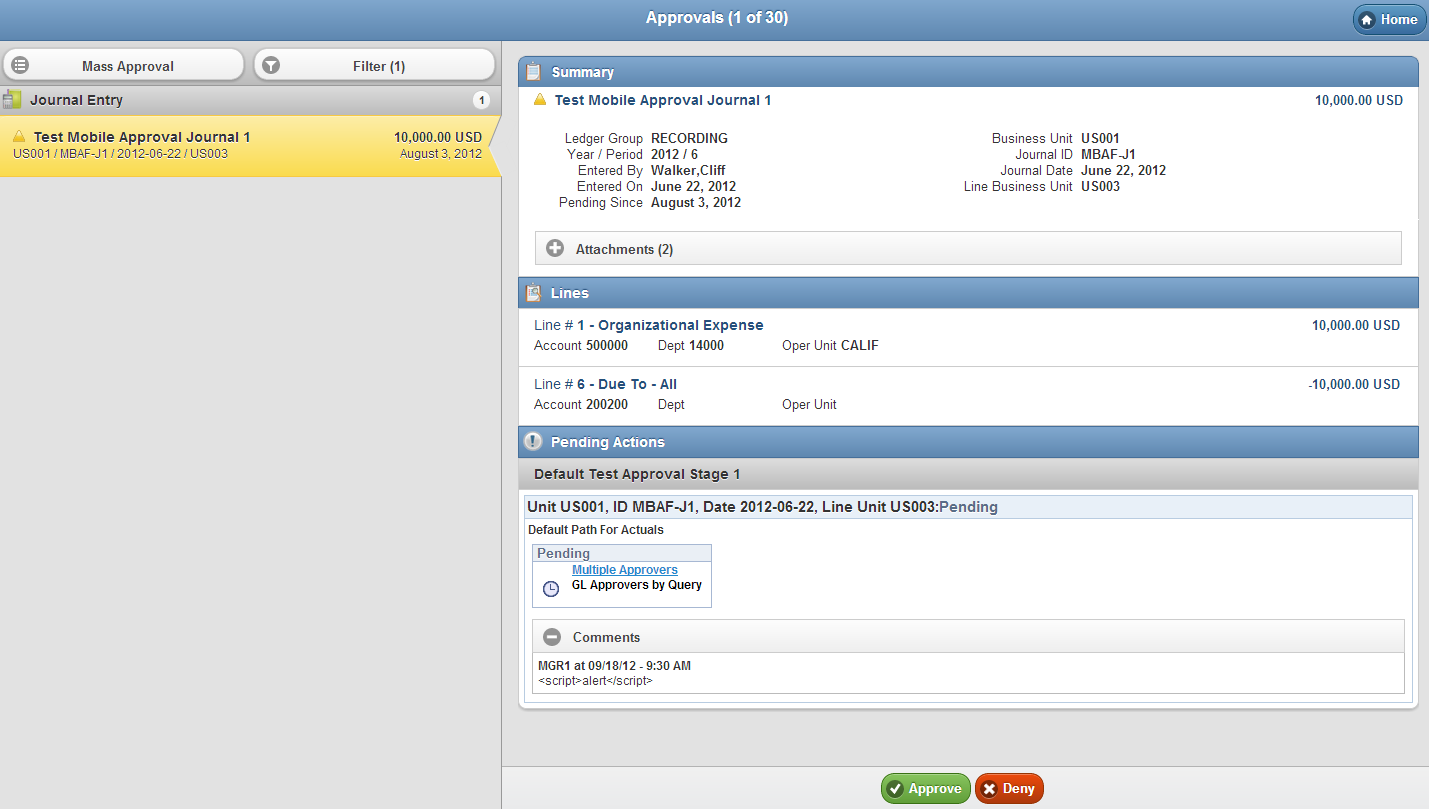
The Approval page displays the journals that are pending approval of the user who is logged in for a given user ID. When you select a journal entry from the list (left side), the corresponding Summary, Lines, and Pending Actions for the selected journal are displayed (right side). You can approve, deny, or push back (if eligible) the selected journal entry using the action buttons at the bottom of the page.
Note: The Push Back button does not display if the journal is not eligible for push back. The Hold action is not available for Mobile Approvals. You must use the desktop application to use the Hold action.
Journal Entry
The left side of the screen is the Journal Header list, sorted by total debit amount in descending order.


Summary
You can select a journal and view the Summary section, which displays the same information from the highlighted or selected journal and additionally includes the ledger group, the fiscal year and period of the journal, the name of the person who entered the journal, and the date on which it was entered.
Select the Attachments button to view any attachments to the journal entry. The number of attachments displays on the button in paratheses. See Viewing Attachments Using Mobile Approvals
Lines
The Lines section displays only the primary ledger journal lines. Displays:
Line Number and Description fields.
Base amount with currency code.
ChartFields 1 through 9 (depending upon which ChartFields that you selected to display on the Installation Options - General Ledger page.
Pending Actions
The Pending Actions section displays the approval flow diagram. Select the link to access the Approval Detail page for the selected journal. Expand the Comments section to view comments from approvers.
Viewing Attachments Using Mobile Approvals
You can view attachments using a mobile device if you enabled attachments by selecting the Display Attachments check box from the Mobile Approval Options page when configuring Mobile Approvals. See Mobile Approval Options Page.
Click the Attachments button from the Summary section of the Approvals transaction list page:
Image: Approval Detail page
This example illustrates the fields and controls on the Approval Detail page. You can find definitions for the fields and controls later on this page.
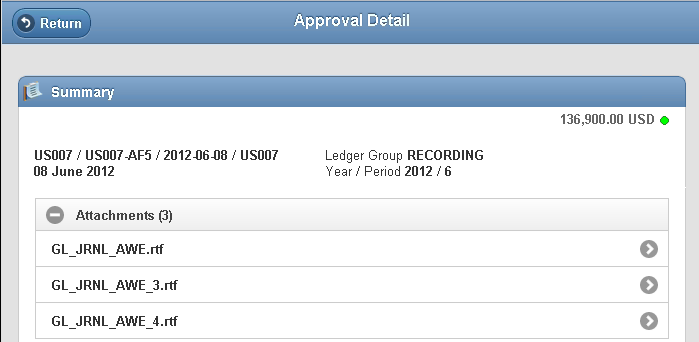
When presented with the Approval Detail page, expand the Attachments section to view attachments, if enabled. Select the arrow button that is associated with the attachment that you would like to view or download. You are presented with a new window to view or save the file.
Note: Attachment display support is limited by attachment type and mobile device used.