
Establishing Matching and Document Association Options
Matching is a flexible process that compares vouchers with purchase orders and receiving documents to ensure that you are paying for what you ordered and received. To run matching, you must have PeopleSoft Payables and PeopleSoft Purchasing installed on the same database.
To set up matching, use the following components:
Match Rule Type (AP_MTCH_RULETYPE).
Match Rules (AP_MTCH_RULES).
Match Rule Control (AP_MTCH_RULE_CNTRL).
Document Association Group (AP_ASSTN_GRP).
Document Association Rule (AP_ASSOCIATION).
This section discusses how to:
View and update match rule types.
View and update match rule definitions.
View and update match rule workbench properties.
View and update match rule workflow parameters.
View and update match rule controls.
View and update the document association group.
View and update document association rules.
View and update match rule types.
View and update match rule definitions.
View and update match rule workbench properties.
View and update match rule workflow parameters.
View and update match rule controls.
View and update the document association group.
View and update document association rules.
Pages Used to Establish Matching and Document Association Options
|
Page Name |
Definition Name |
Navigation |
Usage |
|---|---|---|---|
|
Match Rule Type |
AP_MTCH_RULE_TYPE |
|
View and create match rule types. Match rule types are matching categories, such as data entry, informational, merchandise quantity, merchandise unit price, merchandise amount, and system. All match rules are associated with a match rule type. |
|
Match Rules - Rule Definition |
AP_MTCH_RULES |
|
View, clone, create, and update match rules. Match rules control the way that the Matching Application Engine process (AP_MATCH) compares the voucher, purchase order, receiver, and inspection information. |
|
Match Rules - Workbench |
AP_MTCH_RULES2 |
|
Select the label and fields that will appear in the Match Workbench. |
|
Match Rules - Workflow |
AP_MTCH_RULES3 |
|
Override the worklist and email notification parameters and user lists defined at the match rule type level. |
|
Match Rule Control |
AP_MTCH_CNTRL_HDR |
|
View and update the match rule controls. Match rule controls are sets of match rules applied against vouchers, purchase orders, and receivers during matching. |
|
Document Association Group |
AP_ASSTN_GRP |
|
View the documents used in document association processing. You can include or exclude the delivered document associations. |
|
Document Association Rules |
AP_ASSOCIATION |
|
Define how the Matching Application Engine process (AP_MATCH) automatically associates receivers to vouchers and purchase orders. |
|
Document Association Criteria |
AP_ASCALG_CRIT_SEC |
Click the User Criteria link on the Document Association Rules page. |
Select the voucher fields, the condition operands, and the receiver fields for the criteria you are adding. |
Match Rule Type Page
Use the Match Rule Type page (AP_MTCH_RULE_TYPE) to view and create match rule types.
Match rule types are matching categories, such as data entry, informational, merchandise quantity, merchandise unit price, merchandise amount, and system. All match rules are associated with a match rule type.
Image: Match Rule Type page
This example illustrates the fields and controls on the Match Rule Type page. You can find definitions for the fields and controls later on this page.
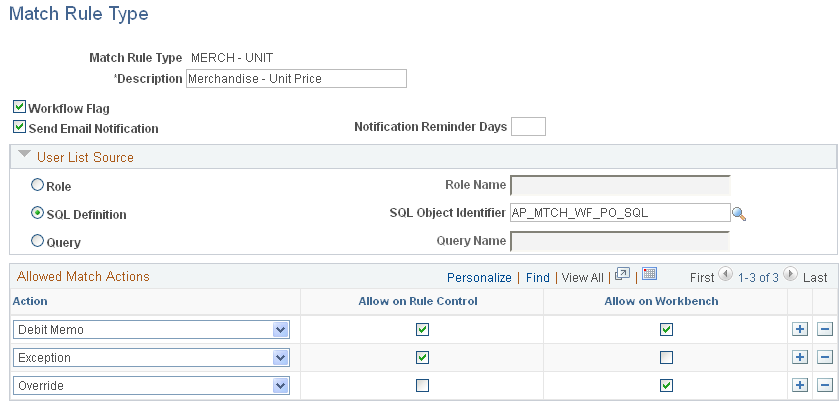
Match rule types are matching categories. Every match rule is associated with a match rule type. The match rule type controls the actions allowed after the application of the rule in the Matching Application Engine process (AP_MATCH). They also provide default values for the workflow parameters defined on the rules. This PeopleSoft application delivers match rule types that include Data Entry, Merchandise - Amount, Merchandise - Quantity, Merchandise - Unit Price, Summary/Global Match Only, and System. To define additional match rule types, you must understand the complete matching process.
Header
User List Source
This group box is available if you select the Workflow Flag field.
Note: You need to set up users to receive worklist items or email notifications or both on the User Profiles - Workflow page before you can route match exceptions to them.
Note: You can override match rule type workflow parameters at the match rule level.
Allowed Match Action
Rule Definition Page
Use the Match Rules - Rule Definition page (AP_MTCH_RULES) to view, clone, create, and update match rules.
Match rules control the way that the Matching Application Engine process (AP_MATCH) compares the voucher, purchase order, receiver, and inspection information.
Image: Rule Definition page
This example illustrates the fields and controls on the Rule Definition page. You can find definitions for the fields and controls later on this page.
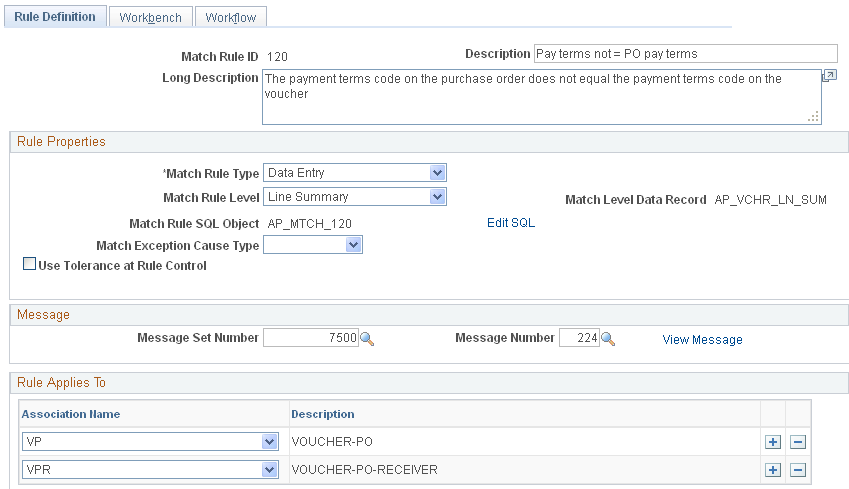
Match rules define how documents, such as vouchers, purchase orders, and receivers, are compared. This PeopleSoft application delivers the match rules that most organizations need. To define additional valid match rules, you must understand the Matching process and its use of Model Record tables. You must also understand SQL.
Create Your Own Rule
The Create Your Own Rule group box appears only if you are adding a new match rule.
| Copy From Match Rule Id and Copy |
Click the Copy button to copy an existing match rule SQL statement specified in the Copy From Match Rule Id field. |
Rule Properties
| Match Rule Type |
Select the match rule type for the match rule. The match rule type determines which actions are allowed when the rule is used and the workflow is provided by default. Options include Data Entry, Merchandise - Amount, Merchandise - Quantity, Merchandise - Unit Price, Summary/Global Match Only, and System. |
| Match Rule Level |
Select the level at which the rule is applicable. Options are: Header Summary: The match rule is applied at the header level. The header summary record contains the voucher gross merchandise amount, total of purchase order schedule amounts, and total of receipt amounts that are associated to the specific purchase order schedule. Line Summary: The match rule is applied at the line summary level. The line summary record contains the voucher line merchandise amount, purchase order schedule merchandise amount, and total of receipt amounts that are associated to the specific purchase order schedule. |
| Match Level Data Record |
Displays the data record associated with this match rule level. Every match rule level has a data record. These records contain the values used in the rules SQL definition. Note: Use the values in the data record to create a custom match rule. You should first understand the values in the fields before creating the SQL where condition to ensure a valid match rule. |
| Match Rule SQL Object |
Displays the SQL object associated with the match rule. The SQL object uses the fields contained in the match level data record. All delivered match rules are associated with a SQL object. |
| Match Exception Cause Type |
Select either Internal or External as the cause for exceptions to this rule. |
| Edit SQL |
Applicable to existing match rules only. Click the link to view the SQL statement that the system executes for this match rule on the Match Rule SQL Criteria page. Warning! Validate any changes made to the SQL statement to ensure proper syntax. This action does not validate that the rule is going to perform as desired. Therefore, thoroughly test all match rules that you modify. |
| Create SQL |
Applicable to new match rules only. Click to add the SQL statement that the system executes for this match rule on the Match Rule SQL Criteria page. SQL statements must begin with and to be properly executed. The system automatically creates a SQL object associated with this rule when you update the new SQL statement. Warning! Validate any new SQL statements to ensure proper syntax. This action does not validate that the rule is going to perform as desired. Therefore, thoroughly test all match rules that you create. |
| Use Tolerance at Rule Control |
Select to include tolerance fields from the match rule control. Once you select this option, select either Amount or Percent to be used as a basis for the tolerance calculation. If you do not select this option, the Matching process will not use match rule control tolerances. See Matching Tolerances. |
| Debit Memo Category |
This option is available if the Debit Memo action is chosen at the match rule type level. Select either Quantity or Unit Price. The system creates debit memo adjustment vouchers for merchandise - quantity and merchandise - unit price match rule types. Note: The system requires a debit memo category if you allow Debit Memo as an action at the match rule control level or on the Match Workbench on the Match Rule Type page. |
Message
Rule Applies To
The Rule Applies To group box appears only if the match rule level is Line Summary.
Match Rules - Workbench Page
Use the Match Rules - Workbench page (AP_MTCH_RULES2) to select the label and fields that will appear in the Match Workbench.
Image: Match Rules - Workbench page
This example illustrates the fields and controls on the Match Rules - Workbench page. You can find definitions for the fields and controls later on this page.
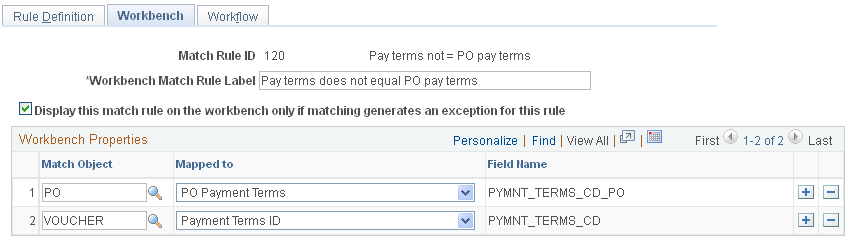
Warning! The system uses the selected match objects and field names to display matching information on the Matched Vouchers page, the Match Exception Workbench Details page, and the Match Overridden Workbench Details page. If the mapping is incorrect, the matching information will not be accurate.
Match Rules - Workflow Page
Use the Match Rules - Workflow page (AP_MTCH_RULES3) to override the worklist and email notification parameters and user lists defined at the match rule type level.
Image: Match Rules - Workflow page
This example illustrates the fields and controls on the Match Rules - Workflow page.

You can override email notification parameters and user lists defined at the match rule type level. The workflow fields on this page are similar to the workflow fields on the Match Rule Type page.
See Match Rule Type Page.
Match Rule Control Page
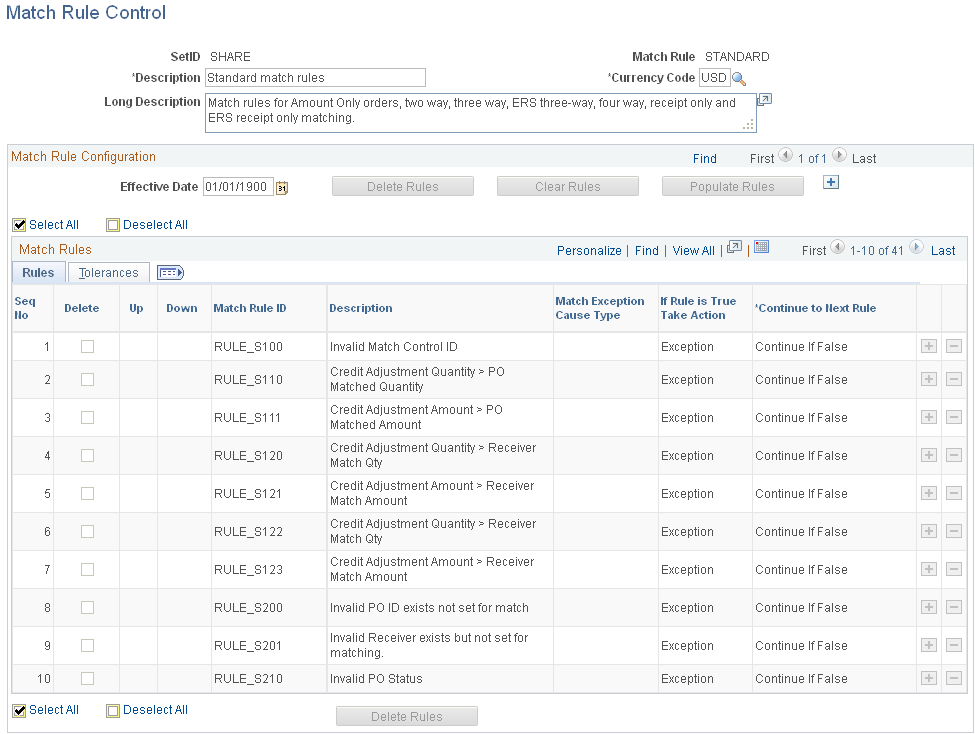
Use the Match Rule Control page (AP_MTCH_CNTRL_HDR) to view and update the match rule controls.
Match rule controls are sets of match rules applied against vouchers, purchase orders, and receivers during matching.
Image: Match Rule Control page
This example illustrates the fields and controls on the Match Rule Control page. You can find definitions for the fields and controls later on this page.
When you copy individual source documents to a voucher, the voucher inherits the source document header, line, and distribution information. When you copy multiple purchase orders or multiple receipts to a voucher, the voucher inherits the first instance of the source document's header information. As an example, if you copy multiple lines from different purchase orders to a voucher, the header information from the first purchase order will be copied to the voucher.
Note: The accounting template from the purchase order is copied to the voucher in a way similar to other header fields.
Structure match rules to meet the business needs through match rule controls. Match rule controls are sets of rules that the system applies against vouchers, purchase orders, and receivers. You can define a single control ID with all of the applicable match rules or multiple match rule controls, each with a subset of applicable match rules. Match rule controls are defined by SetID. The Matching process uses the match control defined on the purchase order header to determine which match rules to apply.
Define amount or percent tolerances to override exceptions generated by the match rules. If a match exception exists, and the voucher is within the tolerances, the Matching process automatically overrides the exception.
This PeopleSoft application delivers match rule controls that include Standard Match Rules Using Rules Tolerances, Standard Match Rules Using PO Tolerances, Standard, Debit Memo, and Basic. To define additional match rule controls, you must understand the Matching process.
Header
Match Rule Configuration
Match Rules - Rules Tab


Match Rules - Tolerances Tab
Document Association Group Page
Use the Document Association Group page (AP_ASSTN_GRP) to view the documents used in document association processing.
You can include or exclude the delivered document associations.
Image: Document Association Group page
This example illustrates the fields and controls on the Document Association Group page. You can find definitions for the fields and controls later on this page.

This PeopleSoft application delivers three document associations: VP (voucher and purchase order matching), VR (voucher and receiver matching), and VPR (voucher, purchase order, and receiver matching). When the Matching process performs the match association, it assigns the voucher to one of the three match association records based on the match association SQL selection criteria. For example, the system assigns a voucher that has an associated PO ID with receipt required to VPR.
Specify the document association group to use in the Matching process on the Installation Options - Payables page.
Document Association Rules Page
Use the Document Association Rules page (AP_ASSOCIATION) to define how the Matching Application Engine process (AP_MATCH) automatically associates receivers to vouchers and purchase orders.
Image: Document Association Rules page
This example illustrates the fields and controls on the Document Association Rules page. You can find definitions for the fields and controls later on this page.
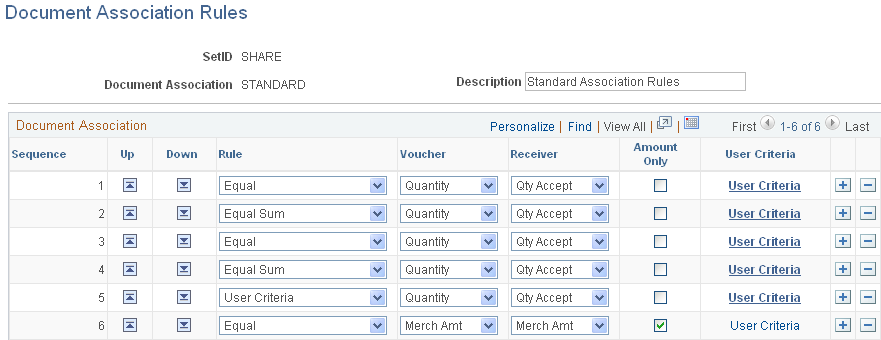
As part of the Matching process, the document association process associates the appropriate purchase orders and receivers to the selected vouchers. The system associates the documents using the criteria specified in Line 1. If no successful associations are found, the rules defined in Line 2 apply, and so forth, until all documents are associated.
Note: You can create new match rule controls or modify delivered match rule controls. When modifying controls and to take advantage of Life To Date voucher and schedule matching rules, you should make the Sum Up To Rule the first documentation association rule when you associate rules.

