
Importing Security Definitions and Market Values
This section provides an overview of the securities data import process and discusses how to:
Import security definitions.
Import the current market values of securities.
PeopleSoft provides a way to import general information about a security into the system based on its CUSIP or CINS identifier. A variation of this process can be used to import current market values of the securities. Once a security definition is downloaded into the system, investment deals can be created using the security. When the latest market value for the security is downloaded into the system, the value of the security deal is updated and the gain or loss for the deal is booked in Treasury accounting.
Pages Used to Import Security Definitions and Market Values
|
Page Name |
Definition Name |
Navigation |
Usage |
|---|---|---|---|
|
Security Definition Import |
BSP_IMPORT |
|
Import security definition data based on the security's identifier. |
|
Security Market Values Import |
BSP_IMPORT |
|
Import current security market values data. |
Understanding the Securities Data Import Infrastructure
This diagram illustrates the securities data import process.
Image: Securities data import process
This diagram illustrates the steps in the securities data import process, which is described in detail following the diagram
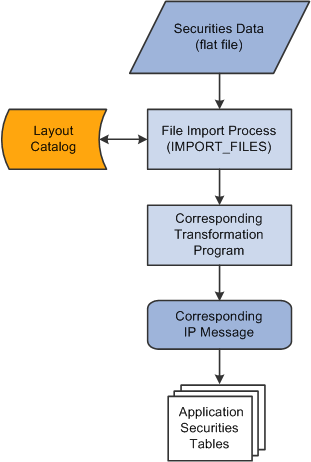
The securities data import process involves the following steps:
An administrator enters information pertaining to a securities data file in comma-separated value (.csv), flat-file format.
This initiates the File Import Application Engine process (IMPORT_FILES), which functions as an interface or shell to define the necessary commands for the system to import the securities data files.
The File Import Application Engine reads the file's layout definition data (which is stored in the Layout Catalog ) and calls the corresponding transformation process.
The layout for importing securities definition data is SECURITY and the corresponding transformation process called is TRX_SECD_XFM. For importing security market value, the SEC_MARKET layout is used with the TRX_SECM_XFM transformation process.
The transformation Application Engine loads the data into the securities application tables using the TRX_SEC_HDR IP message for securities definition data or the TRX_SEC_MKTVAL IP message for security market values.
Security Definition Import Page or Security Market Values Import Page
Use the Security Definition Import page (BSP_IMPORT) or the Security Market Values Import page (BSP_IMPORT) to import security definition data based on the security's identifier.
Image: Security Definition Import page
This example illustrates the fields and controls on the Security Definition Import page. You can find definitions for the fields and controls later on this page.

Note: The field descriptions provided here are the same for both the Security Definition Import page and Security Market Values Import page.
| Import Type |
Select the method to import the bank statement data. Options are:
|
| Integration Node |
Enter the integration node to use to transfer the data. This field appears only if FTP or HTTP is selected in the Import Type field. See PeopleTools PeopleBook: PeopleSoft Integration Broker, "Building Message Schemas." See PeopleTools PeopleBook: PeopleSoft Integration Broker Administration, "Using Listening Connectors and Target Connectors," Working With the AS2 Connectors. See Defining Integration Broker Settings for Bank Statements and Payment Acknowledgments. |
| View Integration Node Details |
Click to access the Integration Node Details page and review property details of the selected node. This link appears only if FTP or HTTP is selected in the Import Type field. |
| File Path |
Enter the complete file path location. To select files by using the Select File button, the file path must have a trailing backslash (\). You can also search for files of a specific type by entering an asterisk and the file type extension. For example, to search all files with an .XML extension enter: \*.XML |
| File Selection Help |
Click to view help information about specifying file paths and file names. |
| File Name |
Enter the specific file to import or click the Select File button to search for a file. If you want to import multiple files based on extension, leave this field blank. |
| Layout |
Select the file layout for the type of security data being imported.
|
Advanced Options
Layout Properties
| Value |
Property codes and values appear by default from values that are defined on the selected layout ID. If you configure unique code mappings for a layout (on the Code Mappings page), you need to modify the displayed CODE_MAP_GROUP value with the appropriate unique map value. See Code Mappings Page. |