
Defining Basic Event Information
This section provides an overview of event types and formats and discusses how to:
Create a sourcing event.
Define header details.
Copy events from other transactions.
Specify event settings and options.
Define payment terms and contact information.
Create lot events.
Associate sourcing plans with events.
Pages Used to Define Basic Event Information
|
Page Name |
Definition Name |
Navigation |
Usage |
|---|---|---|---|
|
Event Summary |
AUC_CREATE_PG |
|
Enter header information for auction events. |
|
Event Comments and Attachments |
AUC_COMM_SEC |
. Click the Maintain Documents button. |
Upload and view attachments |
|
Enter Copy Criteria |
AUC_COPY_SEC |
Click the Copy From link on the Event Summary page. |
Use a previous event, requisition, purchase order, contract, PeopleSoft Engineering BOM, PeopleSoft Manufacturing BOM, PeopleSoft Supply Planning planned order, template, or RFI as the template for a new event. |
|
Contract Lines to Copy |
AUC_COPY_CNTRCT |
Click the Copy From link on the Event Summary page. Select Contract. |
Select contract lines to copy to an event. |
|
Enter Copy Criteria |
AUC_COPY_SEC |
|
Select the delimited file that you want to import. This file should currently reside on your FTP server. |
|
Lines to Import |
AUC_COPY_FILE |
Click the Line Items link on the Event Summary page, and select Delimited File from the Copy From drop-down list box. Select the delimited file that you want to copy, and click the OK button. |
Select the line information that will be imported from the delimited file. |
|
Import File Errors Import File Errors and Warnings |
AUC_COPY_FILE_MSG |
Select the delimited file that you want to copy on the Enter Copy Criteria page, and then click the OK button. Select the lines that you want to copy on the Lines to Import page, and then click the OK button. |
Review errors and warning messages encountered during the import process. |
|
Bill of Material Lines to Copy |
AUC_BOM_SUMMARY2 |
Click the Copy From link on the Event Summary page. Select Manufacturing or Engineering Bill of Material. |
Select PeopleSoft Manufacturing or PeopleSoft Engineering BOM components to copy to an event. |
|
Event Lines to Copy |
AUC_COPY_PLN |
Click the Copy From link on the Event Summary page. Select Planning Order. |
Select planned order lines to copy to an event. |
|
Purchase Order Lines to Copy |
AUC_COPY_PO |
Click the Copy From link on the Event Summary page. Select Purchase Order. |
Select purchase order lines to copy to an event. |
|
RFI Lines to Copy |
AUC_COPY_RFI |
Click the Copy From link on the Event Summary page. Select Request For Information. |
Select RFI (request for information) lines to copy to an event. |
|
Requisition Lines to Copy |
AUC_COPY_REQ |
Select the Copy From option on the Event Summary page. Select Requisition. |
Select requisition lines to copy to an event. |
|
Sourcing Event Lines to Copy |
AUC_COPY_AUC |
Select the Copy From option on the Event Summary page. Select Sourcing Event. |
Select event lines to copy to a new event. |
|
Sourcing Template Lines to Copy |
AUC_COPY_SEC |
Select the Copy From option on the Event Summary page. Select Sourcing Template. |
Select sourcing template lines to copy to an event. |
|
Event Settings and Options |
AUC_OPTIONS_PG |
Click the Event Settings and Options link on the Event Summary page. |
Specify the rules related to an event, as well as what information can appear to bidders. For auction events, specify event extension criteria. |
|
Event Contact Details |
AUC_CONTACT_PG |
Click the Payment Terms and Contact Info link on the Event Summary page. |
Specify payment and currency information, as well as information about the event contact. |
|
Sourcing Exchange Rate Inquiry |
EXCH_RT_DTL_INQ |
Click the Exchange Rate link on the Event Contact Details page. |
View the rate of exchange against the event's currency. |
|
Sourcing Document Status Inquiry |
AUC_DOC_STATUS |
Click the Document Status Inquiry link on the Event Summary page. |
View document status associated with sourcing events. |
|
Event Lots |
AUC_EVENT_LOT_SEC |
Click the Event Lots link on the Event Summary page. |
Link an event to a preceding event. This page is available only for auction events. |
|
Associate Plan Tasks |
AUC_PLN_RQEV_WRK |
Click the Plan Tasks Associations link on the Event Summary page. |
Associate a sourcing event with sourcing project plan tasks. |
Understanding Event Types and Formats
This section discusses PeopleSoft Strategic Sourcing event types and formats.
Request for Information (RFI)
You can quickly create an RFI before you issue a request for proposal (RFP) or request for quote (RFx). You use RFIs to gather information before issuing an RFP or RFQ event. The RFI includes header bid factors and no line items. No preview dates exist for RFI events. Bidders can respond to the RFI, and the RFI creator can review the RFI responses. RFIs aren't awarded, but instead are marked as Reviewed. You can, however, score an RFI. You can copy an RFI into a future RFP or RFx, and the related RFI responses are accessible from the Analyze Bids component for bidders who respond to both the RFI and RFP or RFx.
RFI functionality enables event creators and bidders to:
Copy from existing RFIs and RFI templates.
Select options for the RFI, such as whether bidders can edit posted responses, whether responses are required for all bid factors, and whether bid factor weightings should appear to bidders.
Create a PDF version and optionally an XML version of the posted RFI response and send an email with the PDF to the bidder.
Enable bidders to view and respond to RFIs either online or by uploading the XML file.
Analyze RFI responses, optionally assign scores manually to text-based responses, and perform what-if analysis.
Enable creation of buy events by copying an RFI, and maintain a reference of the RFI on the related buy event.
View the related RFI bidder response when analyzing buy events.
Event Templates
You can save events as templates to reuse in future events, and associate an event template with business units, departments, or a specified user, based on the user's security. You can also create templates by selecting In addition, users with the appropriate security can modify templates. PeopleSoft Strategic Sourcing users can copy templates to expedite the event creation process.
You can save a template as a business unit, department, or personal template. If a template is marked as a business unit template, it is available to all users who have access to that business unit. If a template is marked as a department template, you can associate one or more departments with the template. Only users assigned to the associated departments can copy from department templates. If a template is marked as a personal template, only the user who created the template can access it.
Event Lotting
You can create multiple auction events and link them together as lots within an overall auction process. Each lot is treated as a unique event, but is tied to other events. As the bidding on one event lot ends, the bidding on another event lot immediately begins. This continues until all of the linked event lots have finished. You link auction events to other events from the Create Event pages by selecting a preceding event to link to the current event. The start date and time of one event lot depends on the end date and time of the previous lot; therefore, any change to the end date and time of one event lot can change the end date and time of any subsequent event lots. The system recreates the PDF and XML documents for each affected event to ensure that the documents reflect the most current preview, start, and end dates and times.
Bidders can navigate between event lots to view and enter bids. During analysis, you can navigate between event lots to analyze all linked events.
PDF Creation
You can create PDF versions of sourcing events. You can generate PDFs at different stages of the sourcing event process:
Creating an event.
You can select to preview the PDF file during creation of the event to review it before posting the event.
Posting an event.
The PDF file is automatically generated when an event is posted.
Modifying an event.
You can recreate the PDF file after making modifications to the event.
Posting a new version or round of an event.
The PDF file is automatically generated when a new version or round is posted.
Updating event lots.
If the start and end dates are automatically updated on an event lot due to an extension to a linked auction lot, the PDF is automatically recreated and sent to the invited bidders.
If you are using PeopleSoft Supplier Contract Management and have associated contract clauses with bid factors in the event, the contract clauses will be included in the PDF file. Clauses at the header level (event) are contained in an appendix section. However, line-level clauses are included in the Line Details section.
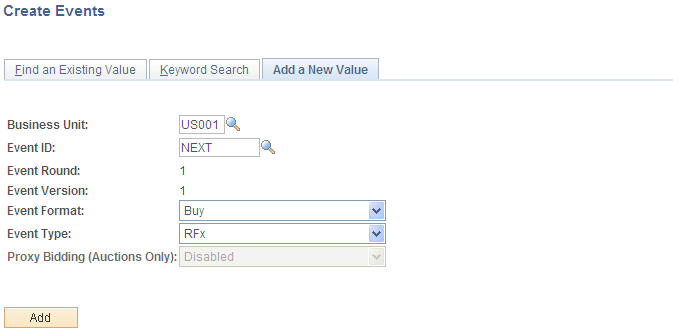
Create Events Search Page
Use the Create Events search page (AUC_CREATE_COMP search) to find an existing event, search by keyword, or add a new event.
Image: Create Events search page
This example illustrates the fields and controls on the Create Events search page. You can find definitions for the fields and controls later on this page.
Event Summary Page
Use the Event Summary page (AUC_CREATE_PG) to enter header information for auction events.
Image: Event Summary Page (1 of 3)
This example illustrates the fields and controls on the Event Summary Page (1 of 3). You can find definitions for the fields and controls later on this page.

Image: Event Summary Page (2 of 3)
This example illustrates the fields and controls on the Event Summary Page (2 of 3). You can find definitions for the fields and controls later on this page.
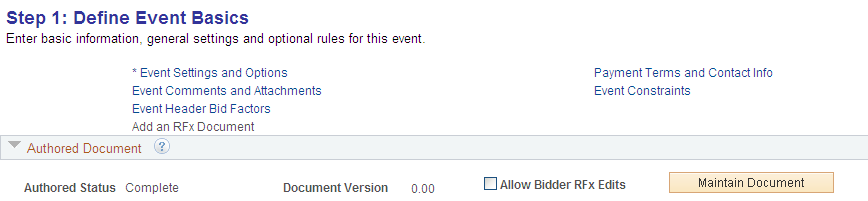
Image: Event Summary Page (3 of 3)
This example illustrates the fields and controls on the Event Summary Page (3 of 3). You can find definitions for the fields and controls later on this page.
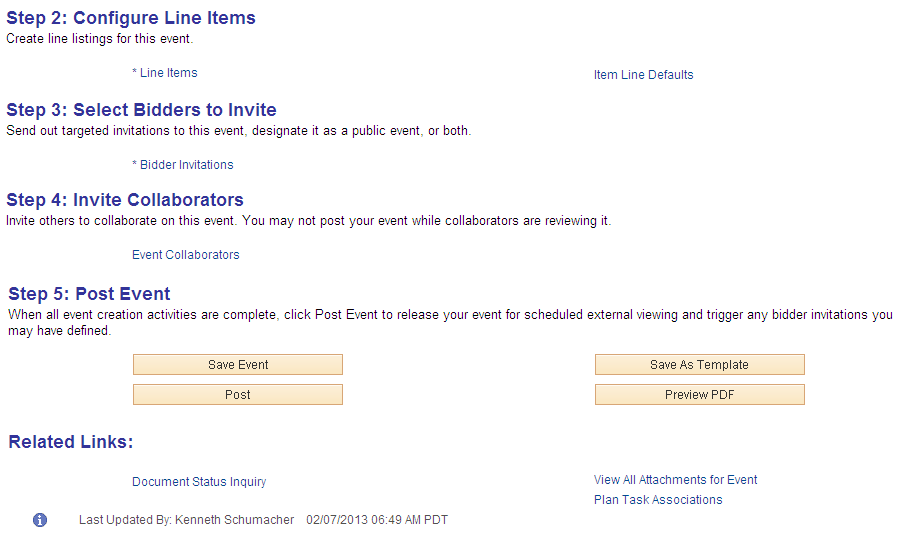
Add header details such as event name, description, preview, and start and end dates for the sourcing event.
Step 1: Define Event Basis
Authored Document
This group box is visible when the document is created in Supplier Contract Management.
Event Comments and Attachments Page
Use the Event Comments and Attachments page (AUC_COMM_SEC) to upload/view the attachments and view RFx documents.
Image: Event Comments and Attachments Page
This example illustrates the fields and controls on the Event Comments and Attachments Page. You can find definitions for the fields and controls later on this page.
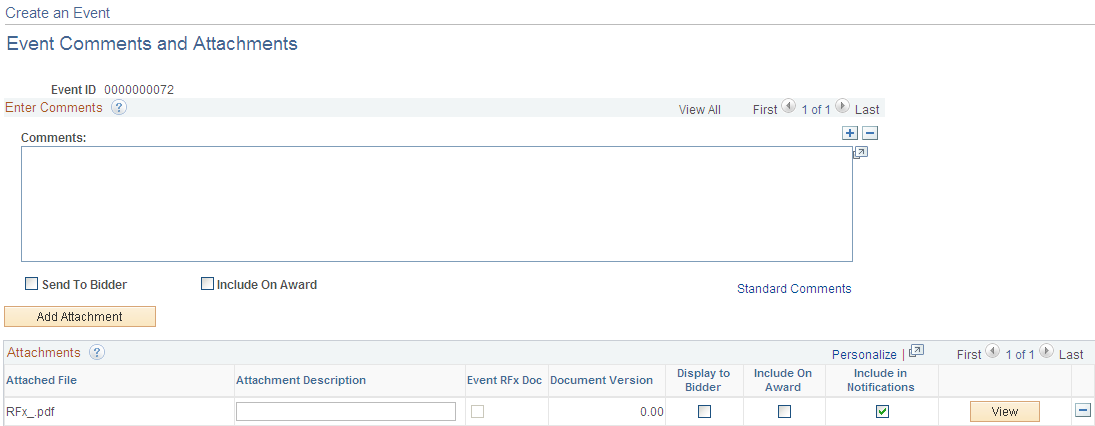
For RFx documents, use this page to view RFx documents after an authored document is generated.
Enter Copy Criteria Page
Use the Enter Copy Criteria page (AUC_COPY_SEC) to use a previous event, requisition, purchase order, contract, PeopleSoft Engineering BOM, PeopleSoft Manufacturing BOM, PeopleSoft Supply Planning planned order, template, or RFI as the template for a new event.
You use the Strategic Sourcing User Preferences page to specify the transactions from which users can copy.
You can use several documents to create one event. The system consolidates identical line items. For example, if you copy from three different requisitions that all contain an identical line item, that line item appears only once on the new event.
Note: If you selected External PO Integration on the Business Unit Definition page and are awarding events to an external purchasing system, you can copy only from sourcing events, sourcing templates, and RFIs.
See Defining Strategic Sourcing Business Units.
Required Fields for Delimited File Import
The following table lists and describes the required fields for importing delimited files into PeopleSoft Strategic Sourcing using the Copy From feature.
Warning! These fields must appear in this order in the delimited file.
|
Field Name |
Description |
Maximum Data Length (Type) |
|---|---|---|
|
INV_ITEM_ID |
The item ID associated with the line item. If it is a buy event, then this is the inventory item ID. If it is a sell event, this is the asset ID. Note: This field is not required if you are defining an item by description. |
18 characters |
|
DESCR254_MIXED |
The description of the line item. If you are using an item ID, the description will be the default value for the line based on the item ID. |
245 characters |
|
CATEGORY_CD |
The category code associated with the item. If it is a buy event, this is the item category. If it is a sell event, this is the asset category. If you are using an item ID, the category will be the default value for the line based on the item ID. |
18 characters |
|
UNIT_OF_MEASURE |
The unit of measure (UOM) code associated with the line. If you are using an item ID, the UOM will be the default value for the line based on the default UOM associated with the item. |
3 characters |
|
QTY_AUC |
The requested line quantity for the line. |
11.4 numeric |
|
AUC_PRICE |
The starting price for the line item. If you are using an item ID, the start price should be entered on the line by default based on the standard price associated with the item. |
11.5 numeric |
|
WEIGHTING |
The line weighting associated with the line. If this field is left blank, all lines should be weighted equally when imported into the event. |
3.5 signed |
|
COMMENTS_2000 |
Comments associated with the line. |
Long field |
|
DUE_DATE |
The due date for the item. |
10 date |
|
SHIPTO_ID |
The ship to location code for the item. |
10 characters |
|
FREIGHT_TERMS |
The freight terms code for the item. |
10 characters |
|
SHIP_TYPE_ID |
The ship via code for the item. |
10 characters |
|
SHIP_FROM_LOC |
The ship from location code for the item. |
10 characters |
This table contains optional fields that can be included in the delimited file.
|
Field Name |
Description |
Maximum Data Length (Type) |
|---|---|---|
|
MFG_ID |
The ID of the manufacturer of the item. |
50 characters |
|
MFG_ITM_ID |
The manufacturer's ID for the item. |
50 characters |
|
AUC_ITEM_LENGTH |
The length of the item. |
11.4 signed |
|
AUC_ITEM_WIDTH |
The width of the item. |
11.4 signed |
|
AUC_ITEM_WEIGHT |
The weight of the item. |
11.4 signed |
|
AUC_ITEM_VOLUME |
The volume of the item. |
11.4 signed |
|
AUC_ITEM_HEIGHT |
The height of the item. |
11.4 signed |
|
AUC_ITEM_SIZE |
The size of the item. |
5 characters |
|
AUC_ITEM_COLOR |
The color of the item. |
15 characters |
|
AUC_WEIGHT_UOM |
The unit of measure code associated with the weight. |
3 characters |
|
AUC_VOLUME_UOM |
The unit of measure code associated with the volume. |
3 characters |
|
AUC_DIMENSION_UOM |
The unit of measure code associated with the width. |
3 characters |
Copy Template
Select Criteria
Other fields that appear in the Select Criteria group box depend on the selection in the Copy From field.
Copy Criteria
Enter identifying information into a field to search for a template. Narrow the search response by entering criteria in more than one field.
Copying from a Delimited File
Use the Enter Copy Criteria page (AUC_COPY_SEC) to select the delimited file that you want to import.
This file should currently reside on your FTP server.
Click the Copy From link on the Event Summary page. Select Delimited File.
Click the Line Items link on the Event Summary page, and select Delimited File from the Copy From drop-down list box.
Access the Enter Copy Criteria page (select the Copy From option on the Event Summary page).
Image: Enter Copy Criteria page (copy from delimited file)
This example illustrates the fields and controls on the Enter Copy Criteria page (copy from delimited file). You can find definitions for the fields and controls later on this page.

Selecting Lines to Import from the Delimited File
Use the Lines to Import page (AUC_COPY_FILE ) to select the line information that will be imported from the delimited file.
Click the Line Items link on the Event Summary page, and select Delimited File from the Copy From list.
Select the delimited file that you want to copy, and click the OK button.
All fields on the tabs are display-only except for the Sel (select) column. You can view item details, shipping details, specifications, and comments associated with the line items.
| Sel (select) |
Select the check box for the lines that you want to copy. |
| OK |
Click to copy the selected lines from the delimited file. |
Viewing Import File Errors
Use the Import File Errors page (AUC_COPY_FILE_MSG) to review errors and warning messages encountered during the import process.
Select the delimited file that you want to copy on the Enter Copy Criteria page, and then click the OK button.
Select the lines to copy on the Lines to Import page, and then click the OK button.
This page displays errors and warnings encountered during the import process.
Event Settings and Options Page
Use the Event Settings and Options page (AUC_OPTIONS_PG) to specify the rules related to an event, as well as what information can appear to bidders.
For auction events, specify event extension criteria.
Image: Event Settings and Options page (RFx)
This example illustrates the fields and controls on the Event Settings and Options page (RFx). You can find definitions for the fields and controls later on this page.
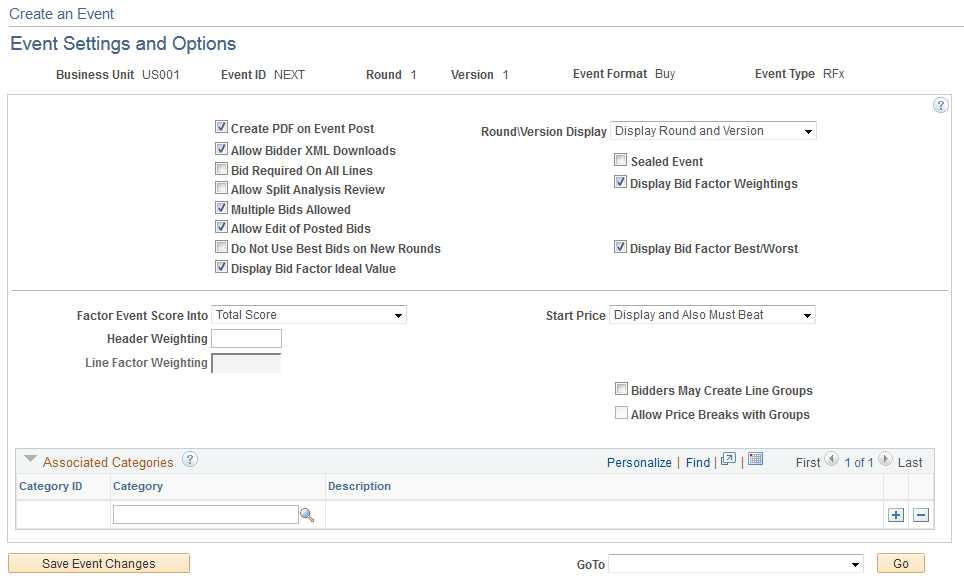
Image: Event Settings and Options page (Auction)
This example illustrates the fields and controls on the Event Settings and Options page (Auction). You can find definitions for the fields and controls later on this page.

Some fields are common to RFx and auction sourcing events. Any differences between the two event types are noted.
- Create PDF on Event Post
-
Select to create a PDF version of the sourcing event. If this option is not selected, PDF creation is suppressed. The value will default from the Business Unit Definition page (Set Up Financials/Supply Chain, Business United Related, Sourcing, Business Unit Definition), but you can override this option for the event.
- Allow Bidder XML Downloads
-
Select to enable bidders to download events to an XML file. If this option is not selected, a PDF version of the sourcing event is created; however, an XML version is not created when the events are posted.
- Bid Required On All Lines
-
Select this check box if you require bidders to bid on all lines on the event. The default value comes from the Sourcing Business Unit Definition page but you can change it here.
- Allow Split Analysis Review
-
Select this check box to enable split analysis for this event.
This check box must be selected to enable the Bid Analysis Review Sections link on the Event Summary page.
Note: This field is available only if split analysis is enabled on the Sourcing - Business Unit Definition page.
- Post Events to Third Party
-
Select to allow this event to be posted to third-party bid management systems.
Note: This field is available only if posting to third-party systems is allowed by the business unit.
- Send PDF and XML Files
-
Select to enable the system to send the PDF and XML files that are generated on event post to third-party systems.
Note: This field is available only if posting to third-party systems is allowed by the business unit.
- Round/Version Display
-
Select one of these options:
Display Round
Display Round and Version
Do not Display
The default value comes from the Sourcing Business Unit Definition page, but you can change it here.
- Factor Event Score Into
-
Select to indicate that you want the system to factor the header score into the total score for the event or the individual line score. If you plan to award an entire event to one bidder, you would likely want to factor the header score into the total score. If you intend to award lines to different bidders, Oracle recommends that you factor the header score into the individual line score. The default value comes from the Sourcing Business Unit Definition page, but you can change it here.
Note: If you are using the Optimization Engine to determine the ideal award allocation for events, you should factor the header score into the individual line score. Optimization uses each line's price and score, not the total price or score, to determine an ideal award allocation.
- Header Weighting
-
Enter a default weighting for how the system weights the header score in relation to the total score. The default value comes from the Sourcing Business Unit Definition page, but you can change it here.
For example, assume that you set the default event header weighting to 20 percent, and then you create an event with three lines. Line 1 is weighted 50 percent, line 2 is weighted 20 percent, and line 3 is weighted 10 percent. The total weighting of the lines is 80 percent plus the defaulted weighting of the header (20 percent), totalling 100 percent if you selected to factor the header score into the total score.
If you selected to factor the header score into the individual line score and your default event header weighting was 20 percent, then the weighting for the other bid factors for each line must total 80 percent. For example, you could have price weighted at 50 percent, warranty weighted at 30 percent, and the header score weighted at 20 percent for a total weighting of 100 percent for the line item.
Note: If you select to factor the header score into the individual line score, a header bid factor is automatically added to each line within the event. This bid factor is not displayed to bidders but is used to calculate the score of the line based on the event header score plus the score for the line bid factors.
- Start Price
-
Select a value to indicate the basis for pricing:
Display and Also Must Beat
Display but Must Not Beat
Do Not Display
- Do Not Use Best Bids on New Rounds
-
This setting defaults from the Sourcing Business Unit Definition page based on the business unit. However, you can change the setting at the event level here.
Select to indicate that new rounds should not be created using best bids when the bids are countered. If you select this option, then bidders will not be able to accept the counter offer on the Create Bid Response page; bidders will be forced to rebid. In this scenario, bidders will still be able to either counter or withdraw the bid.
- Display Bid Factor Best/Worst and Display Bid Factor Ideal Value
-
These settings default from the Sourcing Business Unit Definition page based on the business unit. However, you can change the settings at the event level here.
Select to show the best and worst values for the bid factor or the ideal value for the bid factor on the Create Bid Response page. If you deselect these options, then bidders will not be able to see the best and worst values or the ideal value for a bid factor on the Create Bid Response page.
RFx Only Fields
Auction Only Fields
For auction events, you can specify an event end date to be extended automatically if a bid is posted within the specified time period before the event end date. You can specify how many extensions can take place and the length of time that the event should be extended. If an auction event is extended and has subsequent event lots, the preview, start, and end dates for the subsequent lots are also updated.
Event Contact Details Page
Use the Event Contact Details page (AUC_CONTACT_PG) to specify payment and currency information, as well as information about the event contact.
Image: Event Contact Details page
This example illustrates the fields and controls on the Event Contact Details page. You can find definitions for the fields and controls later on this page.
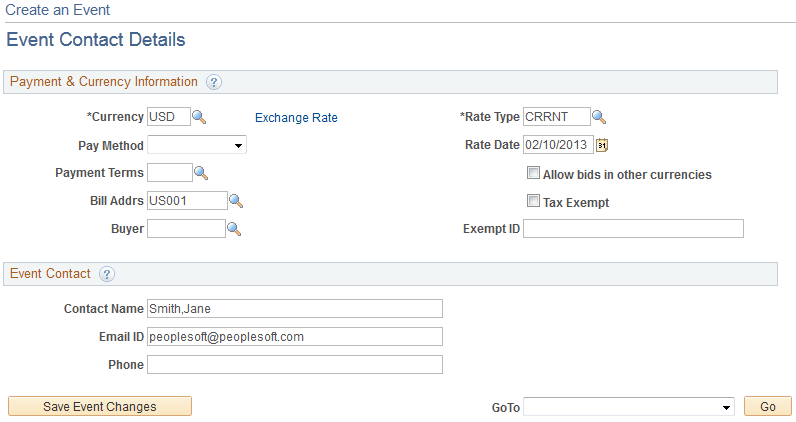
Payment & Currency Information
Event Contact
Enter information such as name, email address, and phone number for the individual to be contacted in connection with this event.
Event Lots Page
Use the Event Lots page (AUC_EVENT_LOT_SEC) to link an event to a preceding event.
This page is available only for auction events.
Image: Event Lots page
This example illustrates the fields and controls on the Event Lots page. You can find definitions for the fields and controls later on this page.

Note: This page is available only for auction events.
To create lotting events, select a preceding lot ID to associate this event with one scheduled to occur before it. The second event does not begin until the first event has ended.
When you change an event end date for which subsequent event lots exist, the system:
Updates all subsequent event lot dates based on the original increments set for the preview and end dates.
Regenerates the PDF and XML documents for all affected events.
Generates an email notification to the invited bidders notifying them of the changes in the event dates and times.
Associate Plan Tasks Page
Use the Associate Plan Tasks page (AUC_PLN_RQEV_WRK) to associate a sourcing event with sourcing project plan tasks.
Image: Associate Plan Tasks page
This example illustrates the fields and controls on the Associate Plan Tasks page. You can find definitions for the fields and controls later on this page.

Search Criteria
Available Tasks
Select the check box for each task that you want to use.