
Setting Up Delivery Management
Delivery management enables you to assemble demand lines together into a delivery so that the lines can be priced, freighted, or shipped as a group. Each delivery is uniquely identified by a delivery ID. Deliveries can be managed automatically by the system as demand lines are added or modified in the sales order or while the system is performing other fulfillment processing including shipping. If possible, the system adds demand lines to an existing delivery. The system can also move modified demand lines to another existing delivery. If new or modified demand lines cannot be placed in an existing delivery, then the system creates a new delivery. A delivery is used to:
Calculate weight and volume pricing for sales orders using PeopleSoft Order Management and PeopleSoft Enterprise Pricer.
Calculate freight costs for sales orders.
Perform fulfillment activities.
Pack items into shipping containers using the Packing Session component in PeopleSoft Inventory.
Note: You cannot split shipping containers across deliveries; once a container has been assigned to a delivery ID, everything in that container must belong to the same delivery.
The delivery can be created:
Manually by a user with access to the Delivery Management Workbench component.
Automatically by the system when a sales order is saved or changed.
By the Order Completion process (OM_BACKGRND) in PeopleSoft Order Management.
Automatically, in the Shipping/Issues component in PeopleSoft Inventory.
By selecting the automatic delivery management option in the Fulfillment Workbench, Material Picking Feedback component, Picking Confirmation process page, Front End Shipping Requests process page, or Shipping Requests process page. In addition, the automatic delivery management option is available on the following inbound fulfillment engine EIPs: Inventory_Pick_Confirm, Inventory_Front_End_Shipping, and Inventory_Shipping.
By running the Process Deliveries/Freight process (IN_FUL_DEL).
Delivery information can be stored at three levels:
Delivery Level: Delivery information is stored within a delivery. One delivery can include several demand lines, shipping containers, packages, or a mixture of all three types. Freight status, freight amounts, and tracking numbers can also be added or updated for a complete delivery. Individual shipping containers or packages within a delivery can also have freight and tracking number assignments.
Container Level: A shipping container includes a group of demand lines and possibly other smaller shipping containers that are shipping in the same container, such as a pallet. Inventory tracks the individual demand lines that are in the shipping container. Shipping containers are included within a delivery. One or more shipping containers can be included in one delivery ID along with any additional demand lines or packages outside of containers. The demand lines within one shipping container cannot be split across multiple deliveries; once a shipping container has been assigned to a delivery ID, everything in that container must belong to the same delivery ID. Freight status, freight amounts, and tracking number can be managed at the shipping container level.
In PeopleSoft Inventory, you can create two kinds of containers: storage containers, which facilitate the storage and movement of stock within a business unit; and shipping containers, which consolidate stock for shipment. For the delivery and freight features, the system uses shipping containers.
Package Level: Packages are included within a delivery. A package is one shippable entity that is usually known as a parcel or a single box. The package is similar to the shipping container except that PeopleSoft Inventory does not track the individual demand line assignments in the package. Freight status, freight amounts, and tracking number can be managed at the package level.
Pages Used to Set Up Delivery Management
|
Page Name |
Definition Name |
Navigation |
Usage |
|---|---|---|---|
|
Order Entry Features |
BUS_UNIT_TBL_OM9 |
Click the Order Entry Features link on the Order Management Setup page. |
Determine when a delivery ID should be applied to the demand line of a sales order line or quote. You can choose to create or update deliveries when a user saves a new sales order or quote or changes a field on an existing order or quote, and the Order Completion process (OM_BACKGRND) is run. |
|
Shipping and Returns |
BUS_UNIT_TBL_OM6 |
Click the Shipping and Returns link on the Order Management Setup page. |
At the business unit level, select the value of Yes in the Deliveries Restricted to Order field to require that all of the demand lines assigned to one delivery must be from the same sales order. |
|
TableSet Control - Record Group |
SET_CNTRL_TABLE1 |
|
Select the SetID for the record group, IN_19, Delivery Autonumbering to link the delivery ID numbering sequence at the set ID level to the business unit (set control value). This record group is used with the Auto Numbering page. |
|
Auto Numbering |
AUTO_NUM_PNL |
|
Define the automatic numbering sequence for delivery IDs. To establish one or more numbering sequences for delivery management, use the Number Type of DELV (delivery ID) and the Field Name of DELIVERY_ID. Automatic numbering applies a system-generated number to each new delivery ID when it is created in PeopleSoft Inventory and PeopleSoft Order Management. When you use automatic numbering, you define the starting sequence for the delivery ID, and when the system creates a new delivery ID, it assigns the prefix for the starting sequence, plus the remaining numbering scheme for the ID. |
|
Order Group Shipping Terms |
ORD_GROUP_TERMS |
|
At the order group level, select the value of Yes in the Deliveries Restricted to Order field to require that all of the demand lines assigned to one delivery must be from the same sales order. |
|
General Information-Ship To Options |
CUST_SHIPTO_OPT1 |
|
At the customer level, select the value of Yes in the Deliveries Restricted to Order field to require that all of the demand lines assigned to one delivery must be from the same sales order. |
|
Buying Agreements - Header Terms |
SCON_HDR_TRMS |
Select Terms in the Header menu field on the Buying Agreement Form page. |
At the buying agreement level, select the value of Yes in the Deliveries Restricted to Order field to require that all of the demand lines assigned to one delivery must be from the same sales order. |
|
Setup Fulfillment-Delivery/Freight |
OF_SETUP10_INV |
|
Enable delivery management for the Inventory business unit and to define options for the delivery and freight features within this Inventory business unit. |
|
Inventory Definition - Business Unit Options: Delivery Management |
INV_SHP_FIELDS |
Select the Business Unit Options tab. Click the Delivery Management Definition link. |
Enter the fields used to build a delivery. When the system groups demand lines together to create a delivery, certain fields must be the same on all the demand lines, such as the same inventory (ship from) business unit and the same scheduled shipment date. Use this page to define additional fields that must match on each demand line added to one delivery ID. Both PeopleSoft Order Management and PeopleSoft Inventory use the criteria that you establish there. |
|
Setup Fulfillment- Demand Change Configuration |
OF_SETUP9_INV |
|
Identify the fulfillment state in which no further demand lines can be automatically added to the delivery by the system. On the row Add Lines to Deliveries, select the fulfillment state at which the system should consider the delivery closed for shipment and no longer automatically adds demand lines to that delivery. Valid fulfillment states are Unfulfilled, Releasable, Released, Confirmed, and Shipped. If any demand line on the delivery has reached the state defined, then the system no longer automatically adds new demand lines to the delivery. |
Understanding the Delivery Management Setup Steps
Image: Set up components for delivery management
The following diagram displays the setup steps to enable the delivery management feature. These steps involve pages in both PeopleSoft Inventory and PeopleSoft Order Management that are used to activate the delivery management feature, define the delivery, determine how delivery IDs are numbered, and determine when deliveries are created or changed.
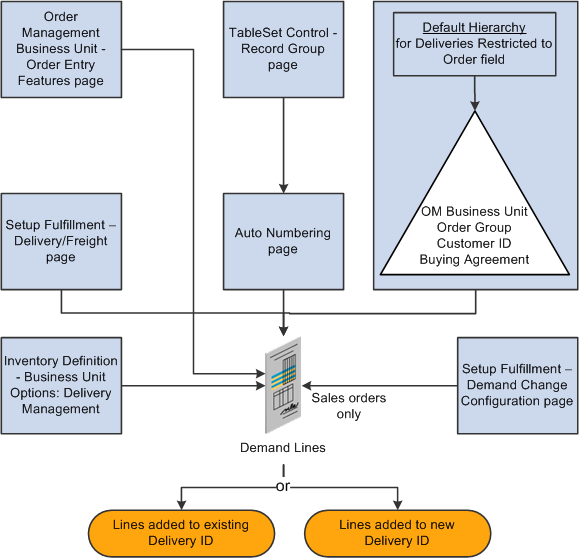
Complete the following steps to enable the delivery management feature:
Order Management Business Unit - Order Entry Features page: Use this page within the Order Management business unit definition to determine when to apply a delivery ID to the demand line of a sales order or quote. You can choose to create or update deliveries when a user saves a new sales order or quote, changes a field on an existing order or quote, and when the Order Completion process is run. This setting is used only by PeopleSoft Order Management.
TableSet Control- Record Group page and Auto Numbering page: Define the structure of the delivery ID numbering sequence at the set ID level. You can add multiple sequences with different prefixes to be used in different locations.
Deliveries Restricted to Order field: Use this yes/no field to determine whether all of the demand lines assigned to a delivery must be from the same sales order. This is available for quotes and sales orders only. The Deliveries Restricted to Order field can be defined within the default hierarchy on the Shipping and Returns page of the Order Management business unit, Order Group Shipping Terms page, customer's General Information - Ship To Options page, and the Buying Agreement Form - Header Terms page. In the default hierarchy, the more specific information overrides the more general information; in this case, the setting for the Deliveries Restricted to Order field that is defined on a buying agreement overrides a value on a customer and the value on the customer overrides the value on the order group. A value on the order group overrides the value at the order management business unit.
Setup Fulfillment-Delivery/Freight page: Use this page to enable delivery management for the Inventory business unit by selecting Yes or Manual for the Delivery Option field. This enables the delivery management feature for the Delivery Management Workbench and the Inventory fulfillment processes.
Inventory Definition - Business Unit Options: Delivery Management page: Use this page to identify the delivery key fields needed to build a delivery in Order Management and Inventory. When the system groups demand lines together to create a delivery, certain field values must be the same on all of the demand lines, such as the same inventory business unit and the same scheduled shipment date. Use this page to define additional fields that must match on each demand line added to one delivery ID.
Setup Fulfillment - Demand Change Configuration: Use this page to identify the fulfillment state in which no further demand lines can be automatically added to the delivery by the system. On the row Add Lines to Deliveries, select the fulfillment state at which the system should consider the delivery closed for shipment. If any demand line on the delivery has reached the state defined, then the system no longer automatically adds new demand lines to the delivery.
Understanding How Deliveries Are Created
You can choose to have the system assign the delivery ID when a user creates or modifies an order schedule, runs the Order Completion process, performs Inventory fulfillment processing, or saves the Shipping\Issues component. This way, at order entry time or shipping time, you can determine the number of shipments (deliveries) that you have for the orders. In addition, you can use the Delivery Management Workbench to adjust existing deliveries or create new deliveries. You can create deliveries for MSRs, sales orders, and quotes; however, you cannot mix MSRs and sales orders on the same delivery and you can use only sales order deliveries to calculate freight charges.
To group demand lines into one delivery, the demand lines must have the same value in the fields identified as delivery keys. The delivery key fields include:
Required fields such as inventory business unit, scheduled ship date, freight charge method, and so on. For example, some fields are required when PeopleSoft Order Management and PeopleSoft Billing are installed in the database; other fields are required for performing VAT calculation.
Optional fields that you have entered on the Inventory Definition - Business Unit Options: Delivery Management page.
For a complete list of all required and optional delivery key fields used to combine demand lines into the same delivery ID, see Defining Business Unit Fulfillment Options
See Inventory Definition - Business Unit Options: Delivery Management Page.
When the delivery is created for demand lines with a preferred carrier (Use Preferred Freight Carrier field), then the system limits a delivery to one assigned carrier. The system assigns that carrier ID to the delivery or the system finds another delivery with the same carrier ID already assigned to it. The demand line is also flagged as preferred carrier so that other fulfillment steps will know that the customer has requested the carrier for freight. The Use Preferred Freight Carrier field is located on several pages in the Order Management default hierarchy.