
Defining PeopleSoft Inventory Business Unit Attributes
To define the inventory business units, use the Inventory Definition (INV_BUSIN_UNIT) component. Using this component, define specific attributes for each of the PeopleSoft Inventory business units, including:
Define basic business unit attributes.
Activate optional business unit features.
Define packing and shipping options.
Define par location replenishment options.
Define billing defaults.
Define defaults for returned material authorizations (RMAs).
Establish criteria for delivery management.
Initialize business unit transaction counters.
Associate cost books with a PeopleSoft Inventory business unit, ledger, and ledger group.
Pages Used to Define Business Unit Attributes
|
Page Name |
Definition Name |
Navigation |
Usage |
|---|---|---|---|
|
Inventory Definition - Business Unit Definition |
BUS_UNIT_INV1 |
|
Define the basic attributes of a PeopleSoft Inventory business unit. |
|
Inventory Definition - Business Unit Options |
BUS_UNIT_INV5 |
|
Activate optional business unit features. |
|
Inventory Definition - Business Unit Options: Shipping Options |
BUS_UNIT_INV2 |
Click the Shipping Options link on the Inventory Definition - Business Unit Options page. |
Establish default packing and shipping rules. |
|
Inventory Definition - Business Unit Options: Replenishment Options |
BUNIT_REPLEN_OPT |
Click the Replenishment Options link on the Inventory Definition - Business Unit Options page. |
Define default par location replenishment options. You can override these defaults on the Par Location Definition - Line page. |
|
Inventory Definition - Business Unit Options: Revenue and Billing Defaults |
BUS_UNIT_INV4 |
Click the Revenue and Billing Defaults link on the Inventory Definition - Business Unit Options page. |
Define business unit distribution defaults and billing options. |
|
Inventory Definition - Business Unit Options: RMA Defaults |
BUS_UNIT_INV6 |
Click the RMA Defaults link on the Inventory Definition - Business Unit Options page. |
Define default values for RMA forms. You can override these values in the RMA Form component in PeopleSoft Inventory. |
|
Inventory Definition - Business Unit Options: Delivery Management |
INV_SHP_FIELDS |
Click the Delivery Management Definition link on the Inventory Definition - Business Unit Options page. |
Establish grouping criteria for creating delivery IDs in the delivery management feature. |
|
Inventory Definition - Business Unit Counters |
BUNIT_COUNTER_INV |
|
Initialize the set of automatically generated transaction counters. |
|
Inventory Definition - Business Unit Books |
CM_BU_BOOK |
|
Associate the cost book with a PeopleSoft Inventory business unit, ledger, and ledger group. |
Inventory Definition - Business Unit Definition Page
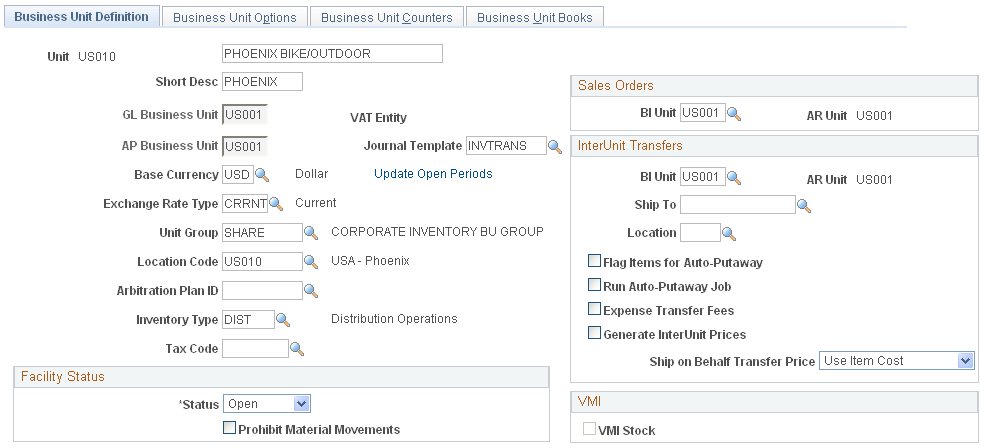
Use the Inventory Definition - Business Unit Definition page (BUS_UNIT_INV1) to define the basic attributes of a PeopleSoft Inventory business unit.
Image: Inventory Definition - Business Unit Definition page
This example illustrates the fields and controls on the Inventory Definition - Business Unit Definition page. You can find definitions for the fields and controls later on this page.
Note: If the organization uses more than one PeopleSoft application and defines the same business units across applications, ensure that you use the same name for business units designed to share the same setID.
InterUnit Transfers group box
Use this group box to set parameters for interunit transfers of stock between inventory business units. Define these field if the inventory business unit issues or receives intercompany transfers.
Facility Status group box
Inventory Definition - Business Unit Options Page
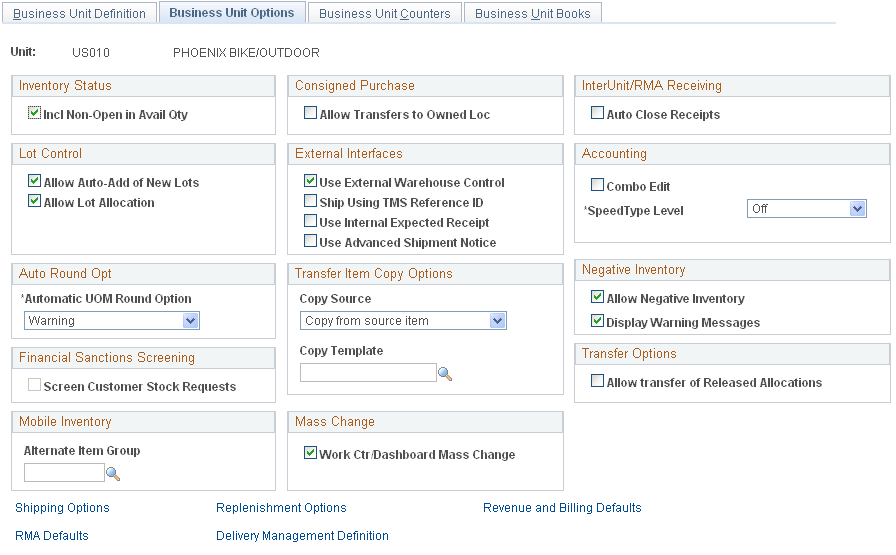
Use the Inventory Definition - Business Unit Options page (BUS_UNIT_INV5) to activate optional business unit features.
Image: Business Unit Options page
This example illustrates the fields and controls on the Business Unit Options page. You can find definitions for the fields and controls later on this page.
Inventory Status
Consigned Purchase
InterUnit/RMA Receiving
Select Auto Close Receipts to enable an interunit or RMA receipt to be closed automatically in the receiving business unit. As a result, the system activates the Auto Close Receipts flag on the InterUnit and RMA Receiving - Receipt Header page and sets the status of the receiver line and the receiver ID to Closed under the following conditions:
|
Type of Receipt |
Automatic Receipt Closure Conditions |
|---|---|
|
RMA |
If the received quantity on the receiver line is greater than or equal to the shipped quantity, saving the page sets the status of the line to Closed. Once all receipt lines have been closed (either manually or automatically), the system sets the status of the header to Closed. |
|
Interunit transfer |
The closure conditions are the same as for RMAs, except that closure processing includes cumulative interunit transfer receipt IDs. When the system determines that the entire interunit transfer has been received, it closes the lines and headers of every receiver ID associated with the transfer. |
Lot Control
External Interfaces
Accounting
Auto Round Opt
Select an Automatic UOM Round Option to indicate whether entered fractional quantities should be rounded automatically during UOM conversions:
Transfer Item Copy Options
When creating an interunit transfer order as an alternate source of supply for a sales order, determine how the inventory item should be created if it does not already exist in the destination (sales order ship from) inventory business unit.
Negative Inventory
Financial Sanctions Screening
Select the Screen Customer Stock Requests check box to enable the Financial Sanctions Screening function at the Inventory business unit level. This check box is only valid if the value of Enable at Business Unit was selected for the Order to Cash field on the Financial Sanctions Options page within the Installation Options-Overall component.
If this check box is selected, then the Screen For Denied Parties process (SCM_FSS) can review material stock requests (MSRs) and automatically apply the hold code to any MSR that fails to pass screening. A hold code prevents an MSR from shipping. You can manually add or remove a hold code from an MSR using the Cancel / Hold Stock Requests page. Also note, to enable the Screen For Denied Parties process to pick up MSRs, you must define one or more hold codes to be used by the Financial Sanctions Screening function using the Hold Codes page and then add the default hold code to the Installation Options-Inventory page.
Transfer Options
Within an Inventory business unit, you can transfer stock that has been hard-allocated to a demand line. The demand line can be pre-allocated or lot-allocated before the picking process has begun or the demand line can be released to the picking process.
Select the Allow Transfer of Released Allocations check box to enable your users to transfer stock that is allocated to demand lines that are already in the picking process. Released allocations include:
The demand lines of material stock requests with a pick batch ID and in the fulfillment state of Released.
Work order demand lines from PeopleSoft Maintenance Management with a pick batch ID. Work orders always stay in the fulfillment state of Pending.
Production order demand lines from PeopleSoft Manufacturing (the SF_ISS_TRANSFER record) with a pick batch ID.
For more information about transferring allocated stock, see the "Making Stock Quantity Adjustments and Transfers within the Business Unit" section of Inventory.
Inventory Definition - Business Unit Options: Shipping Options Page
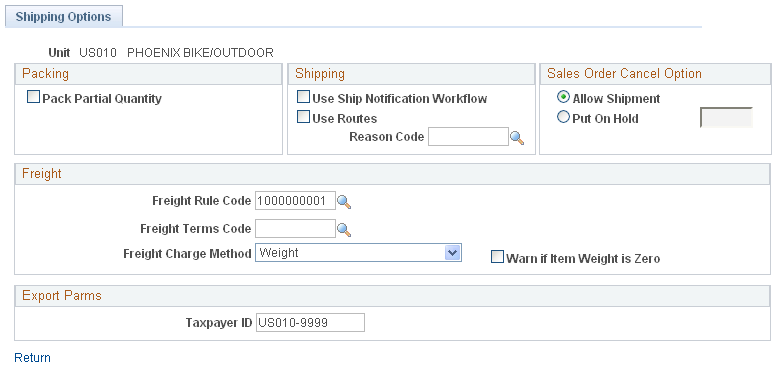
Use the Inventory Definition - Business Unit Options: Shipping Options page (BUS_UNIT_INV2) to establish default packing and shipping rules.
Click the Shipping Options link on the Inventory Definition - Business Unit Options page.
Image: Inventory Definition - Business Unit Options: Shipping Options page
This example illustrates the fields and controls on the Inventory Definition - Business Unit Options: Shipping Options page. You can find definitions for the fields and controls later on this page.
Packing
| Pack Partial Quantity |
Select this check box to enable a user to change the Qty Pack Base field on the Packing Session page. This enables the user to place partial quantities of an order line into a shipping container. If you do not select this option, you must pack the entire quantity for the order line into one shipping container. See Packing Session Page. |
Shipping
Sales Order Cancel Option
When you cancel a sales order in PeopleSoft Order Management, the system automatically cancels it in PeopleSoft Inventory if it has not been released to picking by the Order Release process. If the order has already been released to picking, the system generates a message indicating that you must also cancel it on the Cancel/Hold Stock Request page in PeopleSoft Inventory. The following options determine how the system handles the order after generating this message.
Freight
This group box includes settings for calculating freight charges.
Export Parms
When creating an export bill of lading report for a material stock request, the Taxpayer ID entered on this page becomes the EIN Number for the bill of lading. When creating an export bill of lading report for a sales order, the Exporter's EIN Number located on the Order Management Business Unit is used as the EIN Number for the bill of lading report.
Inventory Definition - Business Unit Options: Replenishment Options Page
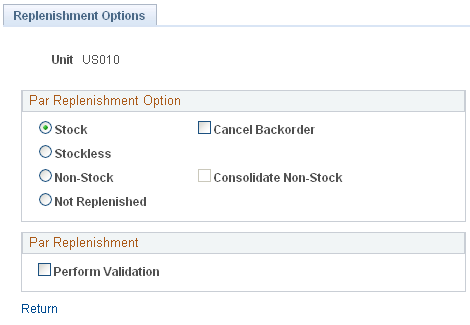
Use the Inventory Definition - Business Unit Options: Replenishment Options page (BUNIT_REPLEN_OPT) to define default par location replenishment options.
You can override these defaults on the Par Location Definition - Line page.
Click the Replenishment Options link on the Inventory Definition - Business Unit Options page.
Image: Inventory Definition - Business Unit Options: Replenishment Options page
This example illustrates the fields and controls on the Inventory Definition - Business Unit Options: Replenishment Options page. You can find definitions for the fields and controls later on this page.
Inventory Definition - Business Unit Options: Revenue and Billing Defaults Page
Use the Inventory Definition - Business Unit Options: Revenue and Billing Defaults page (BUS_UNIT_INV4) to define business unit distribution defaults and billing options.
Click the Revenue and Billing Defaults link on the Inventory Definition - Business Unit Options page.
Image: Inventory Definition - Business Unit Options: Revenue and Billing Defaults page
This example illustrates the fields and controls on the Inventory Definition - Business Unit Options: Revenue and Billing Defaults page. You can find definitions for the fields and controls later on this page.
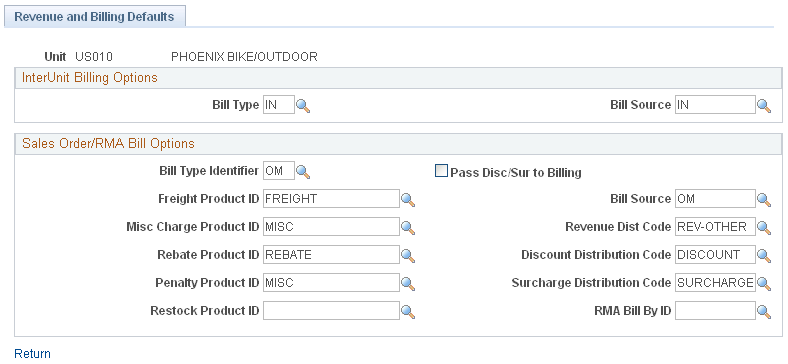
If you have PeopleSoft Order Management and PeopleSoft Billing installed, you can bill using a PeopleSoft Inventory business unit instead of using a PeopleSoft Order Management business unit for shipped sales orders. To do so, you must first select a sales order PeopleSoft Billing business unit on the Inventory Definition - Business Unit Definition page. Similarly, you can establish the bill type and bill source for the intercompany transfer billing business unit selected on the Inventory Definition - Business Unit Definition page.
InterUnit Billing Options
Sales Order/RMA Bill Options
Inventory Definition - Business Unit Options: RMA Defaults Page
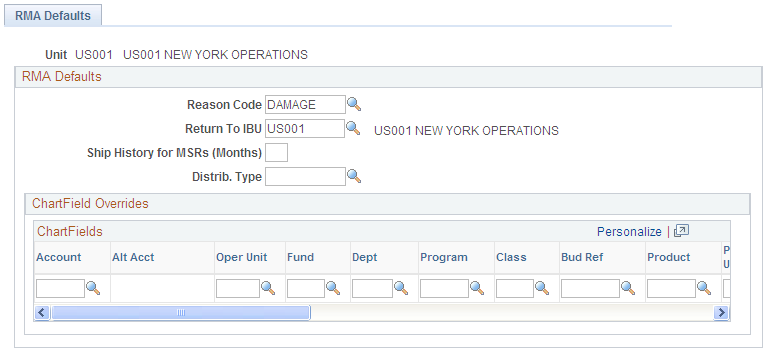
Use the Inventory Definition - Business Unit Options: RMA Defaults page (BUS_UNIT_INV6) to define default values for RMA forms.
You can override these values in the RMA Form component in PeopleSoft Inventory.
Image: Inventory Definition - Business Unit Options: RMA Defaults page
This example illustrates the fields and controls on the Inventory Definition - Business Unit Options: RMA Defaults page. You can find definitions for the fields and controls later on this page.
Inventory Definition - Business Unit Options: Delivery Management Page
Use the Inventory Definition - Business Unit Options: Delivery Management page (INV_SHP_FIELDS) to establish grouping criteria for creating delivery IDs in the delivery management feature.
Click the Delivery Management Definition link on the Inventory Definition - Business Unit Options page.
Image: Inventory Definition - Business Unit Options: Delivery Management page
This example illustrates the fields and controls on the Inventory Definition - Business Unit Options: Delivery Management page. You can find definitions for the fields and controls later on this page.
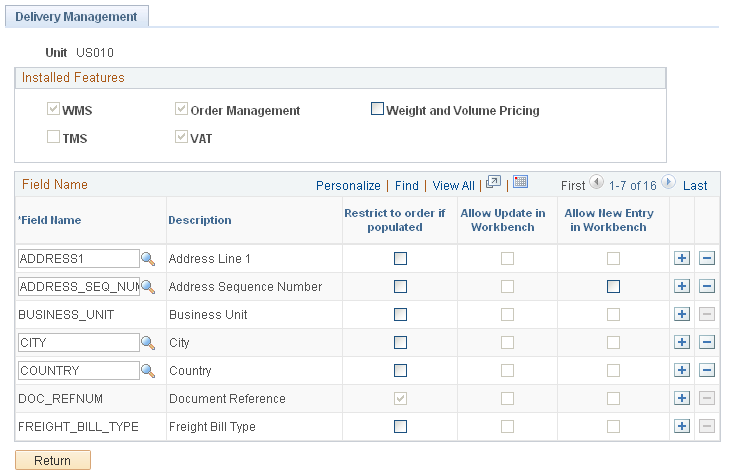
Use the Inventory Definition - Business Unit Options: Delivery Management page to define the delivery keys used in the delivery management feature to build a delivery ID in PeopleSoft Order Management and in PeopleSoft Inventory. When the system groups demand lines together to create a delivery, certain field values must be the same on all of the demand lines, such as the same inventory business unit and the same scheduled shipment date. Use this page to define additional fields that must match on each demand line added to one delivery ID.
Installed Features group box
The Installed Features group box identifies the feature installed in this PeopleSoft database that determine what the delivery keys need to be used to create delivery IDs. Based on the features installed, the system automatically includes the needed delivery keys in the Field Name group box.
| WMS |
This check box is selected by the system if the PeopleSoft database is integrated with a third-party warehouse management system (WMS). This information is retrieved from the Use External Warehouse Control check box on the Inventory Definition - Business Unit Options page. |
| Order Management |
This check box is selected by the system if PeopleSoft Order Management is included in this PeopleSoft database. Additional delivery key fields are added as required fields in the Field Name group box of this page. |
| Weight and Volume Pricing |
Select this check box if you are using the weight and volume pricing in PeopleSoft Enterprise Pricer. The Ship Via code is added as a required delivery key in the Field Name group box of this page. |
| TMS |
This check box is selected by the system if your PeopleSoft database is integrated with a third-party transportation management system (TMS). This information is retrieved from the Ship Using TMS Reference ID check box on the Inventory Definition - Business Unit Options page. A TMS is used to optimize the grouping of orders into shipments for distribution out of a warehouse. Order information is sent to the TMS and load optimization is performed on the orders to be shipped. The TMS determines the load ID for each of the demand lines. The demand lines are returned to the PeopleSoft fulfillment tables with a load ID and load stop. If there is a delivery ID on a demand line sent to TMS, the delivery ID is ignored. PeopleSoft uses the TMS shipment definition fields to section the demand lines into logical groups of shipments. When TMS sends the demand lines back to PeopleSoft, the load IDs and load stops are used for shipment. It is possible to have load stops across deliveries, therefore, the PeopleSoft system ignores the delivery ID for TMS orders. To coordinate the TMS loads and load stops with the delivery ID, you can add the TMS Load Stop Number (TMS_LOAD_STP_NBR) field and other TMS shipment definition fields as delivery keys in the Field Name group box of this page. See Understanding the Transportation Management System Integration with PeopleSoft Inventory. |
| VAT |
This check box is selected by the system if PeopleSoft Order Management is using value-added tax (VAT). When this check box is selected the VAT Reporting Entity field (VAT_ENTITY) is added as a required delivery key in the Field Name group box of this page. |
Field Name group box
The Field Name group box identifies the fields designated as delivery keys. To group demand lines into one delivery ID, the schedule lines must have the same value in the delivery key fields. For example, all schedule lines must have the same inventory business unit in order to be placed together in one delivery ID. Some of these fields are required (system-defined) and other fields are optional (user-defined) on this page. The required fields are displayed in this group box and the Field Name cannot be changed. You cannot delete a row with a required delivery key since the Delete Row icon is disabled. Both PeopleSoft Order Management and PeopleSoft Inventory use the delivery key fields that you establish in this group box.
|
Required / Optional |
Field Description and Field Name |
Comments |
|---|---|---|
|
Required |
Inventory Business Unit (BUSINESS_UNIT) |
|
|
Required |
Scheduled Shipment Date (SCHED_SHIP_DATE) |
|
|
Required |
Freight Charge Method (FRT_CHRG_METHOD) |
|
|
Required if PeopleSoft Order Management is installed. |
Document Reference (DOC_REFNUM) |
|
|
Required if PeopleSoft Order Management is installed. |
Freight Bill Type (FREIGHT_BILL_TYPE) |
If sales orders are created in counter sale, then the delivery ID should never span multiple sales orders. |
|
Required if PeopleSoft Order Management is installed. |
Order Type (ORDER_TYPE_CD) |
|
|
Required if PeopleSoft Order Management is installed. |
VAT Reporting Entity (VAT_ENTITY) |
The VAT Reporting Entity field must be added as a delivery key if VAT is being used in PeopleSoft Order Management. The system automatically adds this field when the VAT check box is selected on this page and the row cannot be deleted. |
|
Required if the Weight and Volume Pricing check box is selected on this page. Optional if weight and volume pricing are not used. |
Ship Via Code (SHIP_TYPE_ID) |
The Ship Via code must be added as a delivery key if weight and volume pricing is being used to price sales orders in PeopleSoft Order Management. The weight and volume pricing feature is setup in PeopleSoft Enterprise Pricer. The system automatically adds this field when the Weight and Volume Pricing check box is selected on this page and the row cannot be deleted. |
|
Optional |
Address Lines including:
|
|
|
Optional |
Address Line Sequence Number (ADDRESS_SEQ_NUM) |
Used with the PeopleSoft internal freight calculation feature. Internal freight uses the Address Line Sequence Number, State, Country, and Location fields to define freight rules. Using these fields as delivery keys causes the delivery to be based on the customer ship-to address. This address data can default from the customer ID to the order or can be the override address on the order. |
|
Optional |
Address Fields including:
|
Used with integration to a third-party freight provider. Using these fields as delivery keys causes the delivery to be based on the customer ship-to address. This address data can default from the customer ID to the order or can be the override address on the order. |
|
Optional |
Carrier ID (CARRIER_ID) |
|
|
Optional |
City (CITY) |
|
|
Optional |
Commodity Code (COMMODITY_CD) |
|
|
Optional |
Country (COUNTRY) |
Used with the PeopleSoft internal freight calculation feature. Internal freight uses the Address Line Sequence Number, State, Country, and Location fields to define freight rules. Using these fields as delivery keys causes the delivery to be based on the customer ship-to address. This address data can default from the customer ID to the order or can be the override address on the order. |
|
Optional |
County (COUNTY) |
|
|
Optional |
Demand Source (DEMAND_SOURCE) |
|
|
Optional |
Freight Terms Code (FREIGHT_TERMS) |
|
|
Optional |
Tax supplier Geographical Code (GEO_CODE) |
|
|
Optional |
Harmonized Code (HARMONIZED_CD) |
|
|
Optional |
House Type (HOUSE_TYPE) |
|
|
Optional |
Item Group (INV_ITEM_GROUP) |
|
|
Optional |
Item ID (INV_ITEM_ID) |
|
|
Optional |
In City Limit (IN_CITY_LIMIT) |
|
|
Optional |
Load ID (LOAD_ID) |
|
|
Optional |
Location Code (LOCATION) |
Used with the PeopleSoft internal freight calculation feature. Internal freight uses the Address Line Sequence Number, State, Country, and Location fields to define freight rules. Using these fields as delivery keys causes the delivery to be based on the customer ship-to address. This address data can default from the customer ID to the order or can be the override address on the order. |
|
Optional |
Number 1 (NUM1) |
|
|
Optional |
Number 2 (NUM2) |
|
|
Optional |
Order Number (ORDER_NO) |
If order number is selected, the system automatically selects the Demand Source and Source Business Unit fields. |
|
Optional |
Postal Code (POSTAL) |
|
|
Optional |
Product ID (PRODUCT_ID) |
|
|
Optional |
Route Code (ROUTE_CD) |
|
|
Optional |
Ship To Customer (SHIP_TO_CUST_ID) |
|
|
Optional |
Source Business Unit (SOURCE_BUS_UNIT) |
|
|
Optional |
State (STATE) |
Used with the PeopleSoft internal freight calculation feature. Internal freight uses the Address Line Sequence Number, State, Country, and Location fields to define freight rules. Using these fields as delivery keys causes the delivery to be based on the customer ship-to address. This address data can default from the customer ID to the order or can be the override address on the order. |
|
Optional |
TMS Load Stop Number (TMS_LOAD_STP_NBR) |
Inventory Definition - Business Unit Counters Page
Use the Inventory Definition - Business Unit Counters page (BUNIT_COUNTER_INV) to initialize the set of automatically generated transaction counters.
Image: Inventory Definition - Business Unit Counters page
This example illustrates the fields and controls on the Inventory Definition - Business Unit Counters page. You can find definitions for the fields and controls later on this page.
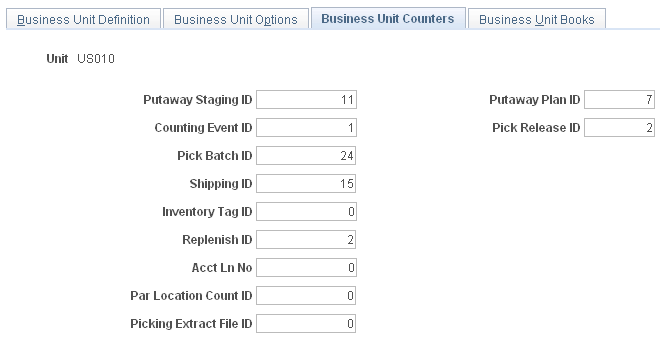
Assign a starting number for each automatically generated transaction counter.
Inventory Definition - Business Unit Books Page
Use the Inventory Definition - Business Unit Books page (CM_BU_BOOK) to associate the cost book with a PeopleSoft Inventory business unit, ledger, and ledger group.
Image: Inventory Definition - Business Unit Books page
This example illustrates the fields and controls on the Inventory Definition - Business Unit Books page. You can find definitions for the fields and controls later on this page.
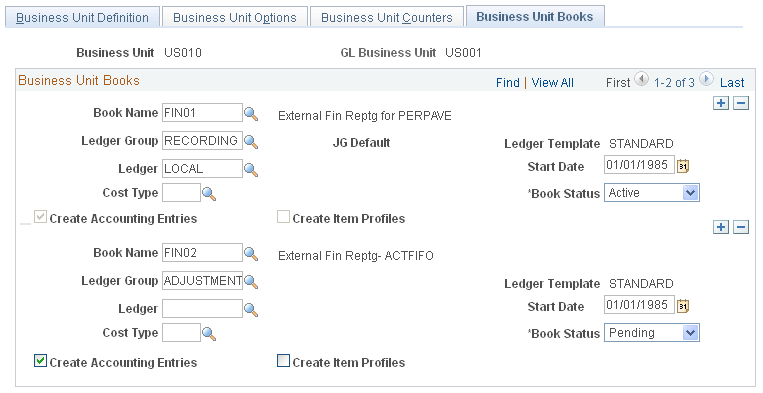
Associate the cost book with a PeopleSoft Inventory business unit, ledger, and ledger group.