
Defining and Maintaining Material Storage Locations
To define default ship staging locations, use the Default Ship Staging Location (DEFAULT_SHIP_LOC) component.
This section discusses how to define material storage locations and designate the locations for various purposes, including; ship staging locations, cross docking, pegging, VMI, and capacity checking.
Pages Used to Define and Maintain Storage Locations
|
Page Name |
Definition Name |
Navigation |
Usage |
|---|---|---|---|
|
Storage Areas |
STORAGE_AREA_INV |
|
Establish or modify definitions for individual storage areas. |
|
Material Storage Locations |
STOR_LOCATIONS_INV |
|
Define or modify material storage locations. Material storage locations are a combination of the storage area (defined on the Storage Areas page) and the levels defined on this page. |
|
Volume/Weight Capacity Checking |
STORLOC_CAP_INV_SP |
Click the link on the Material Storage Locations page. |
Modify capacity-checking options. |
|
Location Handling |
LOC_HANDLE_INV_SP |
|
Modify single-item storage options. |
|
VMI Ship To |
IN_LOC_SHIP_TO_SP |
|
Select a VMI sold to customer and ship to customer. |
|
Location Status |
LOC_STATUS_INV_SP, LOC_STATUS_INV_SP2 |
Click the Details link on the Material Storage Locations page. |
Define or review material storage location status. |
|
Default Ship Staging Location |
DEFLT_SHIP_LOC_INV |
|
Define a default staging area for shipments by identifying a material storage location for each business unit (for example, a shipping dock). The shipping process assigns this location to material stock requests. This location can be used by the fulfillment engine to select a picking location for shipments. |
|
Default Cross Dock Locations |
DFLT_CROSS_LOC_INV |
|
Define default cross-docking locations for a business unit. The system uses these material storage locations if no item-level cross-dock locations are identified. |
|
Return to Vendor Default Location |
DFLT_RTV_LOC_INV |
|
Define a default return to vendor (RTV) location for a business unit. The system uses this material storage location as the picking location for the RTV stock requests when no MSL is defined on the RTV ID created in PeopleSoft Purchasing. |
|
Default Pegging Putaway Location Details |
DFLT_PEG_LOC_INV |
|
Define default material storage locations for the putaway of pegged receipts. Both an owned and non-owned material storage location can be defined for a business unit. |
Storage Areas Page
To create storage areas, use the Storage Areas component.
Use the Storage Areas page (STORAGE_AREA_INV) to establish or modify definitions for individual storage areas.
Image: Storage Areas page
This example illustrates the fields and controls on the Storage Areas page. You can find definitions for the fields and controls later on this page.

Material Storage Locations Page
To define material storage locations, use the Material Storage Locations component (STOR_LOCATIONS_GBL).
Use the Material Storage Locations page (STOR_LOCATIONS_INV) to define or modify material storage locations.
Material storage locations are a combination of the storage area (defined on the Storage Areas page) and the levels defined on this page.
Image: Material Storage Locations page
This example illustrates the fields and controls on the Material Storage Locations page. You can find definitions for the fields and controls later on this page.

Note: If the Use External Warehouse Control option is active for the business unit, you should not make status changes on this page. Because status changes made here are not sent to the external warehouse application, the available and unavailable balances in PeopleSoft and the external warehouse application will no longer be synchronized.
Important! Changing the WIP, Nettable, Hold or Inspection options for a material storage location while material movement transactions are in process can result in misrepresentation of the reserved and available balances for items stored in that location. Only change these options when no other users are signed into the system.
Volume/Weight Capacity Checking Page
Use the Volume/Weight Capacity Checking page (STORLOC_CAP_INV_SP) to modify capacity-checking options.
Image: Volume/Weight Capacity Checking page
This example illustrates the fields and controls on the Volume/Weight Capacity Checking page. You can find definitions for the fields and controls later on this page.

Capacity Check
The following options are only available if you have enabled capacity checking at the SetID level. Default values come from the Inventory Options page.
Default Ship Staging Location Page
Use the Default Ship Staging Location page (DEFLT_SHIP_LOC_INV) to define a default staging area for shipments by identifying a material storage location for each business unit (for example, a shipping dock).
The shipping process assigns this location to material stock requests. This location can be used by the fulfillment engine to select a picking location for shipments.
Image: Default Ship Staging Location page
This example illustrates the fields and controls on the Default Ship Staging Location page. You can find definitions for the fields and controls later on this page.


Default Cross Dock Locations Page
To define the default cross docking locations for a business unit, use the Default Cross Docking Staging Locations component.
Use the Default Cross Dock Locations page (DFLT_CROSS_LOC_INV) to define default cross-docking locations for a business unit.
The system uses these material storage locations if no item-level cross-dock locations are identified.
Image: Default Cross Dock Locations page
This example illustrates the fields and controls on the Default Cross Dock Locations page. You can find definitions for the fields and controls later on this page.

Note: The cross-docking material storage locations entered here should not be defined as single-item locations.
Return to Vendor Default Location Page
Use the Return to Vendor Default Location page (DFLT_RTV_LOC_INV) to define a default return to vendor (RTV) location for a business unit.
The system uses this material storage location as the picking location for the RTV stock requests when no MSL is defined on the RTV ID created in PeopleSoft Purchasing.
Image: Return To Vendor Default Location page
This example illustrates the fields and controls on the Return To Vendor Default Location page. You can find definitions for the fields and controls later on this page.
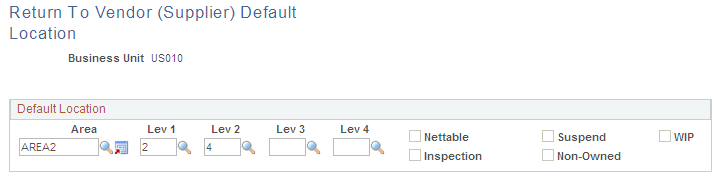
Define a default return to vendor (RTV) location for a business unit. The system uses this material storage location as the picking location for the RTV stock requests when no picking location is defined on the RTV ID created in PeopleSoft Purchasing. In most cases, this default RTV location is defined as your inspection area or the location where you place rejected stock.
Default Pegging Putaway Location Details Page
Use the Default Pegging Putaway Location Details page (DFLT_PEG_LOC_INV) to define default material storage locations for the putaway of pegged receipts.
Both an owned and non-owned material storage location can be defined for a business unit.
Image: Default Pegging Putaway Location Details page
This example illustrates the fields and controls on the Default Pegging Putaway Location Details page. You can find definitions for the fields and controls later on this page.

Define default material storage locations for the putaway of pegged receipts. Both an owned and non-owned material storage location can be defined for a business unit. The system uses the default pegged location if no material storage location is specified on the putaway transaction.
Note: It is highly recommended that you do not use the same material storage locations for pegged receipts and cross-docked receipts.
The pegged putaway, or supply, has been linked to a specific demand, such as an MSR or sales order. The system uses the default pegged location if no material storage location is specified on the putaway transaction.