
Issuing Items to a Work Order
Use the Issue to Work Orders component to issue items from an Inventory business unit to a PeopleSoft Maintenance Management work order. You can issue stock with or without a previously generated pick plan. This component is also used to return stock to an Inventory business unit.
Using the Issue to Work Orders component you can issue demand lines with:
Non-soft reserve parts.
Soft-reserved but not on a pick plan.
Soft-reserved and on a pick plan (allocated or not).
Pre-allocated quantity from a pegged receipt.
Not yet committed parts.
Parts that are not already on the work order parts list
Handling Unpicked Quantities on a Pick Plan
A work order pick plan inserts the pick batch ID and pick line on the work order demand line in the IN_DEMAND table. This enables the user to access these lines on the Issue to Work Orders component when using an Issue Option that includes a pick list. If you are using work order pick plans, it is important to resolve any remaining unpicked or partially picked quantities using the Issue to Work Orders component. For example, if you have 20 units for a work order line displayed on the pick plan and you issue only 15 units, then the system needs to be told what to do with the remaining 5 units. The unpicked quantity remains on the pick plan until you:
Issue or clear the quantity on the Issue to Work Orders component. If you clear the quantity using the Issue to Work Orders component, the reservation is not removed. If the work order's reserve rule is pick plan, then the reservation is also removed.
Use the Cancel Allocation action on the Work Order Pick Plan process to remove the allocation, reservation, and remove the demand line from the pick batch ID.
Using the Issue to Work Orders component, you can clear any unpicked quantity to relieve the allocation to the material storage location (if any) and remove the pick batch information from the IN_DEMAND line. To clear unpicked quantity:
In the WO Issue Search page, enter the pick batch ID with the Issue Option of With Pick List.
Deselect the Default Pick Quantity check box. Select the Set Process to Yes and Set Complete to Yes check boxes. Then press Search.
On the WO Issue Location page, all unpicked lines appear with a pick quantity of zero.
When you save the page, the system records that you have picked zero quantity for this line, relieves allocation but keeps the reservation, and removes the pick batch ID from the IN_DEMAND line. If the work order's reserve rule is pick plan, then the reservation is also removed.
Returning Items to Inventory from a Work Order Demand Line
Once repairs or maintenance is completed on an asset, extra parts might need to be returned to the Inventory business unit. Use the Issue to Work Orders component to return stock.
Use the WO Issue Search page and select the Return Parts check box.
Enter the Work Order ID information and (optionally) the Item ID. Use the Search button to access the WO Issue Location page.
Use the WO Issue Location page to view the quantity originally issued, enter the Return Qty and the materials storage location where the item was returned to. The following rules apply:
You cannot return more than the original quantity issued.
If the material storage location is designated as a single item location, then the item must match.
It the item is defined as an isolate item on the Define Business Unit Item component, then the material storage location can only contain that item ID.
Save the component.
The Quantity Issued field is adjusted to display the original issue quantity less the returned quantity.
Note: The system issues a warning if the material storage location has capacity checking turned on and the returned quantity exceeds capacity.
Pages Used to Issue Items to a Work Order
|
Page Name |
Definition Name |
Navigation |
Usage |
|---|---|---|---|
|
WO Issue Search |
IN_WO_ISS_SEARCH |
|
Search for a picking plan or work order to issue parts from the PeopleSoft Inventory business unit or return parts to the business unit. |
|
WO Issue Location |
IN_WO_ISS_LOC |
|
Enter or confirm information to issue stock to a work order; including, the quantity issued, location picked from, and technician. In addition, you can use this page to return parts to the inventory business unit. |
|
Item Search Criteria |
ITEM_SEARCH_SP |
Insert a new row in the WO Issue Location page and use the Item Search/Availability button. |
Enter advanced search criteria to find an item ID for a new row on the WO Issue Location page. |
|
WO Issue Summary |
IN_WO_ISS_SUMMARY |
|
View all the lines in a work order or pick batch ID. |
WO Issue Search Page
Use the WO Issue Search page (IN_WO_ISS_SEARCH) to search for a picking plan or work order to issue parts from the PeopleSoft Inventory business unit or return parts to the business unit.
Image: WO Issue Search page
This example illustrates the fields and controls on the WO Issue Location page. You can find definitions for the fields and controls later on this page.
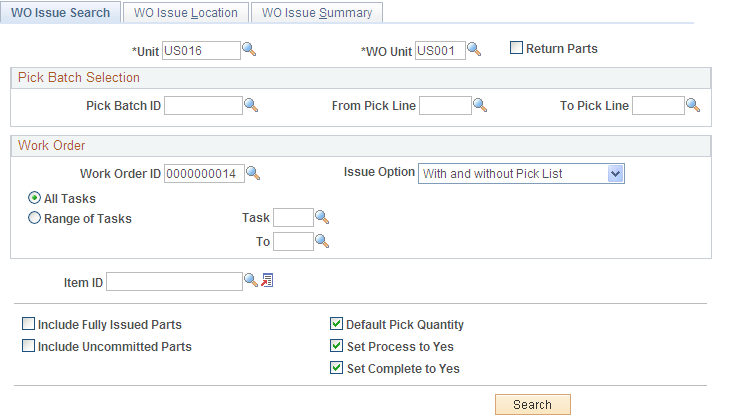
Use this page to search for work order lines that need to be issued. You can select the lines by pick plan, work order, or both.
WO Issue Location Page
Use the WO Issue Location page (IN_WO_ISS_LOC) to enter or confirm information to issue stock to a work order; including, the quantity issued, location picked from, and technician.
In addition, you can use this page to return parts to the inventory business unit.
Image: WO Issue Location page
This example illustrates the fields and controls on the WO Issue Location page. You can find definitions for the fields and controls later on this page.
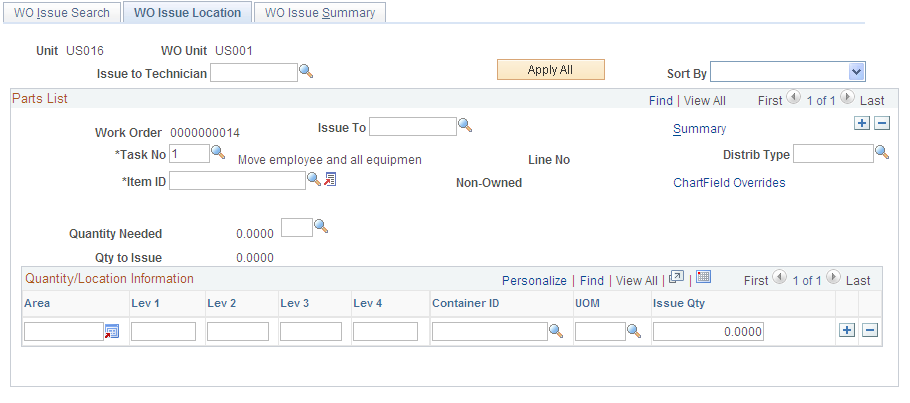
Parts List
Displays the search results from the criteria entered on the WO Issue Search page and enables you to enter the issue quantity and material storage location picked for each part. For parts that are on a pick plan, the Pick Batch ID, Pick Line, and Pick Line Complete flag fields are also displayed. The only other fields that are accessible on the Parts List group box for an existing IN_DEMAND row are the Issue To technician, Distribution Type, and the ChartField Overrides link. Insert a new row in this group box to add a new part to the work order task. When adding a new part, you can enter the Task No, Item ID, and the unit of measure for the quantity needed. You cannot insert rows into the Parts List group box if you are returning unused parts to the inventory business unit.
You can issue a part that is not already on the work order parts list by inserting a new row on this page. The system will add the part to the work order parts list, with a scheduled quantity of 0.

Quantity/Location Information
Use this scroll area to view or select the materials storage location picked and the quantity issues for the part. If the part was on allocated (push) pick plan, then the materials storage locations with the hard allocation are displayed. You can add rows here to change the pick location of the part.
|
Pick Line Complete |
Process |
Complete |
Action |
|---|---|---|---|
|
Selected |
Selected |
Selected |
|
|
Cleared |
Selected |
Selected |
Use this option if there are multiple locations that the pick plan suggested (that is multiple rows in the Quantity/Location Information group box) and you are processing only part of those locations.
|
|
Cleared |
Selected |
Cleared |
Use this combination to hold the allocation and issue stock multiple times for this work order demand line.
|
|
Cleared |
Cleared |
Cleared |
No updates occur. |
WO Issue Summary Page
Use the WO Issue Summary page (IN_WO_ISS_SUMMARY) to view all the lines in a work order or pick batch ID.
Image: WO Issue Summary page
This example illustrates the fields and controls on the WO Issue Summary page. You can find definitions for the fields and controls later on this page.
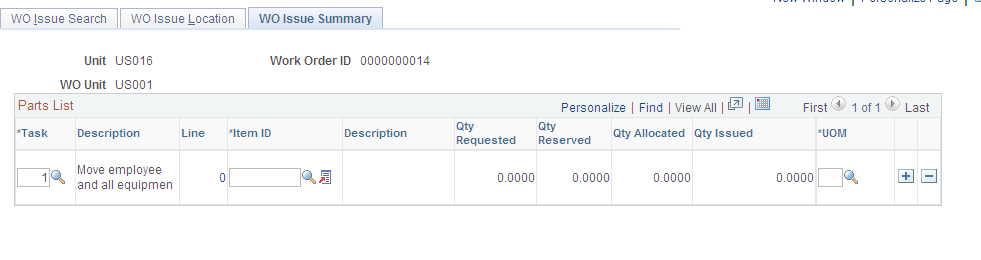
This page displays a summary of the parts issued to a work order using this component.