
Creating and Processing Picking Plans
PeopleSoft Manufacturing uses picking plans to translate requested stock into material picking instructions for stockroom processing. The system supports PUSH and PULL picking methods:
Note: Item quantities in WIP are not available to fulfill sales orders or material stock requests.
You can create a picking plan for items in a production area that use the production issue or production kitting material issue methods. Floor stock and expensed items are never kitted or issued.
If you pick lot-controlled items and the lot is not yet available (or has already expired), the picking plan report prints the applicable date. If the date has already passed, the lot has expired. If the date is in the future, the lot is not yet available. The picking plan displays material from a lot as available even if it has expired, but you can then change the location using the Review Plan process (SFS6000).
The system generates picking plans for production IDs and production schedules in the Released or In Process status.
To create and process a picking plan for issue or kit components:
Create a picking plan using either a PUSH or PULL picking method by using the Picking Options page.
Pick the material.
If you use the PULL method, record the picked components and the storage area and location from which they were picked. If you use the PUSH method, confirm that the components were picked from the storage area and location recommended in the pick plan. You can simultaneously confirm the picking plan and release material to production. To automatically initiate the Material Release process, select Release at Save, confirm the pick plan, and then save the page. Alternatively, you can schedule the process by running the Update Pick Batch process. Confirm the pick plan and selecting either the Update Pick Batch process or the Update Pick Batch and Release process.
Review and confirm the picking plan using the Review Plan page.
If you pick quantity for the pick line in phases, then you should not check the complete option until you execute the final pick.
Issue material to the shop floor using the Material Release page, if the release process wasn't automatically initiated from the Update Pick Batch process or the Update Pick Batch and Release process.
Pages Used to Create and Process Picking Plans
|
Page Name |
Definition Name |
Navigation |
Usage |
|---|---|---|---|
|
Picking Options |
RUN_SFS6000 |
|
Generate picking plans for production. You can generate pick plans for production with a status of Released or In Process. |
|
Pick Plan Extract |
RUN_SFS6000_SEC |
Click the Attachment button to select a Pick Plan Extract file. |
Indicate that you want to print the extract file for bar codes, and indicate where the file is located. |
|
Picking Options - Production Selection |
RUN_SFS6000B |
|
Define the range of production IDs, production schedules, production areas, and item IDs for which you want to generate a picking plan. |
|
Runtime Settings |
RUN_SFS6000A |
|
Indicate the maximum number of locations to display once quantity has been fulfilled when running a pull pick plan and when displaying substitute items. Also, use this page to set the commit level during processing. The commit level is the number of components that are processed between updates to the database and is used to minimize database locking. This page is typically hidden, and it should be only be accessed by a system administrator. Once this page has been configured, the page should again be hidden. |
|
Review Plan - Production Selection |
SF_ISS_DIALOG |
|
Select the specific pick batch that you want to review. You must generate at least one pick plan by using the Material Picking Plan process. |
|
Review Plan |
SF_PICK_TRANS |
Enter information on the Production Selection page and click the Search button to retrieve the plan. |
Confirm that the material was pulled from the suggested stores location, or to indicate from which location the material was pulled. You must generate at least one pick plan by using the Material Picking Plan process. |
|
Pick Batch Options |
RUN_SFS6002 |
|
Select the report parameters for the pick batch you'd like to update. You must first generate a pick plan for selected production. |
|
Update Pick Batch - Production Selection |
RUN_SFS6002B |
|
Select the production to update. |
|
Material Release |
RUN_SFS6001 |
|
Issue material to the shop floor. Use this page if you selected the Do Not Release at Save option on the Review Plan page or if you did not select the two-step process in the Update Pick Batch component. You must pick and confirm at least one pick plan. |
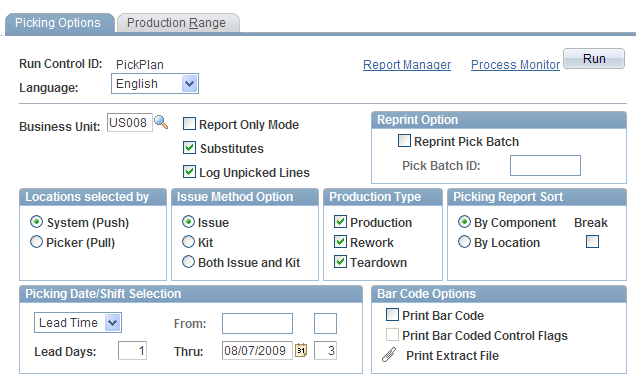
Picking Options Page
Use the Picking Options page (RUN_SFS6000) to generate picking plans for production.
You can generate pick plans for production with a status of Released or In Process.
Image: Picking Options page
This example illustrates the fields and controls on the Picking Options page. You can find definitions for the fields and controls later on this page.
|
Push or Pull |
Issue Method |
By Component |
By Location |
By Production Area/ID |
|---|---|---|---|---|
|
Push |
Kit |
Yes |
Yes |
Yes |
|
Push |
Issue, Both |
Yes |
Yes |
No |
|
Pull |
Kit |
Yes |
No |
Yes |
|
Pull |
Issue, Both |
Yes |
No |
No |
Pick Plan Extract Page
Use the Pick Plan Extract page (RUN_SFS6000_SEC) to indicate that you want to print the extract file for bar codes, and indicate where the file is located.
Picking Options - Production Selection Page
Use the Picking Options - Production Selection page (RUN_SFS6000B) to define the range of production IDs, production schedules, production areas, and item IDs for which you want to generate a picking plan.
Runtime Settings Page
Use the Runtime Settings page (RUN_SFS6000A) to indicate the maximum number of locations to display once quantity has been fulfilled when running a pull pick plan and when displaying substitute items. Also, use this page to set the commit level during processing. The commit level is the number of components that are processed between updates to the database and is used to minimize database locking.
Reviewing and Confirming Picking Plans
Once you generate the picking plan, you must review the plan, make any modifications to PUSH picking plans before picking the material, and enter the picking locations for the material if you're using the PULL method to issue material. You can modify the picking plan before or after you pick the material.
Review Plan - Production Selection Page
Use the Review Plan - Production Selection page (SF_ISS_DIALOG) to select the specific pick batch that you want to review.
Review Plan Page
Use the Review Plan page (SF_PICK_TRANS) to confirm that the material was pulled from the suggested stores location, or to indicate from which location the material was pulled.
Enter information on the Production Selection page and click the Search button to retrieve the plan.
Image: Review Plan page
This example illustrates the fields and controls on the Review Plan page. You can find definitions for the fields and controls later on this page.


Updating Pick Batches
Use the Update Pick Batch component to review the plan for a pick batch as a whole, or for a range of components, WIP locations, or production. This enables you to confirm, unconfirm, complete, uncomplete, or delete entire pick batches rather than maintaining each component one at a time. When you select the delete option, it will not affect any lines that have been previously released. Use this transaction to clear any unpicked pick lines.
In addition, you can simultaneously update the pick batch and release material to production using this component by running the Update Pick Batch and Material Release process (SFCONREL) or the Update Pick Batch process (SFS6002).
Setting Pick Batch Options
You can select pick batch options to update.
To select pick batch options to update:
Access the Pick Batch Options page.
Enter the following information:
Select the pick batch ID.
Select all or a range of line numbers.
Select the option of Confirm, Unconfirm, or Delete (Unreserve).
Select the option of Complete, Incomplete, or Unchanged.
To update the pick batch only, select Update Only - No Report.
To delete the pick batch detail, select Update and Report.
Note: All items specified on the pick plan are confirmed, even if they have been placed on hold subsequent to the generation of the pick plan.
Selecting Production Pick Batches
You can select production pick batches.
To select a production pick batch:
Access the Production Selection page.
If you're updating a pick batch for kitted material, select a range of production IDs or item IDs.
(Optional) Click the Item Search button next to the Item ID field to access the Item Search link to locate a different item.
Select all or a range of WIP locations by storage location, depending on the storage level setup, when updating a pick batch for components using the Issue method.
(Optional) Click the Storage Area Location button next to the WIP location fields to access the Storage Location Search link to select a different storage location.
Click Run to run this request.
You can choose to run the Update Pick Batch and Material Release (SFCONREL) process or the Update Pick Batch (SFS6002) process. The Update Pick Batch and Material Release process is a two-step process that simultaneously updates pick batches and releases material to the production floor. This process must run on a server. If you do not want to release material to production at this point, select the Update Pick Batch process. Process Scheduler runs either process at user-defined intervals.
Issuing Material to the Shop Floor
You can issue material to the shop floor.
To run the Material Release process to issue material to production:
Access the Material Release page.
Indicate whether you want to release material for all confirmed picking plans, or only for those picking plans that are associated with a single pick batch.
Click Run to run this request. Process Scheduler runs the Material Release process at user-defined intervals.
Note: Items with the item status of Hold can be released.