
Setting Up Order Processing Options
To define channels, classifications, competitor codes, contact type codes, divisions, member quotas, order groups, order source codes, product brands, product categories, shipping priority codes, syndicated data, team members, and territories, use the Channel, Classification, Competitor Codes, Contact Type Code, Division, Member Quotas, Order Group, Order Source Code, Product Brand, Product Category, Shipping Priority, Syndicated Data Type Setup, Team Member, and PM Territory setup components, respectively.
Use the COMPETITOR_CD_CI, MEMBER_COMM_CI, MEMBER_TYPE_TBL_CI, PM_CLASSIFICATE_CI, PM_TERRITORY_CI, and PROD_CATEGORY_CI component interfaces to load data into the tables for these components.
Although pages in the Order Management Foundation menu are listed in alphabetical order, you should set them up in the order shown in the next section, because some tables use information that is defined on other pages. Many of the pages are discussed in other topics.
Most of the order processing pages are straightforward. These options are discussed in more detail in this topic:
Freight terms
Holds setup
Shipping priority codes
Messages
Order groups
Order group terms
Team member commission schedules
Period-to-date pricing calendar
Pages Used to Define Order Processing
|
Page Name |
Definition Name |
Navigation |
Usage |
|---|---|---|---|
|
Competitor Codes |
COMPETITOR_CD |
|
Set up competitor codes to cross-reference products with competitors and to track competition on buying agreements, orders, and quotes. |
|
Division |
PM_DIVISION |
|
Enter divisions for sales operations. Divisions are not used by any PeopleSoft standard processing at this time. |
|
Product Brand |
PROD_BRAND |
|
Establish brands for product sales. Product brands are not used by any PeopleSoft standard processing at this time. |
|
Product Category |
PROD_CATEGORY |
|
Enter product categories. Product categories are not used by any PeopleSoft standard processing at this time. |
|
Channel |
PM_CHANNEL |
|
Enter sales channels. Channels are not used by any PeopleSoft standard processing at this time. |
|
Classification |
PM_CLASSIFICATE |
|
Enter classifications for customers. Classifications are not used by any PeopleSoft standard processing at this time. |
|
Syndicated |
PM_SYNDICATED |
|
Enter syndicated data network types. Syndicated data types are not used by any PeopleSoft standard processing at this time. |
|
Territory |
PM_TERRITORY |
|
Establish territories to divide your customer base into logical assignments. The territory designation is not currently used for pricing, reporting, calculations, or processing. |
|
Buying Agreement Type |
CONTRACT_TYPE |
|
Define buying agreement types to categorize buying agreements for reporting purposes or to flag buying agreements with similar renewal characteristics, such as annual purchase agreements. |
|
Contact Type Codes |
CONTACT_TYPE_CODE |
|
Establish different types of customer contacts to manage various aspects of the business. Multiple contacts may exist to manage areas such as shipping issues, accounting problems, and so on. |
|
Image Location |
IMAGE_LOCATION |
|
Enter the paths to the directories in which you store the image files. |
|
Order Source Codes |
ORD_SOURCE_CD |
|
Set up order source codes to indicate where orders and quotes originate, such as via internet, telephone, email, facsimile, electronic data interchange (EDI), mail, and so on. They can also be associated with users on the User Preferences - Orders - Sales page or with order groups. For PeopleSoft CRM and Contracts integration, the order source code determines the processing of the sales order in Order Management. In other cases, these codes are informational and can be used for reporting purposes. |
|
Restock Fees |
RMA_RSTK_SET |
|
Define restocking fees. |
|
Hold Codes |
HOLD_CD |
|
Establish hold codes to flag an order or to stop the further processing of an order. Each hold code must be unique. |
|
Holds Setup |
OM_BU_HOLD_SETUP |
|
Manage the metadata values that appear on the Hold Processing page for the Order Management Business Unit. |
|
Mass Change Definition - Description |
MC_DEFN_00 |
|
Enter a description for the mass change definition. |
|
Rebate Penalty Definition - Definition |
RBT_PNLTY_DEFN |
|
Define comparison basis and the parameters that the system uses to calculate rebates and penalties. Define whether the calculation should compare sales amounts, percentage of amounts, sales quantity in units, or consider only the terms of a buying agreement or independent sales rebate or penalty definition. Define whether the rebate or penalty should be calculated as an amount or as a percentage of an amount. |
|
Rebate Penalty Definition - Definition Step |
RBT_PNLTY_DEFN_STP |
|
Define the points at which the penalty or rebate amount or percentage changes. |
|
Rebate Penalty Table |
RBT_PNLTY_TABLE |
|
Define the qualified orders to be considered in the rebate or penalty calculation and define the basis used to calculate the rebate or penalty. |
|
Sales Rebate - Definition |
SRBT_TABLE |
|
Define independent sales rebates or penalties. |
|
Sales Rebate - Customer/Product |
SRBT_CUSTPROD_TBL |
|
Define which customers or customer groups and products or product groups to consider for the sales rebate or penalty. |
|
Options & Defaults |
CB_SETUP_OPT |
|
Set up default values and contacts for claimback contracts, claimback contract and claim prefixes, and claimback claim over and under tolerances. |
|
OM Business Unit Groups |
CB_OMBU_GRP |
|
Define which Order Management Business Units belong to each user-defined group. These groups will provide the default list of Order Management Business Units to the claimback contract line. |
|
Shipping Priority Codes |
SHIP_PRIORITY |
|
Define shipping priority codes that can be used as the final sort option for fulfilling orders on the Fulfillment Setup - Fulfillment Setup page in PeopleSoft Inventory. |
|
Messages |
MESSAGE_TBL |
|
Define message codes and optional related actions. |
|
Order Groups |
ORD_GROUP |
|
Define order groups. |
|
Order Group Shipping Terms |
ORD_GROUP_TERMS |
|
Define additional attributes for the order group, such as shipping defaults. If necessary, include online credit checking as a default value. |
|
Return Type Codes |
RMA_RETURN_TYPE |
|
Define default shipping options and the actions that returned goods initiate. |
|
Member's Commission Schedule |
MEMBER_COMM_QUO |
|
Define a commission schedule for team members. Indicate amount ranges for either bookings or shipments, depending on the basis that is selected on the Team Member Personal Data - Member Commissions page, and define a commission percentage for each range. |
|
Team Member Sales Quotas |
MEMBER_QUOTAS |
|
Establish sales quotas for team members that are used for analysis purposes only. They are not part of structuring commissions. Base quotas on individual products, product groups, or all sales for the member. |
|
Sales Calendar |
CALENDAR_BLDR_TD |
|
Establish a calendar to be used with period-to-date pricing. |
|
Template Role |
TEMPLATE_ROLE |
|
Assign a role able to access additional short-term customer templates, as well as the template specified on the PeopleSoft Order Management Business Unit, when entering sales orders, quotes, or return material authorizations (RMAs). |
Holds Setup Page
Use the Holds Setup page (OM_BU_HOLD_SETUP) to manage the metadata values that appear on the Hold Processing page for the Order Management Business Unit.
Shipping Priority Codes Page
Use the Shipping Priority Codes page (SHIP_PRIORITY) to define shipping priority codes that can be used as the final sort option for fulfilling orders on the Fulfillment Setup - Fulfillment Setup page in PeopleSoft Inventory.
| Priority |
The highest priority is 1. The larger the number, the lowerWE the priority. |
Messages Page
Use the Messages page (MESSAGE_TBL) to define message codes and optional related actions.
Image: Messages page
This example illustrates the fields and controls on the Messages page. You can find definitions for the fields and controls later on this page.
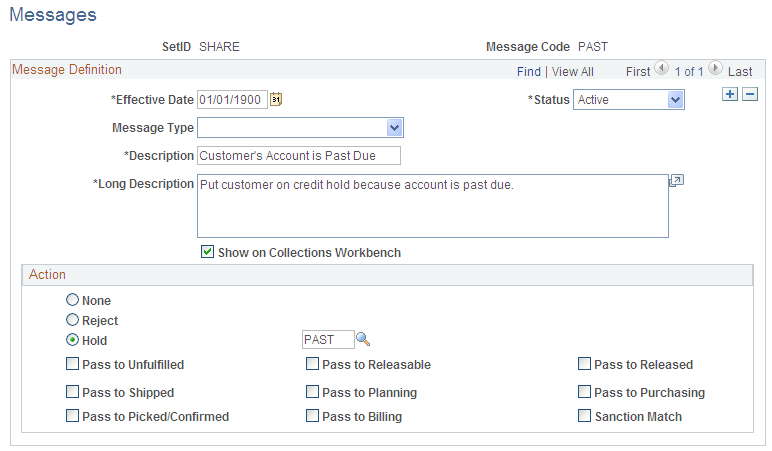
You may find messages useful for identifying customers with chronic credit problems or for flagging new or discontinued products. Define message codes and link them to customers on the General Information - Messages page and with products on the Messages page.
Messages enable you to:
Place an order or order line on hold.
Prevent a customer from placing an order.
Prevent a product from being entered on an order.
Convey information.
Message Definition
Action
Select options for the message.
Note: Message codes with an action of Reject apply to the sold-to customer only.
Note: The hold codes that can be added are controlled by role security from the Hold Code Security by Role page. You will not be able to add or delete a hold code if it is not specified at the role security level.
Order Groups Page
Use the Order Groups page (ORD_GROUP) to define order groups.
Order groups enable you to move order terms, such as standard discounts (discount percentage), into sales orders and quotes by default when you select an order group code. If you enter an order without using a customer ID, the system uses the order group values to populate the header fields that normally appear by default from the customer or buying agreement. If you enter a customer ID and select an order group code on an order or quote, the system uses order group values to populate any fields that are missing from the customer or buying agreement information.
You can assign a default order group code on the User Preferences - Orders - Sales page. This default code appears on all sales orders and quotations that the user enters.
Order Group Shipping Terms Page
Use the Order Group Shipping Terms page (ORD_GROUP_TERMS) to define additional attributes for the order group, such as shipping defaults.
If necessary, include online credit checking as a default value.
Team Member Sales Quotas Page
Use the Team Member Sales Quotas page (MEMBER_QUOTAS) to establish sales quotas for team members that are used for analysis purposes only.
They are not part of structuring commissions. Base quotas on individual products, product groups, or all sales for the member.
Note: The date range and amount combinations cannot overlap.
Sales Calendar Page
Use the Sales Calendar page (CALENDAR_BLDR_TD) to establish a calendar to be used with period-to-date pricing.