
Establishing Purchasing Processing Options
To define purchasing processing options, use the Purchasing Processing Options component (BUS_UNIT_OPT_PM).
This section discusses how to:
Define purchasing processing options.
Define transaction dispatch methods.
Define freight options.
Define purchase order acknowledgement (POA) settings.
Define VAT service treatment setup.
Define reason codes for change requests and change orders.
Pages Used to Establish Purchasing Processing Options
|
Page Name |
Definition Name |
Navigation |
Usage |
|---|---|---|---|
|
Purchasing Options |
BUS_UNIT_OPT_PM |
|
Define purchasing options and transaction processing criteria for each PeopleSoft Purchasing business unit. You can override these options during transaction processing. |
|
Dispatch Method |
BU_OPT_PM_DISP |
Click the Dispatch Method link on the Purchasing Options page. |
Define transaction dispatch methods for purchase orders, RFQs, RTVs, contracts, and replenishment requests. |
|
Freight Option |
BU_OPT_PM_FREIGHT |
Click the Freight Option link on the Purchasing Options page. |
Define freight options, rule codes, and charge methods. |
|
POA Settings (purchase order acknowledgements settings) |
POA_DEF_BU_SP |
Click the POA Settings link on the Purchasing Options page. |
Define POA requirements and tolerance settings. |
|
VAT Defaults Setup (value-added tax defaults setup) |
VAT_DEFAULTS_DTL |
Click the VAT Default link on the Purchasing Options page. |
Define VAT default options for all transactions in a business unit. |
|
Service VAT Treatment Defaults Setup (service value-added tax treatment defaults setup) |
VAT_DEFAULTS_DTL |
Click the VAT Service Treatment Setup link on the Purchasing Options page. |
|
|
Procurement Change Reason Codes |
BUS_OPT_PM_REASON |
Click the Change Reason Codes link on the Purchasing Options page. |
Define settings for reason codes used when creating change requests and change orders in PeopleSoft Purchasing, eProcurement, and Services Procurement. These settings enable you to define default reason codes and determine if reason codes or comments should be required when creating or approving these transactions. |
Purchasing Options Page
Use the Purchasing Options page (BUS_UNIT_OPT_PM) to define purchasing options and transaction processing criteria for each PeopleSoft Purchasing business unit.
You can override these options during transaction processing.
Image: Purchasing Options page
This example illustrates the fields and controls on the Purchasing Options page. You can find definitions for the fields and controls later on this page.
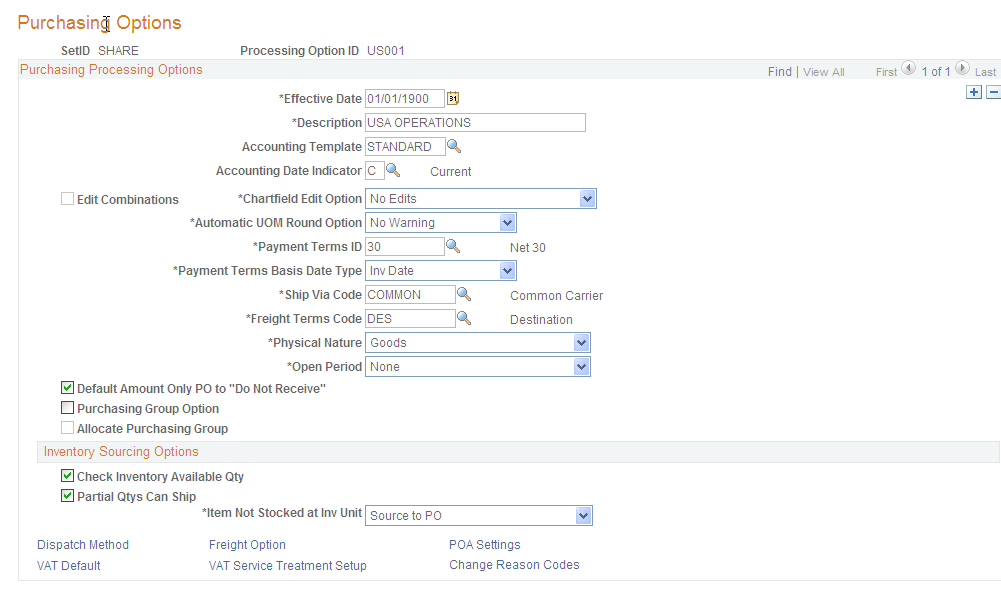
You can establish multiple processing options for a given SetID. To create distinct groups of processing options, give each new group a distinct processing option ID. Processing-options groups with different IDs can have the same effective date, which enables you to choose among these groups for varying situations. You can also effective-date processing options within a processing option ID. Within each processing-options group, you can add a new set of effective-dated purchasing options.
Effective-dating processing options enables you to activate or inactivate processing options within a processing option ID. This functionality is useful for making date-sensitive changes to a group of processing options (payment terms, for example) while keeping the other options identical.
Inventory Sourcing Options
Dispatch Method Page
Use the Dispatch Method page (BU_OPT_PM_DISP) to define transaction dispatch methods for purchase orders, RFQs, RTVs, contracts, and replenishment requests.
Note: Suppliers can define their own dispatch method settings on the Procurement Options page.
Freight Option Page
Use the Freight Option page (BU_OPT_PM_FREIGHT) to define freight options, rule codes, and charge methods.
POA Settings (purchase order acknowledgements settings) Page
Use the POA Settings (purchase order acknowledgements settings) page (POA_DEF_BU_SP) to define POA requirements and tolerance settings.
POA Settings
POA Tolerance Settings
Note: Enter 999 in these tolerance setting fields if you do not want the system to be able to automatically approve a POA within the tolerance settings.
POA Settings Hierarchy
You can define POA settings at the purchasing business unit level and at the supplier and location level. You define the purchasing business unit POA settings using the POA Settings page in the Processing Options component. You define the supplier and location POA settings using the Procurement Options page in the supplier component. You can override the purchasing business unit POA settings by defining supplier and location POA settings.
During the processing of a POA, the system first retrieves the POA settings at the supplier and location level that are associated with the purchase order. If the POA settings are not defined at that level, then the system retrieves the POA settings at the purchasing business unit level.
Service VAT Treatment Defaults Setup (service value-added tax treatment defaults setup) Page
Use the Service VAT Treatment Defaults Setup (service value-added tax treatment defaults setup) page (VAT_DEFAULTS_DTL) to define service-related VAT default options for service transactions in a business unit.
You can insert rows for the supplier's location country or state. You can also delete any existing rows.
Service VAT Treatment Defaults Setup (service value-added tax treatment defaults setup) Page
Use the Procurement Change Reason Codes page (BUS_OPT_PM_REASON) to define settings for reason codes used when creating change requests and change orders in PeopleSoft Purchasing, eProcurement, and Services Procurement.
These settings enable you to define default reason codes and determine if reason codes or comments should be required when creating or approving these transactions.
Image: Procurement Change Reason Codes
This example illustrates the fields and controls on the Procurement Change Reason Codes. You can find definitions for the fields and controls later on this page.
