
Defining Additional Common Information
Use the following components to define additional common information:
Accounting Entry Template (ACCOUNTINGENTRY)
Activity Monitor Registry (PV_WL_REGISTRY)
Attachments (ATTACHMENT_TBL)
Automatic Numbering (AUTO_NUM_PNL)
Commodity Code (COMMOD_CODE)
Distribution Network (DS_NETWORK)
Freight Terms (FREIGHT_TERMS)
Tax Vendor Geo Code Update (RUN_TAXGEOUPD)
Harmonized Tariff Code (HRMN_TARIFF_CD)
Image Location (IMAGE_LOCATION)
Personal Data (Edit) (EX_PERSONAL_DATA2)
Planner Code (PLANNER_CODE)
Reason Codes (REASON_CD)
Ship Via Codes (SHIP_VIA_CD)
Ship To Locations (SHIP_TO_CODES)
Ultimate Use Code (SUT_USE_CD)
Units of Measure (UNITS_OF_MEASURE)
Use the following component interfaces to load data into the respective component tables:
Use the COMMOD_CODE_CI component interface to load data into the tables for the Commodity Code component.
Use the HRMN_TARIFF_CD_CI component interface to load data into the tables for the Harmonized Tariff Code component.
Use the SHIP_VIA_CD_CI component interface to load data into the tables for the Ship Via Codes component.
Use the SUT_USE_CI component interface to load data into the tables for the Ultimate Use Code component.
The pages described in this section do not represent all of the pages in the Common Definitions menu. Additional common pages are described as part of the business processes that include them.
Pages Used to Define Additional Common Information
|
Page Name |
Definition Name |
Navigation |
Usage |
|---|---|---|---|
|
Attachment Type |
ATTACHMENT_TBL |
|
Define attachment types. |
|
Accounting Entry Template |
ACCTG_TEMPLATE_AP |
|
Define or modify an accounting entry template. |
|
Register Worklists for Activity Monitor |
PV_WL_REGISTRY |
|
Select which worklist entries can appear on the buyer's Activity Monitor pagelet. |
|
Auto Numbering |
AUTO_NUM_PNL |
|
Define automatic numbering specifications for PeopleSoft fields, such as a unique prefix for regular customers or for customers who are also vendors. The system automatically increments numbers by one. |
|
Auto Num BU |
AUTO_NUM_BU_PAGE |
|
Define automatic numbering specifications at the business-unit level for PeopleSoft fields. |
|
Commodity Code |
COMMOD_CODE |
|
Define commodity codes. Commodity codes, also called freight classes, are used on bills of lading to group and identify shipped products for freight rating and insurance purposes. |
|
Distribution Network |
DS_NETWORK |
|
Define distribution network codes. |
|
Forecast Sets |
FORECAST_SET |
Inventory, Forecast Items, Forecast Sets |
Define versions of forecasts for PeopleSoft Supply Planning. |
|
Freight Terms |
FREIGHT_TERMS |
|
Set up freight terms. |
|
Tax Vendor Geo Code Update |
RUN_TAXGEOUPD |
|
Generate a report listing any errors that occurred during the GeoCodes Mass Update Process using the GeoCodes Mass Update report, TAXXGEOX0 (BI Publisher). |
|
Harmonized Tariff Code |
HRMN_TARIFF_CD |
|
Set up harmonized tariff codes. These codes are required on various documents that accompany shipments across international and Canadian borders. The codes are pre-established for all commodities by the United States Commerce Department. |
|
Image Location |
IMAGE_LOCATION |
|
Set location for storing images. |
|
File Locations |
FILE_DIR_FS |
|
Define file extensions that you want the system to recognize, system locations for transaction attachments, email and fax file extensions, and file server directories. |
|
Personal Data |
EX_PERSONAL_DATA |
|
Review and edit employee address data. |
|
Personal Data (Edit) |
EX_PERSONAL_DATA2 |
|
Add and edit employee information, including address data. |
|
Planner Codes |
PLANNER_TBL |
|
Enter planner codes. |
|
Reason Codes |
REASON_CD |
|
Define reason codes to provide explanations for various activities performed in the system. You can also define return and reject reason codes for items received in PeopleSoft Purchasing. |
|
Ship Via Codes |
SHIP_VIA_CD |
|
Define ship via codes (also called shipping method codes) to use in multiple features in PeopleSoft Inventory, Purchasing, and Order Management. Ship via codes describe the dimensions and options of a shipping vehicle. |
|
ShipTo Sales/Use Tax Default |
SUT_DFLT_TBL |
Click the Sales/Use Tax link. |
Enter default sales and use tax information for each ship-to location. The sales and use tax rates are normally based on the final destination of the shipment (the ship-to location). |
|
Standard Industry Codes |
SIC_CODE_PNL |
|
View, modify, or add SIC codes for vendors. This page offers you various methods for finding particular codes. You can search by SIC code or by parent SIC code. |
|
Ultimate Use Codes |
SUT_ULTIMATE_USE |
|
Define ultimate use codes for vendors. Ultimate use codes are used to determine tax applicability. |
|
Units of Measure |
UNITS_OF_MEASURE |
|
Establish units of measure for your resources. |
Accounting Entry Template Page
Use the Accounting Entry Template page (ACCTG_TEMPLATE_AP) to define or modify an accounting entry template.
Image: Accounting Entry Template page
This example illustrates the fields and controls on the Accounting Entry Template page. You can find definitions for the fields and controls later on this page.

Although users enter individual expense line items on the voucher, the system generates additional accounting entry lines based on the accounting entry templates that you define and associate with individual vouchers. These additional accounting entry lines include the offset to accounts payable, or freight and tax expense entries.
The PeopleSoft Payables voucher and payment posting processes apply the accounting entry templates to individual vouchers to create balanced accounting entries. You set up accounting entry templates by setID so that multiple business units can share the same (or different) accounting entries.
When you create a new template, the system presents you with a list of accounting entry types that includes standard types such as Accounts Payable, Cash Distribution, and Employee Advances. This list is delivered with the system, but you must add the specific account values that your organization uses for the offset.
| Account |
Specify the associated account value for each accounting entry type. |
You can also specify other ChartField values such as Alternate Account, Fund Code, Operating Unit, and so on. There is one row for each account type, which tells the system what ChartField values to use when it performs posting. An account value for each is mandatory; values for other ChartFields are optional.
When setting up inheritance for PeopleSoft Payables, if you select Don't Inherit as the inheritance option for an inheritance group, the system uses the ChartField values established on the accounting entry template to generate the appropriate accounting entry lines.
If you are using PeopleSoft Payables and Project Costing; if you leave the Project ID field blank on the accounting entry template and select the Discount Allocation Policy field on the General Controls page in PeopleSoft Payables, then you should use ChartField inheritance for the project ID. This allows you to book discounts against same project as the original source amount.
After you have set up accounting entry templates, you can generate a report that displays the data that you have entered for each accounting entry template. The Accounting Entry Template report (APY0012) includes a description as well as a listing of the accounting entry templates that you have defined for your system.
Auto Numbering page
Use the Auto Numbering page (AUTO_NUM_PNL) to define automatic numbering specifications for PeopleSoft fields, such as a unique prefix for regular customers or for customers who are also vendors. The system automatically increments numbers by one.
Image: Auto Numbering Page
This example illustrates the fields and controls on the Auto Numbering page. You can find definitions for the fields and controls later on this page.
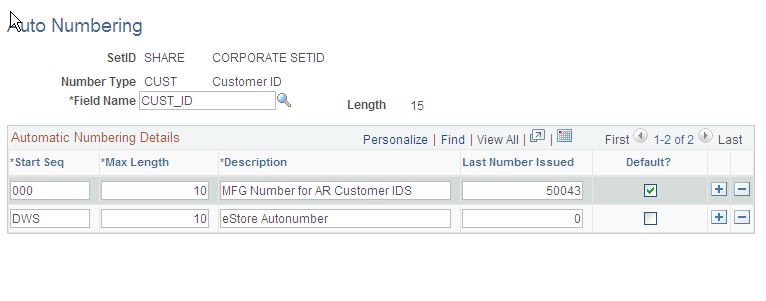
Note: Default flag on the Autonumber Table does not apply for Purchase Orders, Requisitions, Receivers, Return to Vendor(Suppliers).
Automatic Numbering by BU Page
Use the Auto Num BU page (AUTO_NUM_BU_PAGE) to define automatic numbering specifications at the business-unit level for PeopleSoft fields.
This page is similar to the Auto Numbering page that you use for automatic numbering; however, auto numbering by business unit limits auto numbering to one sequence for each field. Using the page, you can setup a single, auto-numbering sequence for a field across the business unit. This provides broader control of numbering within the business unit. The Default field value is always selected because there is only one numbering sequence for a given field in a business unit.
See the previous topic, Setting Up Automatic Numbering, for descriptions of fields on this page.
Distribution Network Page
Use the Distribution Network page (DS_NETWORK) to define distribution network codes.
A distribution network consists of a prioritized list of inventory business units. When a customer orders a product, distribution networks are used to determine the warehouse from which the stock should ship.
You can specify a distribution network code for each of your ship-to customers on the General Information - Ship To Options page. This code then appears by default on the customer's sales order shipment schedules.
When using PeopleSoft Order Management, you can elect to establish a default ship from Inventory business unit on the Order Management business unit Shipping and Returns page. You can use this as the default Inventory business unit for all order lines and schedules. This option is useful if you don't have a complicated distribution network, or if you always ship from one location. The other option on the Shipping and Returns page is to select a default distribution network code that the system uses on orders for ship-to customers who don't have an assigned distribution network code. You are allowed one or the other.
| Inventory Unit |
Enter the Inventory business units that you want to be included in the distribution network. |
Forecast Sets Page
Use the Forecast Sets component (FORECOST_SETS) to set up forecast sets.
Use the Forecast Sets page (FORECAST_SET) to define versions of forecasts for PeopleSoft Supply Planning.
You can define different versions of forecasts for PeopleSoft Supply Planning. For example, you might have three different versions of a forecast; conservative, most likely, and optimistic. For each case, you can define forecast quantities by product or item to create what-if scenarios with different versions of the material and capacity plan based on different forecasts. You associate forecast sets with product forecasts in PeopleSoft Order Management and with item forecasts in PeopleSoft Inventory.
You might want to create two unique forecast sets—for example, OPTIMISTIC and LIKELY. Each item or product forecast record that you define in the system ties to one of these sets. This enables multiple versions of a forecast to exist for the same item or product. This table gives an example of how this works:
|
Optimistic Forecast |
Likely Forecast |
|---|---|
|
Item: 1000 |
Item: 1000 |
|
Date: 12/1/00 |
Date: 12/1/00 |
|
Qty: 3500 |
Qty: 2500 |
|
Forecast Set: Optimistic |
Forecast Set: Likely |
Freight Terms Page
Use the Freight Terms page (FREIGHT_TERMS) to set up freight terms.
Freight terms determine when the title passes for shipments. PeopleSoft Order Management passes freight term information to PeopleSoft Inventory along with requests for stock fulfillment. Freight term codes and descriptions print on quotations, order acknowledgments, packing lists, bills of lading, shipping manifests, and invoices.
| Delivery Terms 1 |
Values are used in Intrastat reporting for European Union member states. |
| Intermediate Consignee |
Select if you use a freight company that assumes responsibility for goods in transit. |
Tax Provider Geo Code Update Page
Use the Tax Provider Geo Code Update page (RUN_TAXGEOUPD) to update geocodes for tax-related transactions, locations and addresses using the GeoCodes Mass Update Process Application Engine process (TAXGEOUPD).
Generate a report listing any errors that occurred during the GeoCodes Mass Update Process using the GeoCodes Mass Update report, TAXXGEOX0 (BI Publisher).
Image: Tax Provider Geo Code Update Page
This example illustrates the fields and controls on the Tax Provider Geo Code Update Page. You can find definitions for the fields and controls later on this page.
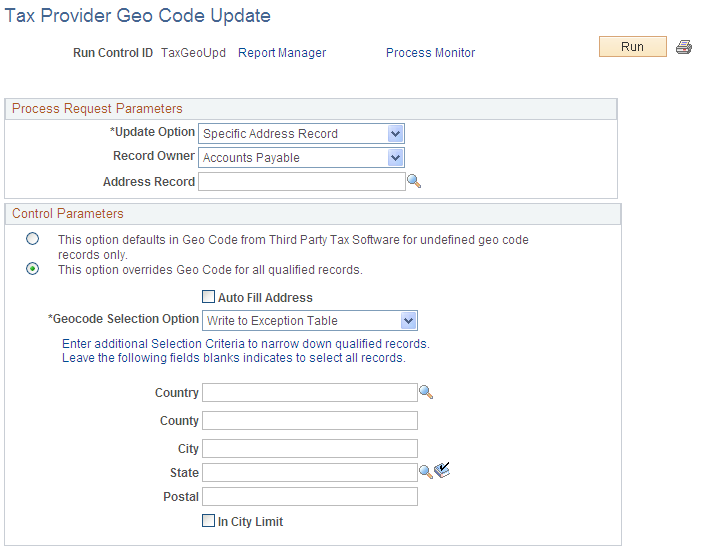
Note: Refer to your Taxware or Vertex documentation for recommendations on how often you should update your geocodes. The GeoCodes Mass Update Process Application Engine process (TAXGEOUPD) can be scheduled to run accordingly.
Personal Data Page
Personal Data or Personal Data (Edit) page (Set Up Financials/Supply Chain, Common Definitions, Employee Data, Review Personal Data) and (Set Up Financials/Supply Chain, Common Definitions, Employee Data, Create/Update Personal Data, Personal Data).
It is recommended that you update employee tables in your human resources system and load the employee data into your PeopleSoft application. However, you may need to add or edit employee profiles in the Financials or Supply Chain Management database. Because employee information is sensitive, it is suggested that you authorize access to these pages carefully.
Note: If your system receives data from human resources, any changes you make using Personal Data pages may be overwritten in subsequent updates from human resources unless you configure your loading process.
Reason Codes Page
Ship Via Codes Page
Use the Ship Via Codes page (SHIP_VIA_CD) to define ship via codes (also called shipping method codes) to use in multiple features in PeopleSoft Inventory, Purchasing, and Order Management.
Ship via codes describe the dimensions and options of a shipping vehicle.
Image: Ship Via Codes page
This example illustrates the fields and controls on the Ship Via Codes page. You can find definitions for the fields and controls later on this page.
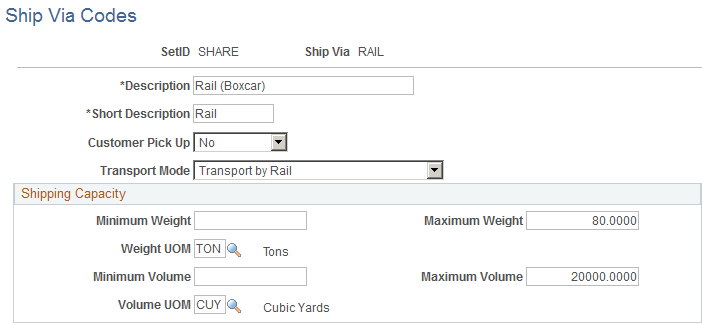
Define ship via codes (also called shipping method codes) to use in multiple features in PeopleSoft Inventory, Purchasing, and Order Management. Ship via codes describe the dimensions and options of a shipping vehicle.
Standard Industry Codes Page
Use the Standard Industry Codes page (SIC_CODE_PNL) to view, modify, or add SIC codes for vendors.
This page offers you various methods for finding particular codes. You can search by SIC code or by parent SIC code.
Standard Industrial Classification (SIC) codes identify different types of industries. These SIC codes are organized in a hierarchical structure that, at its most detailed level, contains thousands of different industry types. The PeopleSoft system delivers the standard hierarchy of codes from Canada, Germany, France, the United Kingdom, the United States, and Australia.
You can use the SIC identifiers as an additional means of classifying your vendors or customers. You can also use the parent SIC code for reporting your vendor transactions by industry groups if you need to analyze your purchases based on the industrial classifications of your vendors.
Search Criteria
Standard Industrial Classification Codes
Ultimate Use Codes Page
Use the Ultimate Use Codes page (SUT_ULTIMATE_USE) to define ultimate use codes for vendors.
Ultimate use codes are used to determine tax applicability.
Ship To Locations - Sales/Use Tax Info Page
Use the Ship To Locations - Sales/Use Tax Info page to attach ultimate use codes to a ship to location.
Image: Ship To Locations - Sales/Use Tax Info Page
This example illustrates the fields and controls on the Ship To Locations - Sales/Use Tax Info Page. You can find definitions for the fields and controls later on this page.
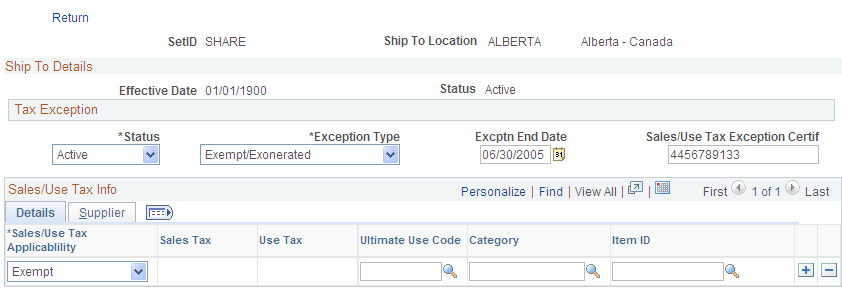
At the ship-to location level you have five options:
Enter an ultimate use code, select Taxable in the Sales/Use Tax Applicability field, and enter a tax code in the Sales Tax field.
This allows you to have an alternate tax rate based on how the item being purchased will be used.
Enter an ultimate use code and select Exempt in the Sales/Use Tax Applicability field.
When you select this ultimate use code on a voucher for this ship-to location, it will be tax exempt.
Enter an ultimate use code and attach it to a specific vendor and vendor location.
The default tax code for vendors and vendor locations shipping to this ship-to location will be the one that you enter here, unless you override it on the voucher.
Enter an ultimate use code and attach it to a specific item category.
Items in that category for the ship-to location will be taxed at the rate indicated by the tax code, unless you override it on the voucher.
Enter an ultimate use code and attach it to a specific item.
For the ship-to location, the default tax rate for this item will be the one indicated by the tax code that you enter here.
Units of Measure Page
Use the Units of Measure page (UNITS_OF_MEASURE) to establish units of measure for your resources.
To assign a default conversion rate between this UOM and another unit of measure, select a convert-to UOM and enter a conversion rate. The system automatically calculates the inverse conversion rate.
You can view information about units of measure and the resources to which they are assigned in the Units of Measure report.