
Working With Substitute Items in Procurement
Understanding Item Substitutions in Procurement
Suppliers periodically backorder certain items and offer a substitute item that can replace the original item, thus avoiding shipping delays and partial orders. PeopleSoft Purchasing offers requestors in organizations or companies a way to track which items, according to the supplier, are backordered, and automatically procure the supplier’s substitute item. Once the buyer enables item substitutions, the system records current or future item substitutions at the time of requisition and updates the purchase order automatically. The system supports both manual and automatic selection of item substitutes based on the item setID in order to dispatch an updated purchase order to the supplier, thus resolving matching issues between the purchase order and received items
Item Substitution will be enabled in procurement transactions when the Item Substitution has been enabled on the Purchasing Business Unit. You can specify whether items will be substituted manually or automatically in the requisition, online Requisition Selection, purchase order components, requisition and during PO Batch Sourcing. You can also indicate whether a requestor has the ability to accept or reject a substitute item on the requisition; and whether a procured item will be visible to the end user.
Item substitutions can be setup at the Item Supplier Location and Item levels. At each of these levels, you can control whether the item will be available for manual, automatic or not available. The system will automatically search at the Item Supplier Location level for valid item substitutions using the item, supplier, and supplier location, then select for substitute item whose Use for Procurement is set for Automatic or Automatic and Manual substitution. If any are found, it will select the substitute item with the highest priority and where the transaction date is within the begin date and end date ranges. If no item substitution is found at the Item Supplier Location, then the system will search the Item Substitution level for valid items to substitute. Once the substitute item has been found, the user will be prompted to accept or reject the substitute item. If the user accepts, the substitute item will replace the item; and the system will store the original entered item in the Original Item Substituted field, convert the transaction UOM to the substitute item’s UOM, and select substitute item’s pricing onto the transaction. Item substitution selection will be based on the Original Item Substituted. Visual indicators will be visible on procurement transactions to indicate whether an item has been substituted. You can also use the Item Substitution Search icon to manually select item substitutions on your procurement transactions.
Manual Item Substitution
Use the Manual Substitute Item Search Page to view all Substitutes Items at both the Item Supplier Location level (if a Supplier ID/Location is available) and Item SetID level where the Substitute Item is marked for ‘Manual Substitution’ or ‘Manual and Automatic’.
The Substitute Item Search Page can be accessed from the Requisition Line, Requisition Selection Line, Purchase Order Line when you click on the Item Substitution Search Icon.
Image: Substitute Item Search Page
This example illustrates the fields and controls on the Substitute Item Search Page. You can find definitions for the fields and controls later on this page.
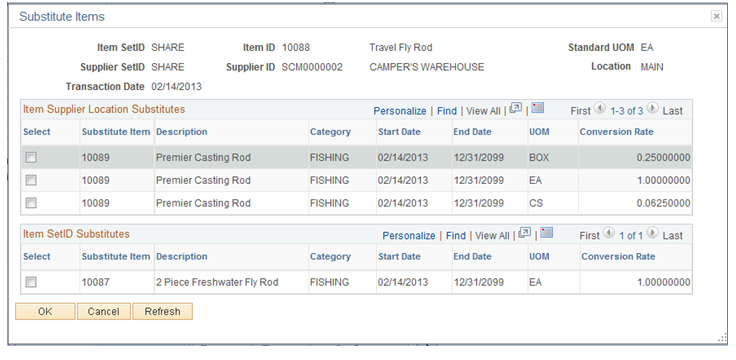
The search page displays all Substitute Items at both the Item Supplier Location level (if a Supplier ID/Location is available) and Item SetID level where the Substitute Item is configured as ‘Manual Substitution’ or ‘Manual and Automatic.’ It also displays Substitute Items that are available on the Transaction Date which is shown in the Header of the Substitute Item Search page.
If the PO Item Supplier Security Option for the transaction’s PO BU is ‘Edit Required Must Use Item ID’ or ‘Edit Required When Use Item ID,’ the search page only displays Substitute Items that have an Item Supplier relationship established for the current Supplier displayed in the search page
This page will also not display the Items with Accept Any Supplier checkbox off and no Item Supplier relationship exists with the Supplier
The search page displays the Substitute Items that are in a Catalog assigned to the Requester
The search page will display the substituted items if there is a value in the ‘Original Substituted Item’ field on the transaction line whereas if there is no value in the ‘Original Substituted Item’ field, the Item ID on the transaction line will appear in the search page.
Automatic Item Substitution
When auto item substitution is enabled at the Purchasing Business Unit, the system will automatically find substitute items when available during creation or change of a purchase order or requisition. If item substitutes exist for the item ordered, the following message will prompt the user to accept the suggested item substitute.
A Substitute Item has been found. Do you want the Substitute Item to replace the current Item ID at this time? (Yes or No)
Selecting ‘No’, the system will not replace the current Item ID with the Substitute Item and Item substitution will not occur and the ‘Automatic Item Sub’ checkbox is automatically deselected on the Requisition Line.
Selecting ‘Yes’, the Substitute Item replaces the current Item ID and all Item Substitution fields are updated correctly and UOM Conversion is performed
When a change is made to an existing Requisition or PO Line, the following should occur:
If the Item ID field is changed and the Original Substituted Item field is populated, the Original Substituted Item and Original Substituted Item Description field is cleared and the ‘Substitute Item in Use’ indicator is disabled or hidden
If the Qty or UOM is changed and the Original Substituted Item field is populated, ‘Automatic Item Substitution Steps’ repeat to check for Substitute Items of the Original Substituted Item (not Item ID) as the current Substitute Item may no longer be valid after the change or there may be a more appropriate Substitute Item available for the Original Substituted Item
If the Supplier ID is changed on a Requisition Line or Purchase Order Header and the Requester or Buyer selects ‘Yes’ in the Warning message to continue, the Original Substituted Item field is cleared out and moved back to the Item ID field. ‘Automatic Item Substitution Steps’ repeat to check for Substitute Items of the Item ID and the new Supplier.
If a requisition or purchase order is pegged to a source transaction and you substitute the item, the pegged relationship will be broken.
If a requisition line is either partially or fully sourced, item substitutes will not be considered.
If a purchase order line has been previously dispatched, or the item id has been grayed out for any reason, item substitution will not be considered.
When an Item ID is entered on a Requisition Line in any of the following methods, the ‘Automatic Item Substitution Steps’ occur for each new line:
Purchasing Kit
Item Search
Catalog
Requester Items
ePro Favorites
Personal Templates
When a Requisition is saved and the Requester Items and ePro Favorites are updated, if the Original Substituted Item field is populated, user can save this Item as a favorite rather than the Substitute Item. This ensures that an Item marked as a ‘Substitute Item Only’ is not saved as a Requester Item or Favorite and then selected on a subsequent Requisition
When an Item ID is entered on a Purchase Order Line in any of the following methods, the ‘Automatic Item Substitution Steps’ steps occur for each new line:
Purchasing Kit
Item Search
Catalog
When using ‘Copy From’ to copy a Requisition into a new Requisition or a Purchase Order into a new Purchase Order, the Original Substituted Item for each transaction line is cleared out and the value is moved back to the Item ID field. ‘Automatic Item Substitution Steps’ repeat to check for current Substitute Items
When a Requisition is copied to a Purchase Order, if the Original Substituted Item is populated on the Requisition Line, user can perform ‘Automatic Item Substitution steps’ to check for Substitute Items of the Original Substituted Item (not Item ID) as the current Substitute Item may no longer be valid at this time, or there may be a more appropriate Substitute Item available for the Original Substituted Item. If the Original Substituted Item is not populated, user can perform ‘Automatic Item Substitution steps’ to check for Substitute Items of the Item ID.
When a Contract is copied into a Purchase Order, no Automatic Item Substitution occurs. This is because the Contract Line cannot be tied to a Purchase Order Line when the Item IDs do not match. the Contract can be updated prior to copy to PO
Automatic Item Substitution during PO Sourcing will occur based on the following:
If Automatic Item Substitution is selected at the BU Level Option, and ‘Auto Item Substitution’ field is selected and the Original Substitute Item field on the staging record is populated, the sourcing process will use this Item ID when searching for Substitute Items. However, if the Original Substituted Item field on the staging record is not populated, it will use the Item ID value when searching for Substitute Items.
The Sourcing process performs the Item Substitute Usage Rules to search for Substitute Items and determines the most appropriate Substitute Item to use for the Original Substituted Item.
If a substitute item was specified on the Requisition and PO Sourcing found a different Item Substitute (perhaps with a different date), PO Sourcing uses the most valid substitute item for the purchase order. PO Sourcing will update the Original Substituted Item and Description if it finds a valid substitute. The system does not check for substitutes of substitutes
PO Sourcing bypasses Item Substitution if a Procurement Group is associated with the line and the Item is the Primary Unit for the Procurement Group or the 'Allocate Purchasing Group' option is enabled on the Business Unit Options table
PO Sourcing will follow the same UOM Conversion and Pricing logic done for Online Requisitions
Example: Item 10012 is selected on requisition. An applicable item substitute item does exist for this item. Because the BU level option indicates to ‘substitute’ requester’s item with substitute, item on requisition is changed to 10012A. PO Sourcing will look to determine whether a valid substitute exists for item 10012, the original item on the requisition. If item 10012B is now the most valid item substitute, this item will be used on the PO.
Item Substitute Usage Rules
Substitute items are established in the Item Supplier Location Substitution Items page and Item Substitution page. The system will evaluate whether to use a substitute item from the Item Supplier Location Substitution Items page first, then if none found, will evaluate whether a valid substitute item exists in the Item Substitution level. If the Business Unit Security Option is Edit Required Must Use Item ID or Edit Required When Use Item ID then an item supplier relationship must be established for the substitute item.
A valid substitute item will be selected from the Item Supplier Location Substitution Item level if the Use for Procurement values is Automatic or Automatic and Manual, the transaction’s date is within substitute item’s Begin Date and End Date, then the rows with the highest priority will be considered first. If the Purchasing Attribute Option - Accept Any UOM is OFF, then item substitution UOM must be setup as a valid Item Supplier UOM.
A valid substitute item will be selected from the Item Substitution level if none has been found from the Item Supplier Location Substitution Item level. If the Use for Procurement values is Automatic or Automatic and Manual, the transaction’s date is within substitute item’s Begin Date and End Date, then the rows with the highest priority will be considered first. If the Purchasing Attribute Option - Accept Any UOM is OFF, then item substitution UOM must be setup as a valid Item Supplier UOM.
Item Substitution UOM Conversion Logic
If the Original Item on the transaction is in the Standard UOM, then the Substitute Item Conversion Rate between the two Items defined on the Substitute Item setup pages is used to determine the Unit of Measure conversion. If the Original Item on the transaction is not in the Standard UOM, the conversion between the Original Item Standard UOM and the Transaction UOM is determined first, followed by the Substitute Item Conversion between the two Items defined on the Substitute Item setup pages. While performing the Item Substitute UOM Conversion, if the Quantity Precision associated with the resulting Item Supplier UOM record is available and if Quantity Precision is ‘Whole Number,’ the Quantity is rounded as per the Rounding Rule.
Once the UOM Conversion has occurred on the transaction line, then the Pricing is determined using the available Item Supplier UOM or the Standard UOM Price multiplied by the Item UOM Conversion rate.
Below is a breakdown of the UOM Conversion and Pricing logic along with examples.
Step 1: Convert Transaction UOM of Original Item to Standard UOM of Original Item.
This Step is only applicable if the Transaction UOM is not the Standard UOM for the Original Item.
Example:
Transaction UOM is BOX and Standard UOM is EA. There are 4 EA in 1 BOX. Transaction Qty is 10 BOX. The converted Qty and UOM is 40 EA.
|
Transaction Qty |
Transaction UOM |
Multiplied By |
Conversion Rate between Std UOM and Transaction UOM |
Equals |
Converted Qty |
Converted UOM |
|---|---|---|---|---|---|---|
|
10 |
BOX |
* |
4 |
= |
40 |
EA |
Step 2: Convert Original Item Standard UOM to Substitute Item UOM.
Example:
Original Item Standard UOM is EA. Substitute Item UOM is CS. There are 16 EA in 1 CS, so UOM Conversion between EA and CS is .0625. The order Qty of the Substitute Item is 2.5 CS.
|
Converted Qty |
Converted UOM |
Multiplied By |
Conversion Rate between Item Std UOM and Sub Item UOM |
Equals |
Order Qty |
Order UOM |
|---|---|---|---|---|---|---|
|
40 |
EA |
* |
.0625 |
= |
2.5 |
CS |
Note: If Quantity Precision is defined as ‘Whole Number’ on the Supplier’s UOM & Pricing page, then the Qty of 2.5 is rounded as per the Rounding Rule.
Step 3: Find the Price for the Substitute Item UOM
The Price is obtained from Supplier’s UOM & Pricing in Purchasing Attributes if the UOM is defined on this page. If not, the Price is derived from the Substitute Item Standard UOM Price.
Example
The Substitute Item UOM of CS is not defined in Supplier’s UOM & Pricing in Purchasing Attributes. The Substitute Item Standard UOM of EA has a Price of $10. The Conversion Rate between the Standard UOM of EA and the Ordering UOM of CS is 16. The Price for the Substitute Item UOM is calculated as $160 per CS.
|
UOM defined in Supplier’s UOM & Pricing page |
Substitute Item Standard UOM Price |
Multiplied By |
Conversion Rate between Std UOM and Order UOM |
Equals |
Order Price |
|---|---|---|---|---|---|
|
N |
$10 |
* |
16 |
= |
$160 |
Setting Up Substitute Items in Procurement
In order to allow Item Substitution in Procurement, you must enable item substitution at the business unit level in order to activate the item substitution functionality. You can then determine the item substitution options that work best for your organization or company. This section gives you an overview of how to:
Set up item substitution at the Purchasing business unit level
Prioritize substitute items by supplier relationship
Designate items that are available for item substitution only
Setting Up Item Substitution for the Purchasing Business Unit
Use the Business Unit Options page for setting up Item Substitution for Purchasing Business Unit
Image: Purchasing — Business Unit Options Page
This example illustrates the fields and controls on the Purchasing — Business Unit Options Page. You can find definitions for the fields and controls later on this page.
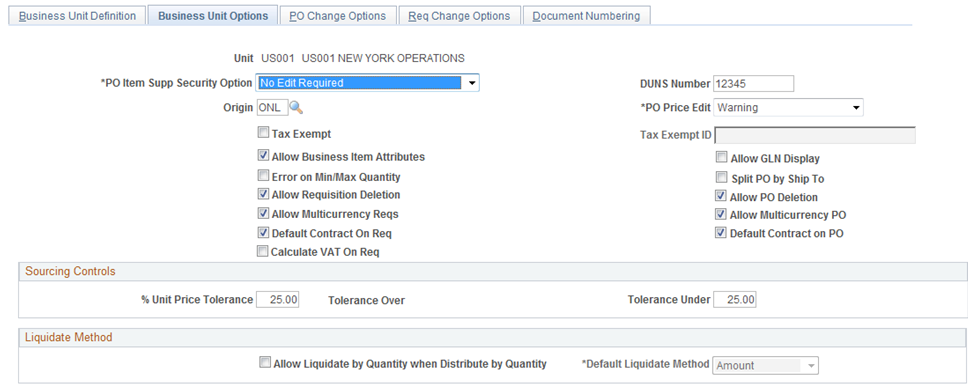
Image: Purchasing —Business Unit Options Page (2of2)
This example illustrates the fields and controls on the Purchasing —Business Unit Options Page (2of2). You can find definitions for the fields and controls later on this page.

The Business Unit level option controls whether Item Substitution is turned on for the Purchasing Business Unit. On enabling the “Enable Item Substitution” checkbox on the Business Unit Options level, the “Allow Manual Item Substitution’ and ‘Allow Automatic Item Substitution’ sections will be available for selection.
If you select this checkbox, all Item Substitute fields will be enabled on the Requisition, Requisition Selection/Requisition Expediter, Sourcing Workbench, Purchase Order, Receipt and other applicable components as needed.
The “Requisition” checkbox under the Allow Manual Item Substitution section allows you to enable manual item substitution on the Requisition (core and ePro) whereas the Online Requisition Selection and Purchase Order checkbox allows you to enable manual item substitution during Requisition Selection and on the Purchase Order
The “Requisition” checkbox under the Allow Automatic Item Substitution section allows you to enable manual to enable automatic item substitution on the Requisition (core and ePro) whereas the Online Requisition Selection, PO Sourcing and Purchase Order checkboxes allow you to enable manual item substitution during Requisition Selection, PO Sourcing, and on the Purchase Order.
Note: While setting up the item substitution controls, you must ensure that you have selected at least one or more checkboxes in the Allow Manual Item Substitution and Allow Automatic Item Substitution sections..
Defining Item Substitution Priorities at the Supplier Level
Item Substitutes defined at the Item Supplier Location level will only apply to the specific supplier. However, if the Purchase Order Item Supplier Security Option for the transaction’s business unit is Edit Required Must Use Item ID or Edit Required When Use Item ID, then the substitute items without an item-supplier relationship will not be available for manual item substitution selection or automatic defaulting.
SeeDefining Purchasing Item CategoriesSelecting Suppliers Based on Item Ship To and Item Supplier Locations
Defining Item Substitution Priorities at the Item level
Item Substitutes defined at the Item Level will apply to all Suppliers. .
Designating Items for Substitution Only
You can filter out substitute items during item searches in Procurement transactions if you designate the item for substitutions only. In this case, the substitute item will not be available in any Item ID prompt fields throughout the Procurement system. Instead, the Item ID is considered a substitute item for exclusive use as part of the Manual and Automatic Item Substitution process within the Procurement process.
Override Auto Item Substitution
The Override Auto Item Substitute field on the Requester Setup page will allow you to uncheck the ‘Auto Item Substitution’ box on a Requisition Line when you wish to retain the current Item ID and do not want it automatically substituted during PO sourcing. Additionally, you will be able to reject a Substitute Item found by Auto Item Substitution on the online Requisition.
If you select the Override Auto Item Substitute checkbox on the Requestor Setup page, the Auto Item Substitute checkbox on the requisition line will be ungrayed and checked. You can also uncheck this box if you wish to prevent Automatic Item Substitution from occurring on this Requisition Line during the sourcing process.
Selecting this checkbox also means that if Auto Item Substitution occurs on a Requisition Line and a Substitute Item is found, the Requester can answer ‘No’ to prevent the Sub Item from overriding requested item.
If you do not select the checkbox, then the ‘Auto Item Substitution’ box on the Requisition Line will be grayed and checked and the Requester cannot deselect it. (The Buyer will still have the option to uncheck this flag in Requisition Selection.)