Creating an attribute group

When you create a group, you give the group a name, select default options for how the group is used, and then select the attributes that belong to the group.

From the Attribute Groups page, to create a new attribute group:

  1. Click New Group.
  2. On the New Group dialog, in the Group name field, enter the name of the new group.
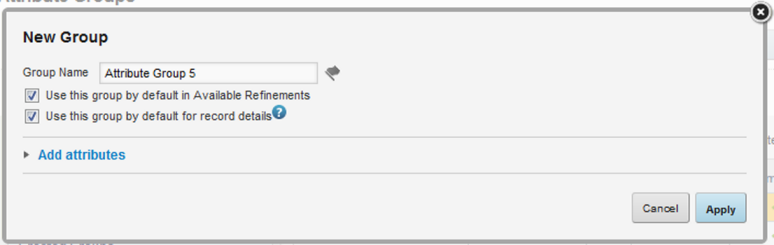
    Name and default use settings for a new attribute group
  3. For a group in a base view, to have this group enabled by default in a Available Refinements component, check the Use this group by default in Available Refinements checkbox.

    Note that because the Available Refinements component can only use a base view, this checkbox is not displayed for groups created in other views.

  4. To have this group enabled by default when displaying record details information for this view, including on the Record Details and Compare components, and in the default configuration for a Results Table component, check the Use this group by default for record details checkbox.
  5. Configure the group membership.
  6. After completing the configuration, click Apply.