| Oracle® Health Sciences Network User's Guide Release 2.0.0.0 E35514-02 |
|


|
PDF · Mobi · ePub |
| Oracle® Health Sciences Network User's Guide Release 2.0.0.0 E35514-02 |
|
|
PDF · Mobi · ePub |
This chapter discusses how to use the Patient Recruiter for partners. It contains the following topics:
Perform the following steps to accept a recruitment request for qualification:
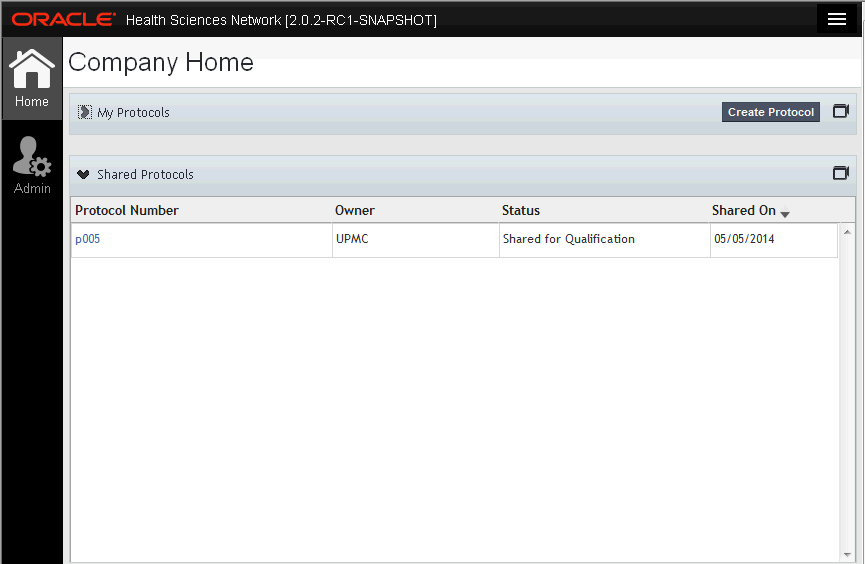
On your home page, from the Shared Protocols panel, click the protocol you want to accept.
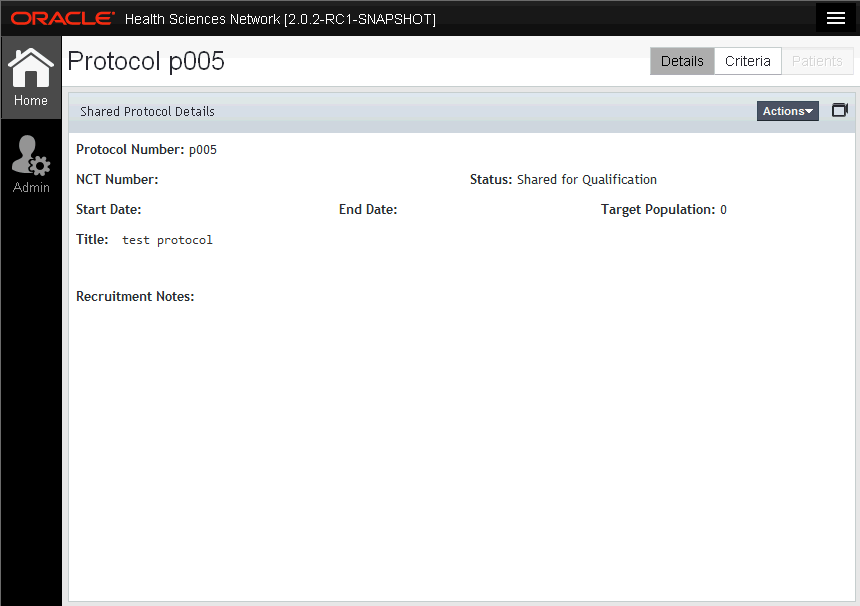
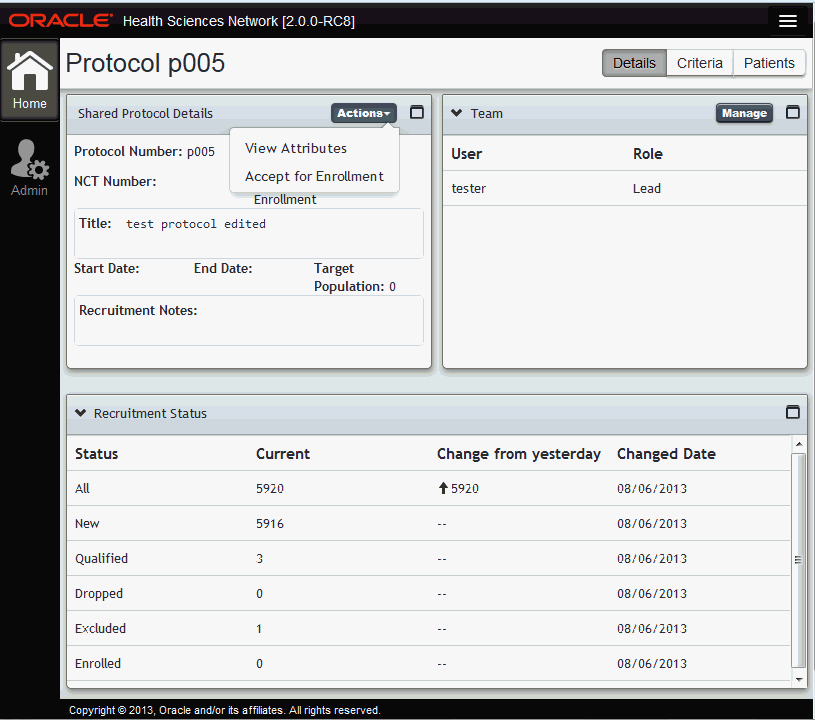
Protocol details are displayed.
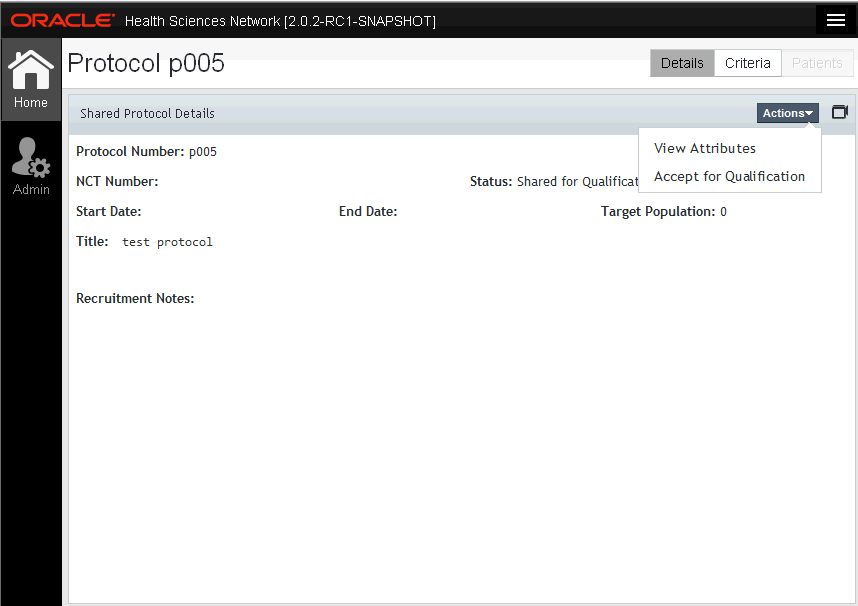
Click Actions > Accept for Qualification.
A confirmation screen is displayed. Click Yes.
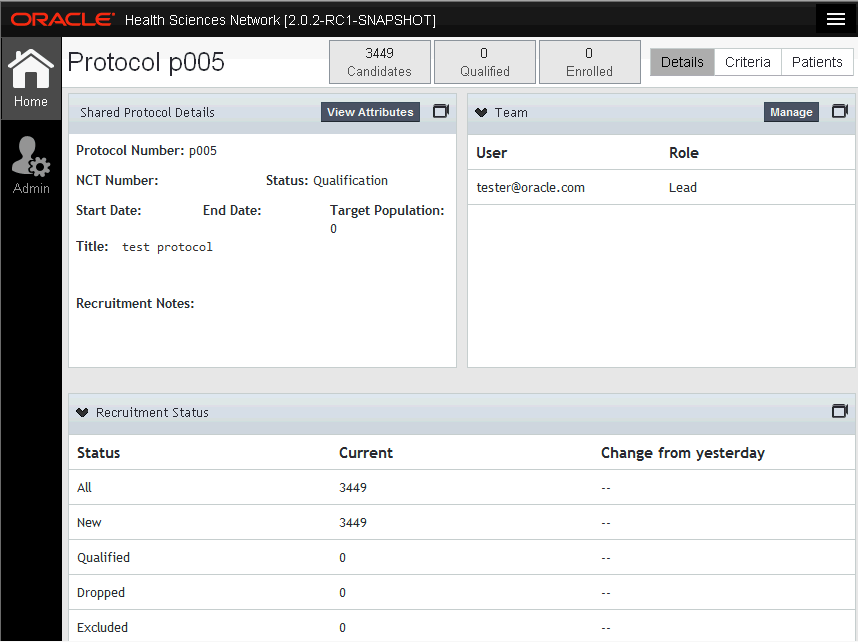
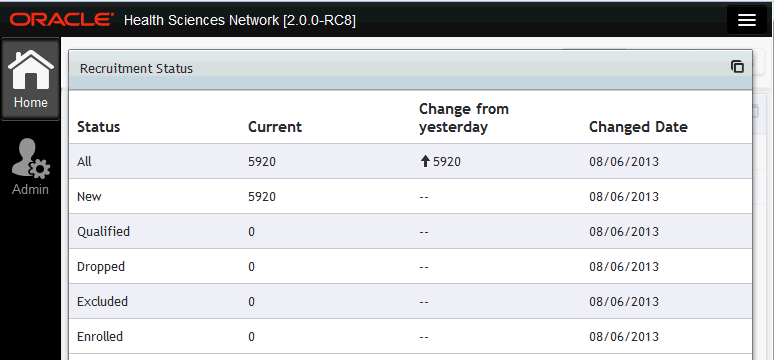
The status changes to Qualification and the Recruitment Status panel is displayed.
This panel displays a list of patient status and counts for each status. Initially while the patient list is being generated, the status patient results are being populated is displayed. Once populated, it displays counts for each status type of patient: All, New, Qualified, Dropped, Excluded and Enrolled.
Once the protocol has been accepted for qualification, you can view information about each patient matched as a candidate. Recruitment leaders and recruiters can conduct more in-depth reviews of each patient, to determine whether the patient is appropriate for the protocol.
Perform the following steps to view a list of patients generated that match the criteria of the shared protocol:
From the Shared Protocols panel, click the protocol that you want to view patient information for.
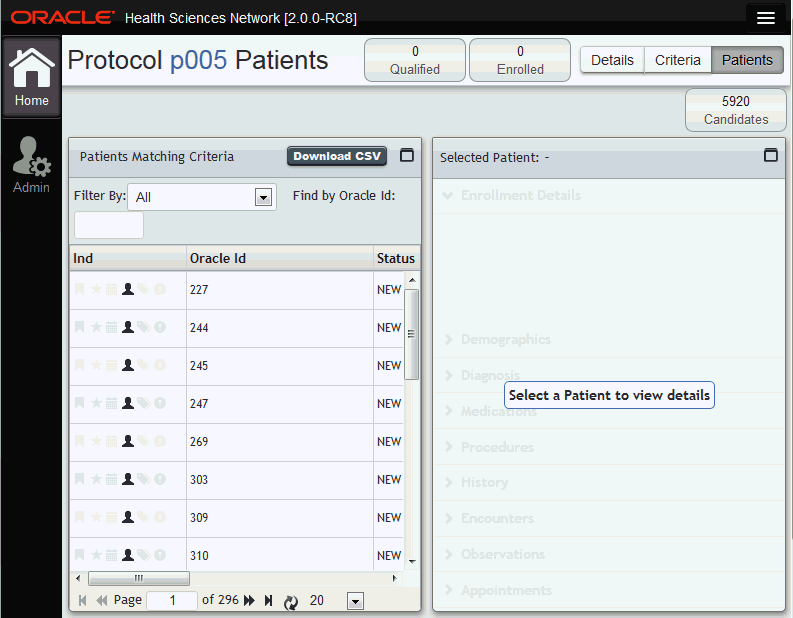
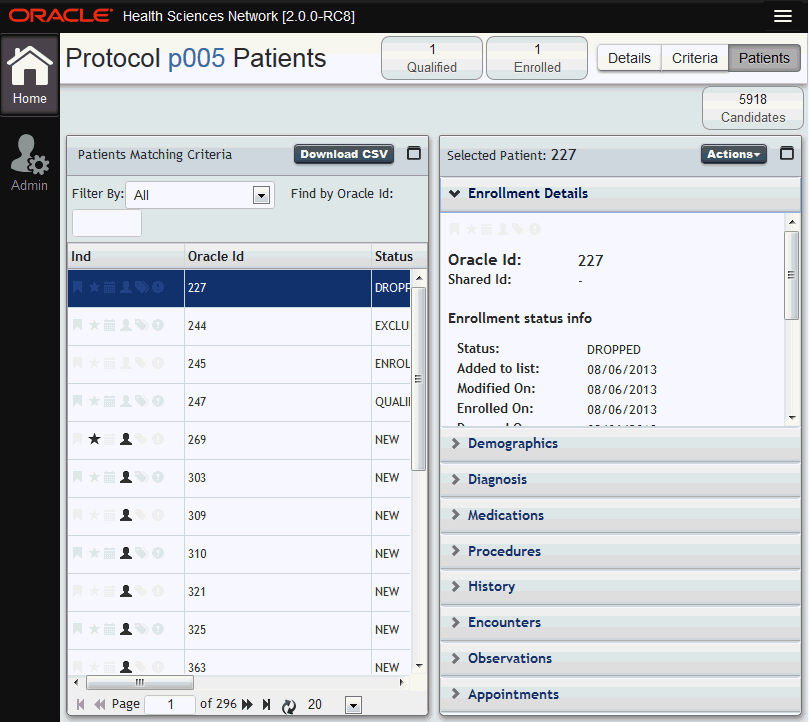
Click Patients on the top right.
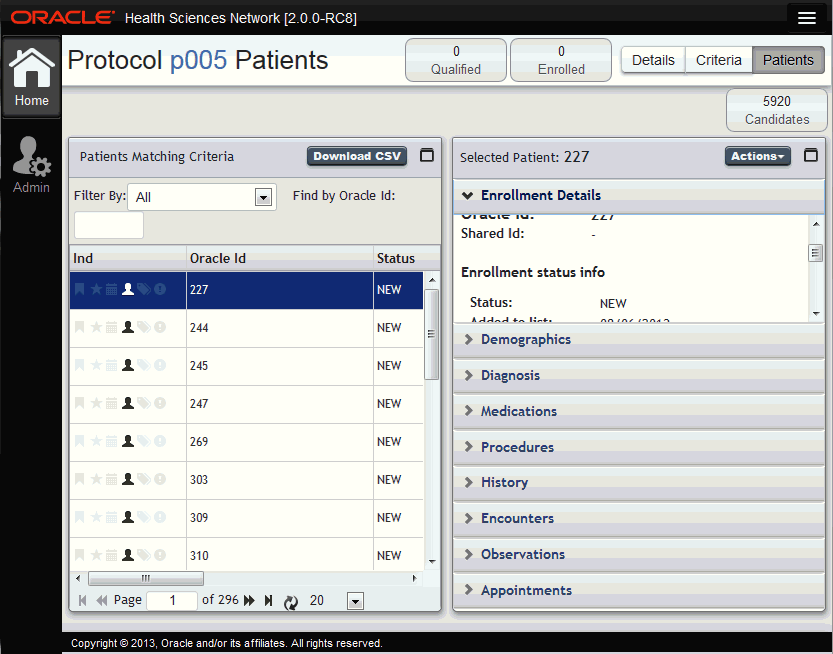
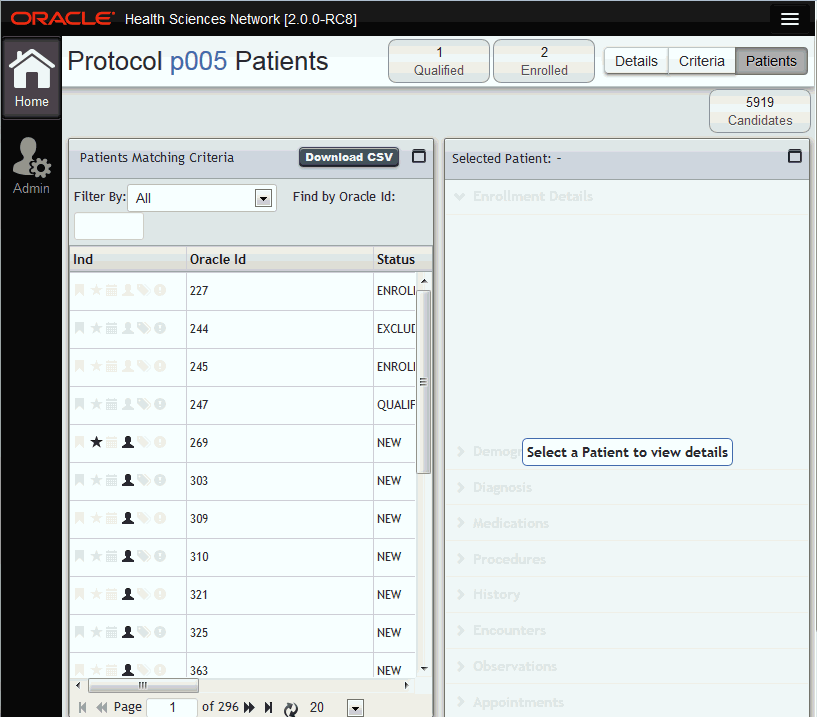
Click a patient to view their details.
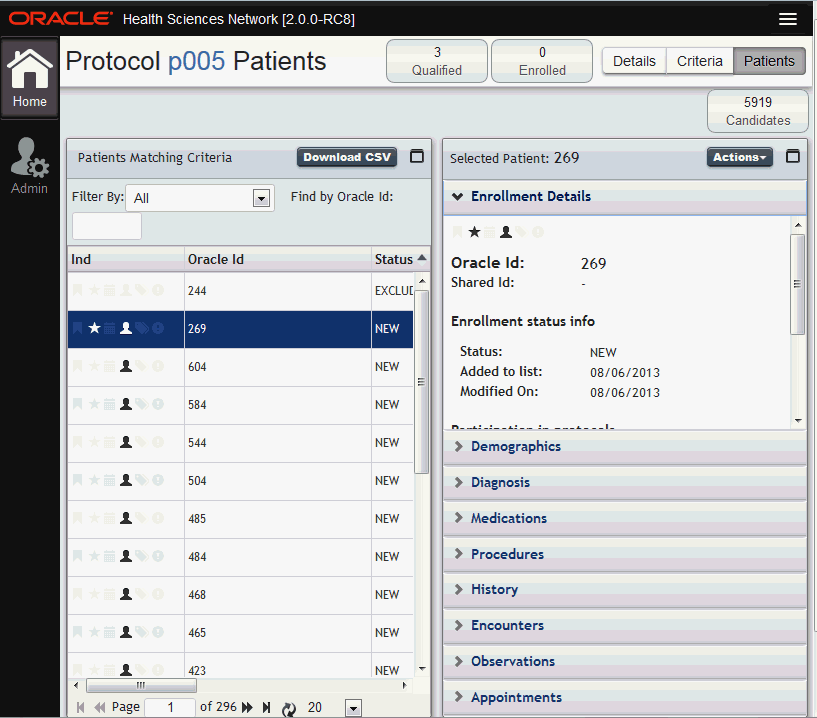
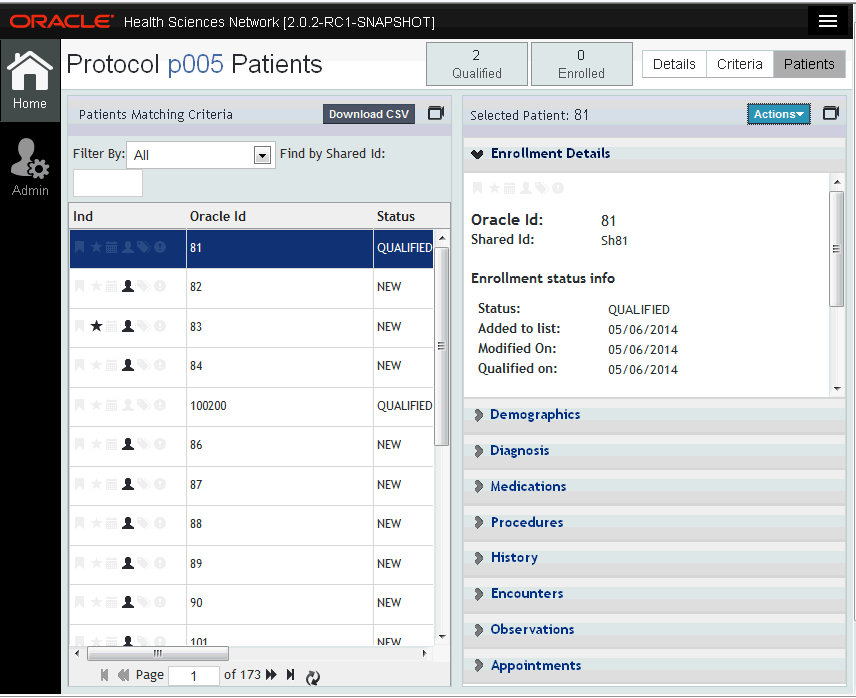
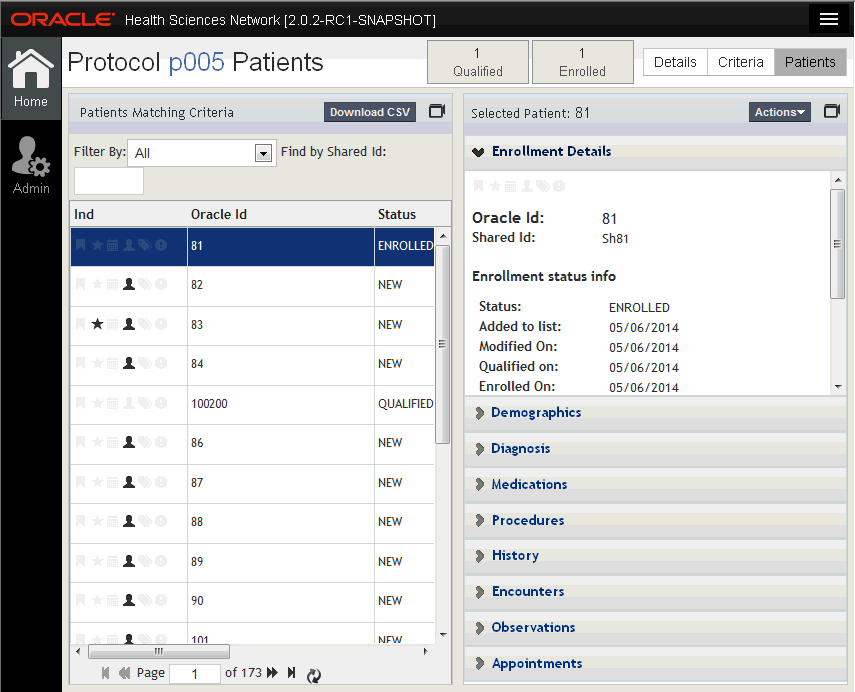
Patients Matching Criteria panel to left displays filterable, sortable and searchable list of patients. Information panel to right displays details of selected patient with tabs for each type of detail including: enrollment details, demographics, diagnosis, medications, procedures, diagnostic tests, patient history and patient encounters.
You can also download a .xls list of patients by clicking Download CSV.
The Ind column displays if patient is favored (star), new (silhouette), tagged (bookmark), reserved in other (), scheduled for appointment soon (calendar), or alert if need attention (exclamation).
Each protocol may have criteria or patient requirements that may not be specified within the eligibility criteria. The protocol's validation notes displays additional context for the recruiting process. At this point, the recruiting team can examine the patients in closer detail (chart or image lookup) to determine if they meet the requirements for the protocol.
Perform the following steps to mark a patient as qualified:
From the Shared Protocols panel, click the protocol that you want to view patient information for.
Click Patients on the top right.
Click a patient to view details.
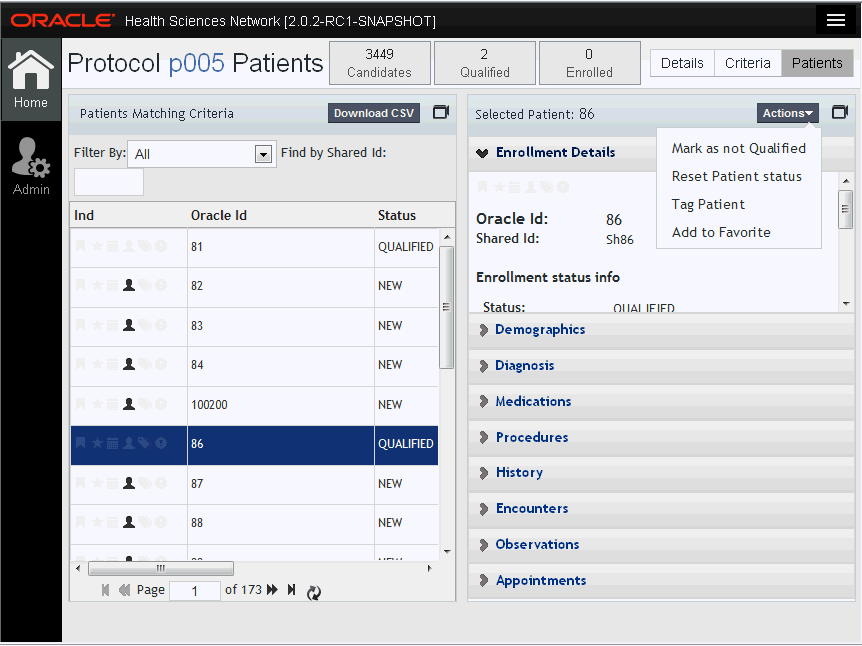
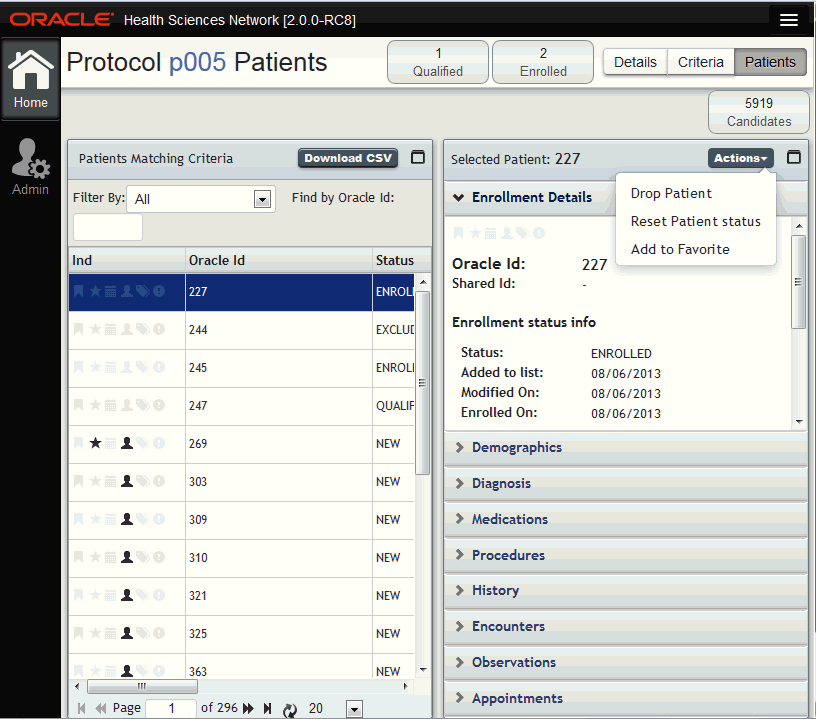
Click Actions > Mark as Qualified in the right panel.
Note:
Although a patient is qualified, that patient remains available to be matched as a candidate in other protocols.Alternately, you can also mark the patient as not qualified or add as a favorite. When you Add to Favorite, the star icon will appear in the Ind column. When you Mark as not Qualified, the system will remove that patient as a candidate for that protocol, and also remove that patient from the protocol's count and patient list, as well as future execution of the protocol's eligibility criteria.
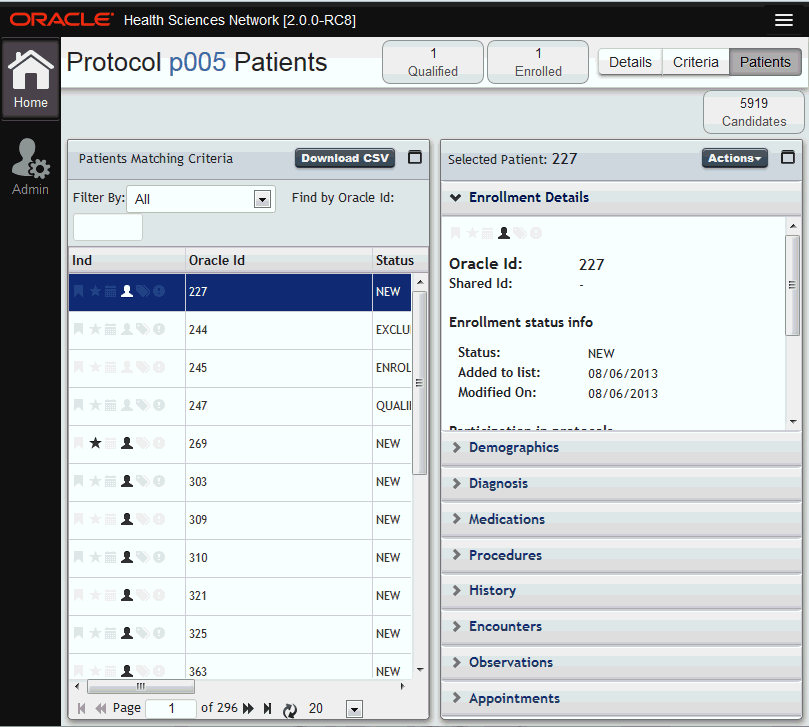
When you Reset Patient Status, the status reverts to New. When you Tag Patient, the patient is tagged for future reference.
Perform the following steps to accept a protocol for enrollment:
From the Shared Protocols panel, click the protocol that you want to recruit candidates for.
In the Shared Protocol Details panel, click Actions > Accept for Enrollment.
A confirmation screen is displayed. Click Yes.
Note:
The protocol status changes to Accepted for Enrollment.Perform the following steps to enroll candidates for a protocol from the sponsor:
From the Shared Protocols panel, click the protocol that you want to recruit candidates for.
Click Patients on the top right to view a list of patients for this protocol.
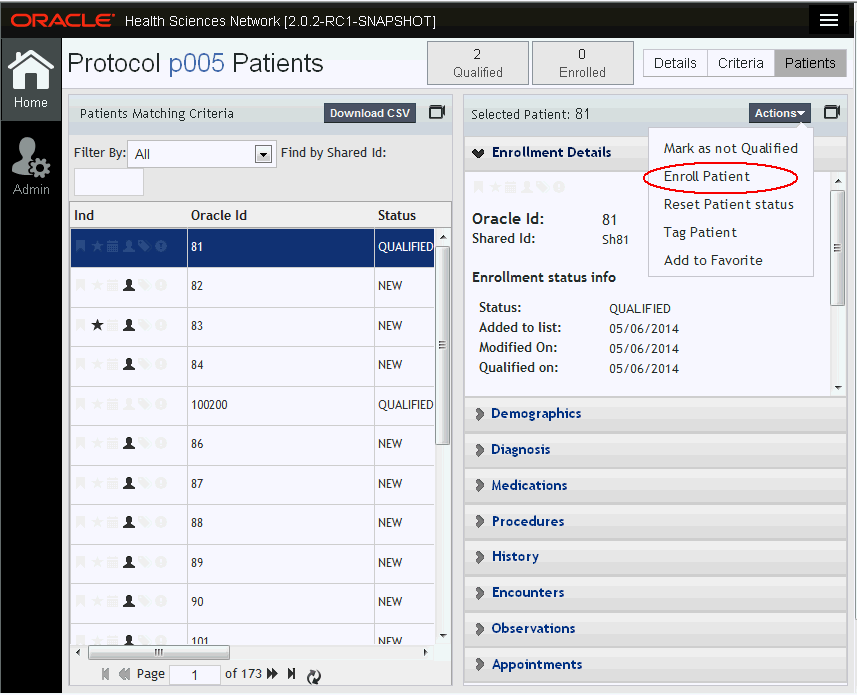
Select the patient you want to enroll. Then click Actions > Enroll Patient.
The patient status changes to enrolled and the enrolled count on top is incremented.
The recruiter has the ability to de-select a previously enrolled or qualified patient. Perform the following steps to release a patient:
From the Shared Protocols panel, click the protocol that you want to release candidates for.
Click Patients on the top right.
Select the patient you want to release. Then click Actions > Reset Patient Status.
The patient status changes to New.
You can also drop the patient from the entire process by selecting Drop Patient. In this case, the patient status changes to dropped.
|
 Copyright © 2013, 2015, Oracle and/or its affiliates. All rights reserved. Legal Notices |
|