| Oracle® Health Sciences Network User's Guide Release 2.0.0.0 E35514-02 |
|


|
PDF · Mobi · ePub |
| Oracle® Health Sciences Network User's Guide Release 2.0.0.0 E35514-02 |
|
|
PDF · Mobi · ePub |
This chapter contains the following topics:
Following are the characteristics of a protocol:
Table 3-1 Protocol Characteristics
| Attribute | Description |
|---|---|
|
Title |
The protocol title. This is unique within a company. |
|
Purpose |
Brief summary on the goals, objective or purpose of the study. |
|
Description |
Detailed information on the study (goals, methodology, key details). |
|
Contact Information |
Information for the person(s) to contact regarding the study. |
|
Population Summary |
Summary note about the protocol population to be recruited. |
|
Recruitment Notes |
Inclusion or exclusion narrative that cannot be structured with the criteria builder. |
|
Protocol Number |
Sponsor's unique study ID. |
|
Phase |
Most clinical trials are designated as phase I, II, III, or IV, based on the type of questions that study is seeking to answer. |
|
NCT # (CT.gov Id) |
The national identifier for the study (from the national clinical trials registry). |
|
Target Population |
Eligibility instructions that may not be structured in the criteria (to assist Partners with recruitment nuances). |
|
Target Recruitment Start Date |
Target date for starting the recruitment process for the actual study. |
|
Target Recruitment End Date |
Target date for completing the recruitment for the actual study. |
|
Accept Healthy Volunteers? |
Indicates whether or not healthy volunteers can be accepted into the study. |
Each Protocol has a status, which contributes to determining the functions available. As you progress through the business processes, the protocol status changes. The following table identifies the range of status values for a protocol and a patient, across the protocol life cycle:
Perform the following steps to create a new protocol:
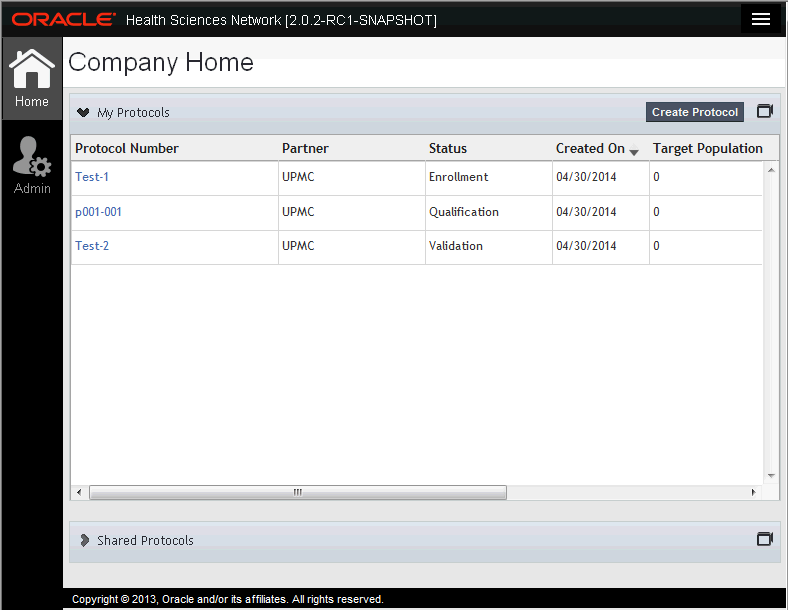
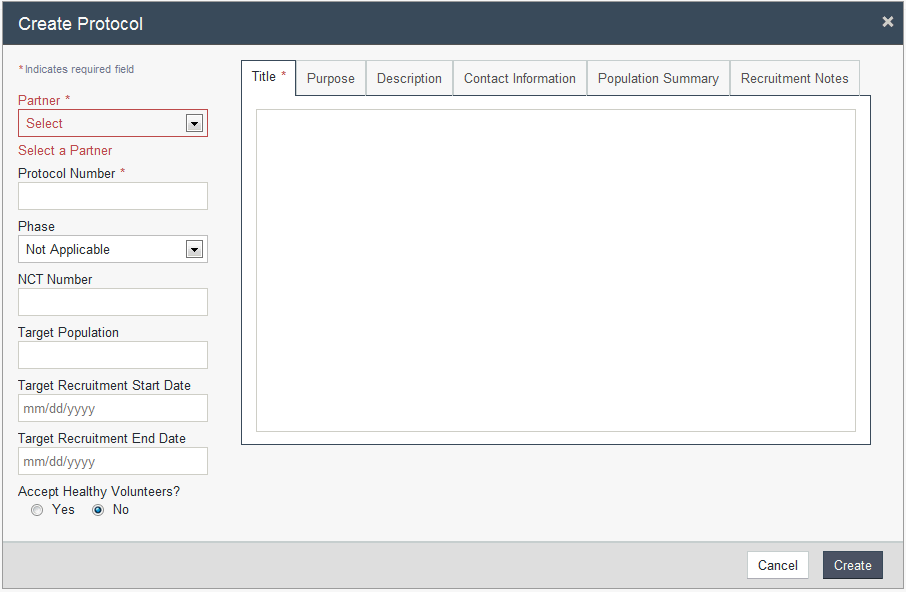
In the My Protocols panel of the company home page, click Create Protocol. The Create Protocol screen is displayed.
The Create Protocol screen includes the following fields and tabs:
Partner
Protocol Number
Phase
(nct)Number
Target Population
Target Recruitment Start Date
Target Recruitment End Date
Title
Purpose
Description
Contact Information
Population Summary
Recruitment Notes
Accept Healthy volunteers?
Note:
Fields marked with * are mandatory.Click Create.
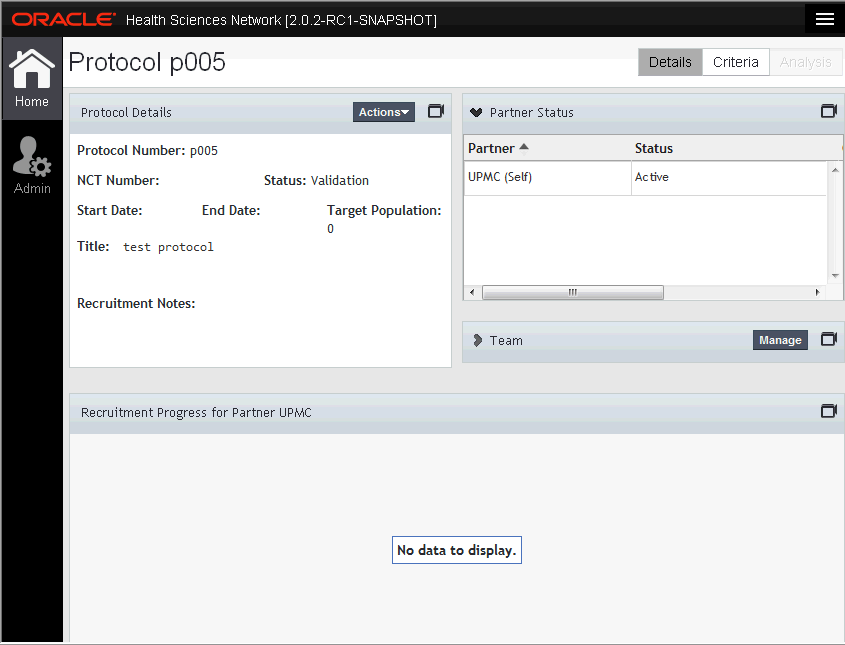
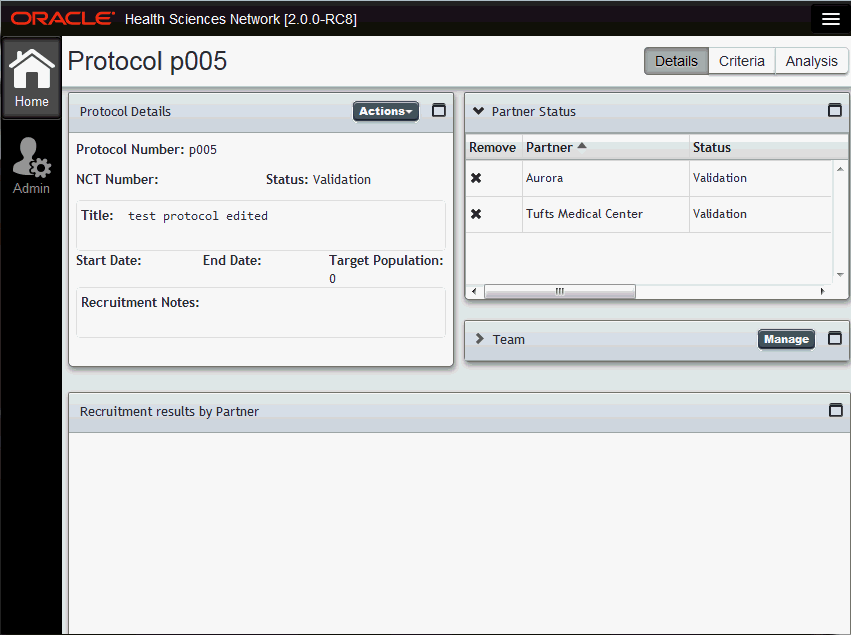
The protocol details are displayed and the home page is updated with the new protocol. This protocol will have a default status Validation.
Note:
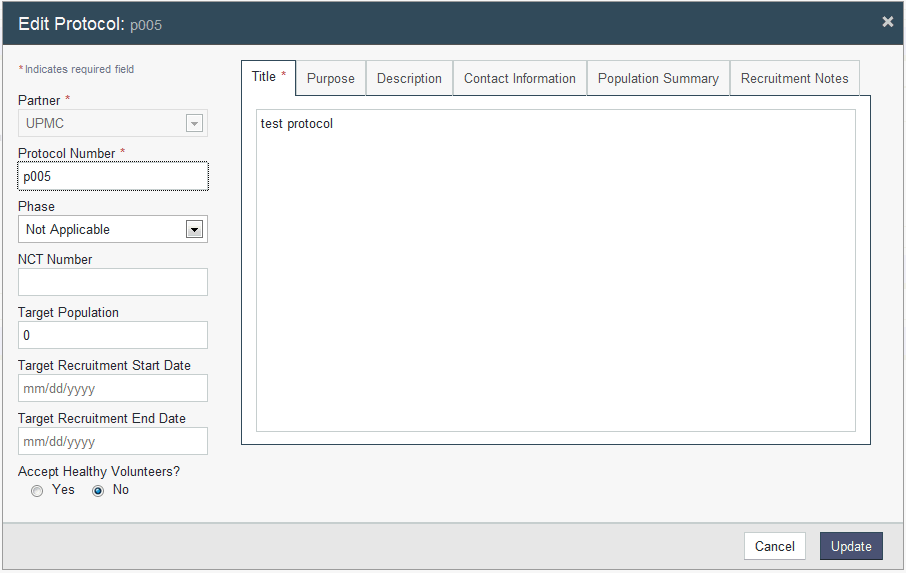
By default, the user who created the protocol is added to team as LEAD.Perform the following steps to edit a protocol:
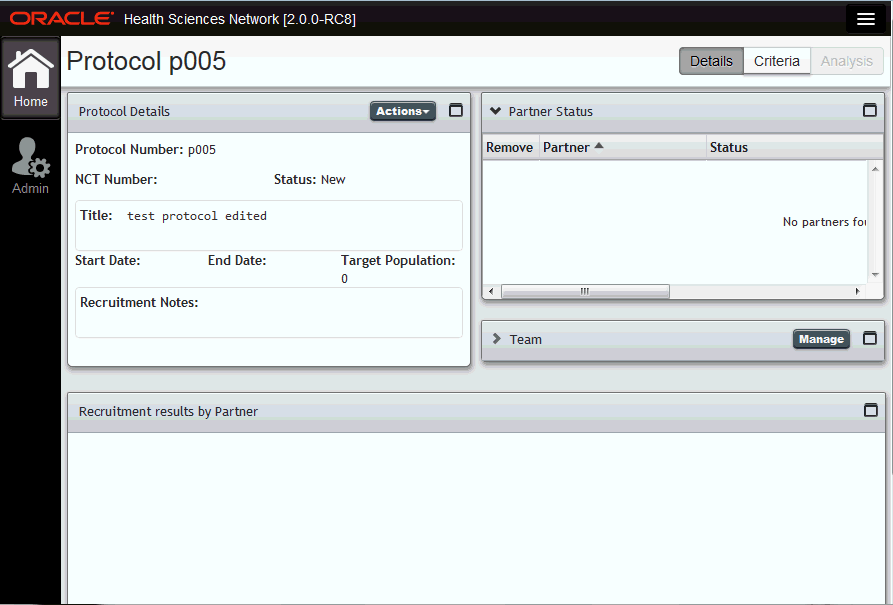
In the My Protocols panel of the company home page, click the protocol you want to edit. The protocol details are displayed.
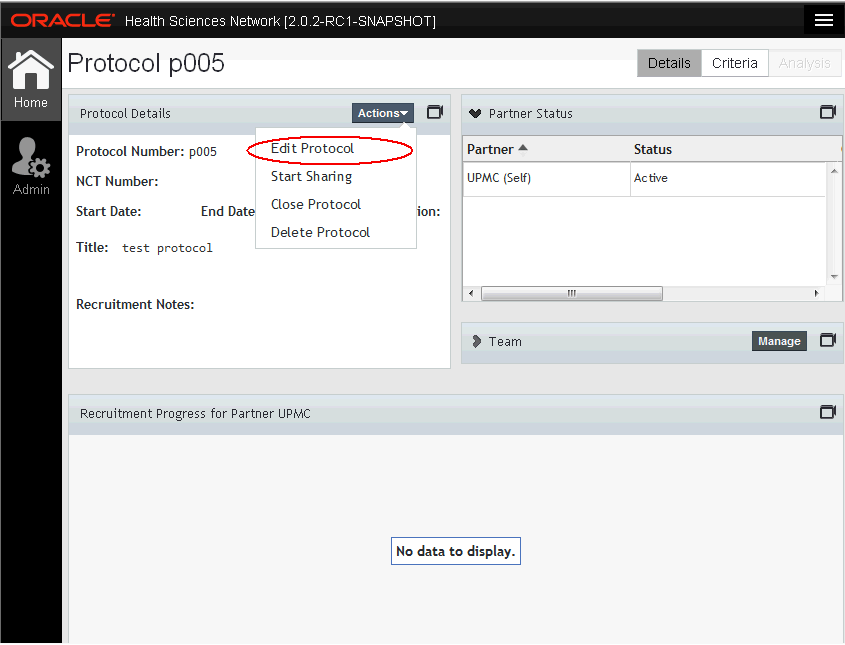
In the Protocol Details panel, click Actions > Edit Protocol.
The protocol details are displayed.
You can add data to attributes previously null, delete or revise data from attributes previously populated. After editing the relevant details, click Update.
The new protocol with edited details will be displayed.
Note:
Multiple users cannot edit the same protocol at the same time.Depending on your role, you can designate additional users from the same organization as team members, providing access to the same protocol. Protocol Team members can:
view the protocol and eligibility criteria definitions
edit the protocol
execute the eligibility criteria to view counts of patients
edit the protocol's eligibility criteria
Perform the following steps to manage protocol team members:
In the My Protocols panel of the company home page, click the protocol you wish to edit. The protocol details are displayed.
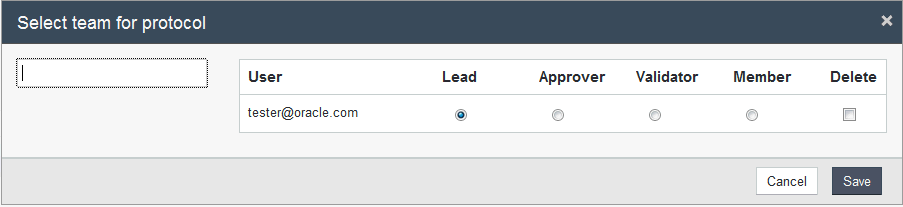
In the Team panel, click Manage. The following screen is displayed, with users currently assigned to that protocol. Initially, only the user who created the protocol will be displayed.
Note:
By default, the user who created the protocol is the lead. You can change this in the following screen.You can add (assign) one or more other users to the protocol team and also select their roles. You can search for users based on the user login name.
Click Save to confirm your changes. The system updates protocol and displays each team member's name and role as part of the protocol's summary.
Perform the following steps to remove team members:
In the My Protocols panel of the company home page, click the protocol you wish to edit. The protocol details are displayed.
In the Team panel, click Manage. The following screen is displayed, with users currently assigned to that protocol.
Select the Delete check box for users you want to remove.
Click Save to confirm your changes. The system updates protocol and displays each team member's name and role as part of the protocol's summary.
You can define inclusion or exclusion statements as a logical definition of the patients to be searched (matched) for the protocol.
In the My Protocols panel of the company home page, click the protocol you wish to edit. The protocol details are displayed.
Click Criteria on the top right.
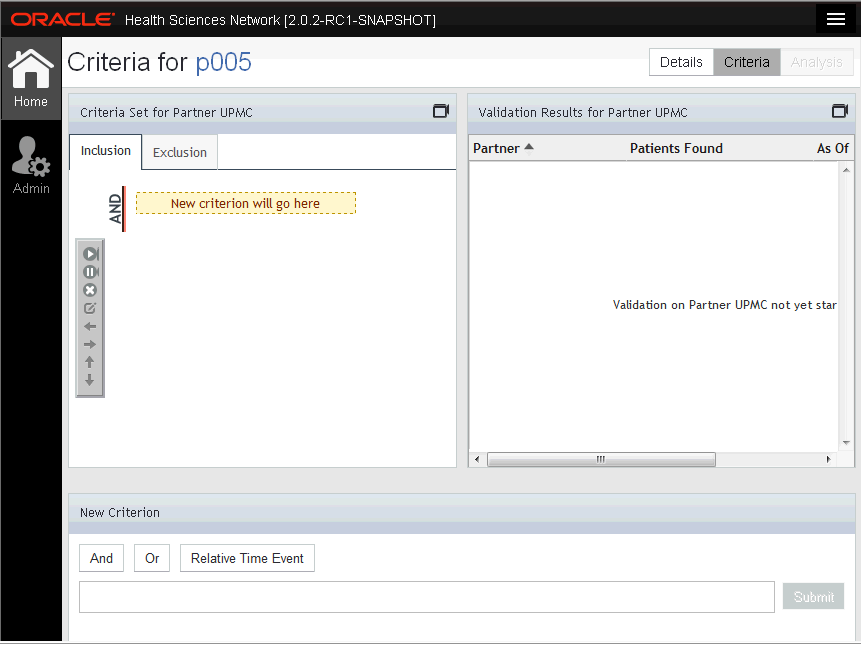
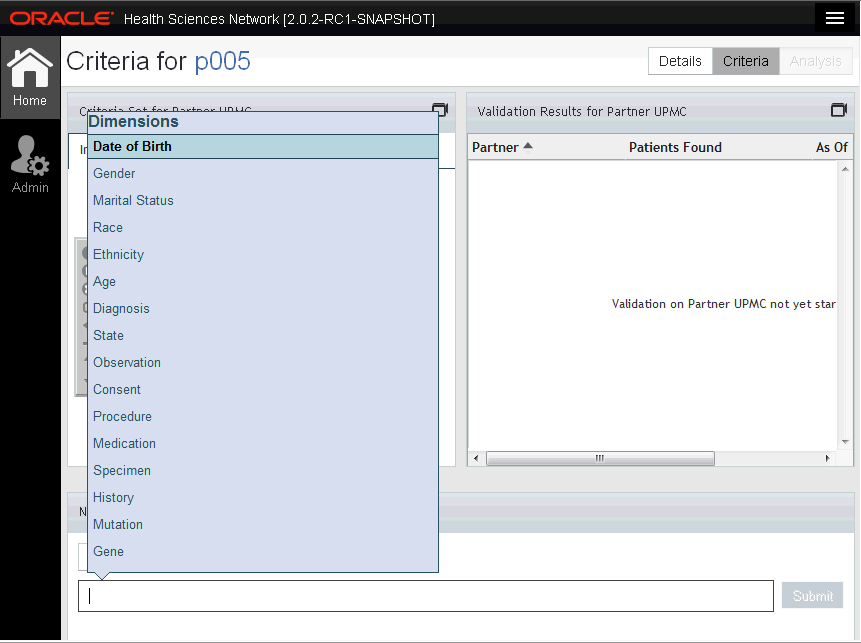
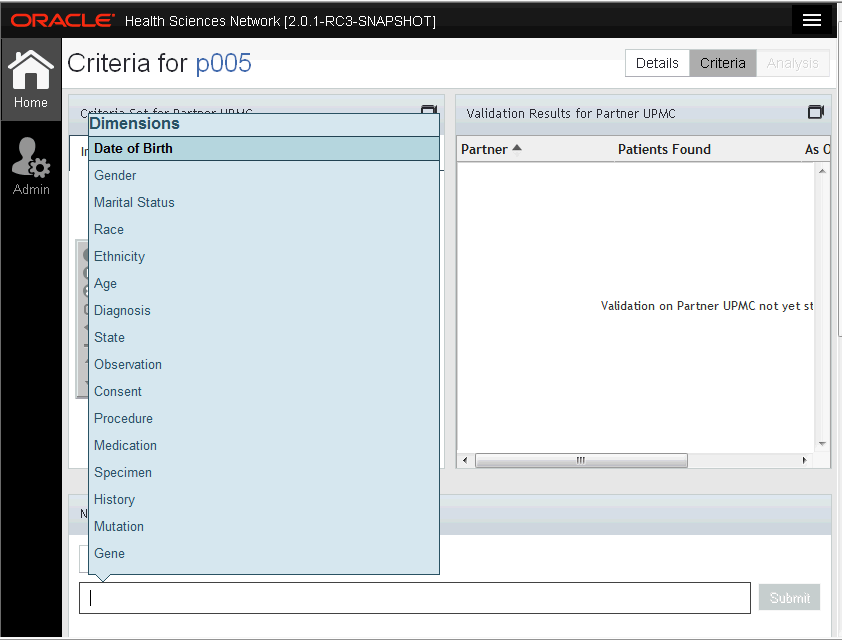
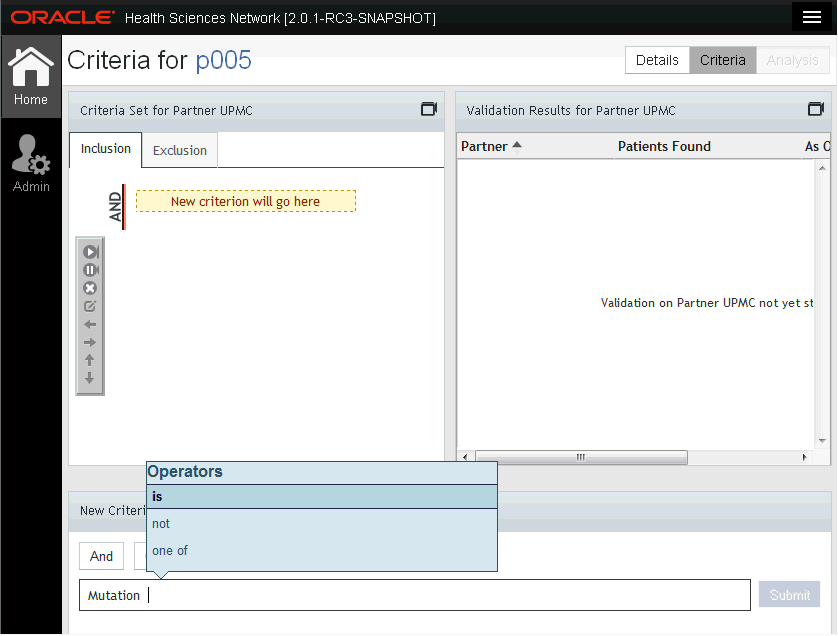
In the New Criterion panel, enter your criteria. You can do this either by typing into the text box or selecting criteria from the pop up list.
Note:
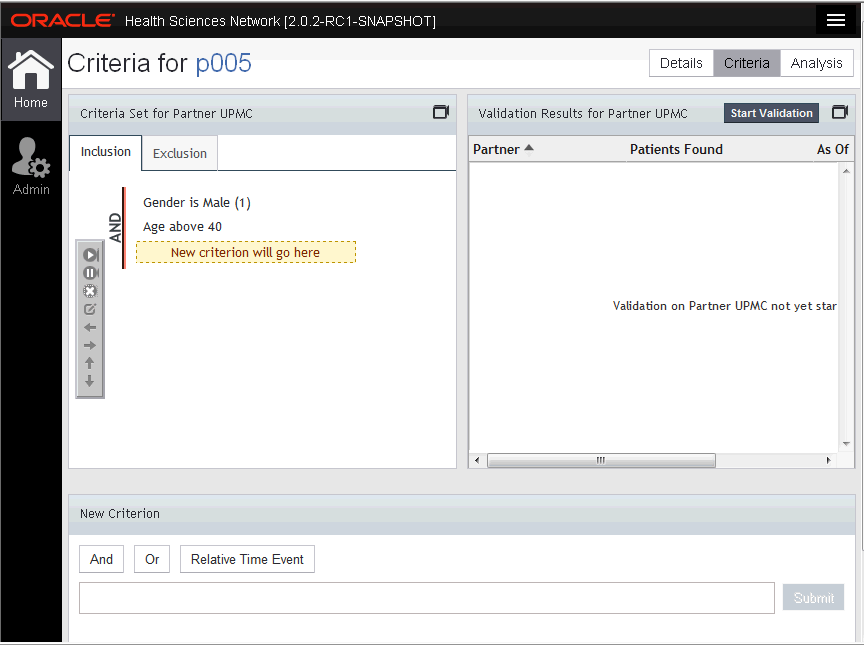
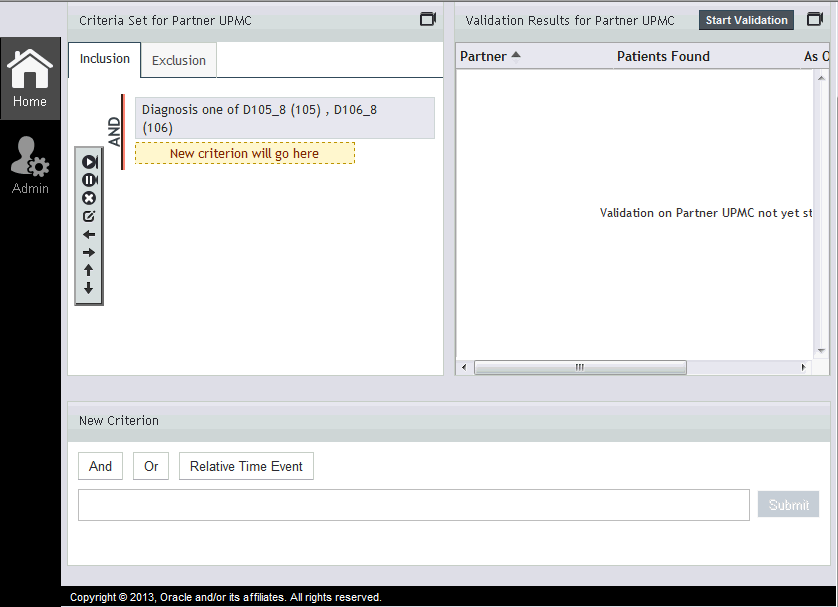
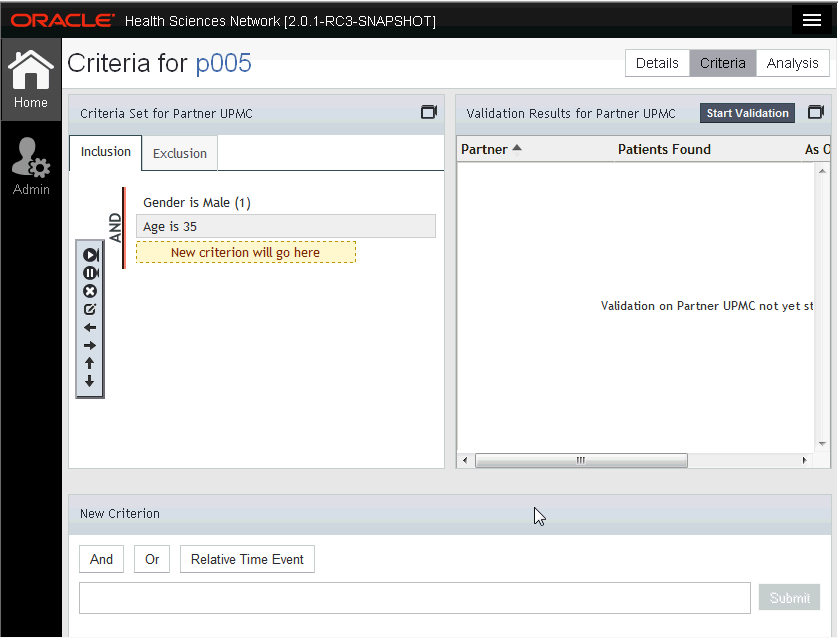
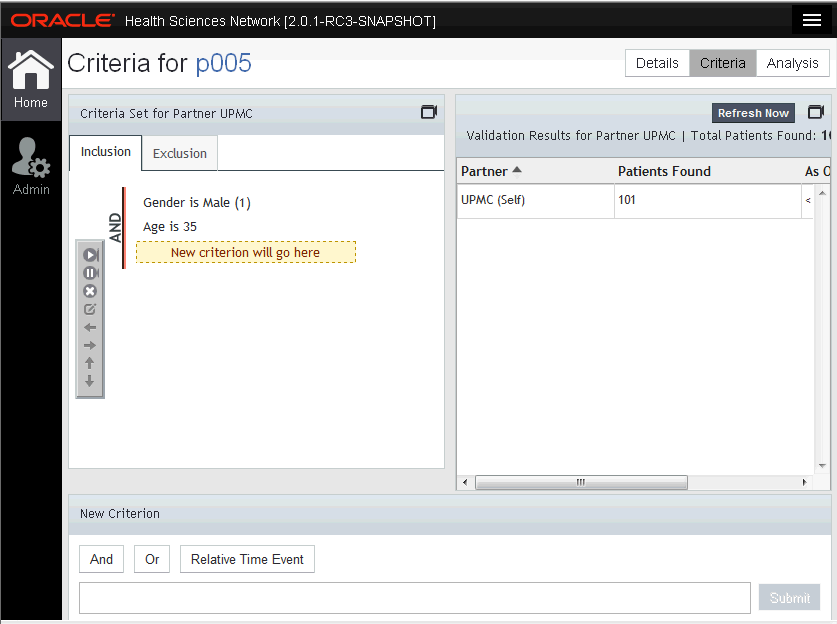
All dimensions populated are provider-specific. The list displays only those values supported by the specific provider.Click Submit or press Ctrl+Enter on your keyboard. The criteria is updated in the Criteria Set panel as shown below.
Perform the following steps to edit the existing set of eligibility criteria:
In the My Protocols panel of the company home page, click the protocol you wish to edit. The protocol details are displayed.
Click Criteria on the top right.
You can now:
add to the existing eligibility criteria
select a previously defined criterion and either edit or delete it
edit (change) how the selected criteria are grouped (revise the AND,OR groupings)
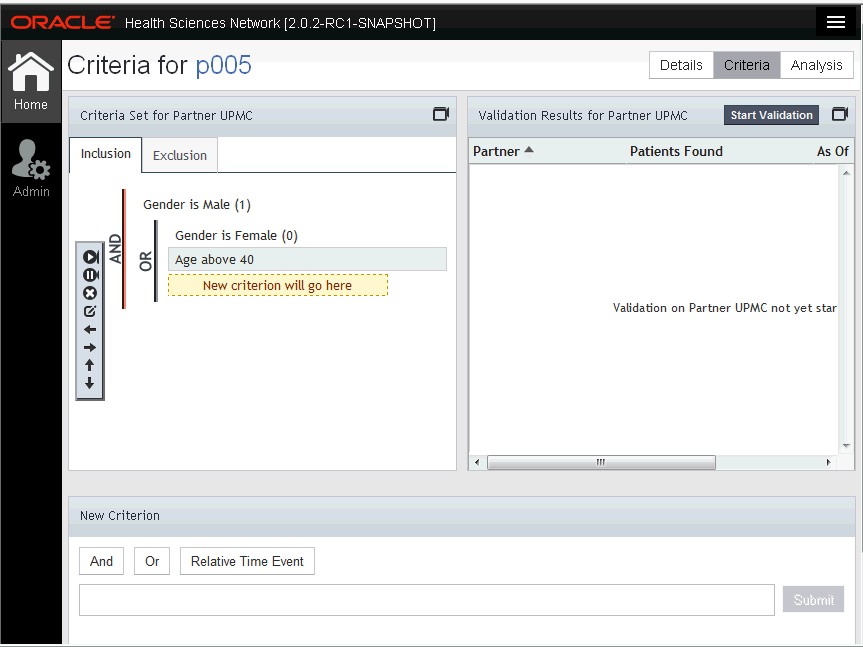
Use the criteria action bar (Figure 3-14) to work on selected criterion. Buttons include (pause, resume) to ignore or permit during query, delete, edit and arrows to move selected criterion to a new position.
The criteria is updated in the Criteria Set panel as shown below.
You can edit criteria in the partner's local codes. You can access and select owned protocol with the role of validator or higher.
In the My Protocols panel of the company home page, click the protocol you wish to edit. The protocol details are displayed.
Click Criteria on the top right.
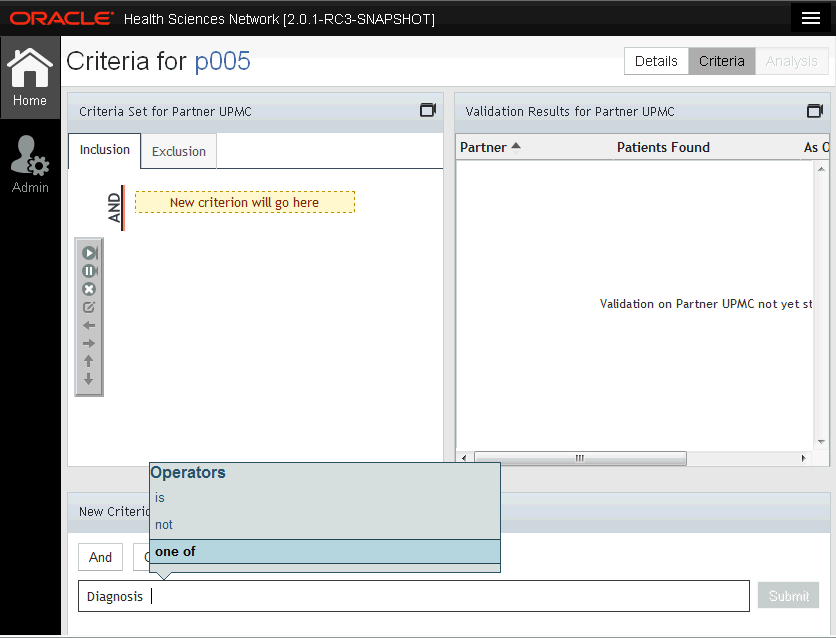
In the New Criterion panel, select a dimension such as Diagnosis to select codes.
Figure 3-16 Select Dimension with Local Code
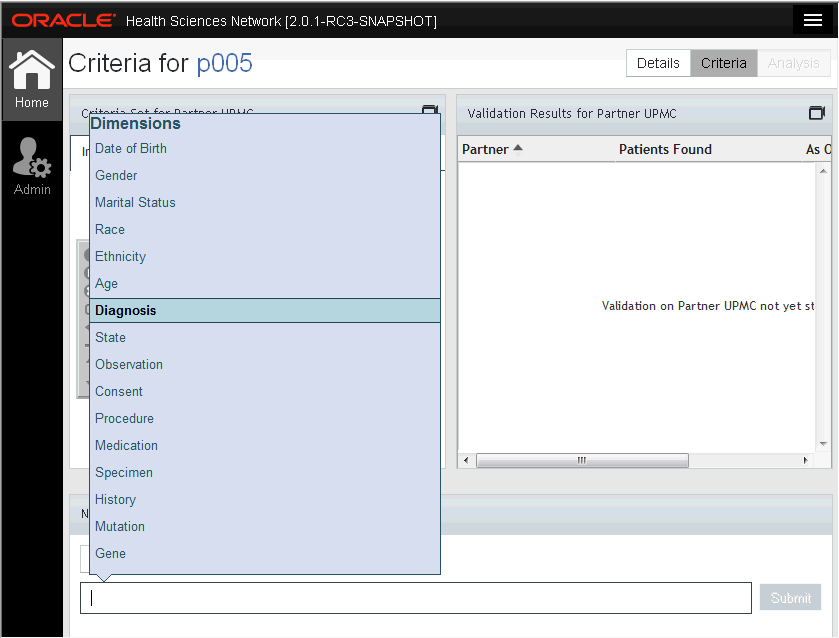
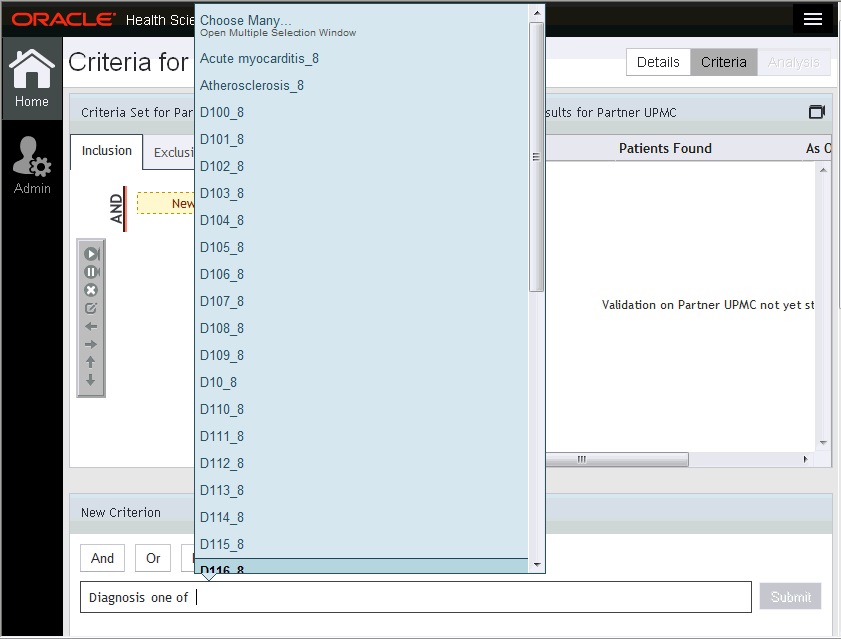
Select operator such as one of. A list of codes is displayed that are local to the selected partner.
Select local code value.
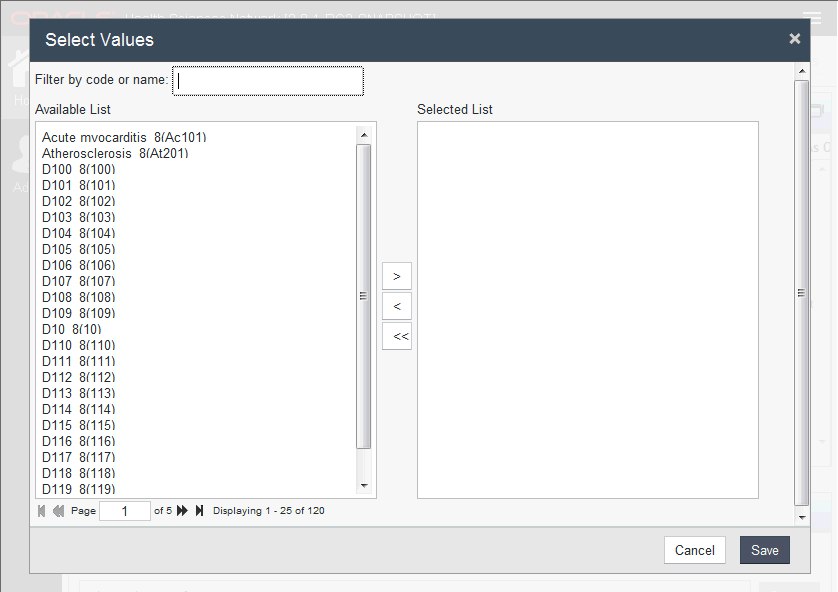
You can select multiple codes by clicking Choose Many.... The Select Many window is displayed from where you can select multiple options. Once done, click Save to save your options and return to the criteria editor.
Click Submit or press Ctrl+Enter on the keyboard to add criteria.
For a protocol with access rights of validation or higher, the partner selected for protocol offers omics service to the sponsor.
In the My Protocols panel of the company home page, click the protocol you wish to edit. The protocol details are displayed.
Click Criteria on the top right.
Select Gene or Mutation.
Note:
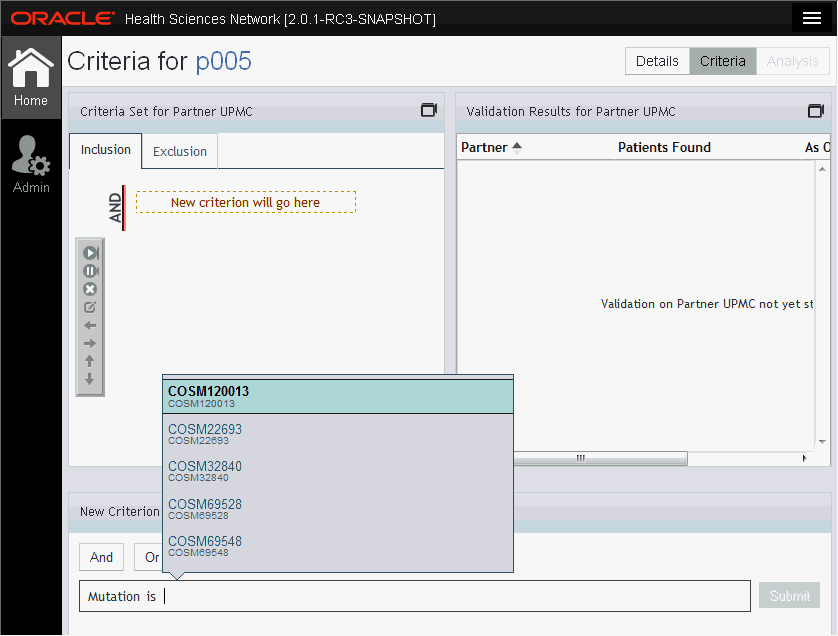
You can view these two options only if the provider offers omics.The operators include is, is not or one of. Select from a common list of gene or mutation.
Select the value.
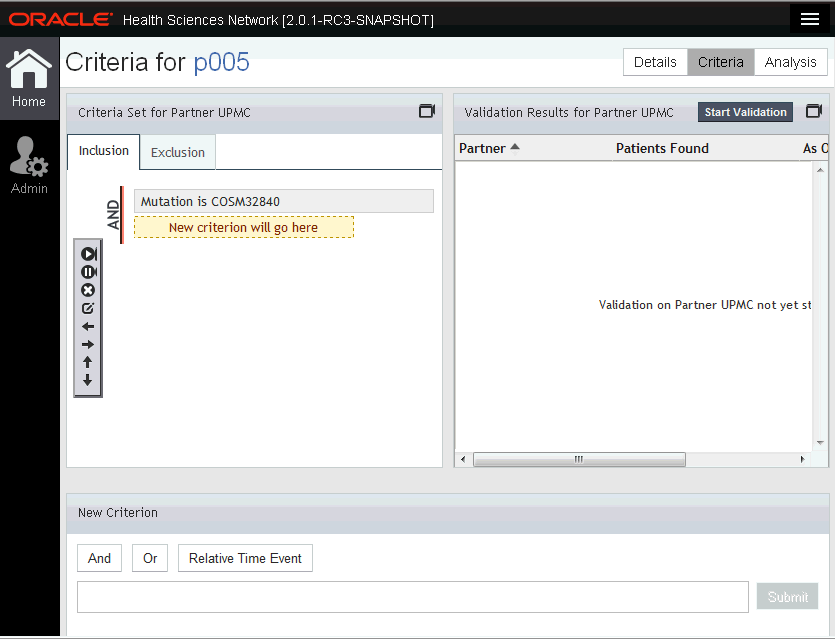
Click Submit or press Ctrl+Enter on the keyboard to add criteria.
Since these criteria are visible only if the provider offers them, you cannot add gene or mutation below the top level of inclusion or exclusion, or move them into a group.
You can submit the protocol eligibility criteria to search for matching patients from each of the selected DM Partners. Each request is executed against each DM Partner's data, distinctly and the result is displayed as a count of patients. No detailed patient information is available or accessible. The purpose of this process is to gauge the feasibility of the protocol. The protocol status accordingly changes to Feasibility. In this process, you can:
view count for each AND and OR grouping
view a count for each independent criterion
refresh the current counts to view an updated summary
You can execute criteria either from the criteria editor panel or from the Analysis panel.
On creating and submitting valid criteria, the start validation button is enabled. Perform the following steps to execute eligibility criteria:
In the My Protocols panel of the company home page, click the protocol you wish to edit. The protocol details are displayed.
Click Criteria on the top right.
In the Validation Results for Partner panel, click Start Validation.
The results are displayed for the partner. If criteria is removed, the Start Validation button is not available. After first validation, if valid criteria is entered, the Refresh Now button is displayed.
Perform the following steps to execute eligibility criteria:
In the My Protocols panel of the company home page, click the protocol you wish to edit. The protocol details are displayed.
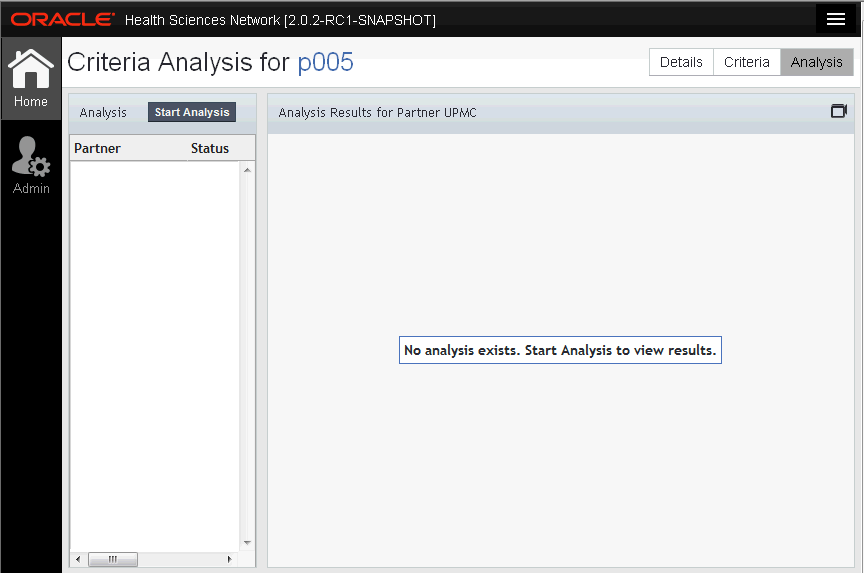
Click Analysis on the top right. The Criteria Analysis screen is displayed.
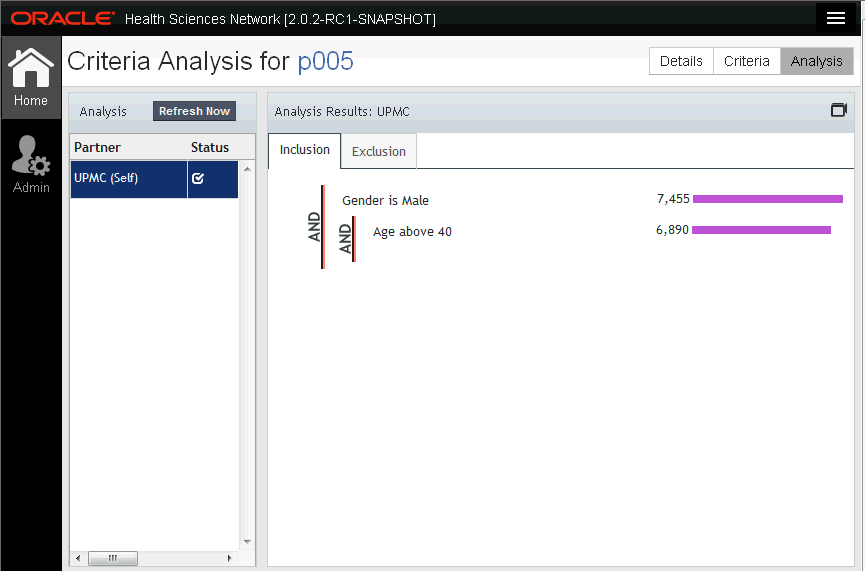
Click Start Analysis. The results of the analysis are displayed in the Analysis Results for Partner pane.
To run the analysis again and avail up-to-date information, click Refresh Now in the Analysis pane.
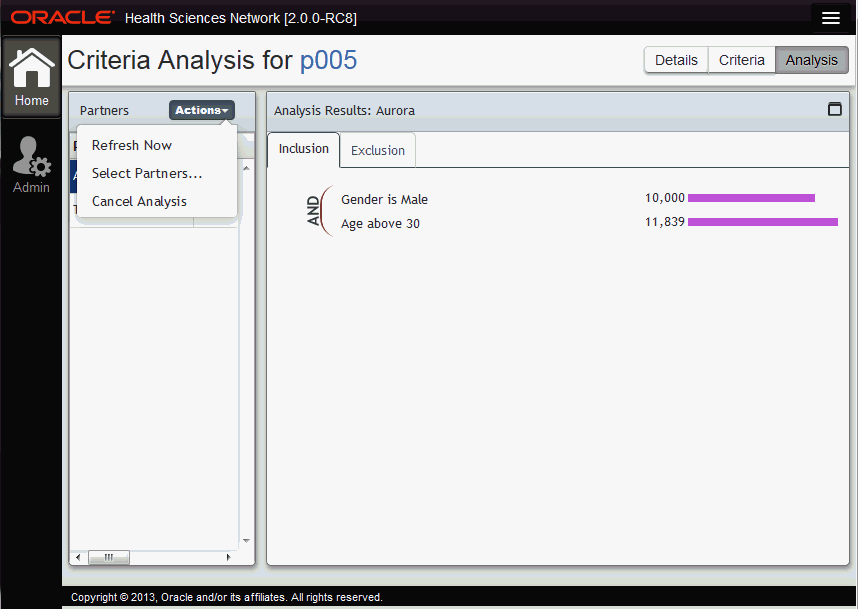
You can select one or more query requests and cancel them before they complete. Perform the following steps to cancel an analysis:
In the My Protocols panel of the company home page, click the protocol you wish to edit. The protocol details are displayed.
Click Analysis on the top right. The Criteria Analysis screen is displayed.
Click Actions > Cancel Analysis.
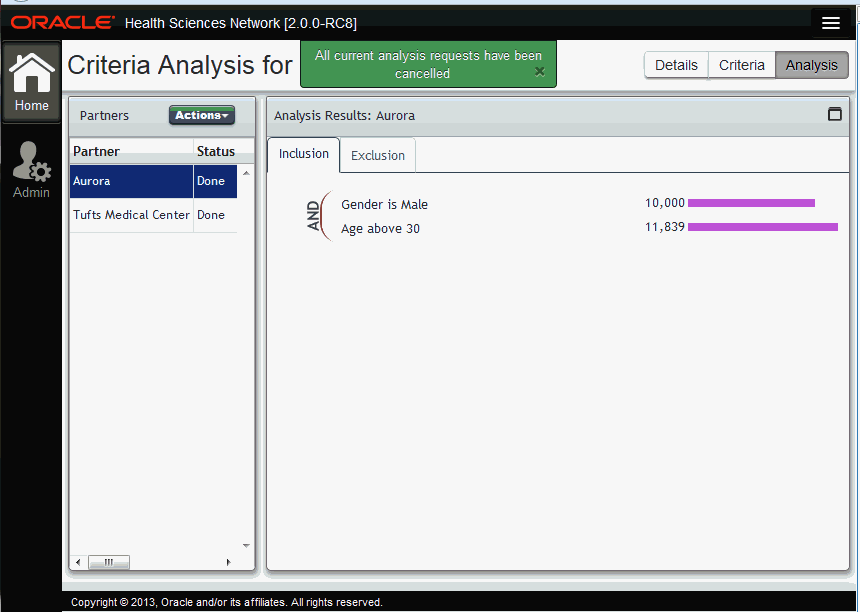
A confirmation screen is displayed. Click Yes.
All analysis for that protocol will be cancelled.
Once the protocol team is satisfied with the protocol's definition and has performed sufficient feasibility activity, one of the team member's is expected to promote the protocol to a new status, indicating that the feasibility activity is complete. The team's organization may have an internal review (outside the team) to approve the protocol before it is submitted to an outside organization as a recruitment request.
Note:
The act of completing the feasibility is distinct from submitting the protocol as a recruitment request to a partner.Perform the following steps to share a recruitment request:
Select the protocol you want to share.
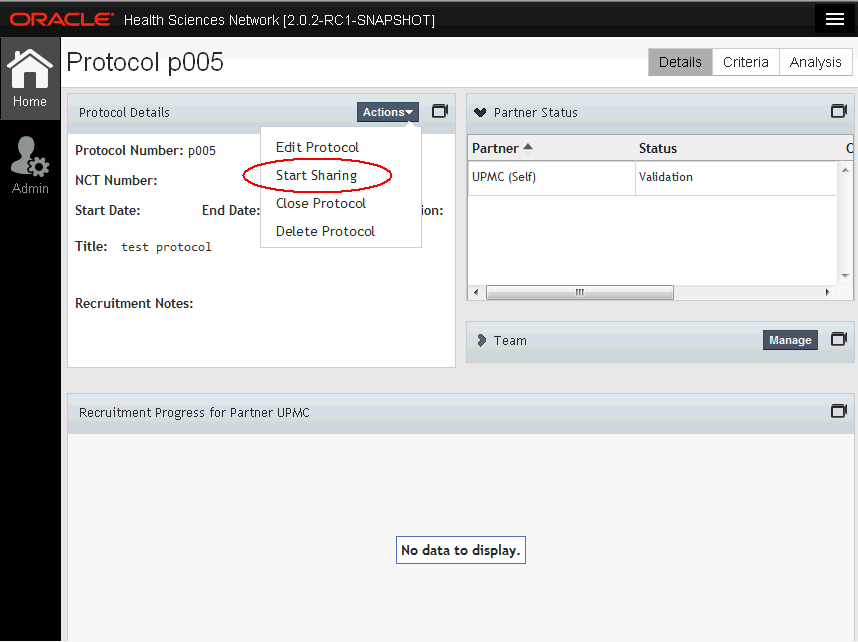
In the Protocol Details panel, click Actions > Start Sharing.
A confirmation screen is displayed. Click Yes.
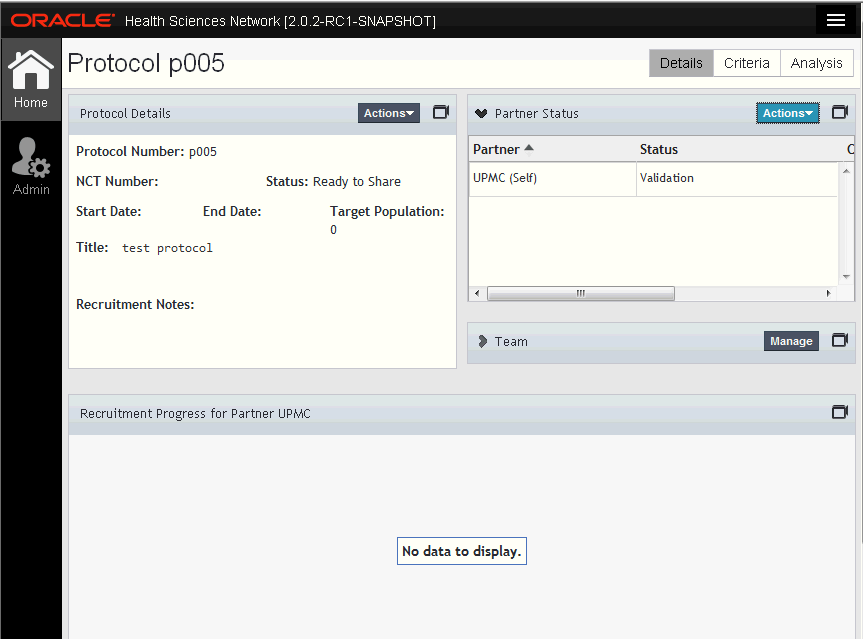
The protocol status changes to Ready to Share and the Recruitment Status panel will have the option to start recruiting or qualifying.
The protocol team leader has permission to send a protocol to one or more DM Partners as a recruitment request. Once the request is created, the protocol becomes accessible (visible) to the selected partners. It is possible that the partners selected for recruitment are different from the partners selected during feasibility.
Perform the following steps to create a recruitment request:
Select the protocol you want to share.
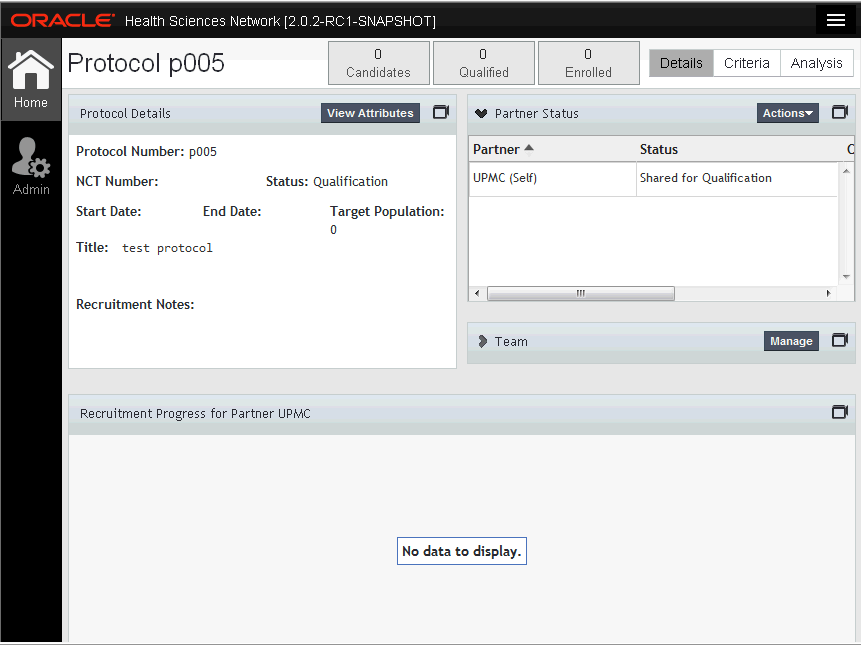
In the Partner Status panel, click Actions > Start Qualifying.
The partner status changes to Shared for Qualification.
Once the sponsor is satisfied with the count of qualified patients, the protocol team leader can initiate recruitment. Once the sponsor updates the protocol status for one or more DM Partner(s), the partner can view the updated status of their recruitment request and move to the next step in the recruitment process.
Perform the following steps to initiate recruitment:
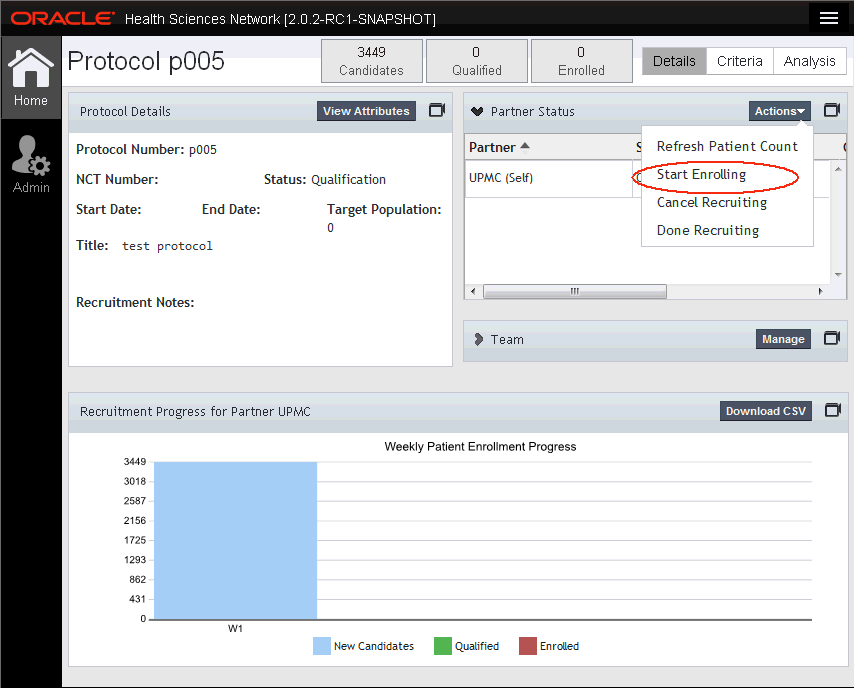
Select the protocol for which you want to initiate recruitment.
In the Partner Status panel, click Actions > Start Enrolling.
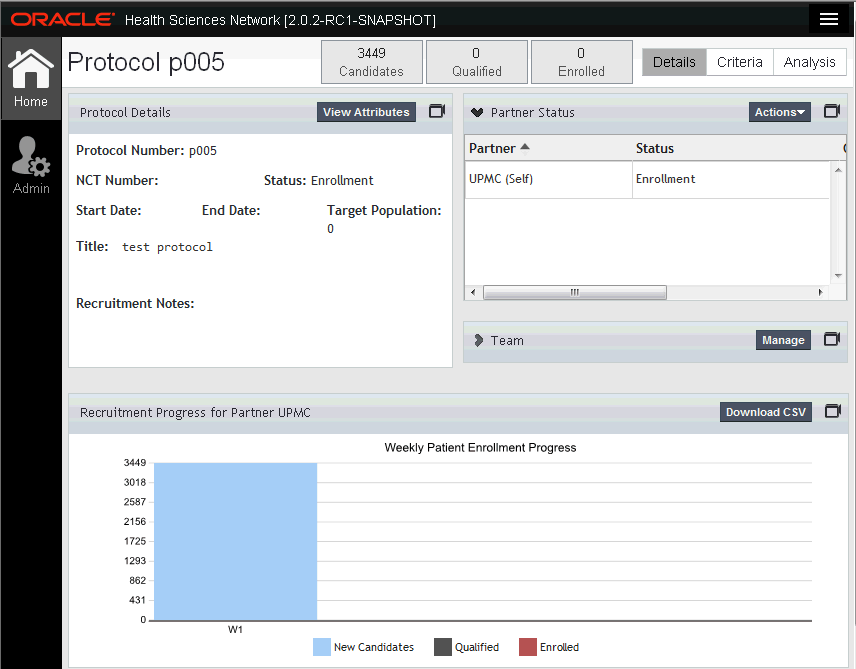
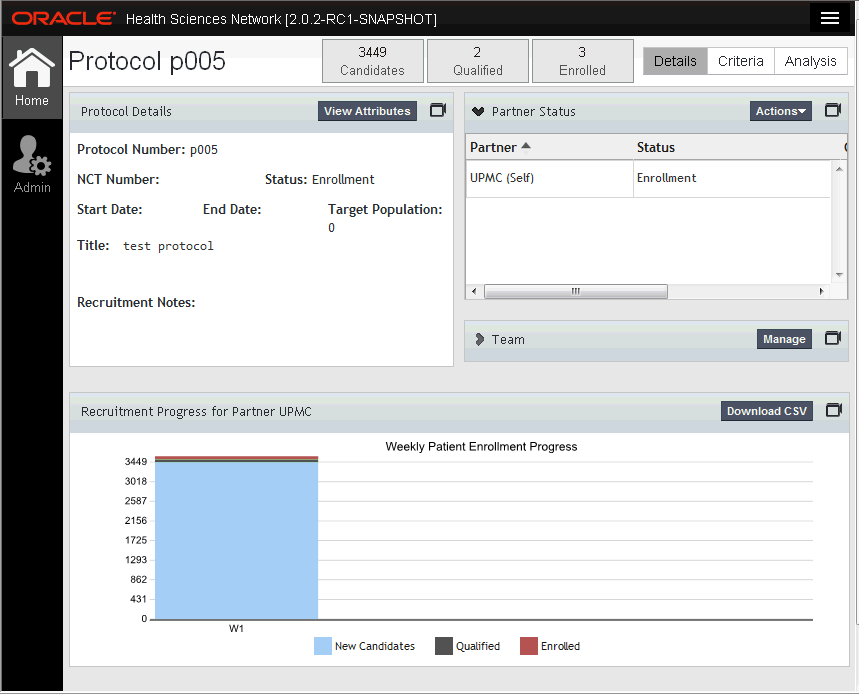
The protocol status changes to Enrollment and partner status changes to Enrollment. Enrollment will be initiated with the DM partners.
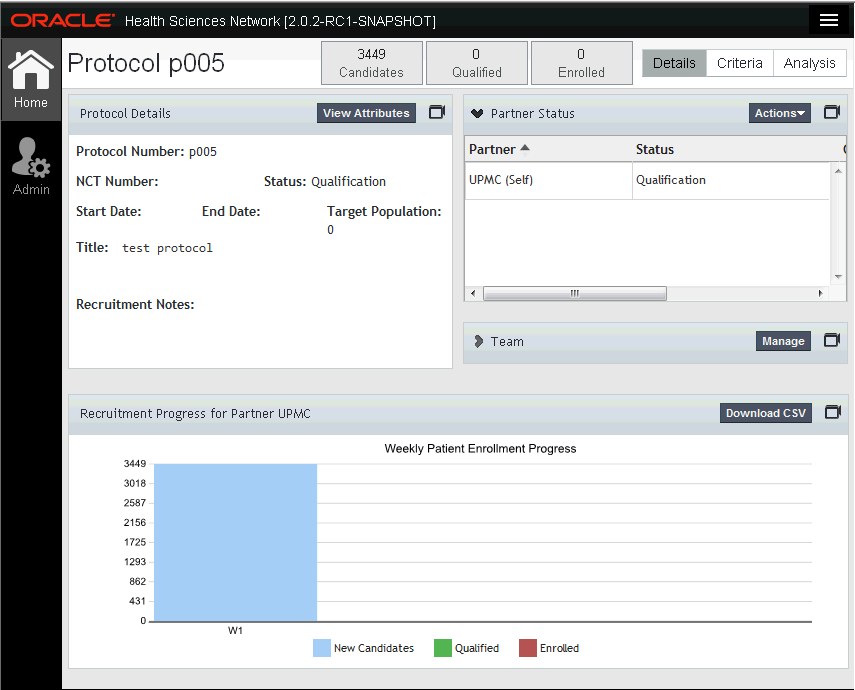
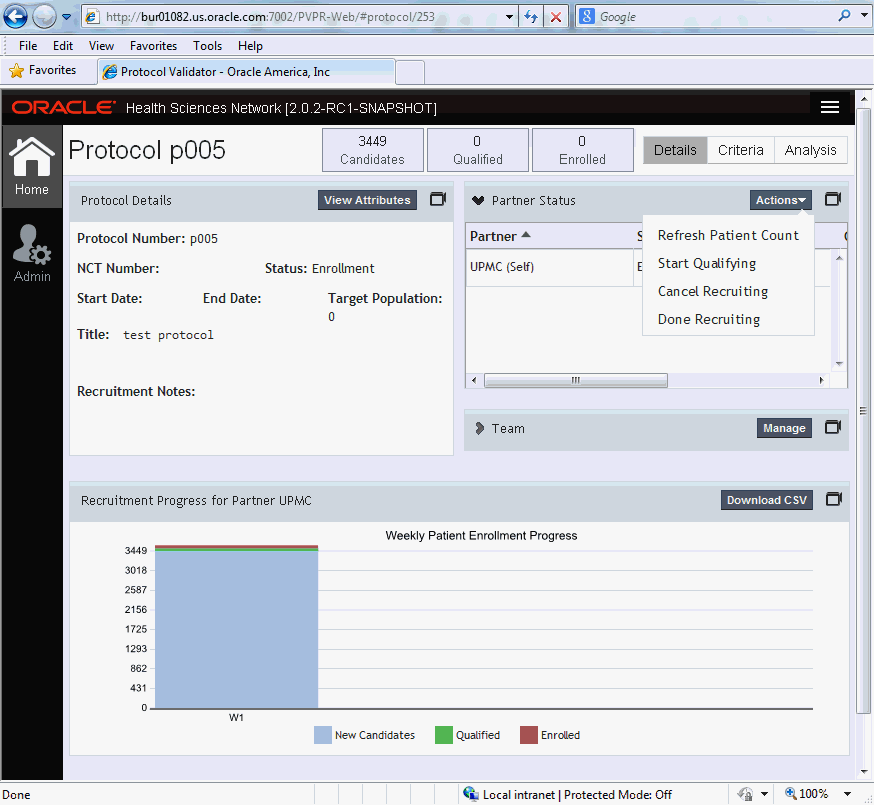
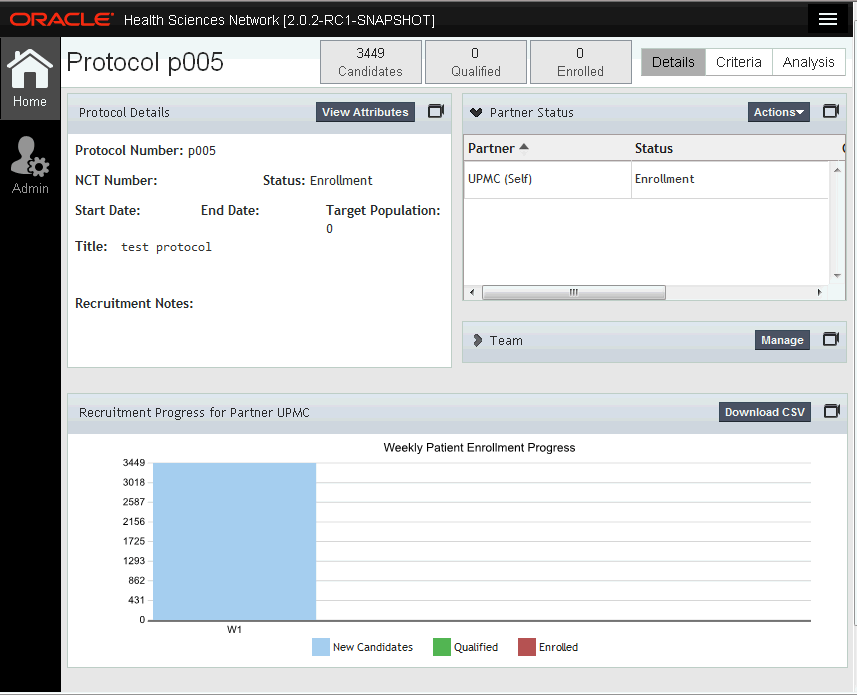
The Protocol Team (Sponsor organization) can view updates to counts, from across all Partners in the Recruitment results by Partner panel. Perform the following steps to view recruitment results:
Select the protocol for which you want to view recruitment results.
The recruitment results are visible in the Recruitment results by Partner panel.
Figure 3-40 Recruitment Results by Partner
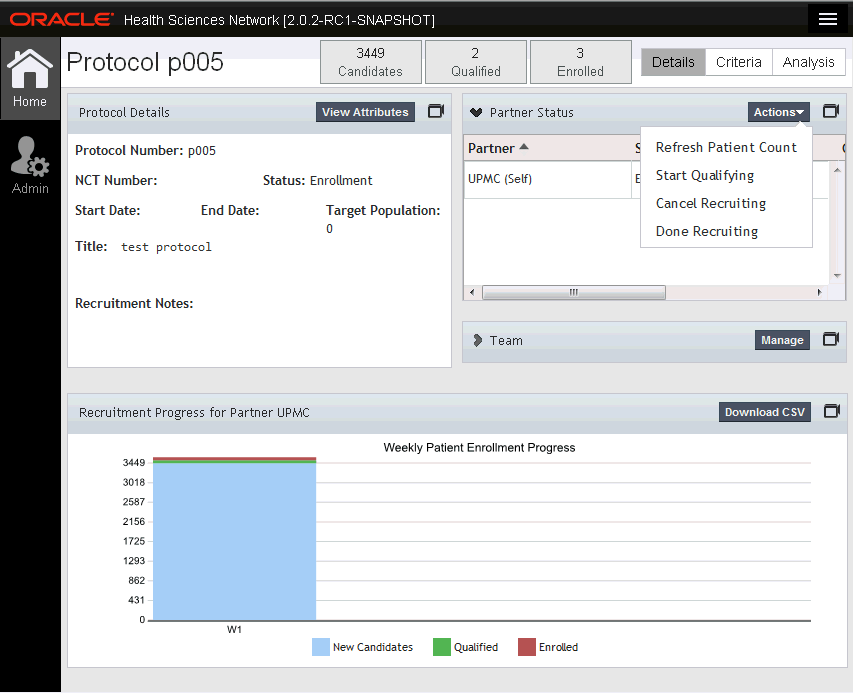
In the Partner Status panel, click Actions > Refresh Patient Count.
You can view the results in the Recruitment results by Partner panel.
Once recruitment has identified a sufficient number of Qualified or Enrolled patients, the sponsor may determine that no further recruitment activity is necessary. At this point, you can stop recruitment, for a particular DM Partner. The status is updated, and the recurring execution of the protocol's eligibility criteria is stopped.
Perform the following steps to stop recruitment:
Select the protocol for which you want to stop recruitment.
Note:
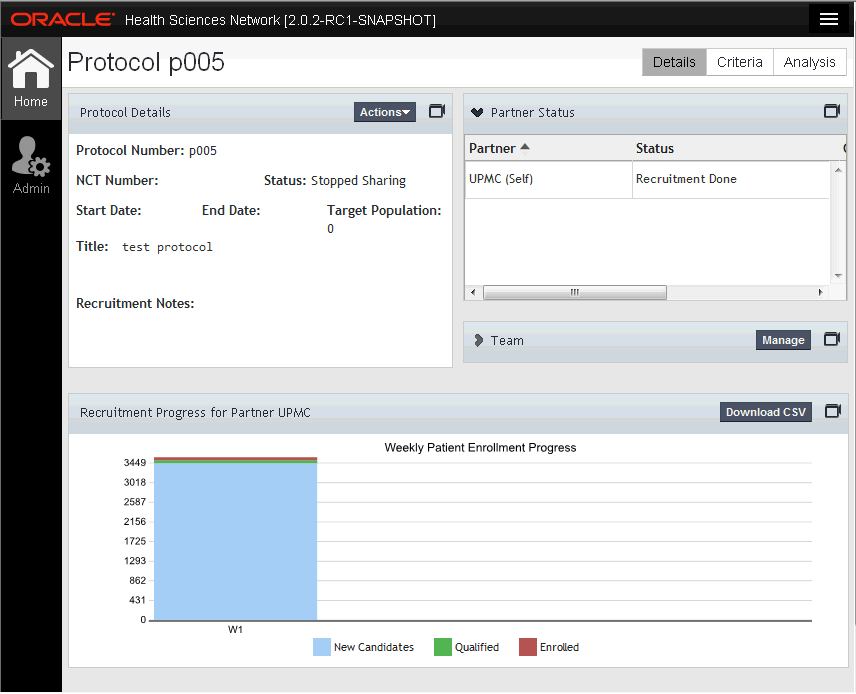
The protocol should have the status Enrollment.In the partner status panel, click Actions > Done Recruiting.
The partner status changes to Recruitment Done and the protocol status changes to Stopped Sharing.
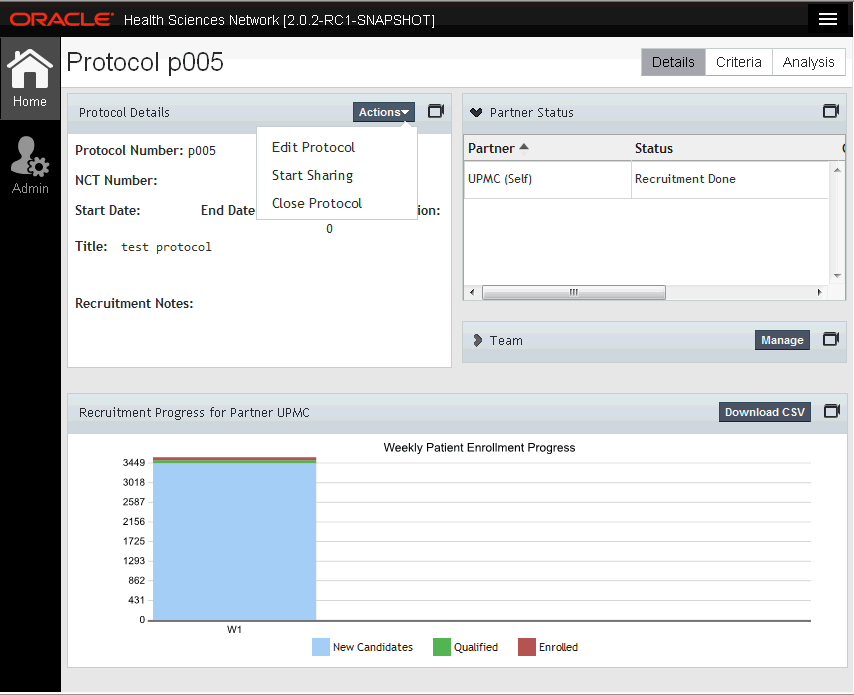
Perform the following steps to close a protocol:
Select the protocol you want to close.
Note:
The protocol should have a status of either New, Feasibility, Ready to share or Stopped sharing.In the Protocol details panel, click Actions > Close Protocol.
A confirmation screen is displayed. Click Yes.
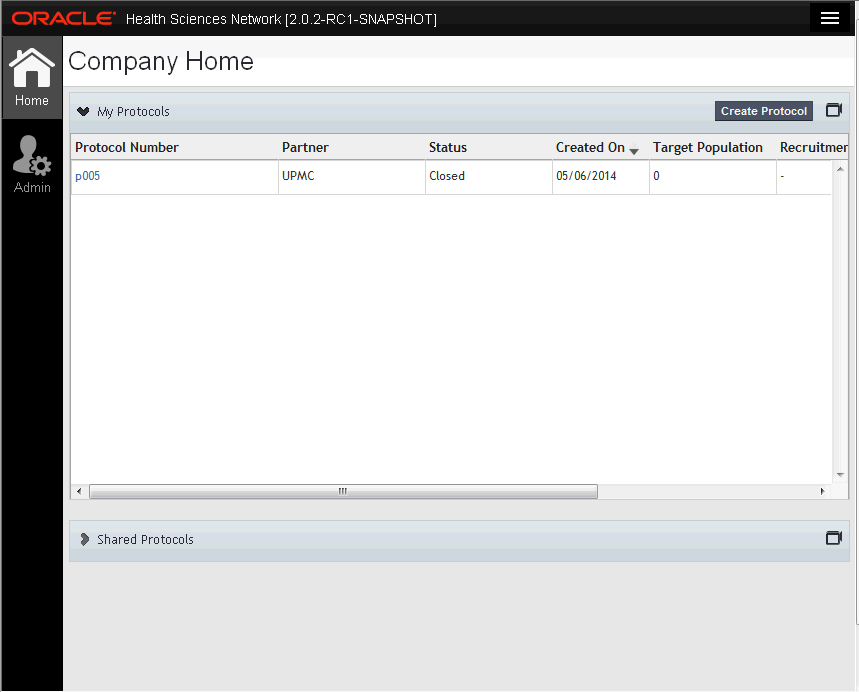
The protocol will be closed and its status is changed to closed.
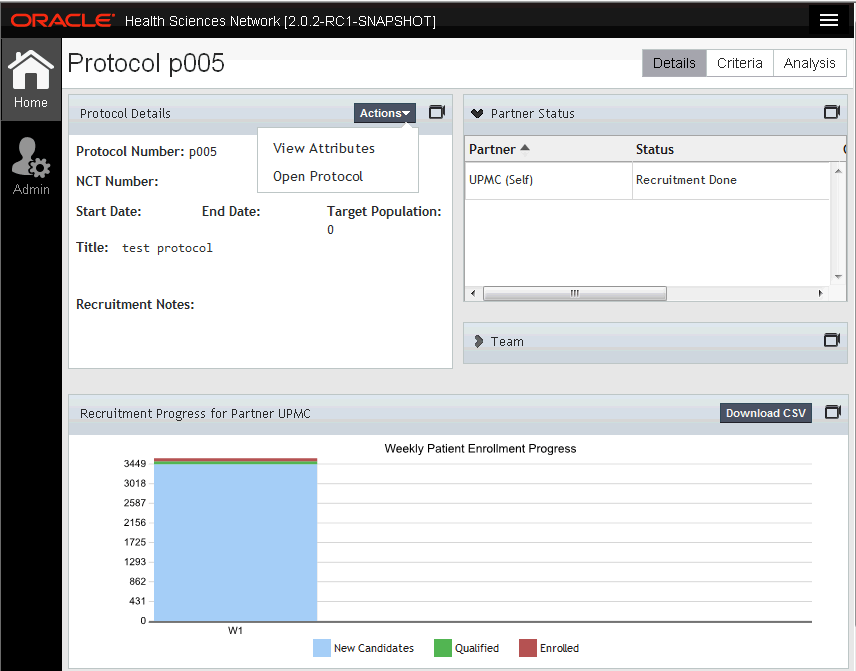
To reopen a closed protocol, in the protocol details panel, click Open Protocol.
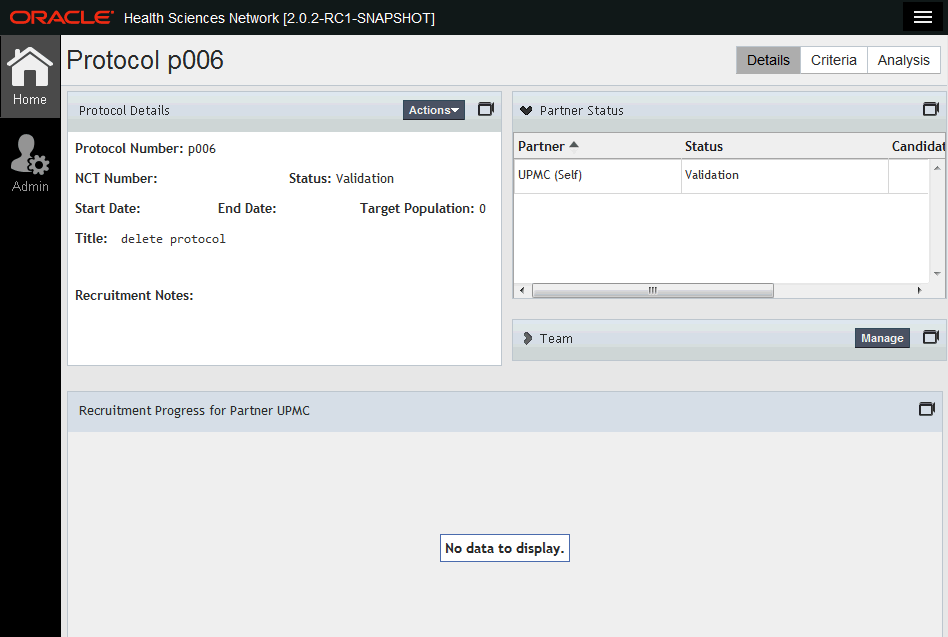
Prior to being shared for recruitment, the sponsor may make an internal decision to discontinue the protocol. In this situation, a protocol team lead will delete the protocol, which changes the state from Active to Inactive.
Perform the following steps to delete a protocol:
Select the protocol you want to delete. You can only delete protocols that have not been shared.
In the Protocol Details panel, click Actions > Delete Protocol.
Click Yes to confirm your choice.
The protocol status will be updated to deleted and is no longer displayed in your list of available protocols.
|
 Copyright © 2013, 2015, Oracle and/or its affiliates. All rights reserved. Legal Notices |
|