After you install Smart View, as described in Downloading and Running the Smart View Installer, you can create connections to Oracle Enterprise Performance Reporting Cloud Service data sources.
Connections require information about the server, port, and data source provider. Your Smart View administrator should provide you with the information that you need to create the connection.
For the connection to Oracle Enterprise Performance Reporting Cloud Service, we will use the quick connection method in Smart View.
 To create a private connection using the quick connection method:
Open Microsoft Excel or Word and select the Smart View ribbon.
From the Smart View Panel, click the arrow next to the Switch to button,
 , and then select Private Connections from the drop-down list.
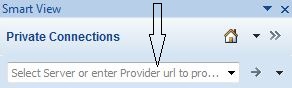
Still in the Smart View Panel, in the text box shown in Figure 69, Quick Connection - Enter a URL, enter the URL for the data source to which you want to connect.
The URL syntax:
http://server:port/epm/SmartView
Your Smart View administrator should provide you with the server and port information for your data source.
In the login window, enter your Oracle Cloud Identity Service Domain credentials and identity domain, and then select a data source from the drop-down menu.
The connection is established.
 , or press
 Continue the setup process with Installing the Enterprise Performance Reporting Cloud Service Extension.