Data source types: All
You can refresh data in individual reports by using the Refresh link in the Document Contents pane.
In Smart View, reports consist of report queries and their associated reporting objects. These are listed in the Document Contents pane. From Document Contents, you can individually refresh report queries and their associated reporting objects, such as:
Function grids
Tables
Charts
Dynamic data points
Note: | The procedures and examples in this topic discuss refreshing individual reports and reporting objects from the Document Contents pane. To refresh all reporting objects in worksheets or workbooks, documents, and slides or presentations, you can use the Refresh icon on the Smart View ribbon or a provider ribbon, as described in Refreshing from a Ribbon. |
 To refresh individual reports in the Document Contents pane:
Navigate to the individual report query that contains the associated reporting objects to refresh.
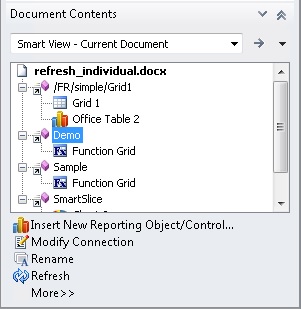
The Refresh link,
 , appears in Document Contents only after a reporting object has been inserted for an individual report query.
For example, in Figure 13, Report Query for Function Grid Selected for Refresh, a function grid is to be refreshed. Note that the “Demo” report query for the function grid is selected, not the function grid itself.
In the Document Contents pane, click
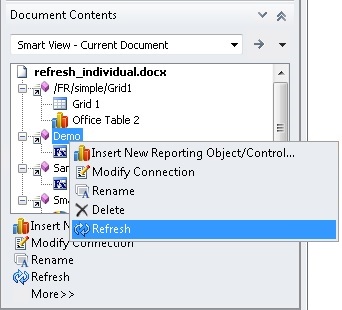
.You can also right-click on the report query and select
from the context menu, as shown in Figure 14, Refresh Using Right-Click Menu.The reporting objects for the selected report query are refreshed; the rest of the report queries and associated reporting objects remain unrefreshed.
Notes About Refreshing Individual Reporting Objects in Excel
You can refresh report queries individually in Excel with the exception of report queries containing function grids.
For example, if two report queries contain function grids, then refreshing one query will revert the other query's function grid to the #NEED REFRESH (unrefreshed) state. This only occurs with function grids. The other reporting objects, such as tables or charts, will refresh normally.
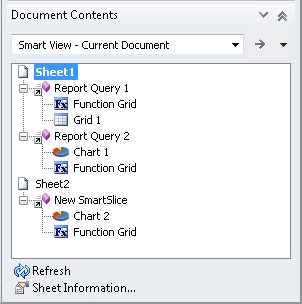
For example, on Sheet 1 in Figure 15, Selecting a Report Query to Refresh in Excel Where Two Report Queries Contain Function Grids, refreshing Report Query 1 will refresh the associated grid and function grid; however, the function grid associated with Report Query 2 will convert to the unrefreshed state while the chart refreshes normally. The report query and associated reporting objects on Sheet2 are unaffected.
Figure 15. Selecting a Report Query to Refresh in Excel Where Two Report Queries Contain Function Grids
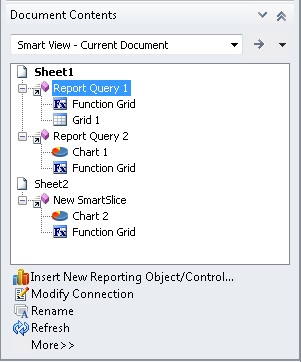
To refresh all items on the sheet, including multiple function grids, select Sheet1 in the Document Contents, as shown in Figure 16, Selecting Sheet1 to Refresh All Reporting Objects on a Sheet from Document Contents, and then click
.In Excel, if a reporting object from a single report query is inserted on multiple sheets, then selecting the report query and clicking
will refresh the reporting object on each sheet where it appears.
The examples in this section use a Word document to describe the refresh options available depending on the selection made in the Document Contents pane.
Figure 17, Word Document Selected for Refresh shows a Word document selected in the Document Contents pane. Clicking will refresh all report queries and their associated reporting objects in the document.
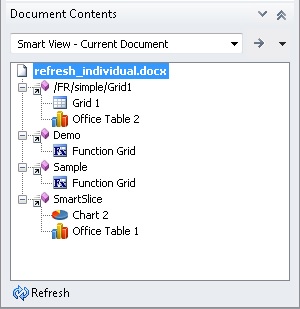
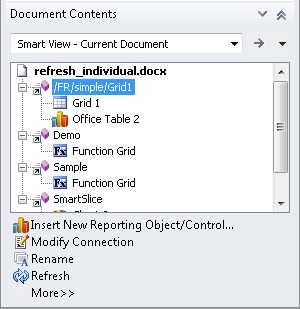
Figure 18, Report Query with Two Reporting Objects Selected for Refresh shows a report query selected in the Document Contents pane. The report query contains two reporting objects, a grid and an Office table. Clicking will refresh only the selected report query and its two associated reporting objects; other report queries and their reporting objects in the document remain unrefreshed.
Note: | Refreshing an individual sheet or slide will refresh the report queries and reporting objects associated with the selected sheet or slide. For example, if you select a sheet that contains multiple report queries, all reporting objects associated with the multiple report queries on the selected sheet will be refreshed. Refreshing an entire document will refresh all the report queries in the document and their associated reporting objects. |
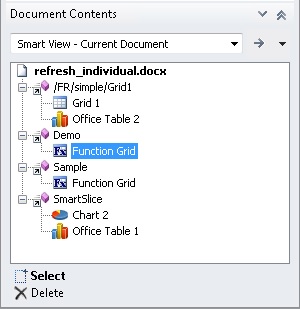
In Figure 19, One of Two Reporting Objects Selected - Refresh Not Available, two reporting objects are associated with a report query, one reporting object is selected. Notice that is not available.
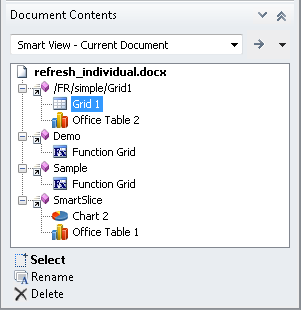
Figure 20, Report Query with Single Reporting Object Selected for Refresh shows a report query selected in the Document Contents pane. The report query contains a single reporting object, a function grid. Clicking will refresh only the selected report query and its associated reporting object; other report queries and their reporting objects in the document remain unrefreshed.
In Figure 21, Individual Reporting Object Selected - Refresh Not Available, a single reporting object associated with a report query is selected. Notice that is not available.