Be sure to complete the steps in Enabling Essbase Cell Comments.
Note: | The procedure in this topic shows you how to delete Essbase cell comments using the View Comments command and the Comment Edit dialog box in Smart View. You can also delete cell comments directly in the grid, without using the Smart View interface elements in this topic. |
 To delete Essbase cell comments:
If you have not already done so, open a workbook containing a grid, connect to an Essbase provider, and click Refresh.
Click View Comments in the Essbase ribbon (see Figure 26, View Comments Command in Essbase Ribbon).
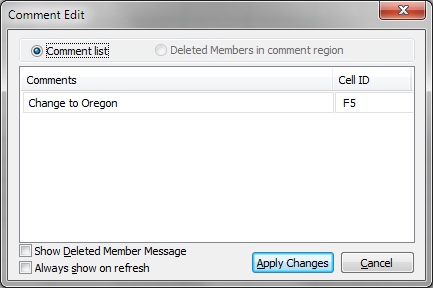
The Comment Edit dialog box is launched. The example in Figure 32, Comment Edit Dialog Box shows one comment left on the sheet, which can be removed.
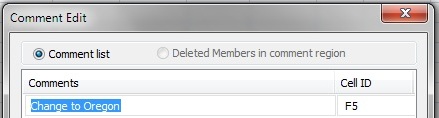
To delete the entire comment, first click in the row to highlight the editable text; for example, click in the “Oregon Coast” row to highlight it, as shown in Figure 33, Cell Comment Highlighted and Ready to be Deleted, then press the Delete key.
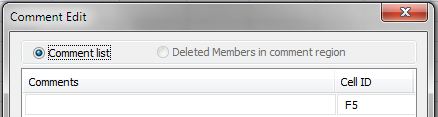
After deletion, the text in the Comments column is removed, but the Cell ID is still displayed (see Figure 34, Cell Comment Deleted, Cell ID Remaining).
Click Apply Changes and view the changes in the sheet.
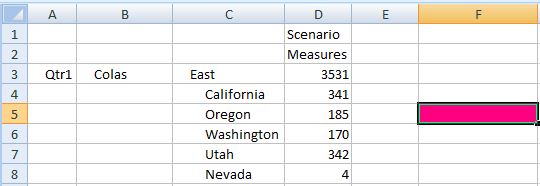
In Figure 35, Sheet After Clicking Apply Changes; Cell F5 Still Commented , cell F5 still shows as a commented cell, and will until the sheet is refreshed.