Data source types: Essbase, Planning, Oracle Planning and Budgeting Cloud Service, Financial Management, Reporting and Analysis, Oracle Enterprise Performance Reporting Cloud Service
Metadata consists of such things as the POV, alias tables, and connection information.
When you use the PowerPoint copy and paste commands to copy a slide or presentation, only the data is copied; the metadata is not copied. By using the Import Metadata command, after the data is copied, you can import the metadata from the original slide or presentation into the new slide or presentation. This functionality is similar to that described in Importing Metadata into Copied Worksheets.
In a new presentation, you may want to make use of an existing PowerPoint slide that contains not only the formatting and layout that you need, but data points as well. Instead of recreating the slide from scratch, you can reuse the work that is already available. The Import Metadata command on the Smart View ribbon helps you achieve this.
Note the following guidelines when copying, pasting, and importing:
You must select a single slide to begin the import process. Smart View displays an error message if you invoke the Import Metadata command when either no slide is selected or multiple slides are selected.
You must first copy objects before selecting the Import Metadata command; otherwise, Smart View prompts you with a message.
The slide from which the object is copied and the slide from which the metadata is to be imported must be the same.
Metadata is copied only for the copied objects or shapes, only rather than copying all the metadata present in the source slide.
Copying the POV or slider within the same presentation will result in incorrect behavior in the presentation.
 To import metadata into a PowerPoint slide or presentation:
From the Smart View menu, select Options, then Advanced, and ensure that Improved Metadata Storage is selected.
Use the PowerPoint copy command to copy information in any of the ways supported by PowerPoint; for example:
Copy individual objects and paste to the destination slide. The destination slide could be a part of source presentation or different presentation.
Duplicate a slide.
Copy a complete slide and paste into the same presentation or a different one.
Drag any slide and drop to another presentation.
Copy and paste an entire presentation.
This operation copies the visible contents of the source slides but not the metadata—for example, connection information, POV selections, alias tables, and other such items—to the destination slide or presentation.
With the destination slide or presentation active, from the Smart View ribbon, click Import Metadata,
 .
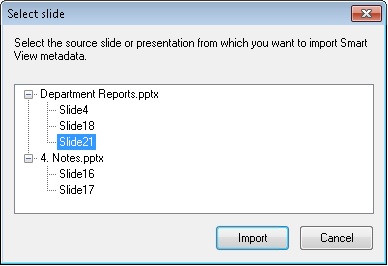
.In the Select slide dialog box, select the slide or presentation that contains the metadata that you want to import to the destination slide or presentation, and then click Import.
Note that importing metadata from a presentation may be a time consuming operation, particularly for presentations with large number of slides and Smart View metadata.
In the following example, Slide21 from Department Reports.pptx is the slide from which we want to import metadata.
Note:
When importing metadata from a slide to the active slide, the active slide is not shown in the tree in the Select slide dialog box. This is because the active slide is the destination slide where metadata is to be imported and is, therefore, not available for selection. For the same reason, when importing metadata from a presentation to the active presentation, the Import button is disabled when the active presentation is selected in the Select slide dialog box.
A confirmation message is displayed.
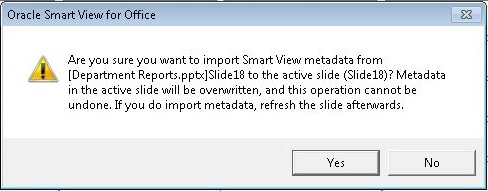
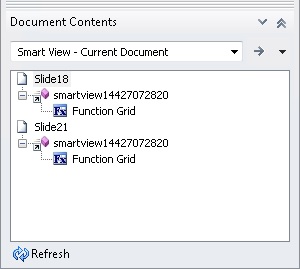
When successful, you will see the that Document Contents pane is updated with metadata for each slide. An example is shown in Figure 52, Document Content Pane After Importing Metadata.