You can filter comments in the comment management panel. For example, you can show or hide comments, display open or closed comments, or display or hide a user’s comments.
 To filter and sort comments:
In the Performance Reporting ribbon, click the Refresh Comments button to see new comments and replies.

Optional: Click the Hide Anchor or Show Anchor button to hide or display the comment anchors in the review instance.
Hide Anchor displays by default the first time you open a review instance, meaning that anchors are currently showing.

After clicking Hide Anchor, the button toggles to Show Anchor.

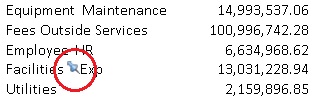
Anchors display throughout the review instance and mark the location where comments are entered. Anchors are signified by a pushpin icon. In Figure 105, Anchor Example in Review Instance, an anchor is circled in a portion of the review instance.
Click Filter Comments,
 , and choose a display option:
Open Comments
Closed Comments
All Comments
My Comments
You can choose to display Open Comments and Closed Comments at the same time.
View the results of your selections in the comments list in the Smart View Panel.
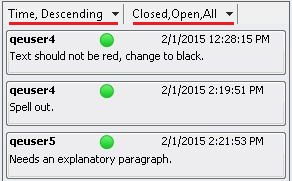
Alternatively, you can choose filter and sort options by using the drop-down lists in the comments pane. The heading at the left is for sorting comments; the heading at the right is for filtering.
The following example shows comments sorted by time in descending order and, because the Open, Closed and All filters are selected, all comments are displayed:
Optional: Open a comment by clicking it in the list of comments in the Smart View Panel.