The procedures in this topic assume that you have created a connection to Oracle Enterprise Performance Reporting Cloud Service as described in Creating Data Source Connections to Enterprise Performance Reporting, and connected, following the procedure up to step 5 in Connecting to Enterprise Performance Reporting in Smart View
 To use Performance Reporting Home:
Connect to Oracle Enterprise Performance Reporting Cloud Service as described in Connecting to Enterprise Performance Reporting in Smart View to display Performance Reporting Home.
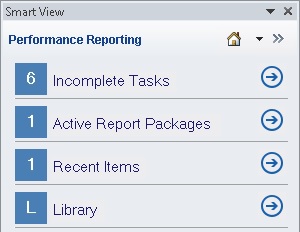
Figure 91, Performance Reporting Home shows an example of Performance Reporting Home.
To access tasks that require your attention:
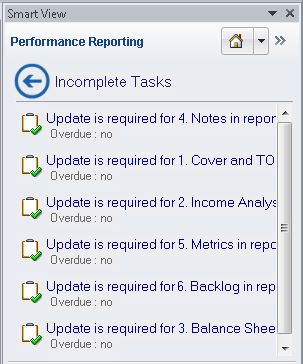
In Performance Reporting Home, click Incomplete Tasks or click the corresponding
 .
.Each item in the Incomplete Tasks list consists of a link to help you access the task.
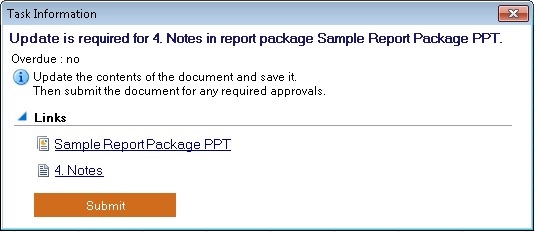
In the Incomplete Tasks list, click a task link to open the Task Information dialog box, shown in Figure 93, Task Information Dialog Box
In Task Information, select either a report package link or a specific doclet or supplemental doclet link.
The report package, specific doclet, or specific Office-based supplemental doclet is opened for you in the correct Office application in the context of the task you selected. For example, if you are in Word, and click a link for a review task in PowerPoint, then the review instance is opened in PowerPoint.
Non-Office-based supplemental doclets are downloaded to your download directory where you can open them manually.
If the doclet shown in Task Information is ready to be submitted, click the Submit button.
To exit Task Information without performing any actions, click the X in the top right corner of the dialog box.
To return to Performance Reporting Home from the Incomplete Tasks list without performing any actions on tasks in the list, click

To access active report packages for which you have a responsibility:
In Performance Reporting Home, click Active Report Packages or click the corresponding
.Each item in the Active Report Packages list consists of a link to a report package for which you have a responsibility.
In the Active Report Packages list, click a link to open a report package.
The report package is opened for you in the correct Office application in the context of the your current responsibility. For example, if you are in Word, and click a report package link for which you have a review task in PowerPoint, then the report package is opened for you in PowerPoint with the review instance ready for you to select in the Report Center.
Alternatively, to return to Performance Reporting Home from the Active Report Packages list without opening any report packages in the list, click
.
To access recently-opened items:
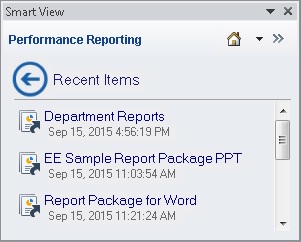
In Performance Reporting Home, click Recent items or click the corresponding
.Each item in the Recent Items list consists of a link to a report package that you have recently opened and for which you have a responsibility.
In the Recent Items list, click a link to open a report package.
The report package is opened for you in the correct Office application in the context of the your current responsibility. For example, if you are in Word, and click a report package link for which you have a review task in PowerPoint, then the report package is opened for you in PowerPoint with the review instance ready for you work with.
Alternatively, to return to Performance Reporting Home from the Recent Items list without opening any report packages in the list, click
.
To access the Oracle Enterprise Performance Reporting Cloud Service library, follow step 5 and step 6 in Connecting to Enterprise Performance Reporting in Smart View.