| Oracle® Retail Demand Forecasting Cloud Service User Guide Release 19.0 F24922-17 |
|

 Previous |
 Next |
| Oracle® Retail Demand Forecasting Cloud Service User Guide Release 19.0 F24922-17 |
|
Previous |
Next |
This chapter describes the Forecast Review Long Lifecycle for RDF Cloud Service.
The following table lists the workspaces, steps, and views for the Forecast Review task.
The Forecast Review LLC workspace allows you access to all of the views listed in Forecast Review SLC Workspaces, Steps, and Views.
To build the Forecast Review LLC workspace, perform these steps:
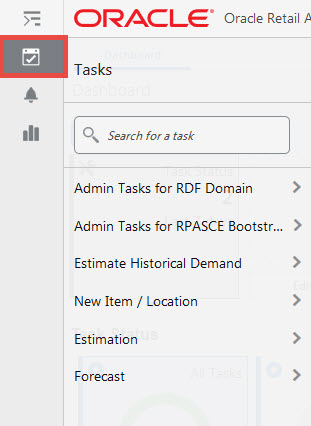
From the left sidebar menu, click the Task Module to view the available tasks.
Click the Forecast activity and then click Review to access the available workspaces.
Click Long Lifecycle. The Long Lifecycle wizard opens.
You can open an existing workspace, but to create a new workspace, click Create New Workspace.
Enter a name for your new workspace in the label text box and click OK.
The Workspace wizard opens. Select the products you want to work with and click Next.
The Workspace wizard opens. Select the locations you want to work with and click Next.
Select the time periods you want to work with and click Finish.
The wizard notifies you that your workspace is being prepared. Successful workspaces are available from the Dashboard.
The available views are:
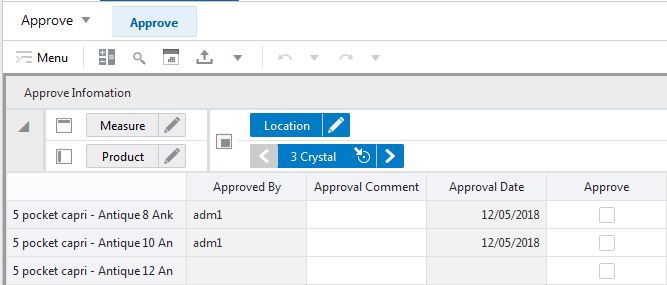
The Approve Information view shows information around the approval process, like which user approved the forecast, when it was approved and potential notes.
The Approve Information view contains the following measures:
Approve By
Approved By is a read-only field that displays the name of the user to approve forecasts for an item/location. This field may be populated with Sys if the system was set to automatically approve forecasts during the batch forecast process.
Approval Comment
Approval Comment is a field in which notes may be entered regarding the forecast values or any pertinent information for specified product/location combinations.
Approval Date
Approval Date is a read-only field that displays the date that the forecast quantity is approved either automatically during the batch forecast process or when changes are made to the Adjusted Forecast. This information is necessary for RDF Cloud Service to carry out any subsequent processes, such as replenishment procedures.
Approve
This field may be checked if you want to accept the System Forecast quantity for a time series that has yet to be approved. The flag is also activated when a change is made to the Adjusted Forecast and Calculate occurs. When this flag is activated, the time series for an item/location are approved and both the Approval Date and Approved By fields are updated.
The Forecast Results view shows all information related to forecast generation. It shows the forecast with its components, baseline and promotional peaks. It also shows sales of last year, and cumulative interval information.
The navigation of this worksheet is very conveniently driven by real time or workbook alerts.
|
Note: There is a duplicate of this view - Forecast Results Chart - that is intended to show the information in chart form.If not already in chart mode, you need to change the view type from pivot table to chart and save the format. This is a one time action. |
The Forecast Results view contains the following measures:
Adjusted Forecast
This is a read-only measures that equals the adjusted baseline plus the adjusted peaks.
Adjusted Baseline
The value in this field initially defaults to the System Baseline if the forecast is automatically approved by the system or through a Forecast Approval Alert. Otherwise, the value in the Adjusted Baseline is different than the System Baseline if:
Adjusted Baseline has been updated by you.
Keep Last Changes is selected.
Update Last Weeks Forecast is set to Replicate.
Changes to the Adjusted Baseline are automatically approved. The Approval view updates with the date of the adjustment and the name of the user who made the adjustment.
Demand transference is selected as the adjustment method in forecast setup and significant demand transference effects are available.
Adjusted Peak
The value in this field initially defaults to the System Peak if the forecast is automatically approved by the system or through a Forecast Approval Alert. Otherwise, the value in the Adjusted Peak is different than the System Peak if:
Adjusted Peak has been updated by you.
Keep Last Changes is selected.
Update Last Weeks Forecast is set to Replicate.
Changes to the Adjusted Peak are automatically approved. The Approval view updates with the date of the adjustment and the name of the user who made the adjustment.
Approved Forecast
The Approved Forecast is the forecast quantity that was approved at the time of the task build. The values contained in this measure are read-only. If changes are made to the Adjusted Forecast, then click Calculate to show the new value in the Approved Forecast.
DT Units
This measure stores the forecasted demand due to assortment changes.
In order to see non-zero values, two conditions need to be met. First, the Demand Transference option needs to be specified in the Automatic Adjustment measure in the Forecast Setup workbook.
Second, demand transference effects need to be available. These effects are calculated outside of RDFCS in a science type of application, such as ORASE, Oracle Retail's science platform.
Approved System Forecast
The Approved System Forecast is populated with the last System Forecast approved for a time series:
Approval Method set to Automatic Approval
Approval Method set to a Forecast Approval Alert and the alert is not triggered
Update Last Weeks Forecast is set to Use Forecast
Sales History
Sales History (a read-only measure) is the demand data used to generate the forecast. This allows you to compare Actuals to forecast values. When the task is created, the Data Source measure is copied into Sales History.
Sales Price
This is the price for which a product was sold at a given location for a given time period.
System Forecast
This is a read-only measures that equals the system baseline plus the system peaks.
System Baseline
The System Baseline displays the system generated baseline forecast. The values contained in this field are read-only. The system baseline incorporates level, trend, seasonality, but no causal-related information.
System Peak
The System Peak displays the causal-related peaks. The values contained in this field are read-only.
Adjusted Cum int
Cumulative Intervals are used in safety stock calculation within allocation and replenishment systems. Its value is similar to a running total of a percentage of the actual forecast and is read-only.
Approved Cum int
Cumulative Intervals are used in safety stock calculation within allocation and replenishment systems. Its value is similar to a running total of a percentage of the actual forecast and is read-only.
Merged Promo Indicator
This measure indicates if any event is active for the given period. An event can be any promotion or a non-zero discount.
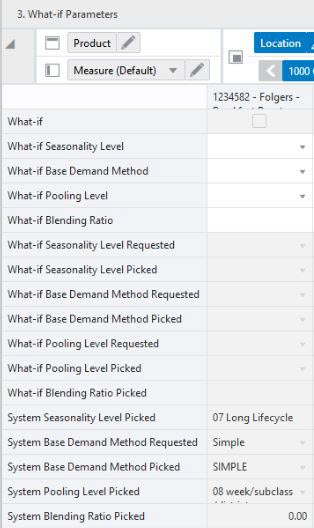
The What-If Parameters view allows you to adjust forecast parameters and immediately view the effects on the forecast in the Forecast Results view.
If you like the new adjusted forecast, you first have to Approve the forecast to get the forecast in the approved forecast measure. Next you have to Commit to update the database with the approved forecast as well as with the What-if forecast parameters settings. These parameters are used the next time the forecast batch is run.
Parameters that can be adjusted will affect base demand as well as seasonality and promotional peaks.
The What-If Parameters view contains the following measures:
What-if
This Boolean measures specifies if the user can perform what-if. If it is unchecked, no what-if is triggered. To perform what-if you need to select at least one of the following measures:
If the What-if flag is on, you can run it by clicking on the What-if custom menu.
What-if Seasonality Level
This measure lets you specify a certain escalation level from which the seasonality curve will be used during What-if.
What-if Base Demand Method
This measure lets you override the forecast method for the base demand to be used during What-if. The choices are all the methods available for base demand in the forecast setup task.When this measure is empty, it means that the base demand method specified during What-if cannot be fit or the item is not sold at this particular store.
What-if Pooling Level
This measure lets you specify a certain pooling level from which the causal effects will be used during what-if.
What-if Blending Ratio
This measure lets you specify a certain blending ratio to be used during what-if.
What-if Seasonality Level Requested
This measure displays the requested seasonality level. This can be different from the What-if Seasonality Level Picked, because the requested level may be pruned. In this case escalation is performed to pick the next intersection.
What-if Seasonality Level Picked
This measure displays the picked seasonality level. This can be different from the What-if Seasonality Level Requested, because the requested level may be pruned. In this case escalation is performed to pick the next intersection.
What-if Base Demand Method Requested
This measure displays the requested base demand method. This can be different from the What-if Base Demand Method Picked. For instance, if the requested method is Auto Baseline Pick Best, the method picked will show the actual winner of the Auto Baseline competition.
What-if Base Demand Method Picked
This measure displays the picked base demand method. This can be different from the What-if Base Demand Method Requested. For instance, if the requested method is Auto Baseline Pick Best, the method picked will show the actual winner of the Auto Baseline competition, like Holt.
What-if Pooling Level Requested
This measure displays the requested pooling level. This can be different from the What-if Pooling Level Picked, because the requested level may be pruned. In this case escalation is performed to pick the next intersection.
What-if Seasonality Level Picked
This measure displays the picked pooling level. This can be different from the What-if PoolingLevel Requested, because the requested level may be pruned. In this case escalation is performed to pick the next intersection.
What-if Blending Ratio Picked
This measure displays the blending ratio used in what-if according to What-if Blending Ratio.
System Seasonality Level
This measure displays the escalation level used in generating the system forecast.
System Base Demand Method Requested
This measure displays the requested base demand method to generate the system forecast. This can be different from the System Base Demand Method Picked. For instance, if the requested method is Auto Baseline Pick Best, the method picked will show the actual winner of the Auto Baseline competition.
System Base Demand Method Picked
This measure displays the picked base demand method when generating the system forecast. This can be different from the System Base Demand Method Requested. For instance, if the requested method is Auto Baseline Pick Best, the method picked will show the actual winner of the Auto Baseline competition, like Holt.
System Pooling Level Picked
This measure displays the pooling level used in generating the system forecast.
System Blending Ratio Picked
This measure displays the blending ratio used in generating the system forecast.
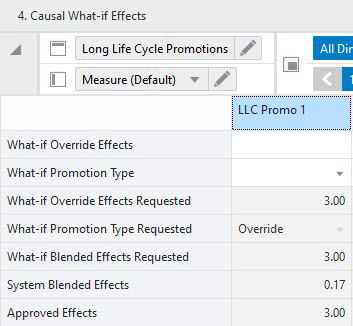
The Causal What-If view shows all necessary information to determine the promotional strategy for long lifecycle items. All flavors of effects as well as the promo types are available.
The Causal What-If view contains the following measures:
What-if Override Effects
The user-specified lift effect. This user-entered effect is active if used in conjunction with the Override All and Override Future Only Promotion Effect Types. Otherwise, it equals 1.00.
What-if Promotion Type
Causal variable types define how causal variables are treated in the causal model-fitting process (which includes a call to the lower-level regression engine) and the forecast generation process where the model is used to extend the forecast over the forecast horizon. The options are Automatic and Override:
Automatic
The inclusion of the Promo Effect is decided by regression. If the Promo Effect is found to be significant on the training set, it is included in the model. Otherwise, it is rejected. Automatic is the system default Promotion Effect Type.
Override
If override is selected, the calculated effects are ignored and the override values are used. Do not forget to select an appropriate effect value in the Override Effects measure.
What-if Override Effects Requested
If effects were overridden in the What-if Override Effects, and What-if custom menu was run, the result is displayed in this measure.
What-if Promotion Type Requested
If the type of a promotion was specified in the What-if Promotion type, and the What-if custom menu was run, the result is displayed in this measure.
Approved Effects
This measure displays the approved effects. The approved effects are a combination between the override and calculated values. If override value exists, use it. Otherwise use the calculated value.
What-if Blended Effects
This measure displays the blended causal effect after overriding the causal effects and running the What-if custom menu.
System Blended Effects
This measure displays the blended causal effects calculated by the system.
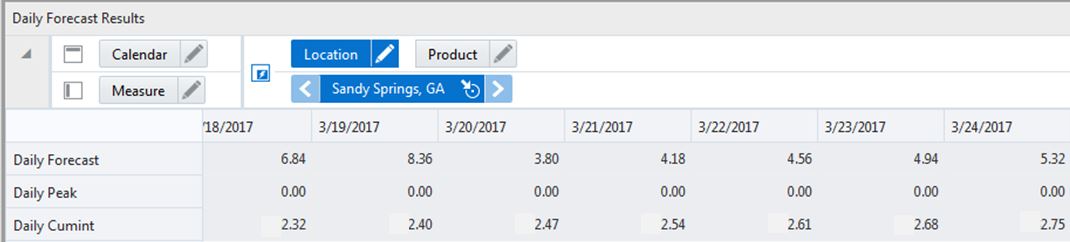
The Daily Forecast Results view displays the day version of the forecast and its components. All adjustments are done at the week level and spread to day where they are read-only.
The Daily Forecast Results view contains the following measures:
Daily Forecast
This measure the daily version of the approved weekly forecast.
Daily Peak
This measure the daily version of the approved weekly peaks.
Daily Cumint
This measure the daily version of the approved weekly cumulative intervals.
The available views are:
In the Causal What-If Effects view, you can select the promo effect type. Depending on the type selected, a override value needs to be specified as well.
The Causal What-if Effects view contains the following measures:
Approved Effects
This measure displays the effects that are applied to create the forecast. Initially they are what is calculated by the system. If the user overrides the effects, the What-if values are copied in the approved version of the effects as well.
Override Effects
The user-specified lift effect. This user-entered effect is active if used in conjunction with the Override All and Override Future Only Promotion Effect Types. Otherwise, it equals 1.00.
Promotion Type
Causal variable types define how causal variables are treated in the causal model-fitting process (which includes a call to the lower-level regression engine) and the forecast generation process where the model is used to extend the forecast over the forecast horizon. The options are Automatic and Override:
Automatic:
The inclusion of the Promo Effect is decided by regression. If the Promo Effect is found to be significant on the training set, it is included in the model. Otherwise, it is rejected. Automatic is the system default Promotion Effect Type.
Override:
If override is selected, the calculated effects are ignored and the override values are used. Do not forget to select an appropriate effect value in the Override Effects measure.
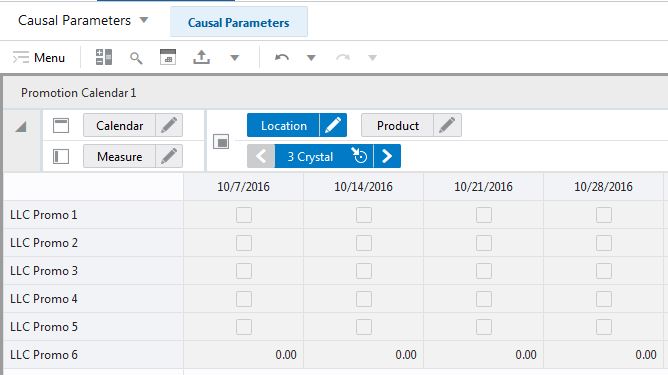
The Promotion Calendar view allows you to review and enable or disable promotions for item/locations for desired periods.
|
Note: Multiple Promotion Calendar views are possible. Namely, there is one view for every distinct promotion intersection. Promotions with identical intersections are displayed in the same view. |
The Promotion Calendar view contains the following measures:
Promo 1
Measure that displays if an event is active for a certain period at a given location and product.
Promo 2
Measure that displays if an event is active for a certain period at a given location and product.