 .
.Visual representation of the Run is enabled through PMF by the construction of a Run Pipeline. Various OFSAA widgets that enable the construction of Run Pipeline are available in the Component toolbar. For detailed information about the Components in PMF, see the Components for Designing Your Process Flow section in the Process Modelling Framework Orchestration Guide.
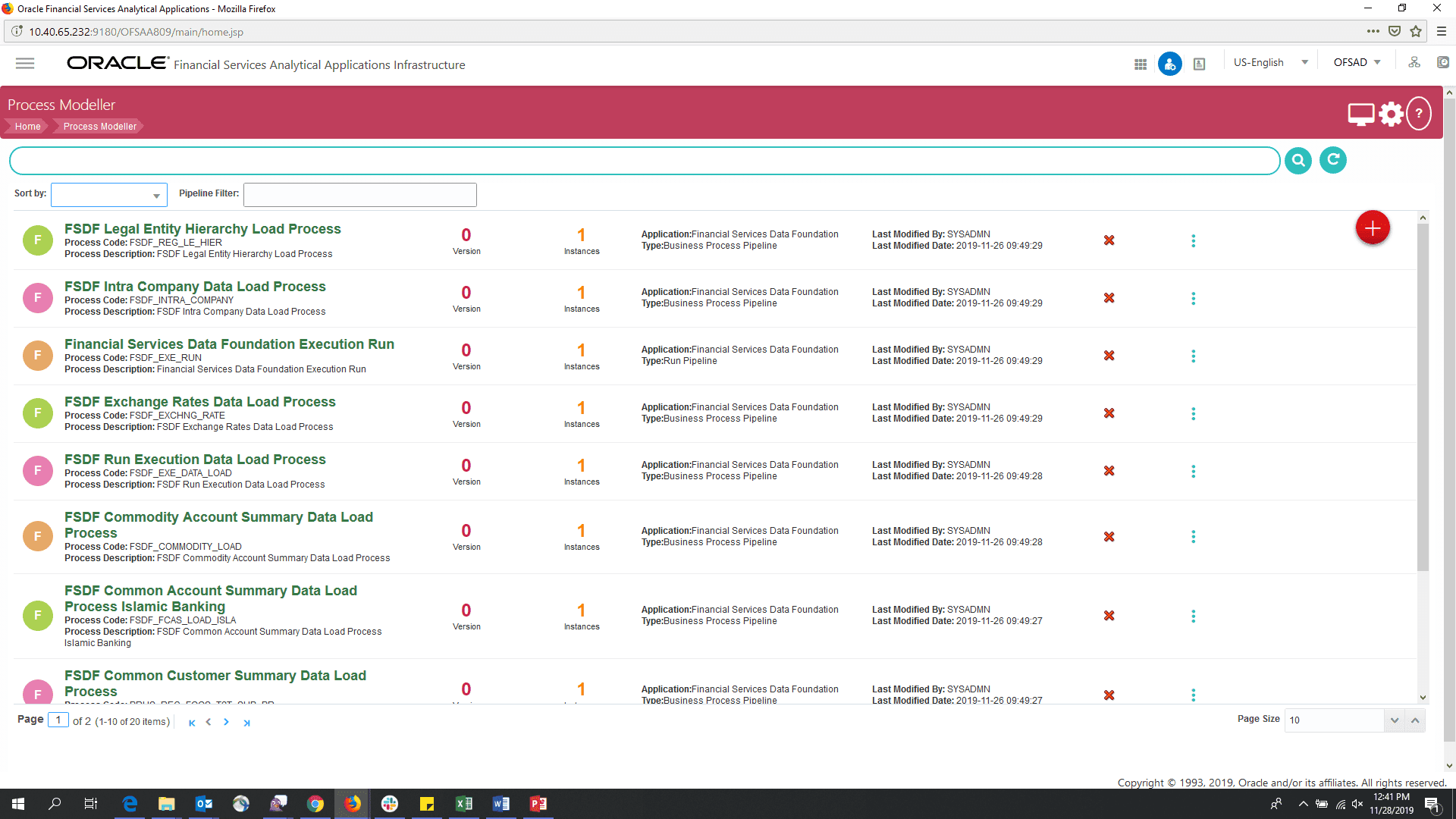
To create a new Run Pipeline in the Process Modeller, follow this procedure:
1. Navigate to the Process Modeller page. For details, see the section Accessing the Process Modeling Framework.
2. In the Process Modeller page, click.
3. The Process Details pop-up page appears.
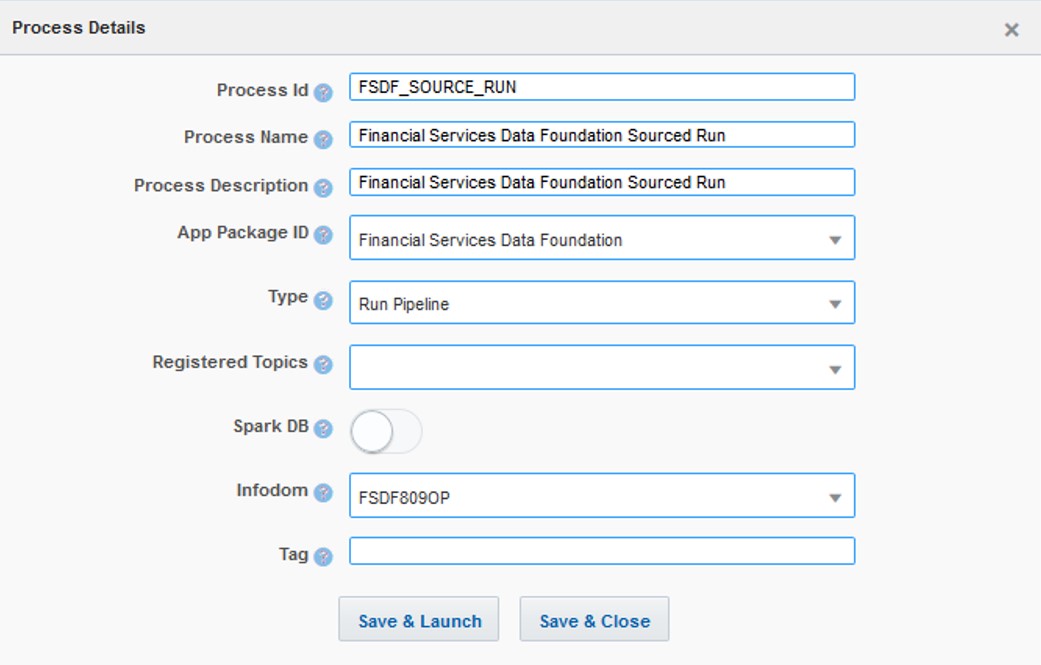
Enter/Select the required values for each field.
|
Field Name |
Description and instruction |
|
|
Process Id |
Enter a unique and easily recognizable value in the fields Process ID, Process Name, and Process Description. |
|
|
Process Name |
||
|
Process Description |
||
|
App Package ID |
Select the required application package in which the process must be created from the drop-down list. |
|
|
Type |
Business Process Pipeline |
Select the required process type from the Type drop-down list. |
|
Run Pipeline |
||
|
Stream Pipeline |
||
|
Registered Topics |
Note: This functionality is currently not applicable to OFSDF. |
|
|
Spark DB |
Enable the Spark DB option if you are executing the Run for Hive metadata. |
|
|
Infodom |
Select the information domain from the Infodom drop-down list in which the Run Pipeline must be created. The list displays all the infodoms mapped to the applications configured in your OFSAA instance. |
|
|
Tag |
Enter the text that can be used as search keywords or helpful in defining a relationship between two or more Pipelines. |
|
4. To save the details and launch the Process Flow designing window, click Save & Launch.
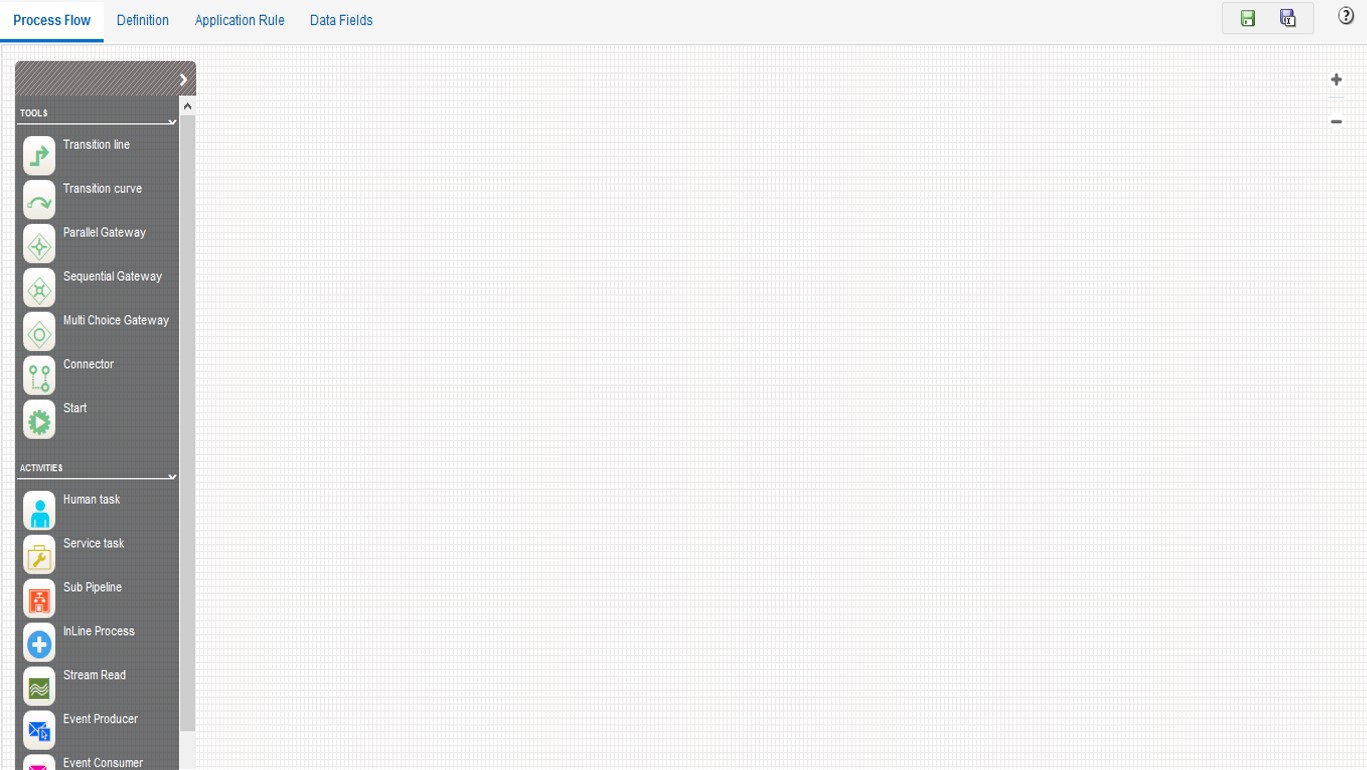
After you click Save & Launch in the Process Details pop-up page, the Process Flow window is displayed. The Process Flow tab contains a floating toolbar and a drawing canvas. Use the drawing canvas to design the process flow with the Tools, Activities, and OFSAA Widgets components available in the floating toolbar.
You can design the process flow diagrams for all three types of processes (Business Process Pipeline, Run Pipeline, and Stream Pipeline). This is an example of a process flow diagram for a Run Pipeline (for FSDF Sourced Run).
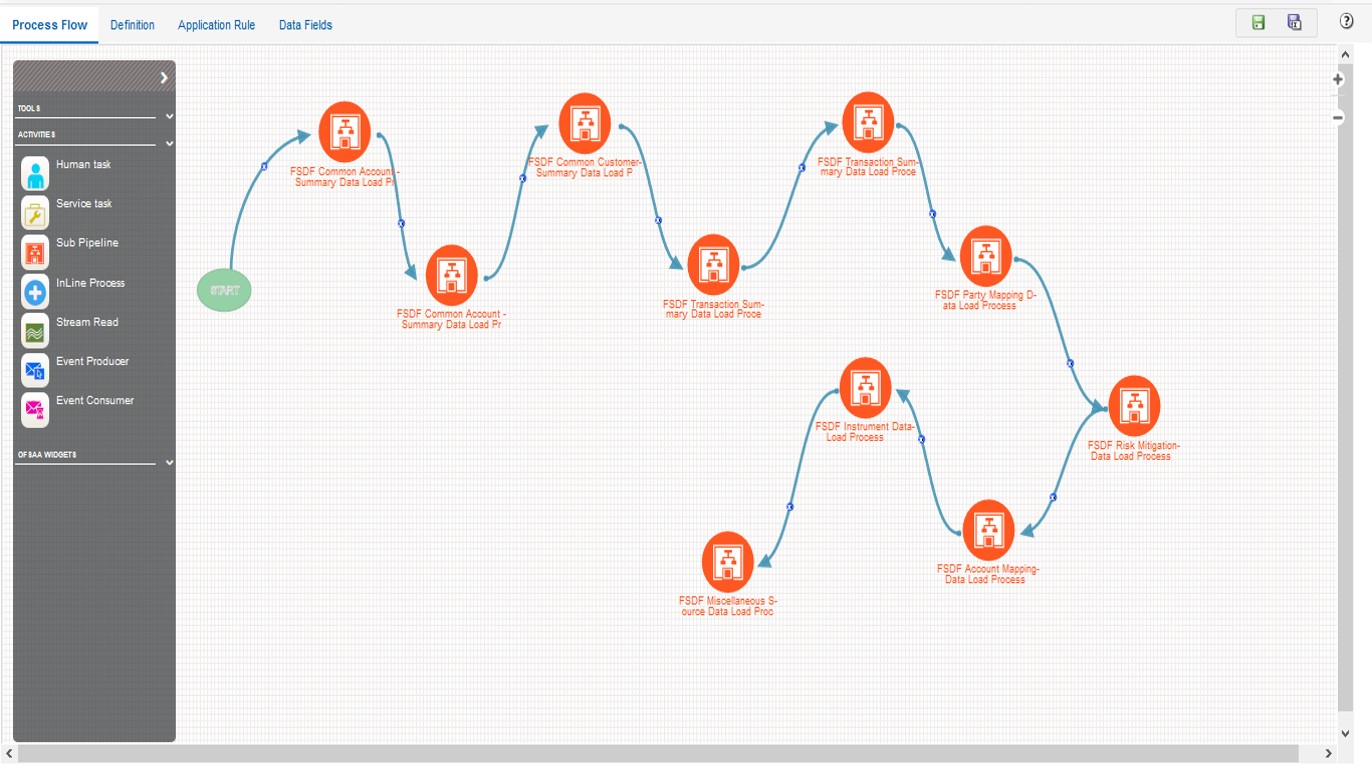
To design a process flow diagram for a Run Pipeline, see the Run Pipeline section, and to use various components available in the Process Flow tab, see the Components for Designing Your Process Flow section in the Process Modelling Framework Orchestration Guide.