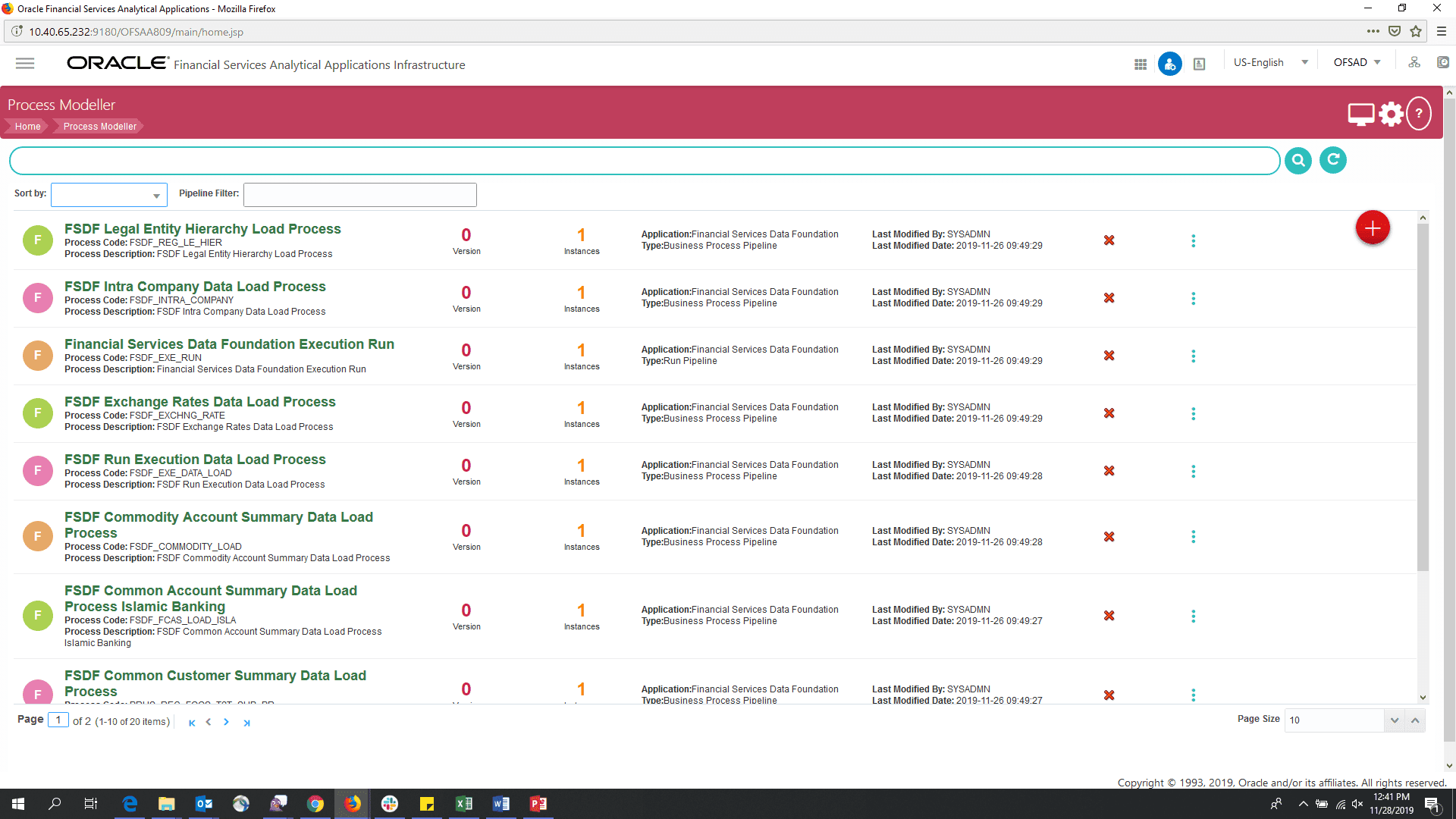
 corresponding to the Run Pipeline that must be executed.
After a process is designed and defined in the process flow diagram, you must assign values to the Run parameters, and execute the Run. You can execute a Run Pipeline from the UI or using a command-line utility called wfExecExternal.sh.
This section includes the following topics that describe the Run Pipeline execution from the UI:
· Selecting the Run Parameters and Executing the Run
· Aborting, Resuming, or Rerunning the Run Pipeline Process
· Verifying the Execution Logs
|
NOTE |
For information about executing the Run Pipeline using a command-line utility, see the section Using Command Line Utility in the Process Modelling Framework Orchestration Guide. |
After designing and saving the process flow diagram, the Process is listed in the Process Modeller page.
To select the Run parameters and execute the Run, follow this procedure:
1. In the Process Modeller page, click corresponding to the Run Pipeline that must be executed.
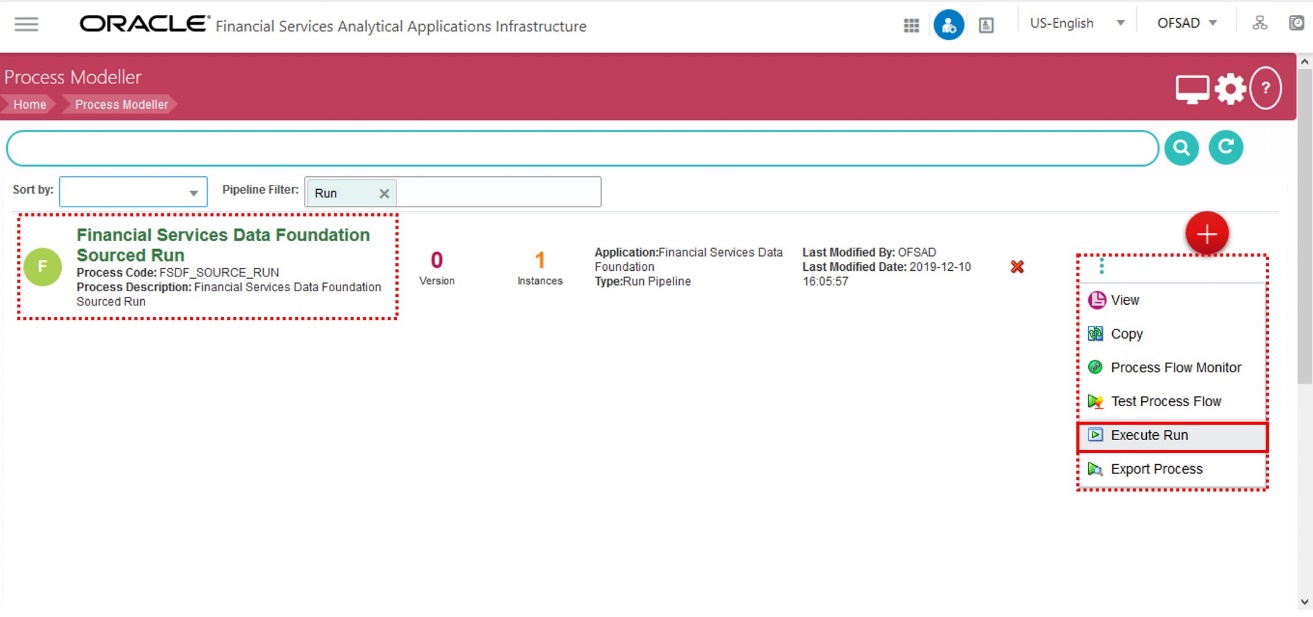
2. When you click Execute Run, the Select Run Params window is displayed.
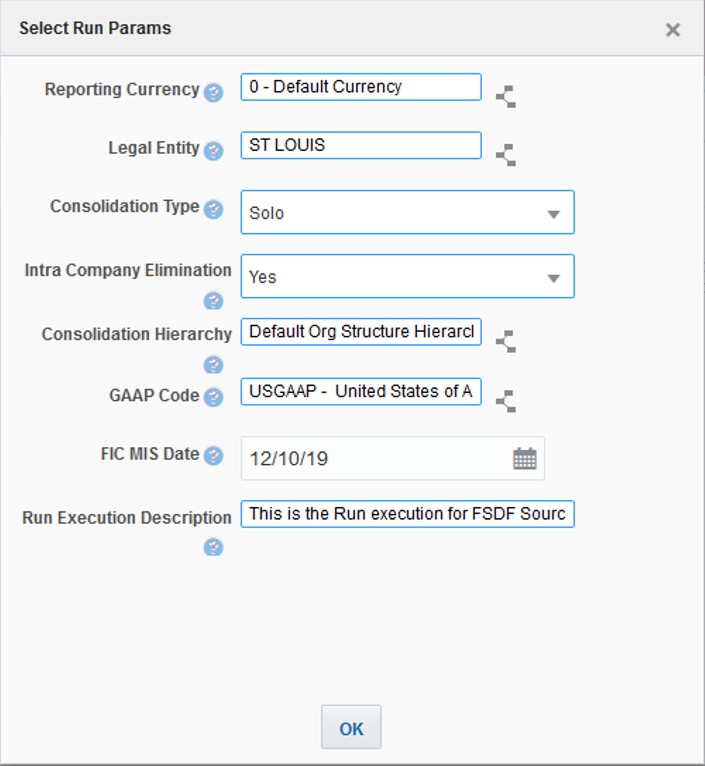
Select/enter the required values for each field as follows.
|
Field Name |
Description/Instruction |
|
Reporting Currency |
Enter the Reporting Currency Code used to calculate the amount during the data population in the target table. |
|
Legal Entity |
Select the Legal Entity Code to identify the legal entity used for the Run. |
|
Consolidation Type |
Select the Consolidation Type tof legal entities on a solo or consolidation basis. In a Solo Run, only the selected legal entity is used. In a Consolidated Run, along with the selected legal entity, all its child legal entities are also used. |
|
Intra Company Elimination |
Select the Intra Company Elimination type to eliminate (YES) or skip the elimination (NO) of Intra Company Accounts during a Consolidated Run. |
|
Consolidation Hierarchy |
Enter the Legal Entity Hierarchy used for the consolidated run. This parameter is not required for the Solo Run. |
|
GAAP Code |
Enter the required accounting standard. |
|
FIC MIS Date |
Select the extraction date. |
|
Run Execution Description |
Enter a longer description of the Run. |
3. When you click OK, the Run execution begins. The Select Run Params window closes.
|
NOTE |
The execution of the Run Pipeline is triggered using the selected FIC MIS DATE. The Run SKey is generated and inserted into the “DIM_RUN” table. For the Run SKey generated, the corresponding user-selected Run parameters are inserted into the “RUN_EXE_PARAMETERS” table. |
After selecting the Run parameters and beginning the Run execution, verify the progress of the Run.
To verify the Run execution progress, follow this procedure:
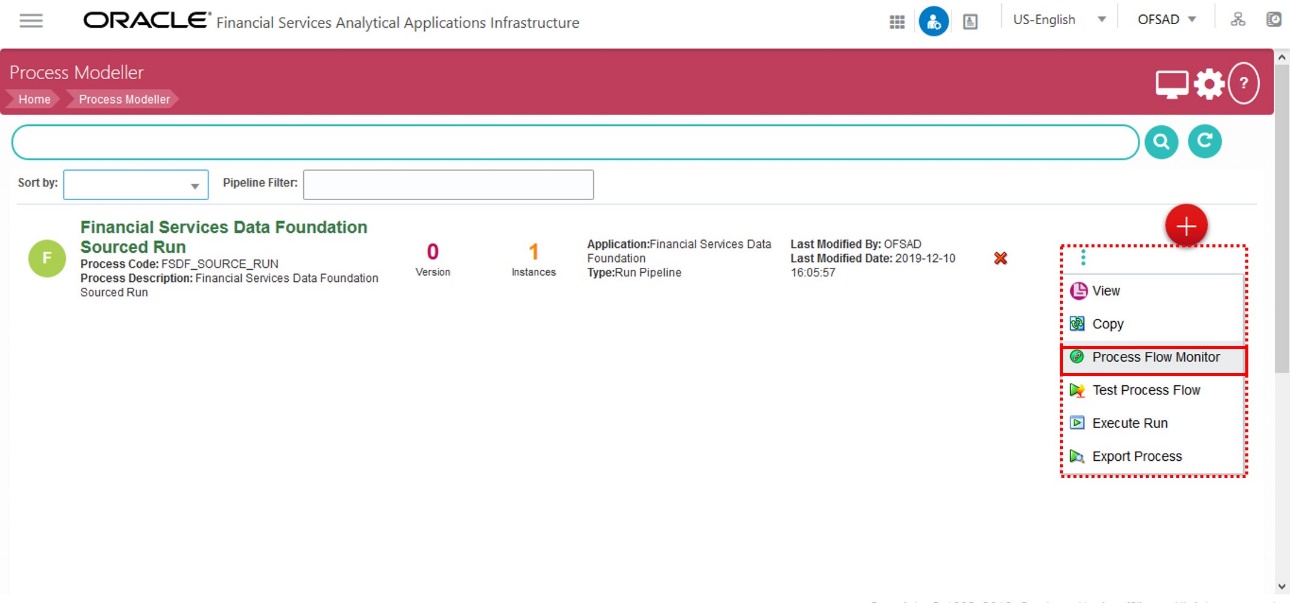
4. In the Process Modeller page, click corresponding to the Run Pipeline that must be verified. Click Process Flow Monitor.
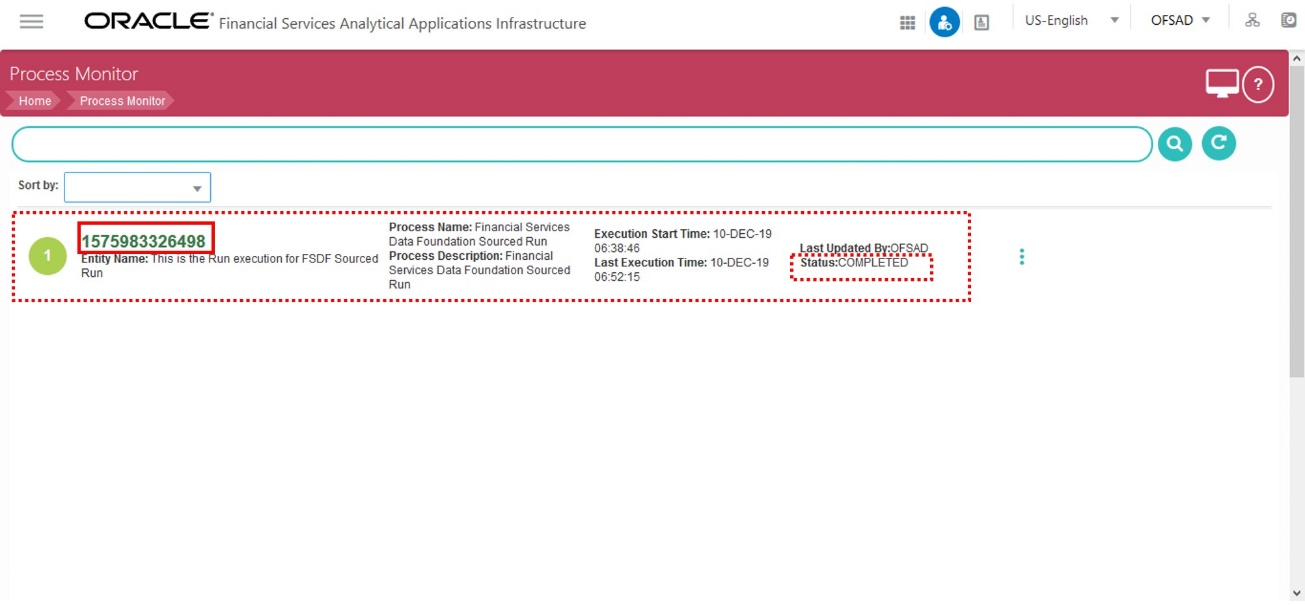
5. The Process Monitor window is displayed. You can see the generated process flow ID, the Run execution timestamp, and the status of the Run execution. To verify the Run execution status at the Pipeline level, click the corresponding process flow ID.
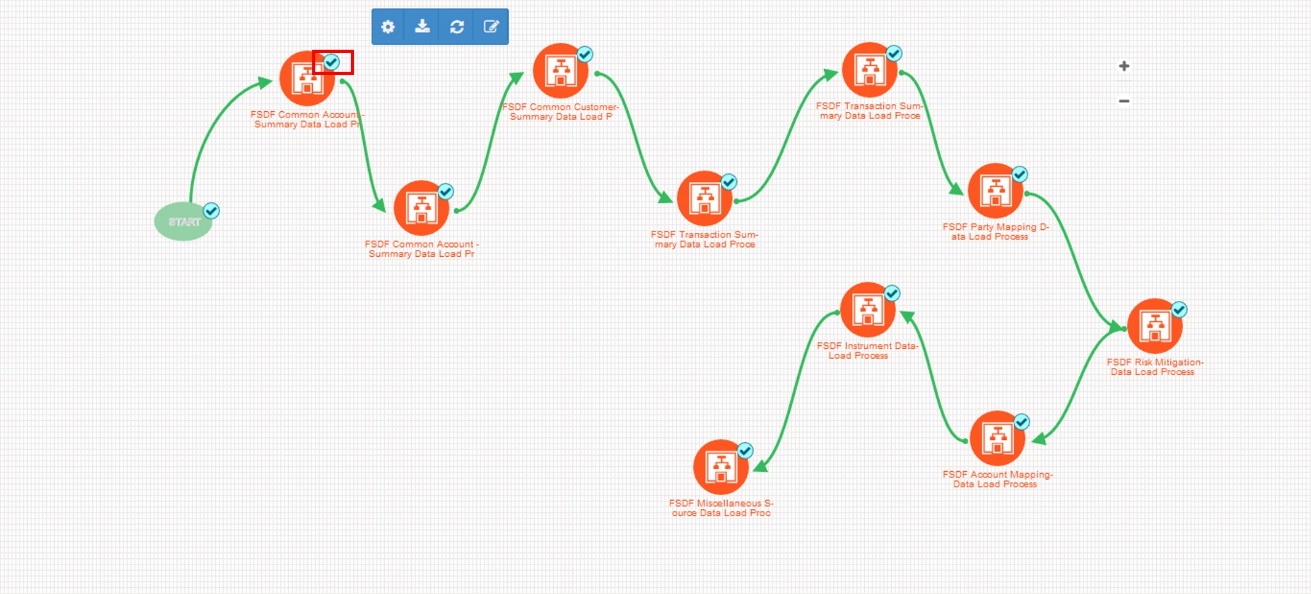
6. The process flow diagram window is displayed. The 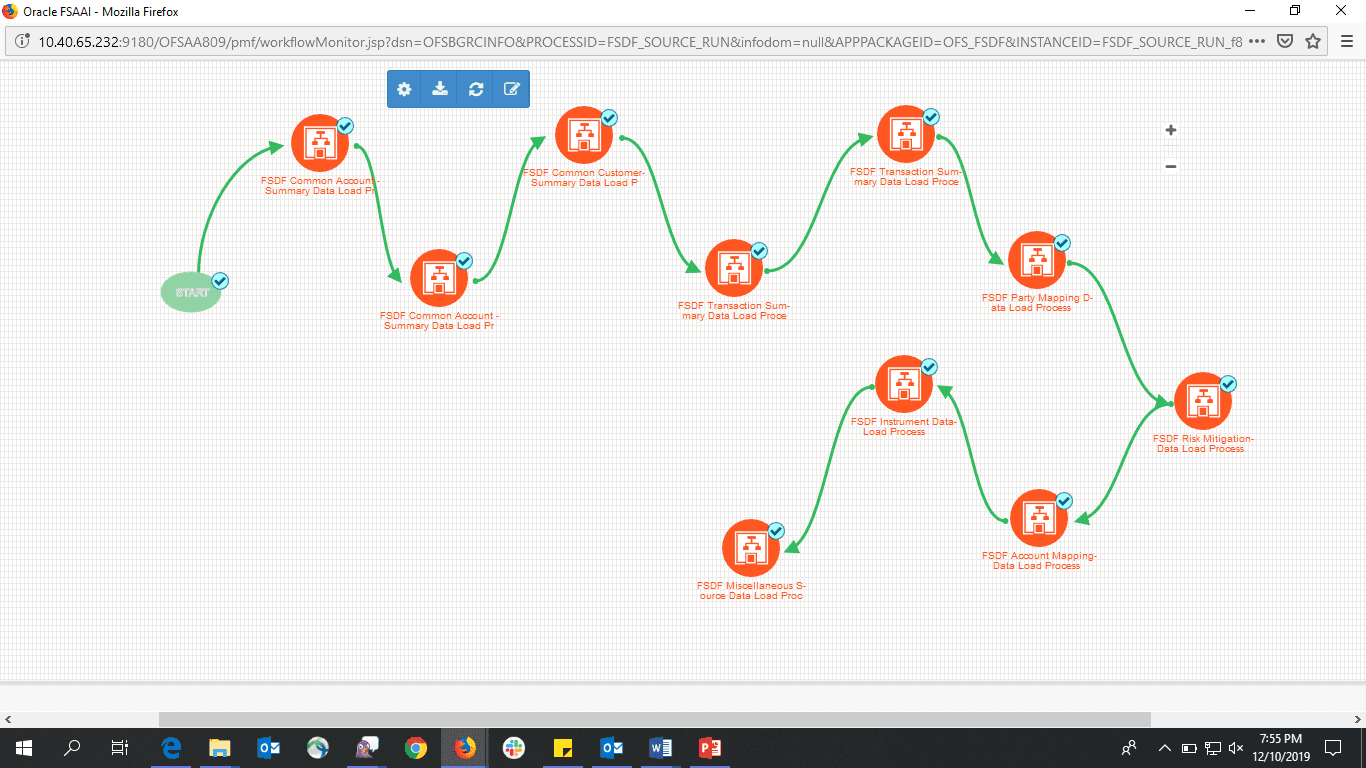 icon at each Sub Pipeline indicates that the Run execution is successful.
In the Process Monitor window, click icon corresponding to the Run Pipeline process that must be aborted, resumed, or rerun. Then select Abort, Resume, or Re-Run.
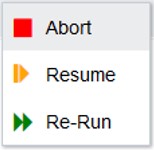
The Abort feature helps you to abort a Run Pipeline, which is in the process of execution.
To abort a Run Pipeline process:
7. In the Process Monitor window, click icon corresponding to the Run Pipeline process that must be aborted, and then click Abort.
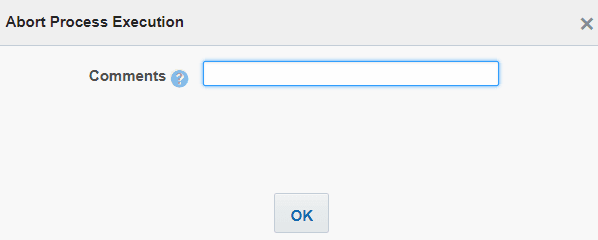
8. Enter comments, if any, to abort the Run Pipeline execution and click OK.
You can resume a Run Pipeline, which is not executed successfully, explicitly interrupted, canceled, or put on hold during the execution process. By resuming a Run Pipeline, you can continue its execution directly from the point of interruption or failure and complete executing the remaining tasks.
To resume a Run Pipeline process:
9. In the Process Monitor window, click icon corresponding to the Run Pipeline process that must be resumed, and then click Resume.
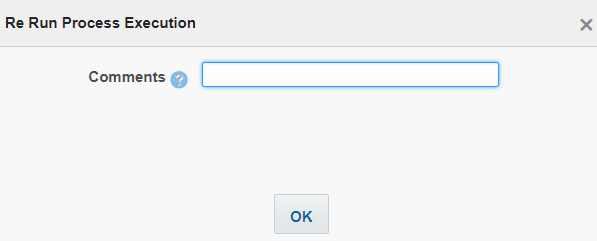
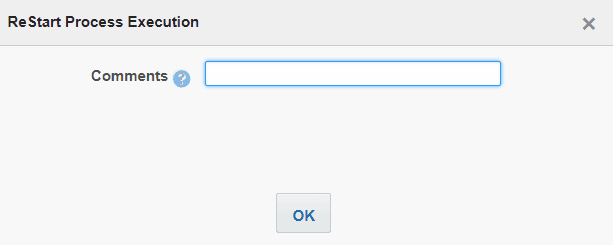
10. Enter comments, if any, to restart the Run Pipeline execution and click OK.
You can re-run a Run Pipeline that was previously executed irrespective of the previous execution state.
To re-run a Run Pipeline process:
11. In the Process Monitor window, click the icon corresponding to the Run Pipeline that must be re-run, and then click Re-Run.
12. Enter comments, if any, to re-run the Run Pipeline execution and click OK.