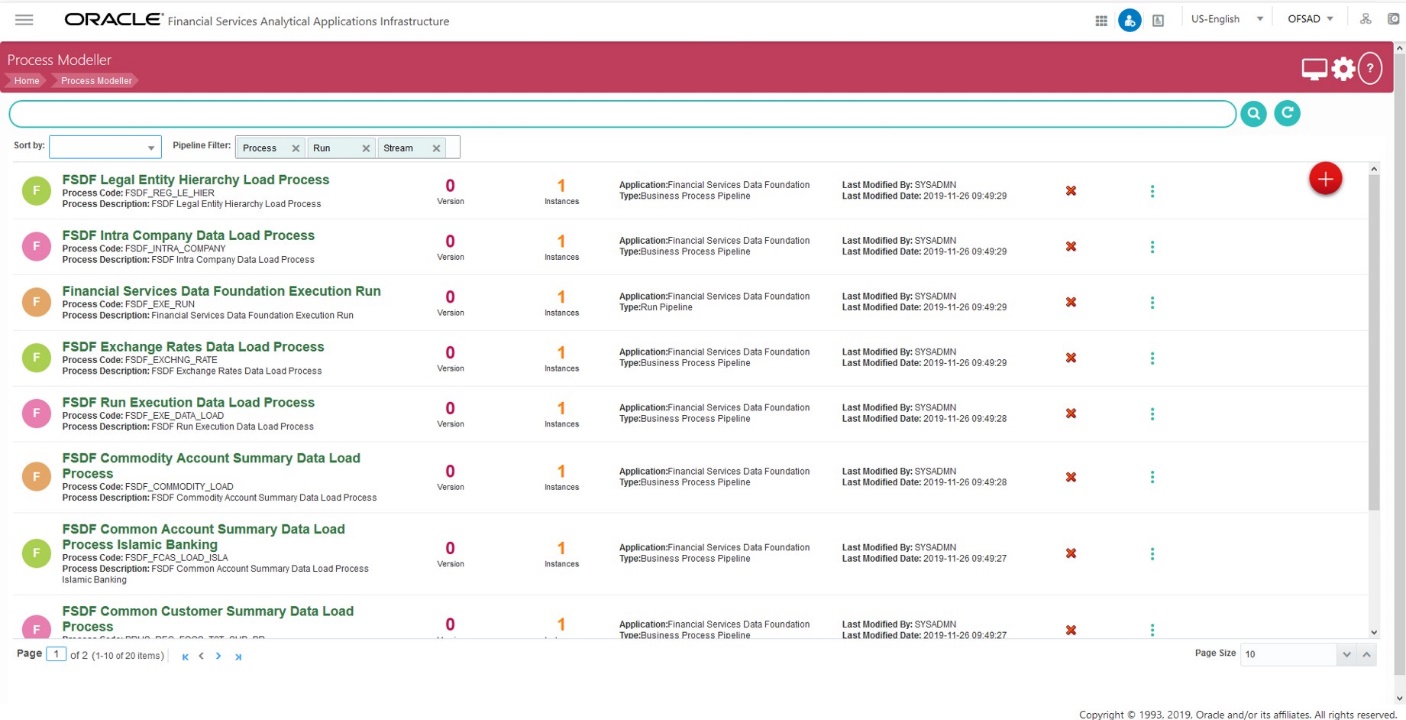
The Process Modeller is used to create and modify types of Pipelines, test the Process flow, and execute the Run.
The Process Modeller window displays the existing Business Process Pipelines and Run Pipelines with the details such as Process ID, Process Name, Process Description, Version, Instance, Application, and Last Modified details.
You can perform the following tasks from the Process Modeller window:
· Click 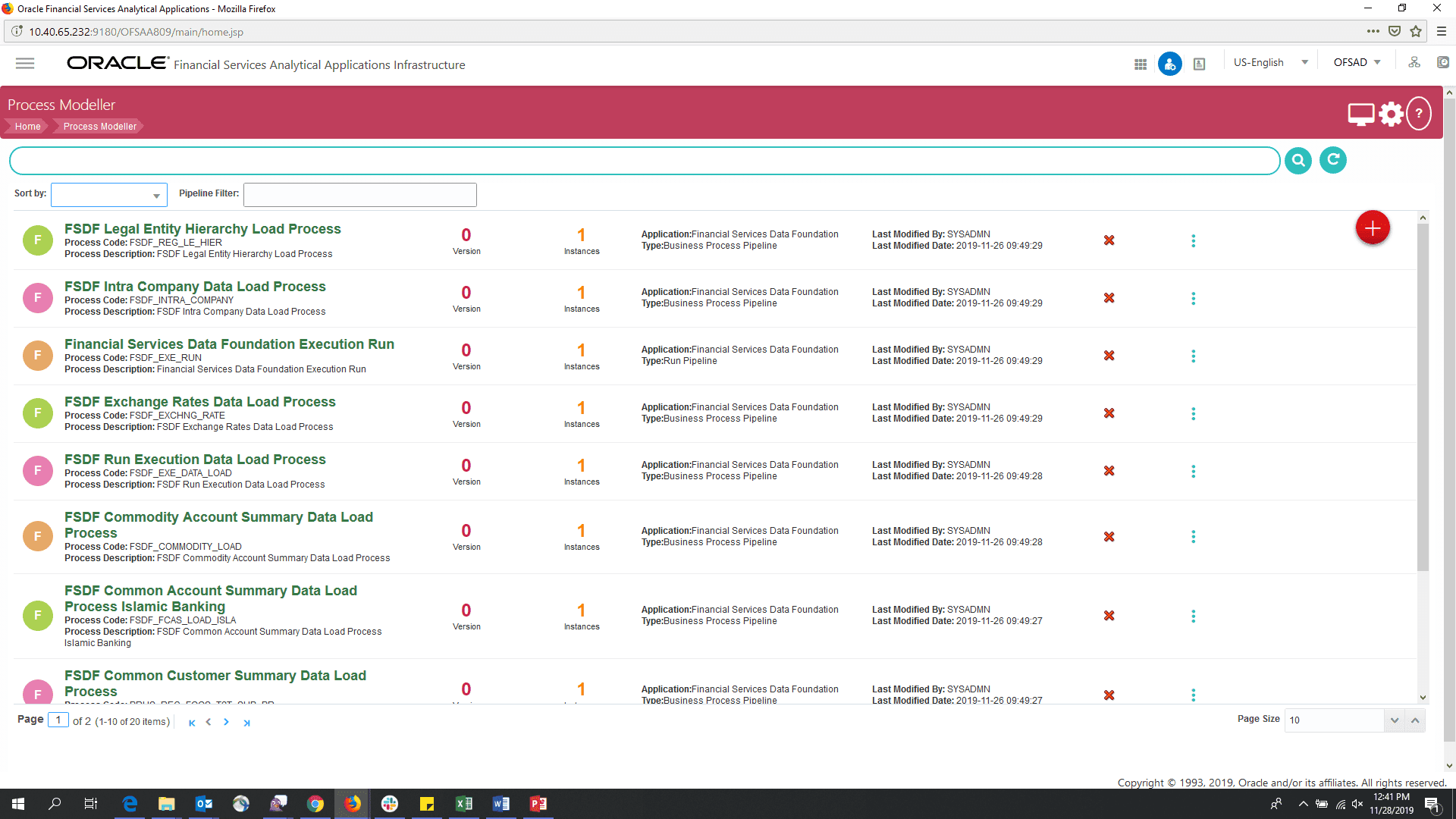 to create a new Pipeline.
· Click the Process Name link to launch and edit the Process Flow.
· Click to delete a Pipeline.
· Click to view the following submenu:
§ Click View to see the process flow.
§ Click Copy to create a new Pipeline with the same process flow.
§ Click Process Flow Monitor to monitor the Pipeline.
§ Click Test Process Flow to test or check whether the Business Pipeline you designed works as expected.
§ Click Execute Run to execute a Run Pipeline.
§ Click Export Process to export a Process.
|
NOTE |
The export process is performed using the Object Migration feature. |
· Use the Search grid to search for a specific Pipeline by providing a keyword from the Process ID, Process Name, or Process Description and then click the icon. Click to reset the Search fields.
· You can sort the Pipelines based on Process ID, Process Name, or Application. Click the Sort by drop-down and select the required attribute to sort.
· You can use the Filter Pipeline field to filter pipelines based on the pipeline type. For example, to view only the Run Pipelines, remove Process from the Filter Pipeline field.
· Click to open the Process Monitor window.