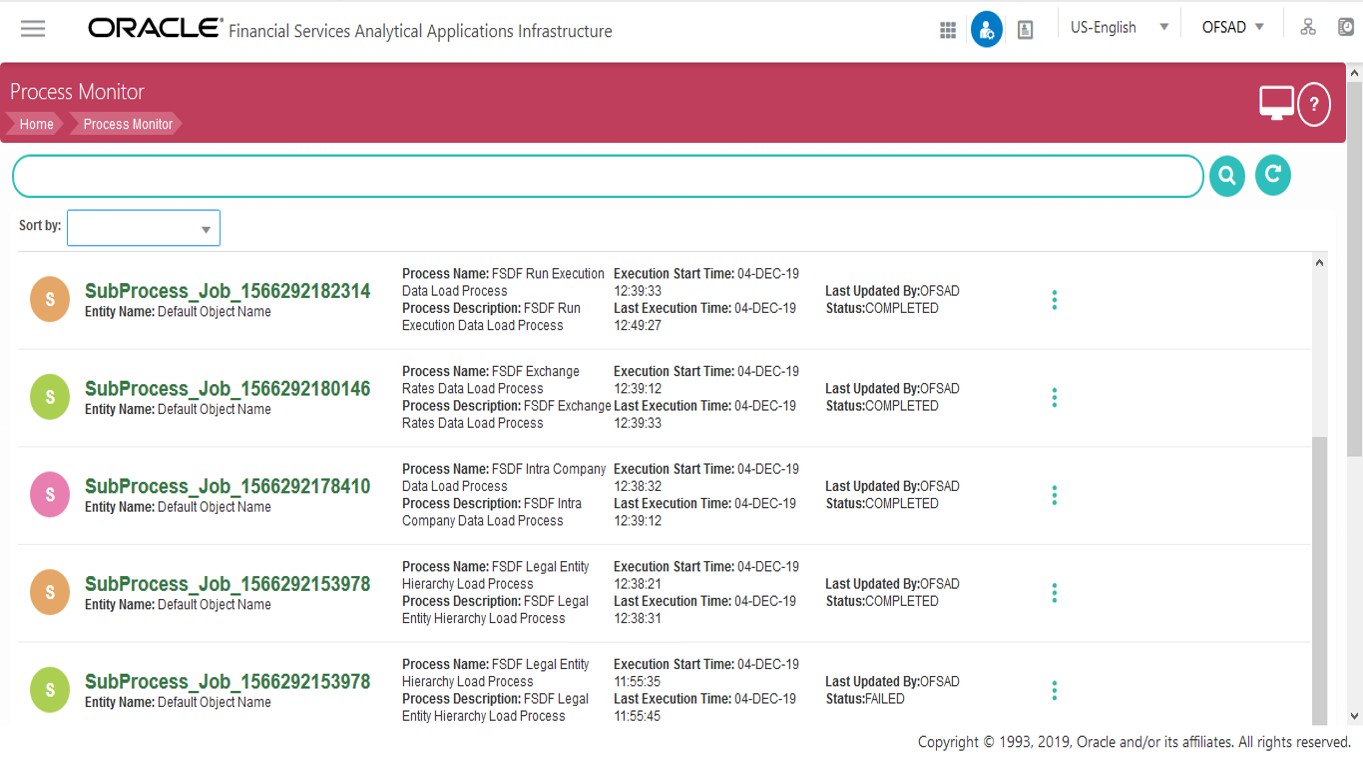
The Process Monitor is used to supervise the current stage of the Process for different instances. After integration with an application, the workflow can be invoked. After invoking, the workflow goes through all the stages defined. The Process Monitor displays all the stages finished, the current stage, and future stages. Your user group must be mapped to the function role WFMACC (Workflow Monitor Access) to access the Process Monitor window. For the list of the PMF Roles, see the Process Modeling Framework Roles section.
This window displays all the workflows, which are invoked from the application with details such as Entity Name, Entity ID, Process Name, Process Description, Execution Start Time, Last Execution Time, Last Updated By, and Status.
You can perform the following tasks from the Process Monitor window:
· Click 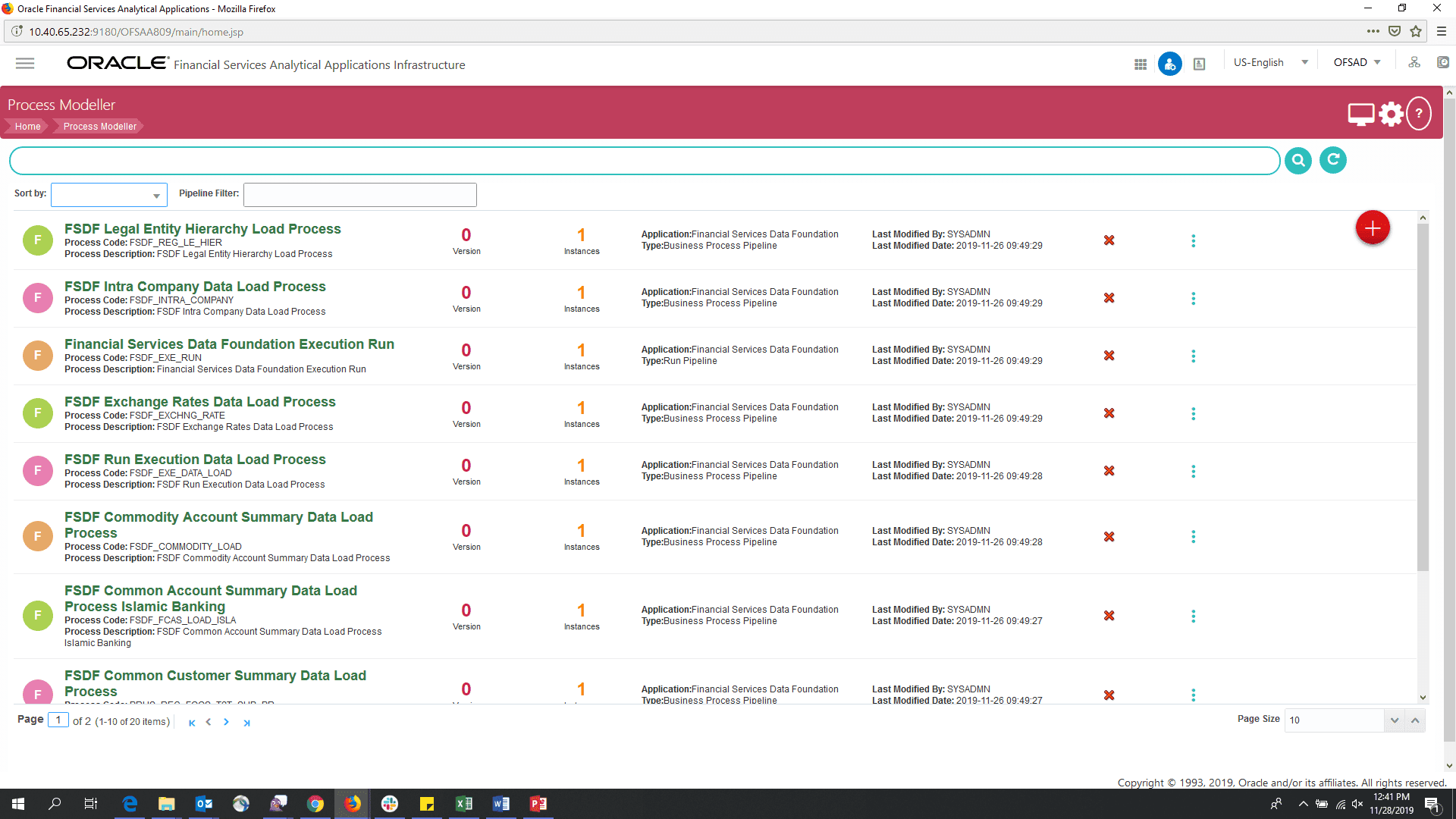 to view the following submenu:
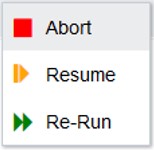
§ Abort: To abort an ongoing Run Pipeline process.
§ Resume: To resume a Run Pipeline process.
§ Re-Run: To execute a Run Pipeline process again irrespective of the previous execution status.
· Use the Search grid to search for a specific Pipeline by providing a keyword from the Process ID, Process Name, or Process Description and then click the icon. Click to reset the Search fields.
· You can sort the Pipelines based on Process ID, Process Name, or Application. Click the Sort by drop-down and select the required attribute to sort.
· You can use the Filter Pipeline field to filter pipelines based on the pipeline type. For example, to view only the Run Pipelines, remove Process from the Filter Pipeline field.
· Click to open the Process Modeller window.