To create queries:
Oracle Hyperion Provider Services
Oracle Hyperion Shared Services
Oracle Essbase
Microsoft Excel is installed with Oracle Smart View for Office on the client machine
The Manage Queries screen is displayed, showing all existing queries for all applications for which the user is provisioned as an Admin or Power user.
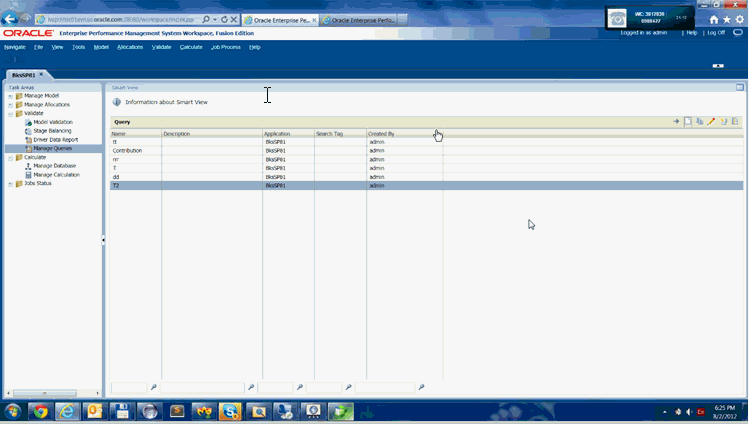
to open the Query wizard.
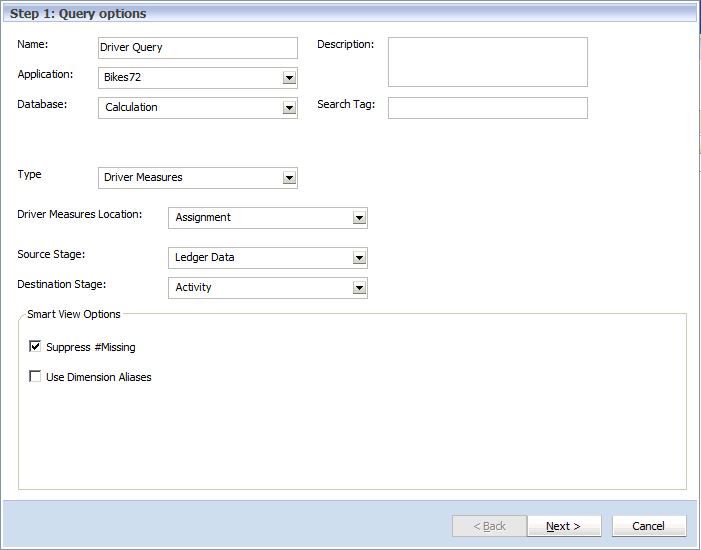
Name for the query
Optional: Description of the query
Select the Application to be used for the query from the drop-down list
Select the Database to be used for the query from the drop-down list:
Calculation (BSO)
Reporting (ASO)
Optional: Enter a descriptive Search Tag to be used to sort queries in the main Smart View Query screen.
Driver Measures
Stage Measures
Contribution
Custom
Depending on the Type that is selected, the additional query options change to reflect the choice. See Table 11-1.
Table 11-1 Query Type Options
| Query Type Selected | Type | Query Options |
|---|---|---|
| Driver Measures | Assignment | Select the Source and Destination stages. |
| Driver Measures | Source |
Select the Source stage. |
| Driver Measures | Destination | Select the Destination stage. |
| Driver Measures | Global | N/A |
| Stage Measures | Select the Stage to be used for the query. | |
| Contribution | Direct Allocation | Select the Source and Destination Stages. |
| Contribution | Genealogy | Select the Contribution Path (for example, 1-3-5). |
| Custom | Select as required. No default is expected. |
Note:
If you select Suppress #Missing, the Smart View option is only set for the first query run, not all queries. To set the option for subsequent drills into the data, set the option manually in Smart View.
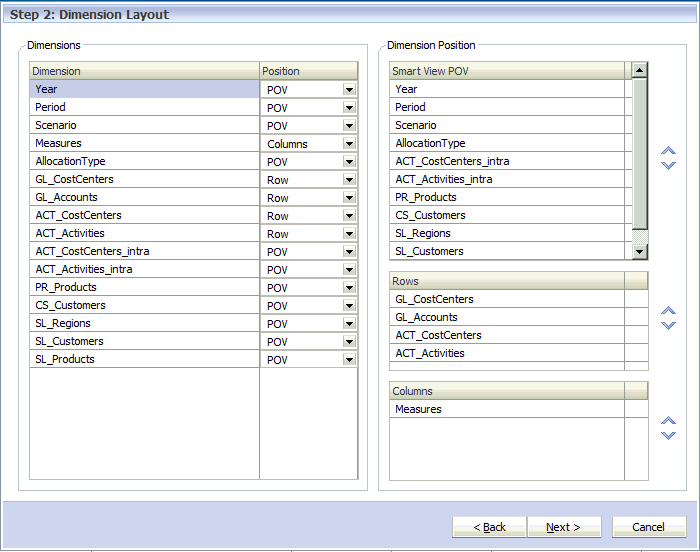
Step 2 - Dimension Layout is displayed.
POV
Rows
Columns
By default, all dimensions in the application outline are displayed, and selections are set to defaults that are appropriate for the type of query you are creating.
For example, if you select stage measures for a specific stage, the dimensions for that stage display in the Rows section, and the top member of the first hierarchy is pre-selected for each of the stage dimensions. The other stage dimensions are placed in the Smart View POV section, and the "NoMember" member from each stage is selected.
Step 3 - Member Selections is displayed. All dimensions from the Smart View POV, Rows and Columns are displayed in the order defined on the Dimension Layout screen. Use the arrows to scroll up or down through the list.
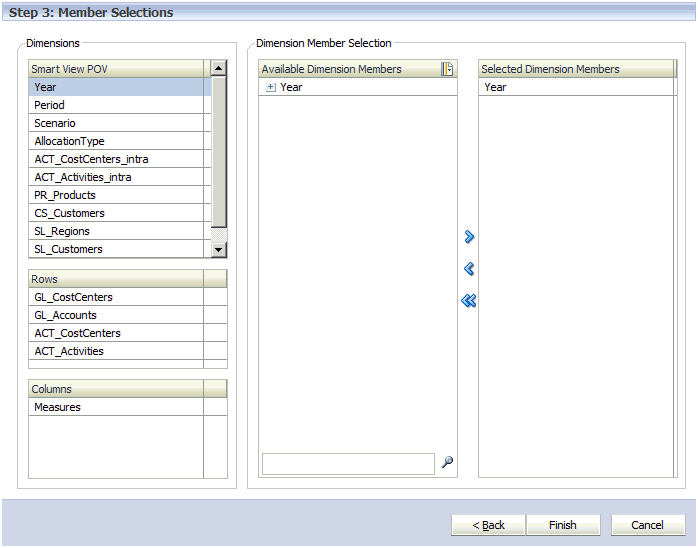
The list displays all dimension members, including alternate hierarchies and the NoMember member. Because there are no restrictions on level, alternate hierarchy, shared or base member, any member may be selected.
Use the Ctrl key to select multiple dimensions, or the Shift key to select the first and last members in a range.
The new query is added to the Manage Queries screen.
Note:
Before running the query, the database must be deployed. Although the database does not need to be calculated before running the query, results will be missing if it is not.