Working with the Payment Status Page
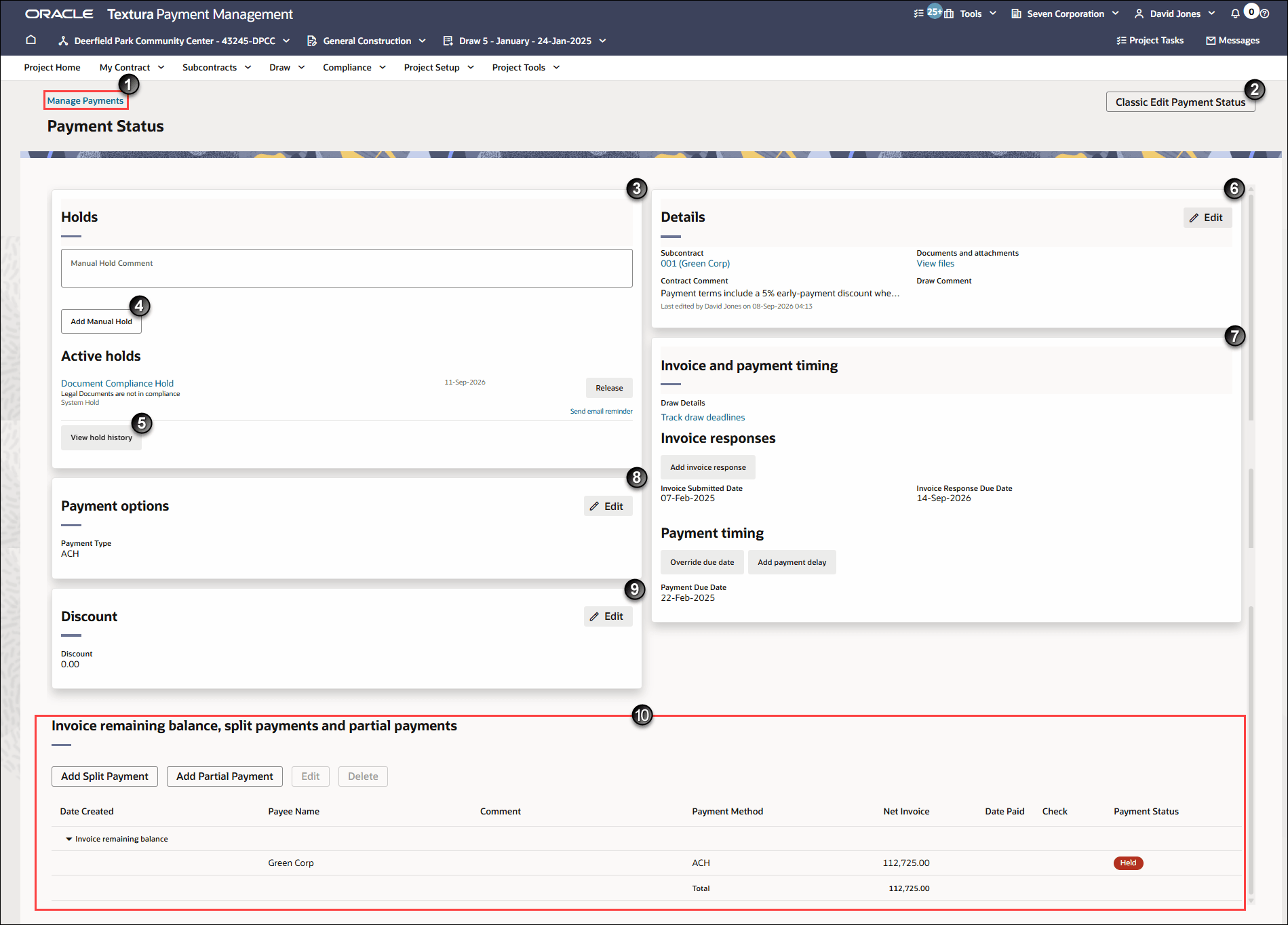
- Manage Payments: Return to the Manage Draw Payments page.
See Manage Draw Payments.
- Classic Payment Status: Access the old Payment Status page. This page will remain accessible for a limited amount of time while users familiarize themselves with the new workflow.
- Holds Tile: View and manage all current holds applied to the Subcontractor's payment. From this tile, users with the required role and permission can release eligible holds.
You can also apply and remove manual holds from the Subcontractor's payment.
Each listed hold includes the name of the type of hold, the date the hold was applied to the payment, and the name of the individual who placed the hold. Automatic payment holds will show System as the name of the hold initiator.
Select the name of a hold to navigate to the page in the application where you can view more details. For example, select a Statutory Declaration Hold to navigate to the Manage Statuary Declarations page or select a Document Compliance Hold to navigate to the View Document Status page.
- Add Manual Hold: Apply a hold to the payment to prevent disbursement. You can add a comment when placing a manual hold to explain the reasoning for the hold.
- View hold history: Opens a Hold history drawer. The drawer lists all holds that were placed and released on this period payment over time from the most to least recent.
Hold details include: Hold Type, Comment, Placed By, Placed On, Released By, and Date Released.
- Details Tile: View Subcontractor information, attachments, and both contract and period comments. Select Edit to update or add a contract or period comment.
Note: You can only have one contract and period comment at any time.
- Progress Claim and Payment Timing Tile: View information about deadlines, progress claim responses, and payment timing.
- Track period deadlines: Displays if your project uses the Track Period Deadlines feature. Select the link to navigate to the Track Period Deadlines page where you can view the deadlines associated with the Subcontractor's payments.
- Progress Claim Responses: Add or review a progress claim response associated with the progress claim.
- Override due date: Available when the project uses the Allow Payment Due Date Override setting. Select this option to set a new payment date, view the calculated payment due date, and add a comment.
- Add payment delay: Available when a project uses the Track Draw Deadlines setting. Select this option to open a Payment Delay dialogue box where you can submit a claimresponse to explain why a payment is delayed.
- Payment Options Tile: View and change the current payment method. Available payment options include EFT and manual checque.
- Discount Tile: Displays if the contract allows discounts on payments.
- Progress claim remaining balance, split payments and partial payments: View progress claim payment information. You can add a split payment or partial payment for more control over your disbursements.
- Split Payments: Use to view and add split payments and joint checques.
- Partial Payments: Use to view and add partial payments.