Working with the Contract Status Page for Subcontractors
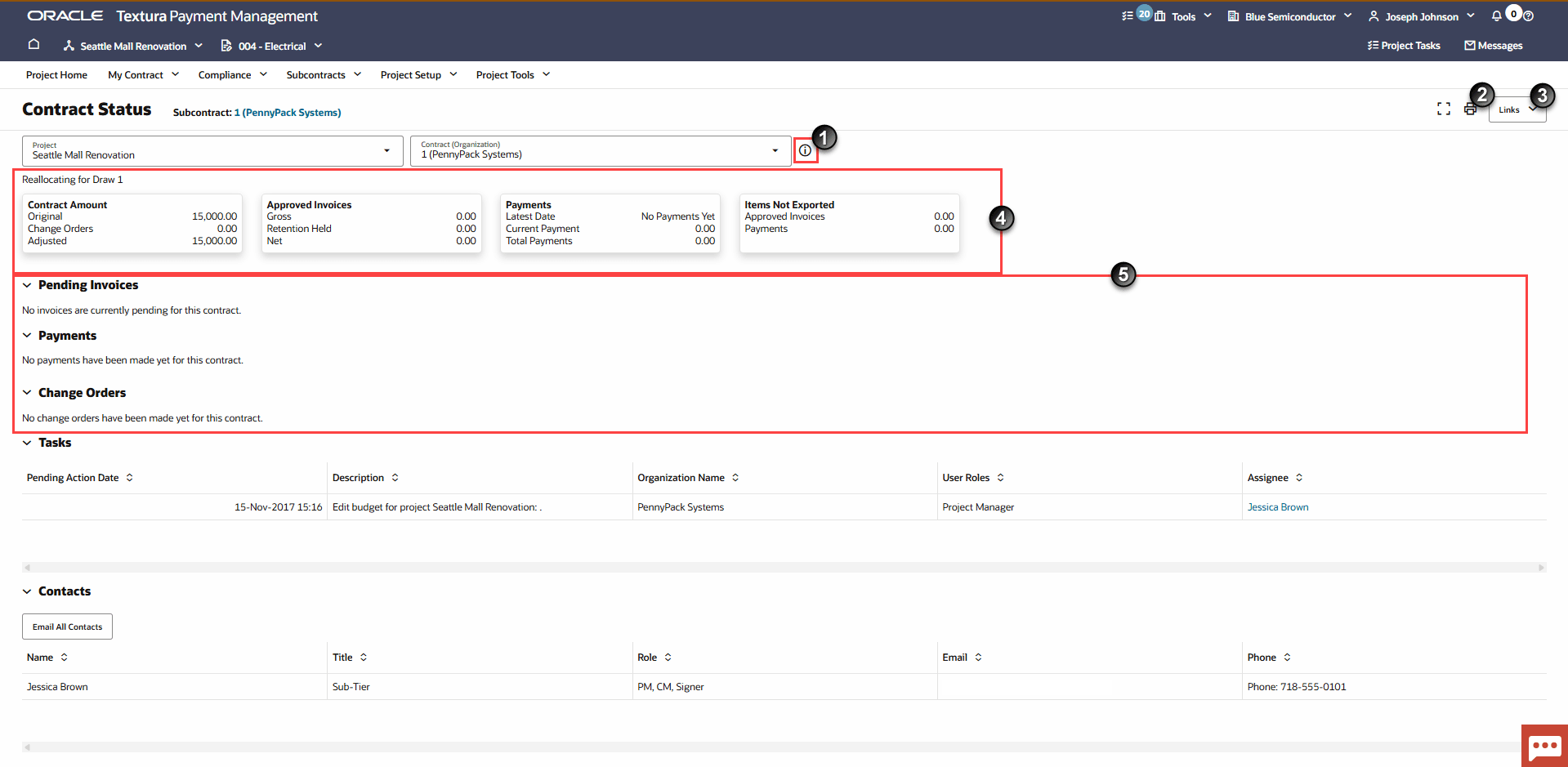
- Information Icon: Choose this option to display the location, contact and vendor ID of the project.
- Print Icon: Select to view a PDF version of the page.
- Links: Access other relevant pages.
- Contract Maintenance
- Subcontracts by Organization
- Change Orders
- Lien Waiver Status
- Manage Lien Waivers
- Attachments
- Summary Section: Displays a full summary of contract payment details. It includes a summary of the contract amount, approved invoices, and payments. Select a draw to view draw details. For a description of all the fields displayed under this section, see Contract Status Fields Overview for Subcontractors.
- Draw Section: Draw information displays in five separate tables:
- Pending Invoices
- Payments
- Change Orders
- Tasks
- Contracts
For a description of all the fields displayed under this section, see Contract Status Fields Overview for Subcontractors.
- Documents (Not Pictured): Select the document icon to open a Documents drawer. The drawer includes three sections:
- Previews: Includes the names of PDF or image documents related to the contract. You can select an item from this section to preview it on the right side of the drawer without downloading it. If the contract does not currently have PDF or image files, the Previews section displays No previews available.
- Attachments: Includes the names of non-PDF or image files related to the contract, such as CSV or XLS files. You cannot preview these files in the drawer and must download them to view them. If an attachment exists, you will see a Download icon next to the attachment's name.
- Links: Includes links to specific pages within Textura filtered to the context of the contract.
Links include:
- Invoice Control Log
- View Draw Request
- Draw Home