Delivery Methods - SMTP Configuration
Use the Delivery Method screens to configure email delivery for a specific property. For each delivery method, you can choose the SMTP code and configure the details.
NOTE: If you change the SMTP Code for a Delivery Method, a message will ask if you want to update the Hotel Delivery Methods with the new value. Click Yes to update or No to cancel the change. See Editing SMTP Configuration in the SMTP Configuration topic for details.
Configuring General Delivery
- Log in to OPERA and open the Configuration module.
- From the Property menu, select Delivery Method, and then select General.
- Complete the following details:
- Property: Select the Property from the list.
- Activate Email Delivery: Select to activate email delivery functionality. If this checkbox is not selected, you cannot view the list of SMTP codes.
- SMTP Code: Select the SMTP code from the list. This field is available only if the SMTP Codes are configured under Email Configuration. See Adding SMTP Configuration for details.
- From Email Address: Enter the sender's email address.
- User ID: Populates based on the SMTP Code.
- User Password: Populates based on the SMTP Code.
- Server Name: Populates based on the SMTP Code.
- Click OK.

Configuring Billing Delivery
- Log in to OPERA and open the Configuration module.
- From the Property menu, select Delivery Method, and then select Billing.
- Complete the following details:
- Property: Select the Property from the list.
- Activate Email Delivery: Select to activate email delivery functionality. If this check box is not selected, you cannot view the list of SMTP codes.
- SMTP Code: Select the SMTP code from the list.
- From Email Address: Enter the sender’s email address.
- User ID: Populates based on the SMTP Code.
- User Password: Populates based on the SMTP Code.
- Server Name: Populates based on the SMTP Code.
- Email Subject: Enter the subject that is to appear in the email message.
- Email Body: Add the email body description.
- Click OK.

Configuring Other Folios Delivery
- Log in to OPERA and open the Configuration module.
- From the Property menu, select Delivery Method, and then select Other Folios.
- Complete the following details:
- Property: Select the Property from the list.
- Activate Email Delivery: Select to activate email delivery functionality. If this check box is not selected, you cannot view the list of SMTP codes.
- SMTP Code: Select the SMTP code from the list.
- From Email Address: Enter the sender email address.
- User ID: Populates based on the SMTP Code.
- User Password: Populates based on the SMTP Code.
- Server Name: Populates based on the SMTP Code.
- Email Subject: Enter the subject that is to appear in the email message.
- Email Body: Add the email body description.
- Click OK.

Configuring Confirmation Delivery
- Log in to OPERA and open the Configuration module.
- From the Property menu, select Delivery Method, and then select Confirmation.
- Complete the following details:
- Property: Select the Property from the list.
- Activate Email Delivery: Select to activate email delivery functionality. If this check box is not selected, you cannot view the list of SMTP codes.
- Attach iCalendar: This field is not applicable.
- HTML Delivery: This field is not applicable.
- SMTP Code: Select the SMTP code from the list.
- From Email Address: Enter the sender email address.
- User ID: Populates based on the SMTP Code.
- User Password: Populates based on the SMTP Code.
- Server Name: Populates based on the SMTP Code.
- Email Subject: Enter the subject that is to appear in the email message.
- Email Body: Add the email body description.
- Click OK.

Configuring Contracts/OWSC Delivery
- Log in to OPERA and open the Configuration module.
- From the Property menu, select Delivery Method, and then select Contracts/OWSC Delivery.
- Complete the following details:
- Property: Select the Property from the list.
- Activate Email Delivery: Select to activate email delivery functionality. If this check box is not selected, you cannot view the list of SMTP codes.
- HTML Delivery: This field is not applicable.
- SMTP Code: Select the SMTP code from the list.
- From Email Address: Enter the sender email address.
- User ID: Populates based on the SMTP Code.
- User Password: Populates based on the SMTP Code.
- Server Name: Populates based on the SMTP Code.
- Email Subject: Enter the subject that is to appear in the email message.
- Email Body: Add the email body description.
- Click OK.

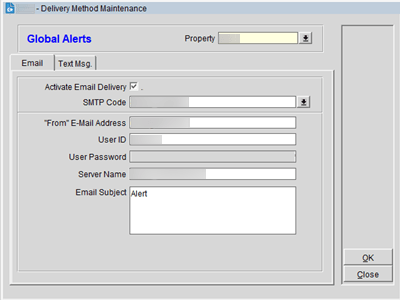
Configuring Global Alerts Delivery
- Log in to OPERA and open the Configuration module.
- From the Property menu, select Delivery Method, and then select Global Alerts.
- Complete the following details:
- Property: Select the Property from the list.
- Activate Email Delivery: Select to activate email delivery functionality. If this check box is not selected, you cannot view the list of SMTP codes.
- SMTP Code: Select the SMTP code from the list.
- From Email Address: Enter the sender email address.
- User ID: Populates based on the SMTP Code.
- User Password: Populates based on the SMTP Code.
- Server Name: Populates based on the SMTP Code.
- Email Subject: Enter the subject that is to appear in the email message.
- Click OK.
Configuring Message Delivery
- Log in to OPERA and open the Configuration module.
- From the Property menu, select Delivery Method, and then select Messages.
- In the Text Message panel, click Delivery and complete the following:
- URL: This field is not applicable.
- Email: Select this check box to send as an email.
- SMTP Code: Select the SMTP code from the list.
- Partner/User ID: Enter the Partner ID or User ID for the delivery provider.
- Service Type/Server: Populates based on the SMTP Code.
- Service ID/Account: Populates based on the SMTP Code.
- Password: Populates based on the SMTP Code.
- URL: Enter the URL address for the Text Messaging Provider.
- URL Parameter: Select Text or XML.
- Timeout: Enter the delivery timeout in seconds for the message.
- Format: Select the format from the list of values.
- Click OK.

Configuring OVOS Delivery
- Log in to OPERA and open the Configuration module.
- From the Property menu, select Delivery Method, and then select OVOS.
- Complete the following details:
- Property: Select the Property from the list.
- Activate Email Delivery: Select to activate email delivery functionality. If this check box is not selected, you cannot view the list of SMTP codes.
- SMTP Code: Select the SMTP code from the list.
- From Email Address: Enter the sender email address.
- User ID: Populates based on the SMTP Code.
- User Password: Populates based on the SMTP Code.
- Server Name: Populates based on the SMTP Code.
- Click OK.

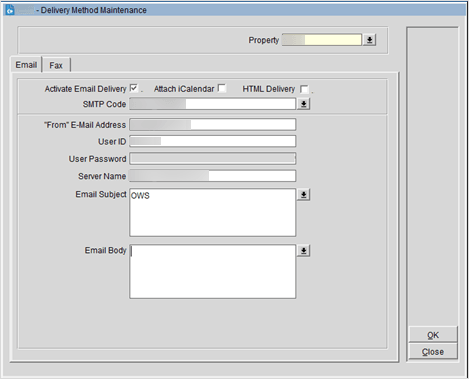
Configuring OWS Delivery
- Log in to OPERA and open the Configuration module.
- From the Property menu, select Delivery Method, and then select OWS.
- Complete the following details:
- Property: Select the Property from the list.
- Activate Email Delivery: Select to activate email delivery functionality. If this check box is not selected, you cannot view the list of SMTP codes.
- Attach iCalendar: This field is not applicable.
- HTML Delivery: This field is not applicable.
- SMTP Code: Select the SMTP code from the list.
- From Email Address: Enter the sender email address.
- User ID: Populates based on the SMTP Code.
- User Password: Populates based on the SMTP Code.
- Server Name: Populates based on the SMTP Code.
- Email Subject: Enter the subject that is to appear in the email message.
- Email Body: Add the email body description.
- Click OK.
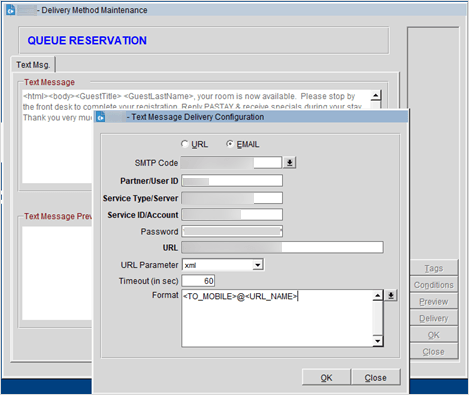
Configuring Queue Reservation Text Message Delivery
- Log in to OPERA and open the Configuration module.
- From the Property menu, select Delivery Method, select Queue Rooms, and then select Queue Reservations.
- In the Text Message Delivery panel, click Delivery and complete the following:
- URL: This field is not applicable.
- Email: Select this check box to send as an email.
- SMTP Code: Select the SMTP code from the list.
- Partner/User ID: Enter the Partner ID or User ID for the delivery provider.
- Service Type/Server: Populates based on the SMTP Code.
- Service ID/Account: Populates based on the SMTP Code.
- Password: Populates based on the SMTP Code.
- URL: Enter the URL address for the Text Messaging Provider.
- URL Parameter: Select Text or XML.
- Timeout: Enter the delivery timeout in seconds for the message.
- Format: Select the format from the list of values.
- Click OK.
Configuring Queue Rush Text Message Delivery
- Log in to OPERA and open the Configuration module.
- From the Property menu, select Delivery Method, select Queue Rooms, and then select Queue Rush.
- In the Text Message Delivery panel, click Delivery and complete the following:
- URL: This field is not applicable.
- Email: Select this check box to send as an email.
- SMTP Code: Select the SMTP code from the list.
- Partner/User ID: Enter the Partner ID or User ID for the delivery provider.
- Service Type/Server: Populates based on the SMTP Code.
- Service ID/Account: Populates based on the SMTP Code.
- Password: Populates based on the SMTP Code.
- URL: Enter the URL address for the Text Messaging Provider.
- URL Parameter: Select Text or XML.
- Timeout: Enter the delivery timeout in seconds for the message.
- Format: Select the format from the list of values.
- Click OK.

Configuring Online Checkin Delivery
- Log in to OPERA and open the Configuration module.
- From the Property menu, select Delivery Method, and then select Online Checkin.
- Complete the following details:
- Property: Select the Property from the list.
- Activate Email Delivery: Select to activate email delivery functionality. If this check box is not selected, you cannot view the list of SMTP codes.
- SMTP Code: Select the SMTP code from the list.
- From Email Address: Enter the sender email address.
- User ID: Will auto-populate based on the SMTP Code.
- User Password: Populates based on the SMTP Code.
- Server Name: Populates based on the SMTP Code.
- Email Subject: Enter the subject that is to appear in the email message.
- Email Body: Add the email body description.
- Click OK.


