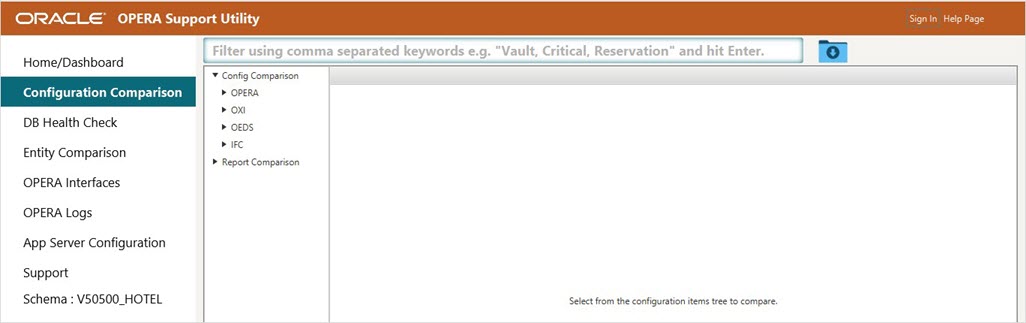
Download Support Utility and Connect to Database
- Move SU to machine or server that has database (DB) access for example, if you can access DB from your laptop (via SQL Developer), then SU should be able to connect from your laptop.
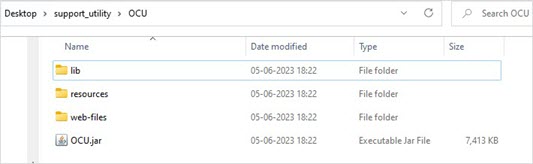
- Unzip the folder and double click the only *.jar file inside this folder to execute it (for example, OCU.jar, this name can be changed, but there will be only one *.jar in this folder).
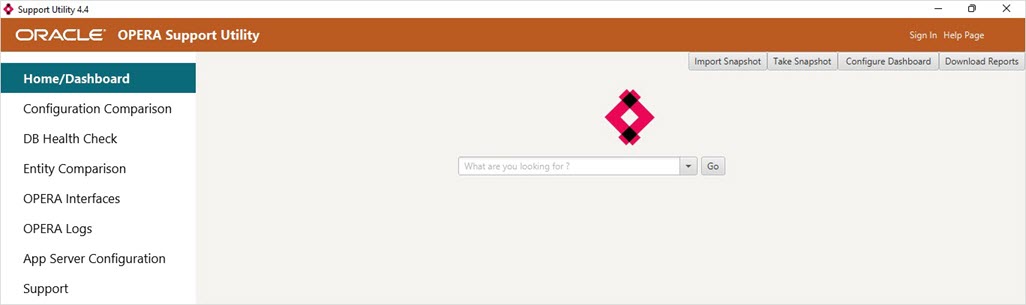
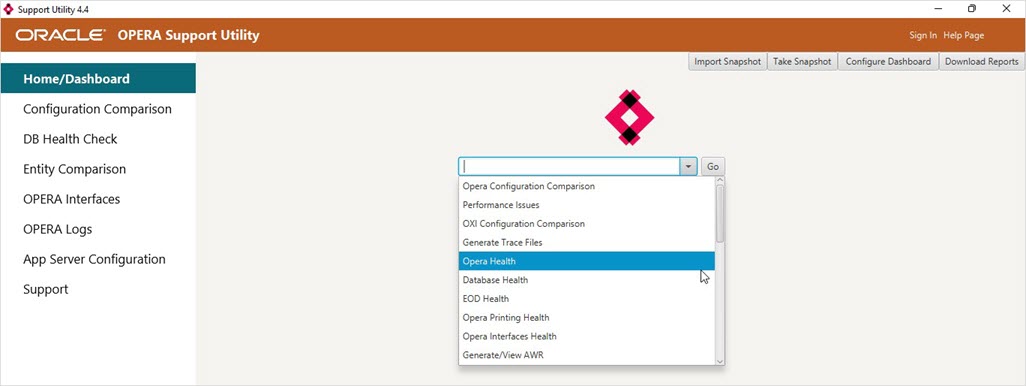
- Enter or select what are you looking for from the dropdown list and click Go. This directs you to the relevant areas based on your selection.
- Connect to the database by proving the required connection credentials.
- Enter the OPERA DB Host Name.
- Enter the OPERA DB Listening Port.
- Enter the OPERA DB Service Name.
- Enter the OPERA DB User Name.
- Enter the OPERA DB Password.
- Click Connect.
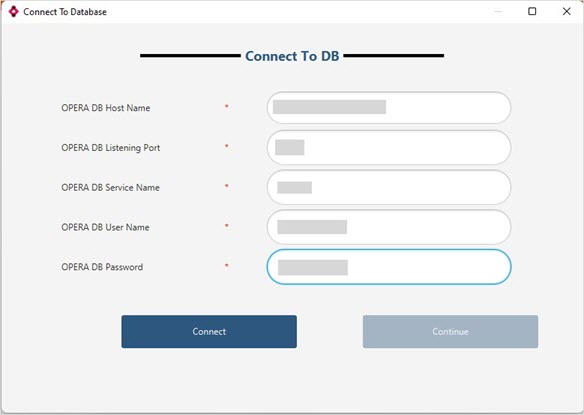
- Select Schema from the dropdown list and click Continue to access all the menus.