OWS Interfaces
The following interfaces are available under the OWS Interfaces:
- Use any of the following methods to navigate to any of the above OWS interfaces:
- From the SU search page, select the OWS interface, such as OWS Post, you wish to look at and click Go.
or
- Select the OPERA Interfaces menu.
- Under OPERA Interfaces tree information, select the OWS Interfaces you wish to look at.
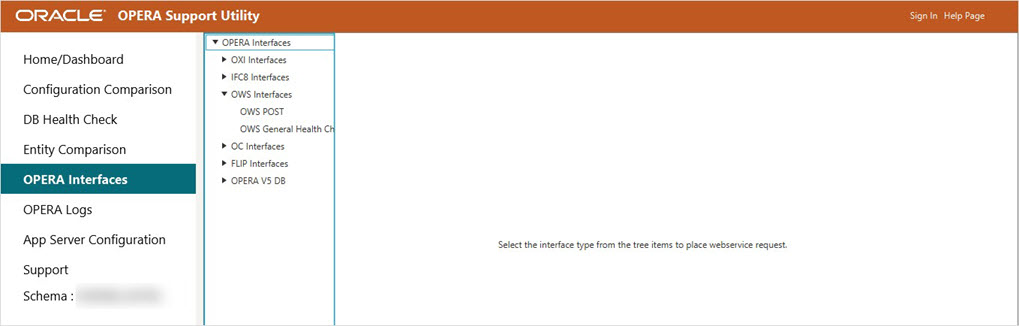
OWS POST
Note: If the database connection has not been established, connect to the database by providing the required connection credentials when the database dialog box appears.
- Use any of the following methods to navigate to any of the above OWS Post interfaces:
- From the SU search page, select the OWS interface, such as OWS Post, you wish to look at and click Go.
or
- Select the OPERA Interfaces menu.
- Under OPERA Interfaces tree information, select the OWS Interfaces tree information and then select the OWS POST you wish to run.
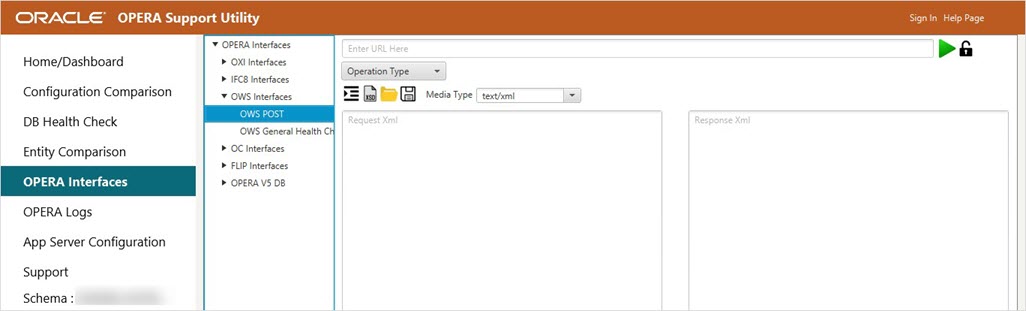
- Select any of the Operation Type from the drop-down list.
- Enter the URL to post the message.
- Select the Media Type from the drop-down list.
- Click the Indent and Structure icon in the Request xml text area to check the structure of the XML request message and indentation.
- It validates the details of missing tags and line numbers if the structure (tags) is not correct and displays an XML Structure Validation dialog box.
- It also indents the XML request message.
- Click the XSD Validation icon to check the validation of Request XML Message against XSD (XSD files are already uploaded for Sample Messages respectively).
- Click the Upload XSD File icon to upload your XSD file against Request XML Message and click Open. Click the XSD Validation icon to validate the XML message against XSD.
- Click the Authentication icon to authenticate the posting of the message.
- Enter your Username and Password and click Authorize.
- Click the Run icon. This displays the Response Message, Response Code, and Response Received in Response XML text area.
- Once the message is successfully posted, you can see a green checkmark on the top right corner.
- If the message is not posted, you can see a cross mark on the top right corner.
OWS General Health Check
- Select the OPERA Interfaces menu.
- If the database connection has not been established, connect to the database by providing the required connection credentials when the database dialog box appears.
- Under OPERA Interfaces, select OWS Interfaces tree information and then select the OWS General Health Check you wish to run.
- The OWS General Health Check is available under the DB Health Check tab. The 'Do you want to navigate to it?' dialog box appears.
- Click Continue to navigate to the OWS General Health Check located under the DB Health Check menu.
- This directs you to the OEDS tab of OPERA Interfaces under DB Health Check. View OEDS Service Installed Machine, OWS/ADS/GDS Log Tables, and Truncate OEDS Request Monitor Health check reports.


