Fact Application entity stores the fact data of applications like application details, current stage, status, rejection reason, time-taken in each stage, and so on.
The following table lists the seeded T2T Definitions with related Source Table and Destination tables:
Table 38: Seeded T2T Definitions
|
T2T Definition Name |
Source Staging Table |
Destination Table |
|
T2T_FCT_APPLICATION |
STG_APPLICATION |
FCT_APPLICATION |
For more information and to view the detailed structure of the earlier tables, see Customer Insight Erwin Data Model.
The following are the lists of tables used in the population of Fact Application. These tables are required to be loaded before running the T2T:
· DIM_DATES
· DIM_APPLICATION_TYPE
· DIM_PRODUCT
· DIM_CREDIT_OFFICER
· DIM_CUSTOMER
· DIM_CHANNEL
· DIM_CREDIT_CENTER
· DIM_DECISION_STATUS
· DIM_GEOGRAPHY
· DIM_INDUSTRY
· DIM_APPLICATION_REJECT_REASONS
· DIM_DEVIATION_REASONS
· DIM_SALES_REPRESENTATIVE
· DIM_ACCOUNT
· DIM_PROSPECT
· DIM_BANDS
· STG_APPLICATION
For details on populating dimension tables like DIM_CUSTOMER, DIM_BANDS, and so on, see Dimension Tables Population.
For details on populating the DIM_DATES dimension table, see Time Dimension Population.
For identifying fields required in Channel Transaction tables in staging for the purpose of Customer Insight Application(s), refer to Download Specification.
To execute the T2T component from OFSAA Infrastructure ICC framework (accessed through Operations module), a seeded process, PR_APPLICATION has to be executed for the required MIS Date.
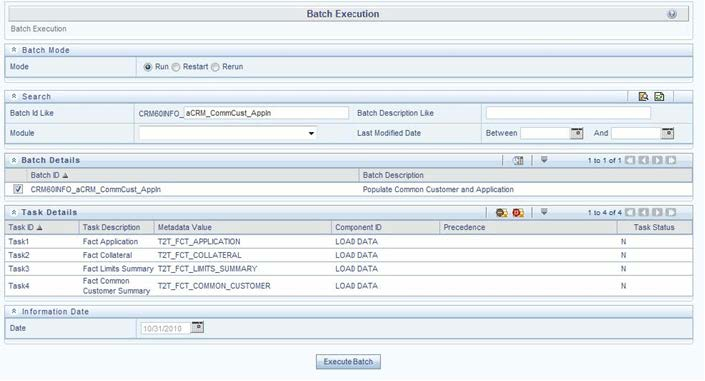
Figure 40: Execute Fact Application Population
Alternatively, the following steps will help you create a new batch:
1. From the Home menu, click Operations and select Batch Maintenance.
2. Click New Batch ('+' symbol in Batch Name container). Enter the Batch Name and Description.
3. Click Save.
4. Click the check box in the Batch Name container to select the Batch, you created in the earlier step.
5. Enter the Task ID and Description.
6. Select Load Data from the Components list.
7. Select the following from the Dynamic Parameters List and click Save.
§ Datastore Type: Select the appropriate datastore from the list.
§ Datastore Name: Select the appropriate name from the list.
§ IP address: Select the IP address from the list.
§ Load Mode: Select Table to Table from the list.
§ Source Name: Select <T2T Source Name> from the list.
§ File Name: Select the T2T name 'T2T_FCT_APPLICATION' you want to process.
8. The data file name will be blank for any Table to Table Load mode.
The default value refers to any parameter that has to be passed to T2T. If there is any need for currency conversion in T2T transactions, the Default value has to be provided.
For example, the default value is [DRCY]='USD'
Here, 'USD' acts as reporting currency parameter to T2T
9. Execute the batch created in the preceding steps.
For more information, see the Oracle Financial Services Analytical Applications Infrastructure User Guide.
The status of execution can be monitored using the Batch Monitor screen.
The status messages in Batch Monitor are:
· N: Not Started
· O: On Going
· F: Failure
· S: Success
The execution log can be accessed on the application server in the following directory: $FIC_DB_HOME/log/t2t.
The file name will have the batch execution Id.
The following tables can be queried for errors: FCT_APPLICATION$
For more information on the configuration and execution of a batch, see the Oracle Financial Services Analytical Applications Infrastructure User Guide.