The SubLedger Manual Adjustment enables you to update the batch details of the approved SubLedger definitions. Complete all the Manual Adjustment tasks before finalizing a subledger definition.
Access SubLedger Manual Adjustment
Search for SubLedger Manual Adjustment Definitions
Create New SubLedger Manual Adjustment Definition
Edit a SubLedger Manual Adjustment Definition
View a SubLedger Manual Adjustment Definition
Run SubLedger Manual Adjustment Definition
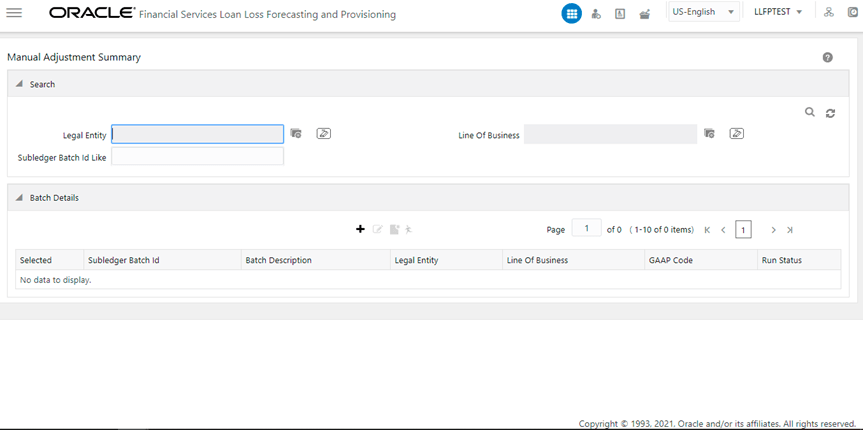
You can access the SubLedger Manual Adjustment window by clicking the SubLedger Manual Adjustment element from the left-hand pane menu. When you click this element, the Manual Adjustment Summary window is displayed:
Figure 48: The Manual Adjustment Summary Window
This window displays the existing SubLedger Manual Adjustment definitions in the Batch Details table. This window also enables you to define the new SubLedger Manual Adjustment Definition, edit the existing definitions, view the details of the existing definition, and run the definitions.
The Search feature enables you to filter the list of existing definitions and find the definitions that you require. To search for definitions, enter the required keywords in the Legal Entity, Line Of Business, and Batch ID Like fields, and click Search.
The list of subledger manual adjustment definitions in the Batch Details table is refreshed and the definitions that match your search criteria are displayed.
Perform the following steps to create new subledger manual adjustment definitions:
1. In the SubLedger Manual Adjustment table, click Add, to open the SubLedger Manual Adjustment window.
Figure 49: The SubLedger Manual Adjustment Window
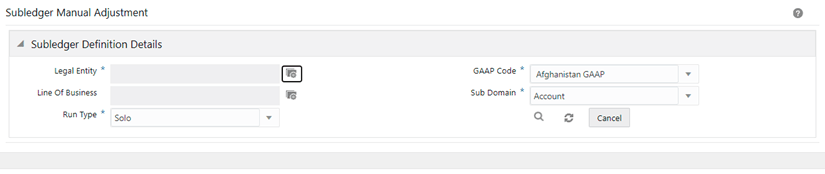
2. Populate the SubLedger Definition Details pane.
Field |
Description |
|---|---|
Fields marked with asterisks (*) in the window are mandatory. |
|
Legal Entity |
Click Hierarchy Selection adjacent to this field. Select the required Legal Entity from the Hierarchy Selection window. For more information, see Hierarchy Selection. |
Line of Business |
Click Hierarchy Selection adjacent to this field. Select the required Legal Entity from the Hierarchy Selection window. For more information, see Hierarchy Selection. |
GAAP Code |
Click the drop-down list adjacent to this field and select a GAAP Code. |
Sub Domain |
Click the drop-down list adjacent to this field. The available methods are: · Account |
Run Type |
Click the drop-down list adjacent to this field and select the option either Solo or Consolidated. |
3. Click Submit.
4. Click Save.
Perform the following steps to edit subledger manual adjustment definitions:
1. From the Batch Details table, select the checkbox adjacent to the SubLedger Manual Adjustment definition you want to edit.
2. Click Edit. To open the SubLedger Manual Adjustment window.
3. Update the required fields. For more information, see Create a New SubLedger Manual Adjustment Definition.
4. Click Save.
The saved definition is displayed in the Batch Details table on the Manual Adjustment Summary window.
Perform the following steps to view subledger manual adjustment definitions:
1. In the Batch Details window, select the checkbox adjacent to the subLedger manual adjustment definition that you want to view.
2. Click View to open the SubLedger Manual Adjustment window.
This window displays the aggregation attributes and accounting rules details as well.
3. Click Cancel to go back to the Batch Details window.
Perform the following steps to run subledger manual adjustment definitions:
1. In the Batch Details table, select the checkbox adjacent to the SubLedger Manual Adjustment.
2. Click Run.
Figure 49: The Execute window
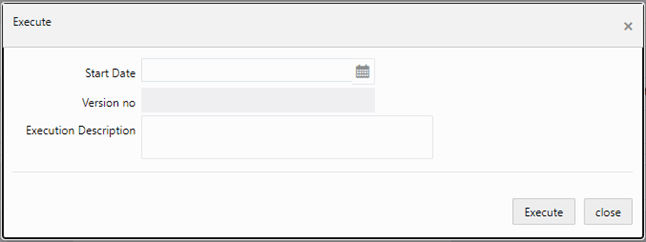
3. In the Execution window, enter the start date in the Start Date field.
4. In the Execution Description field, enter a description.
5. Click Execute.
The selected subledger manual adjustment definition is marked for execution.