This chapter details information about accessing the OFSBCE application.
Topics:
· Accessing the OFSBCE Application
· Prerequisites to Execute the OFSBCE Processes
After installing the prerequisite OFSAA applications and the OFSBCE application, to access OFSBCE, follow the steps mentioned in the Access the OFSAA Application section in the Oracle Financial Services Balance Computation Engine Application Installation and Configuration Guide Release 8.1.0.0.0.
Before executing the OFSBCE processes, complete the following tasks:
· Load the required Dimensions.
For the list of Dimensions to be loaded, see the OFSBCE Runchart for the current release. For information about loading the Dimension tables, see the Dimension Loading Process chapter in the Oracle Financial Services Data Foundation Application Pack User Guide Release 8.1.0.0.0.
NOTE |
The Dimension Loading Process mentioned here includes Slowly Changing Dimensions (SCD) process, which is relevant to dimensions. |
· Execute the OFSDF batches.
For the list of OFSDF batches that must be executed, see the OFS Balance Computation Engine Runchart related to this release. For information about the Batch Execution, see the section Executing Batch in the Oracle Financial Services Advanced Analytical Applications Infrastructure User Guide Release 8.1.0.0.0.
· Load the Exchange Rates table FSI_EXCG_RATES using the insert scripts.
The Exchange Rates table stores the list of all exchange rates for all types of currency. This is a standalone table. The purpose of the Exchange Rates table is to offer the value of one currency in relation to another currency.
Each Legal Entity, for which processing is expected, must have an associated Local Currency to it. So that the system can perform the computations.
· Load the Legal Entity tables.
The reporting entity may be a part of a financial institution that consists of multiple legal entities such as parent or child entities (subsidiaries) under its name. User can select the entity for which processing must be done. In addition, a ‘Solo’ Run execution is supported.
· Load the SETUP_MASTER table
The Revaluation or Translation processes refers to the values in the columns EXCG_RATE_DATA_ORIG and EXCG_RATE_QUOTE_TYPE when fetching exchange rates from the FSI_EXCG_RATES table. The seeded value for the EXCG_RATE_DATA_ORIG column is Default and for the EXCG_RATE_QUOTE_TYPE column is Quote.
To execute batches in the preceding tasks, see the Batch Execution section.
To configure, manage, and execute all the OFSBCE processes, use the OFSAA Process Modelling Framework (PMF). For more information, see the Executing the OFSBCE Processes through Process Modelling Framework section.
This section provides information about executing, scheduling, and monitoring the batches in OFSBCE.
Topics:
· View Log
Batch execution refers to the process of initiating a batch for current processing. When a batch is submitted for execution, a series of commands are sent to the database with respect to the defined component parameters. This in turn returns an array of update counts (required value definitions) when the commands are executed successfully.
You must map Batch Advanced User Role to your User Group to execute a Batch.
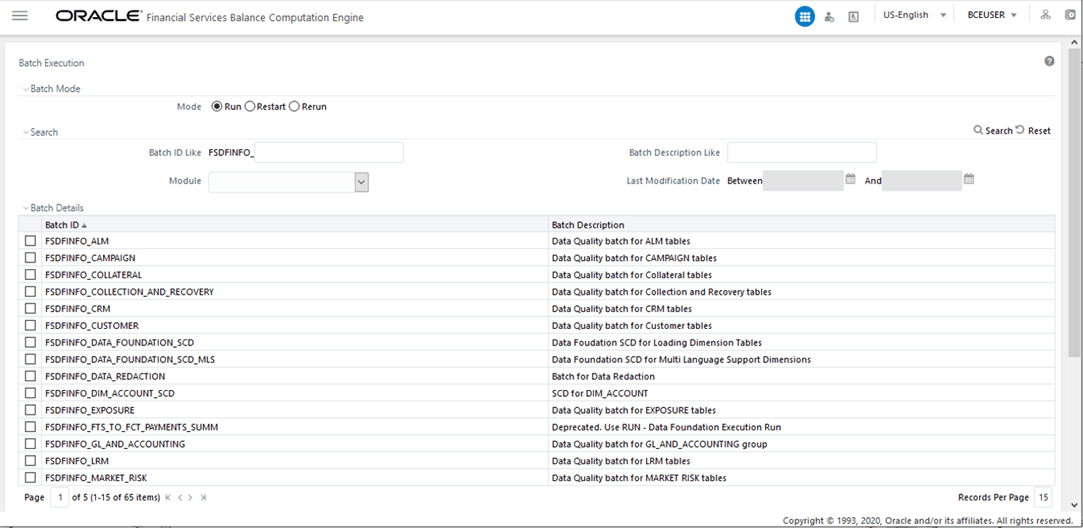
Navigation: From OFSBCE Home, select the Financial Services Balance Computation Engine. In the Navigation List, select Execution, and then select Batch Execution. The Batch Execution page displays.
Figure 2: Batch Execution Page
The Batch Execution page displays the list of only those Batches which have at least one task associated, with the other details such as Batch ID and Batch Description. When you select a Batch ID in the list, the Task Details sections displays all the defined Tasks associated with the Batch. The Batch Details section in the Batch Execution page lists the Batches depending on the Batch Mode selected.
· The Run mode displays the Batch definitions which are newly defined and which have been scheduled for execution.
· The Restart mode displays the Batch definitions which are not executed successfully or either has been interrupted during the previous Batch execution.
· The Rerun mode displays the Batch definitions which have been successfully executed, failed, cancelled, or even interrupted during the previous Batch execution.
You can search for a specific Batch based on the Batch ID, Batch Description, Module, or Last Modified Date. The pagination option helps you to view the list of existing Batches within the system.
For more information, see the Batch Execution section in the Oracle Financial Services Advanced Analytical Applications Infrastructure User Guide Release 8.1.0.0.0.
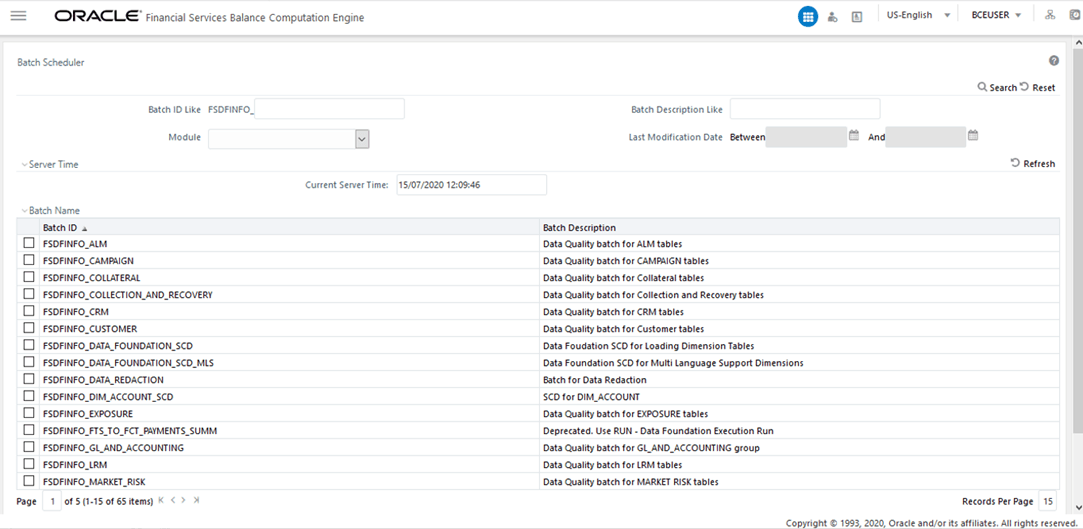
Batch Scheduler in the Infrastructure system facilitates you to schedule a Batch for later processing. You can define a new Batch schedule or update a previously defined Batch schedule for processing.You must have Batch Advanced User Role mapped to your User Group to schedule a Batch. The Batch Scheduler page displays the list of Batches scheduled for execution with the other details such as Batch ID and Batch Description. When you select a Batch in the list, the Batch Scheduler options are displayed.
Navigation: From OFSBCE Home, select the Financial Services Balance Computation Engine. In the Navigation List, select Execution, and then select Batch Scheduler. The Batch Scheduler page displays.
Figure 3: Batch Scheduler Page
For more information, see the Batch Scheduler section in the Oracle Financial Services Advanced Analytical Applications Infrastructure User Guide Release 8.1.0.0.0.
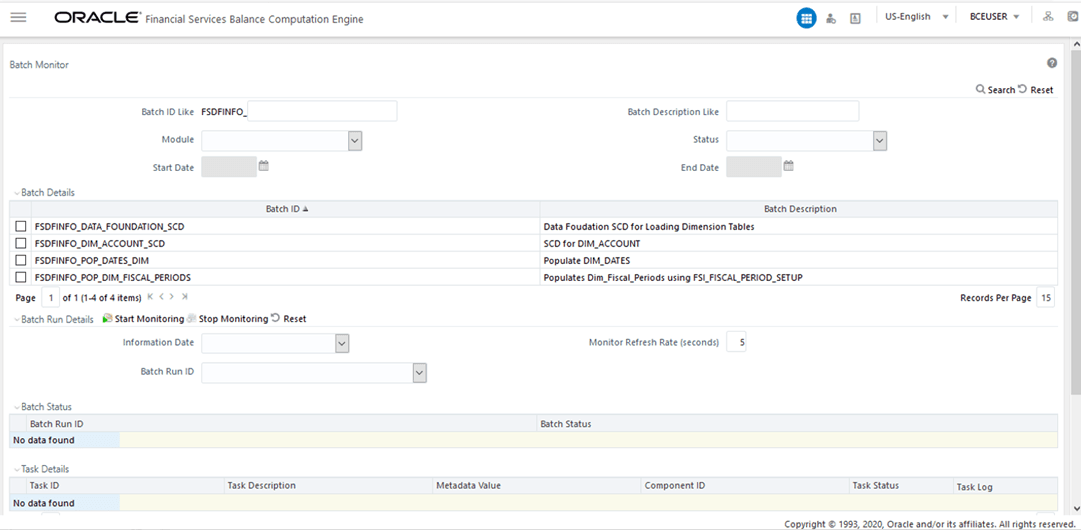
Batch Monitor in the Infrastructure system facilitates you to view the status of executed Batch Definitions along with the Task details. You can track the issues, if any, on regular intervals and ensure smoother Batch execution. An event log provides you the real time status of the executed Batches. You must have Batch Read Only User Role mapped to your User Group to monitor a Batch. The Batch Monitor page displays a list of Batches with the other details such as Batch ID and Batch Description. You can search for a specific Batch based on Date range, Module, Status, and Batch Description. The Batches listed in the Batch Details section can be sorted based on the current state as Successful, Failed, Held, or New.
Navigation: From OFSBCE Home, select the Financial Services Balance Computation Engine. In the Navigation List, select Execution, and then select Batch Monitor. The Batch Monitor page displays.
Figure 4: Batch Monitor Page
For more information, see the Batch Monitor section in the Oracle Financial Services Advanced Analytical Applications Infrastructure User Guide Release 8.1.0.0.0.
The View Log page allows you to view the log files generated during a batch execution.
To view the log files of a batch execution, follow these steps:
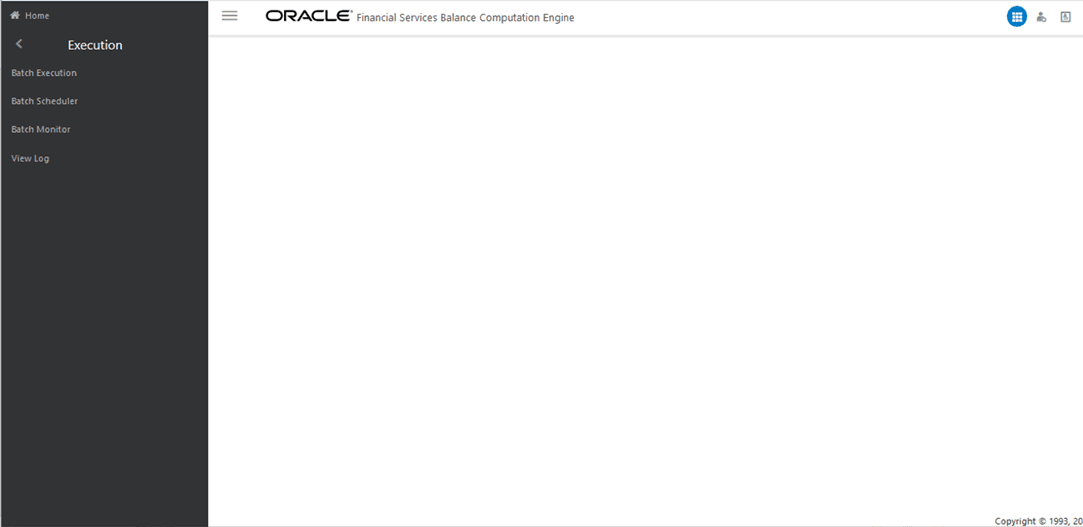
1. From OFSBCE Home, select the Financial Services Balance Computation Engine. In the Navigation List, select Execution, and then select View Log.
Figure 5: Navigation to the View Log Page
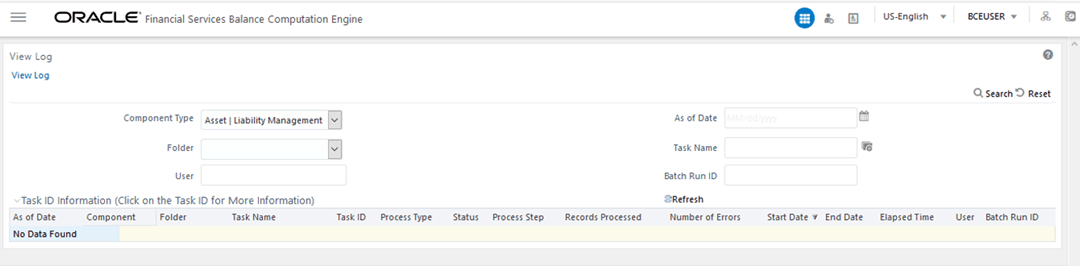
2. The View Log page is displayed. This page contains Component Type, Folder, User, As of Date, Task Name, Batch Run ID, and the Task ID Information section.
Figure 6: View Log Page
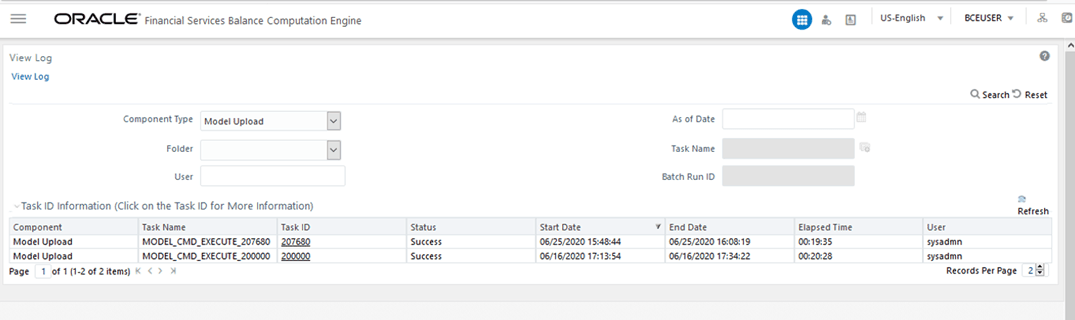
3. Select the required Component Type and other attributes, and click Search. The list of Task IDs corresponding to the selected component is displayed in the Task ID Information section. Click the required Task ID.
Figure 7: Select the Component Type and other Attributes in the View Log Page
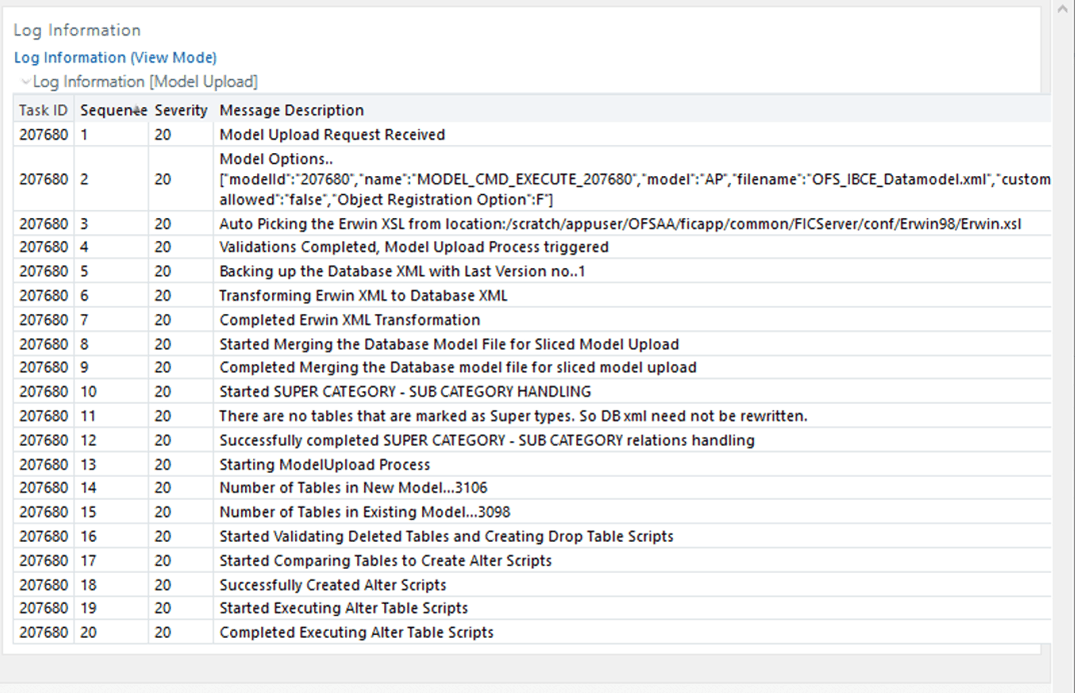
4. The Log Information page is displayed, which contains all the log information related to the selected component and Task ID.
Figure 8: Log Information Page
5. After verifying the log information, close the page.