Adding Chatbot to Application pages
After Configuring the Bot ID, it can be rendered in the relevant application pages. based on the Chatbot Type selected in the Bot Definition page, the chat client can be rendered as a tile or as a widget. PeopleSoft delivers the tile for the delivered skills. To enable the delivered skill as a tile in a page:
From the relevant Homepage, choose the Personalize Homepage option.
Choose the Add Tile button.
Add the delivered Chatbot Tile to the homepage.
To create and enable the tile for the chatbot for a new skill:
Create a new Content Reference to create the tile for the chatbot. See Administering Content References section under Portal Technology in the PeopleTools Online Help.
In the General tab, Under URL Information section, choose URL Type as PeopleSoft Generic URL
At the end of the URL, enter the text BOTID=<BotID> where <BotID> is the ID of the Bot definition.
In the Security tab, ensure that the permission list EOCB_CLIENT_USER is added. Also add the roles that were added to the Bot ID in the Maintain Bot Definition Page
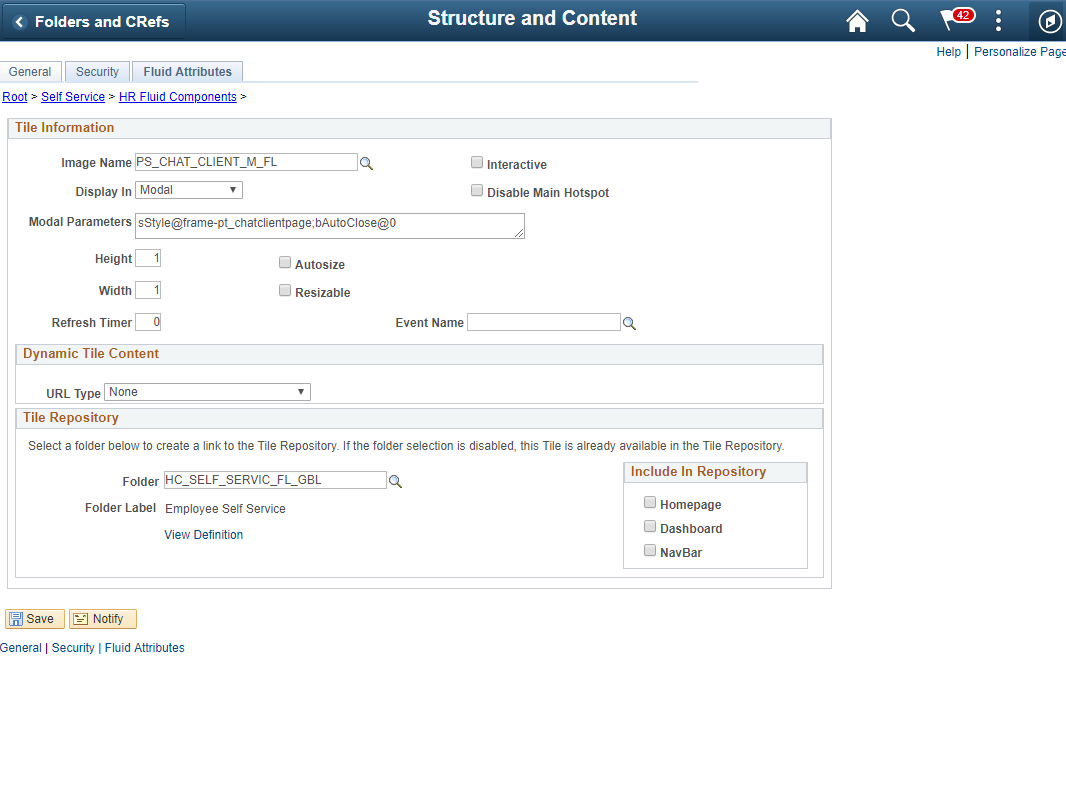
In the Fluid Attributes tab, select the Display In field value as Modal.
Image: Content Reference General tab
Content Reference General tab
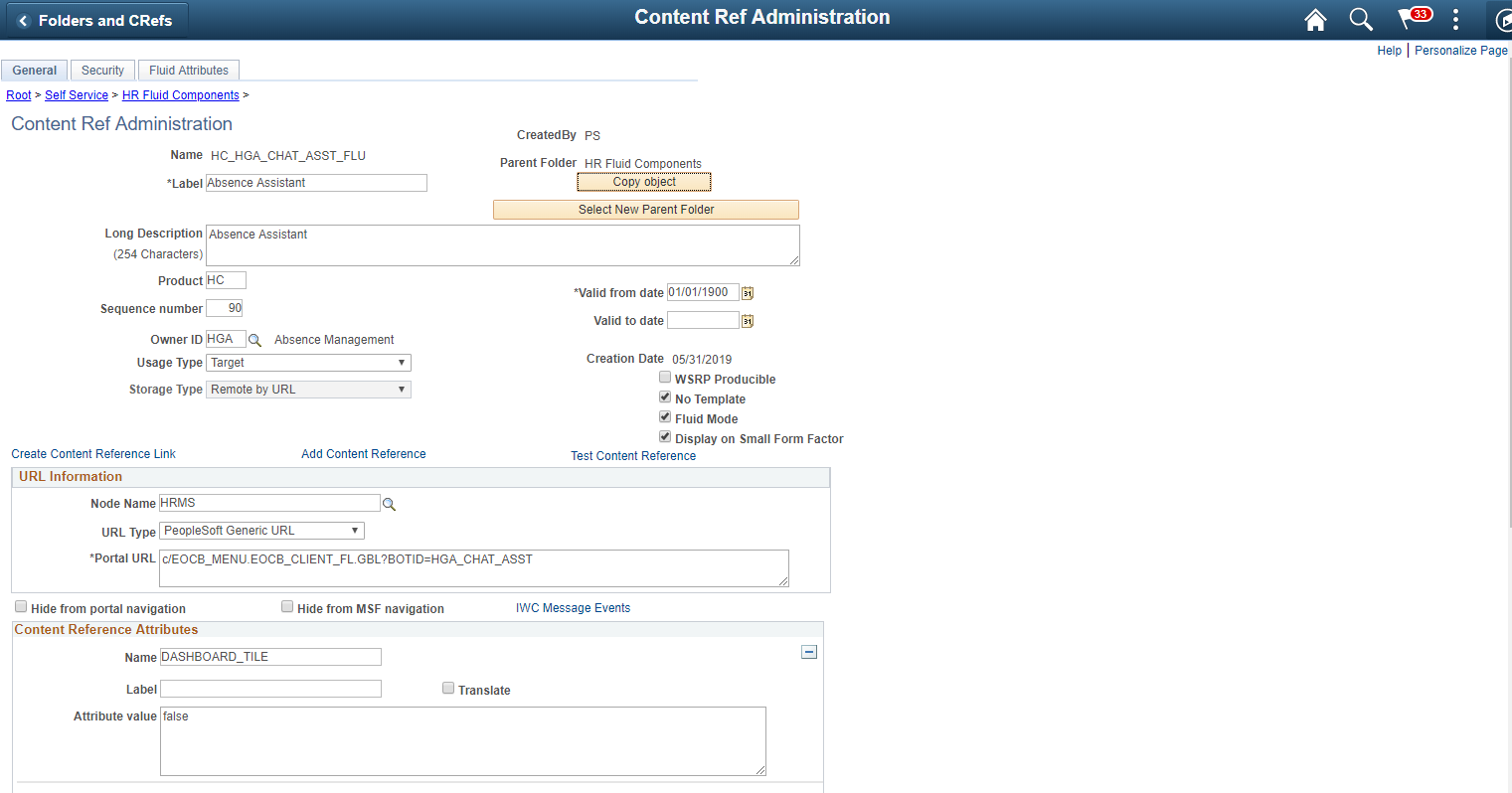
Image: Content Reference Security tab
Content Reference Security tab
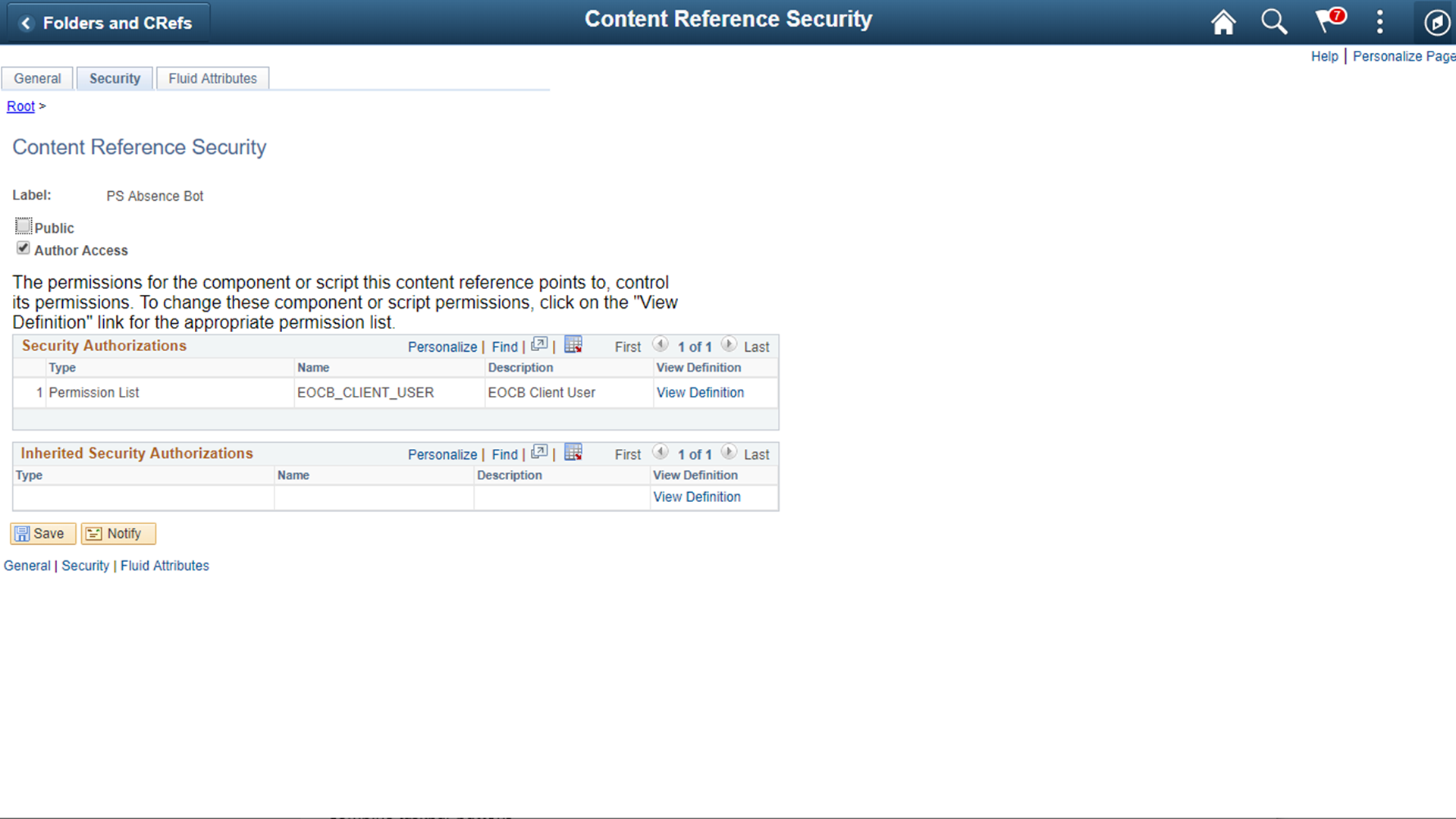
Image: Content Reference Fluid Attributes tab
Content Reference Fluid Attributes tab.
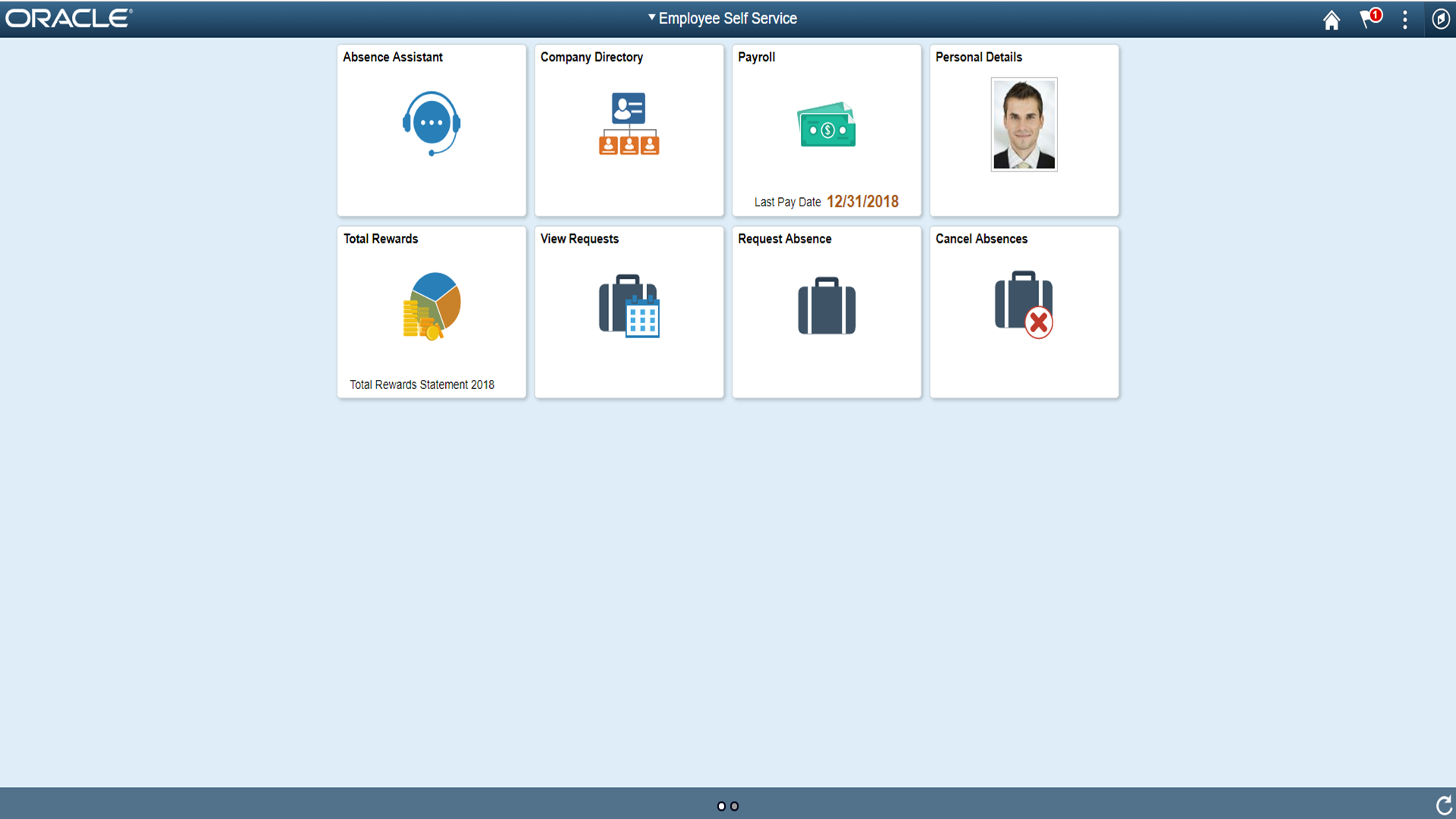
Once this is done, Add the tile to the relevant homepages.
Image: Chatbot tile on a Homepage
Chatbot tile on a homepage
Adding the chatbot as a widget in a page requires mapping it to the required component and then creating the related content service.
Component Mapping Page
Use the Component mapping Page (EOCB_COMPSRCH_FL) to map a bot to a component. This can then be configured to appear as a widget on the component page.
Image: Component Mapping page
Component Mapping page
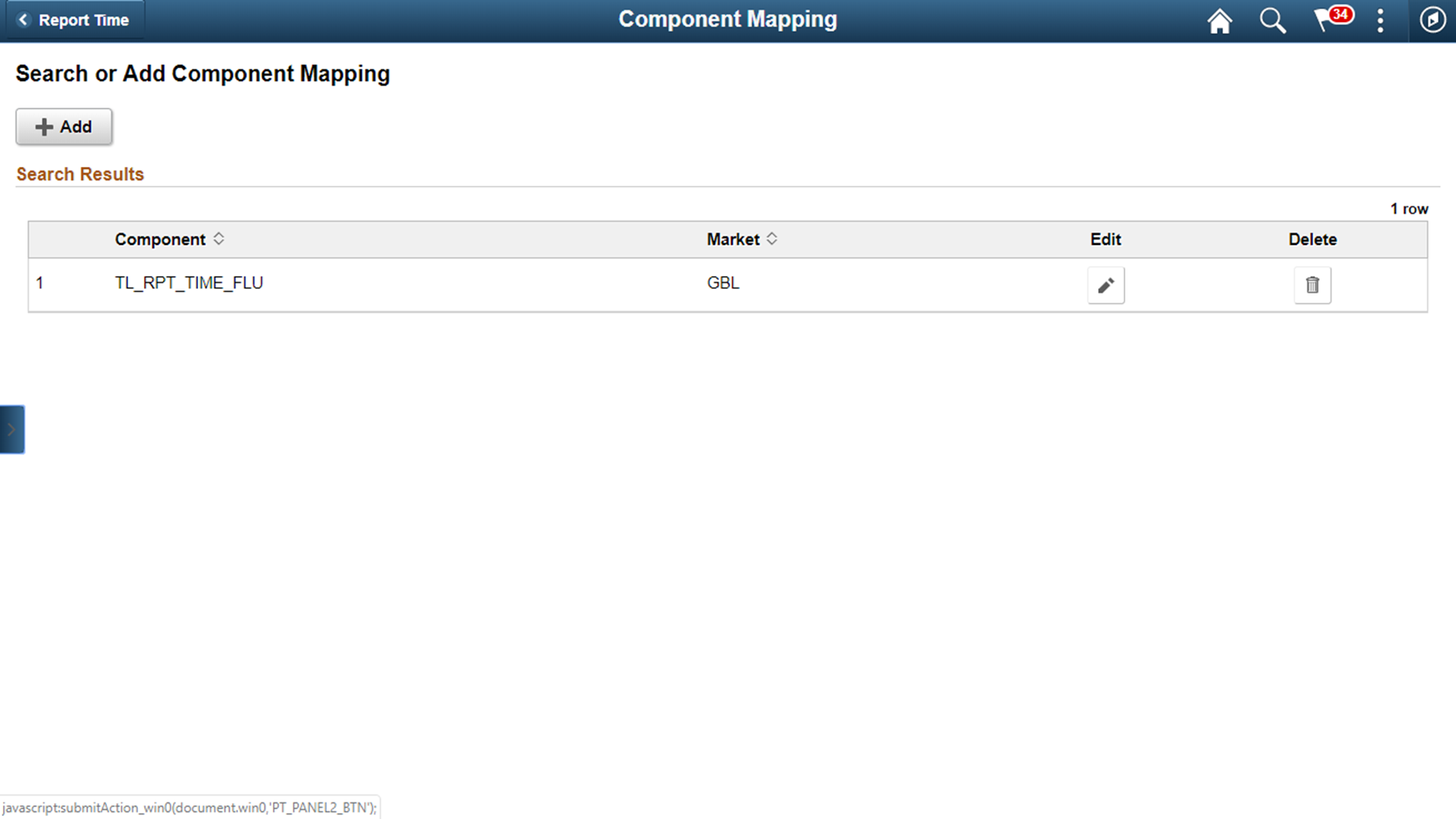
To add a new component, click the Add button
Maintain Component Mapping Page
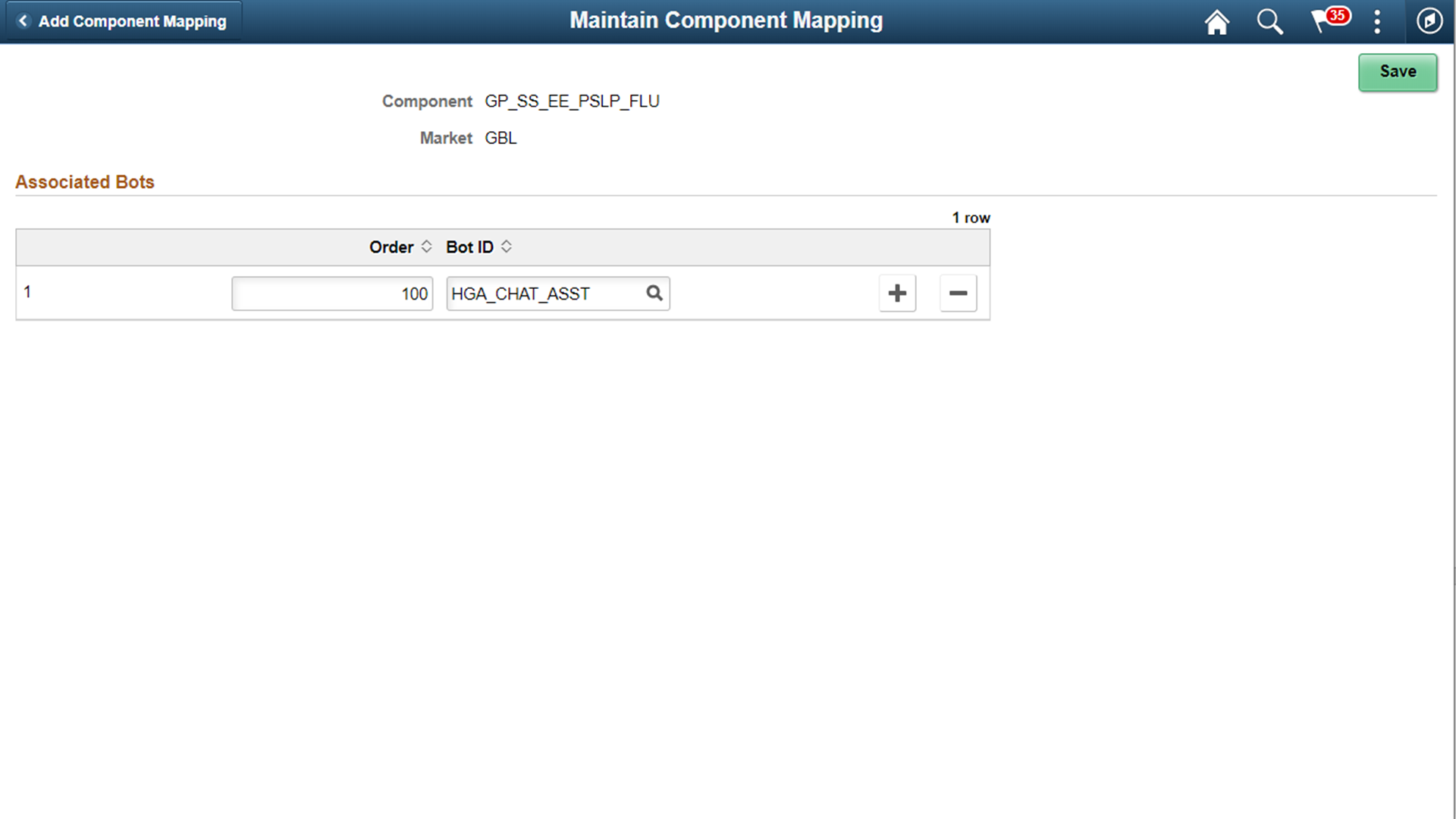
Use the maintain Component Mapping page(EOCB_COMP_ASSOC_FL) to associate Bot Ids to a component.
Image: Maintain Component Mapping page
Maintain Component Mapping page
|
Field or Control |
Definition |
|---|---|
| Component |
Choose the component in which the bot needs to be enabled. |
| Market |
Choose the market |
| Order |
Chatbot preference order for the user If multiple bots are associated with a component.. |
| Bot ID |
choose the Bot Id of the bot to be associated for the component. |
Map Related Content Service
Map the Related Content Service for chatbot to the widget in the required component page.
Refer the Mapping Application Class PeopleCode to Component Events section in the PeopleTools Online Help to select the application page in which the widget has to be rendered.
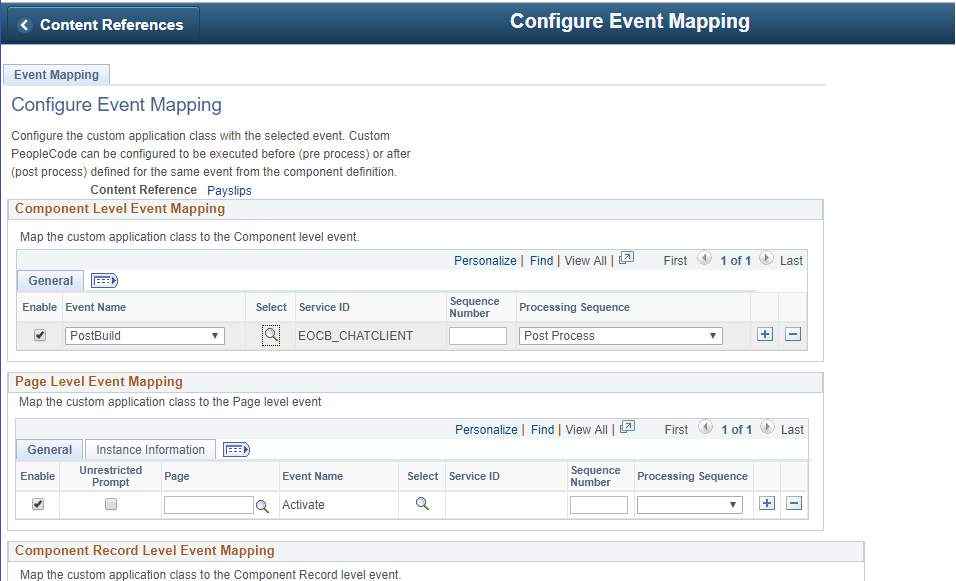
In the Event Mapping tab of the application page, choose add the following parameters
|
Field or Control |
Definition |
|---|---|
| Field name |
Variable |
| Event Name |
PostBuild |
| Service ID |
EOCB_CHATCLIENT |
| Processing Sequence |
PostProcess |
Image: Configure event mapping for the application page.
Configure event mapping for the application page.
The chatbot widget becomes available at the bottom right corner of the application page.
Image: Chatbot widget on the application page.
Chatbot widget on the application page.
