Configuring Data Masking in Page and Field Configurator
|
Page Name |
Definition Name |
Usage |
|---|---|---|
|
EOCC_CONFIG_MASK |
Use this page to configure masking for Page fields and Search Fields. |
|
|
EOCC_CONFIG_USER |
Use this page to capture the list of users to which the configuration defined in the Page Configuration page should be applied to. |
|
|
EOCC_MAP_EVENT |
Use this page to map the configuration to the Portal Registry. |
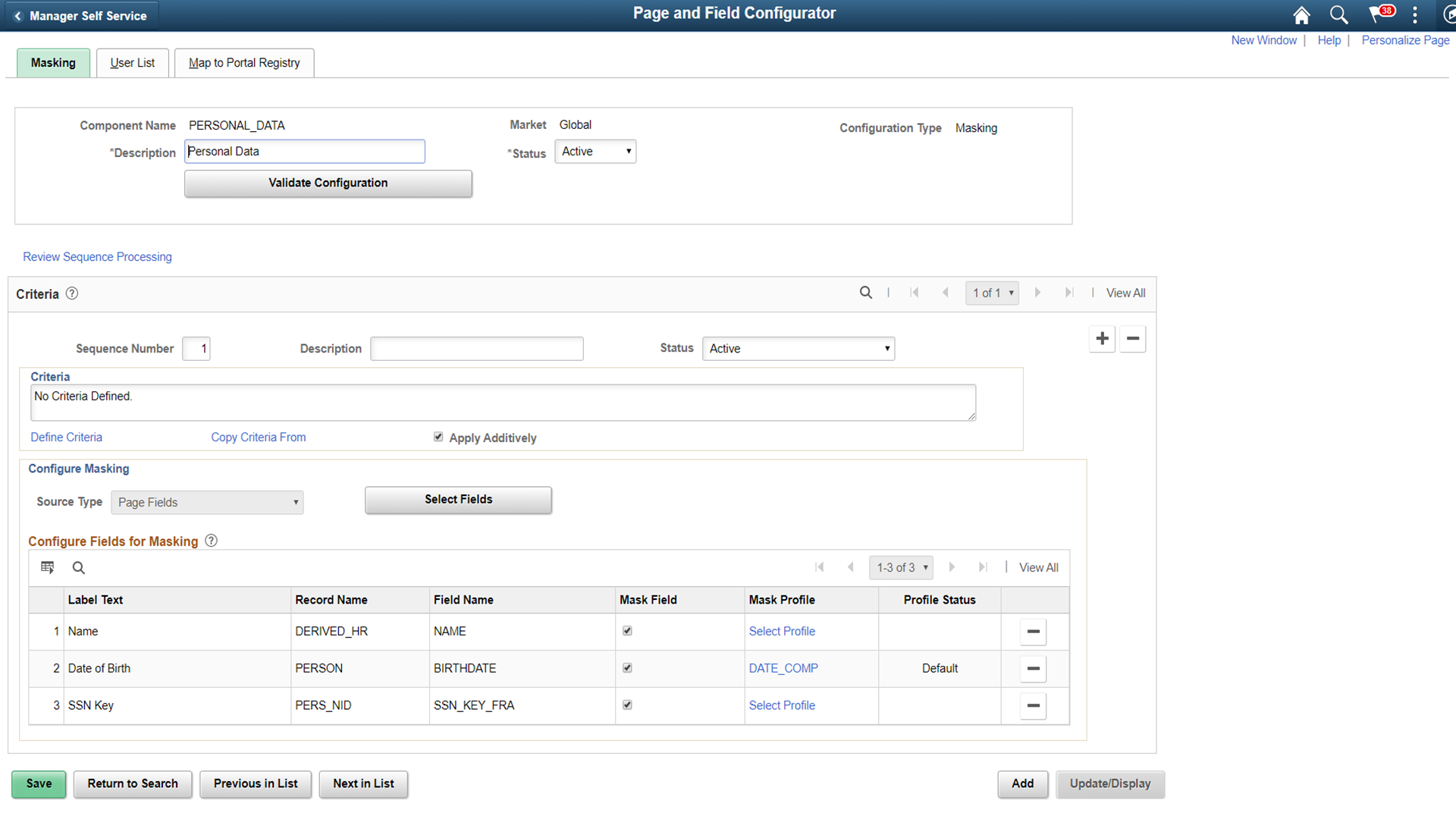
Use the Masking page (EOCC_CONFIG_MASK) to configure data masking for a component.
Navigation
In the Page and Field Configurator search page, search for an existing value which has a Masking Configuration Type or create a new value with the Masking Configuration Type.
Image: Masking page in Page and Field Configurator
Masking page in Page and Field Configurator
|
Field or Control |
Definition |
|---|---|
| Component Name |
Displays the name of the component as selected by the user. |
| Description |
Enter an appropriate description. |
| Market |
Displays the market for which the configuration is defined as selected by the user. |
| Status |
Select the status of the configuration. |
| Configuration Type |
Displays whether this is a Standard or Masking configuration. |
| Validate Configuration |
You can use the Validate Configuration button to verify the configuration against the underlying page metadata and identify if any errors exist. For more details, see Validate Page Configurations Page |
Criteria
This functionality is the same as the Criteria for a Standard Page Configuration. For details, refer the Criteria Section in Page Configuration Page
Configure Masking
The Configure Masking section is used to configure page fields, search fields and prompt record fields for masking. Masking is supported for:
Primary Page fields
Secondary Page fields
Search Record fields
Prompt Record fields
Any drop-down field selected for masking will be fully masked with * character.
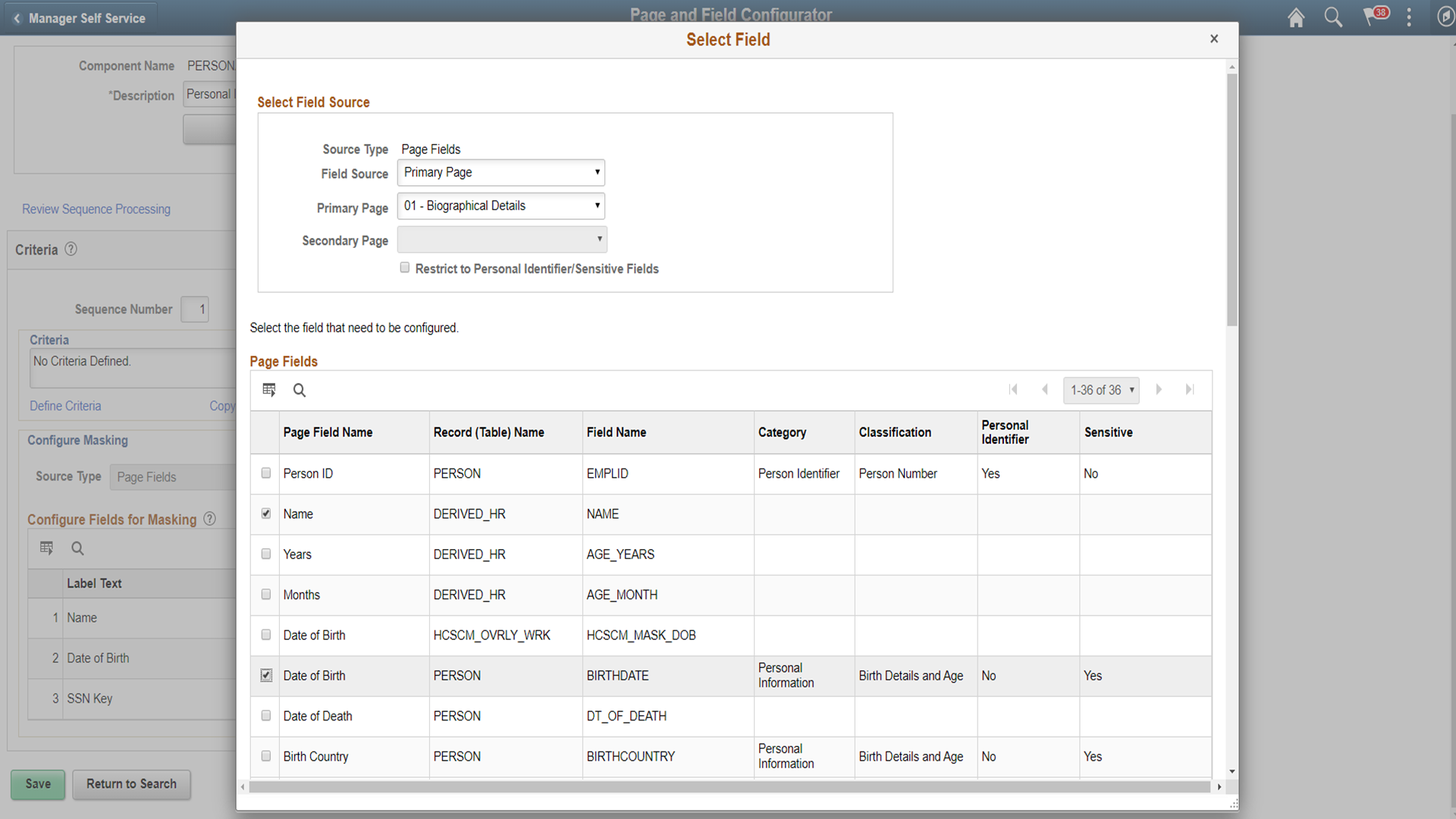
Choose the Select Fields button to list out all the available fields in that component. Masking is not supported for long fields.
Image: Select Fields for masking
Select Fields for masking
|
Field or Control |
Definition |
|---|---|
| Source Type |
Indicates the source of the fields that are available for masking. Source Type can be Page Fields or Search and Prompt Fields. |
| Field Source |
Indicates the selected record type for masking. Based on the selected field source, all the field records will be listed for selection. |
| Page Type |
Indicates whether the fields listed are from a primary page or from a secondary field. |
| Primary Page |
Choose the main page to which the fields belong. |
| Secondary Page |
Choose the secondary page from the main page. Note: In addition to secondary pages which are part of the component structure, masking is also supported for secondary pages called from PeopleCode. To select fields from secondary pages called via PeopleCode for masking, the secondary page fields should be manually added to the Page Fields grid. For secondary pages called via PeopleCode, masking is supported only if the secondary page field is marked as Personal Identifier/Sensitive in Data Privacy Framework. |
| Restrict to Personal Identifier/Sensitive Fields |
Choose this option if you want to list only the fields that have been classified as Personal Identifier or Sensitive in Data Privacy Framework. For more details, see Understanding Data Privacy |
Choose the required field names and click OK.
In Add mode, the page fields chosen for masking will be enabled for data entry. In other modes, fields chosen for masking will be enabled only if they are blank..
Review Sequence Processing
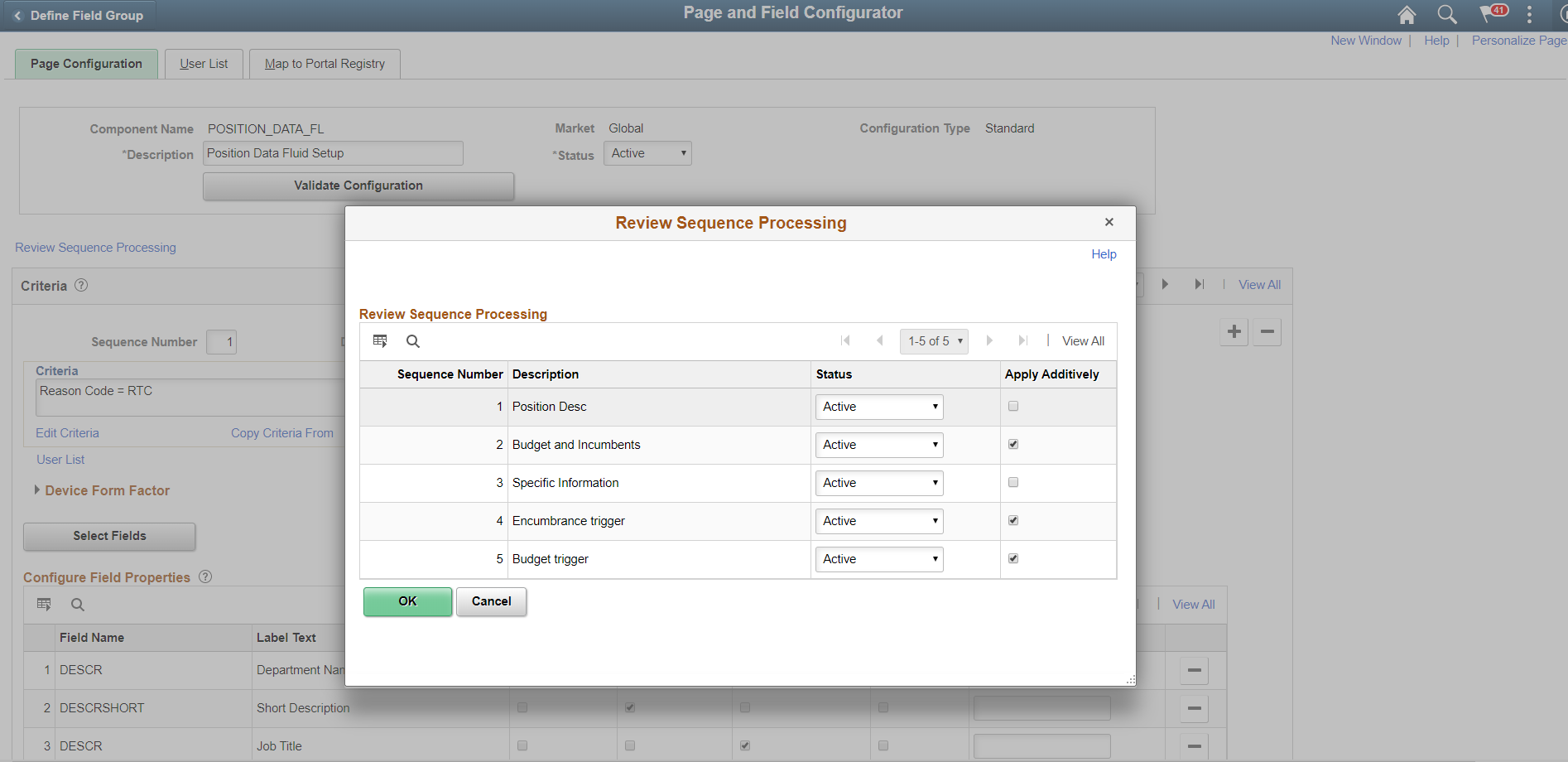
Use the Review Sequence Processing link at the beginning of the Criteria section to review the list of sequences. Here you can see the sequences which are applied additionally.
Image: Review Sequence Processing
This illustration shows the Review Sequence Processing page listing all the sequences.
Configure Fields for Masking
Once the fields are selected, they are listed in the Configure Fields for Masking grid. If the selected field is part of a Field Group, the Default Mask Profile from the Field Group is defaulted as the Mask Profile for the selected Field. If the field is not part of any Field Group, Mask Profile will be defaulted to the system level Default Mask Profile. Defaulted Mask Profile can be overridden for a Component Record Field by selecting the Mask Profile link.
|
Field or Control |
Definition |
|---|---|
| Mask Field |
Choose this option to enable masking for that field |
| Mask Profile |
Choose the mask profile for the particular field. The current profile is listed against the field. Mask Profile is defaulted on field selection if the field is part of a Field Group or a system level Mask Profile is present. If the Mask Profile is listed as Select Profile or if you want to change the current profile, click on it to change it. |
Image: Choose Mask Profile
Choose Mask Profile

Once the mask profile is changed from the default profile, the Profile Status is displayed as Changed.
For more details on Mask Profile, see Define Mask Profile Page
Search Field Masking
Search fields are configured for masking in the same way as the page fields are configured as explained above. However, there are some differences with page field masking:
Only the Mask profiles of Complete, Unmask Trailing Character and Date masking are supported for Search Fields masking.
If a component uses pivot grid based search and the masked field is also a part of facet search, then the facet will be hidden.
When a search field is chosen to be masked, then the List view will be hidden from Component Keyword search and Pivot Grid based search.
A search field selected for masking will be masked in the search result and will be disabled as a search field.
For Search fields, separators are supported only for non-date type masking.
Prompt Masking
Prompt masking provides a configurable option for masking sensitive/PII fields in Prompt records. Prompt record fields are configured for masking in the same way as the page fields are configured.
When you apply the configuration using the Map to Portal Registry Page, the record-field property “Allow Search events for Prompt dialogs" is automatically selected. This is necessary to trigger the search event programs generated by Page and Field Configurator. If the masking configurations for the prompt record field is removed, the mentioned record-field property will be de-selected.
Once prompt masking is enabled and an unauthorized user clicks on the prompt lookup the prompt dialog shows the masked data in the column(s) identified for masking in the result grid. After the user selects a value from the prompt and the page is loaded, the field value on the page will be masked if the page field is also defined in Page and Field Configurator masking configuration.
Use the User List page (EOCC_CONFIG_USER) to define the list of users to whom the configuration needs to be applied. You can create user list at Header Level where one user list covers the entire component or, at Sequence Level, where separate user list is defined for each sequence number.
The functionality is the same for Standard and Masking configurations. For details on the User List page, see User List Page
Use the Map to Portal Registry page (EOCC_MAP_EVENT) to map the configurations to Portal Registry. The defined configuration will be effective only when the Services defined by the utility is mapped to the corresponding portal registry entries.
For more details refer the Map to Portal Registry Page