To search and locate filter values with only partial information, you can use the Search option. The Search option is available when values can be selected from a list of values.
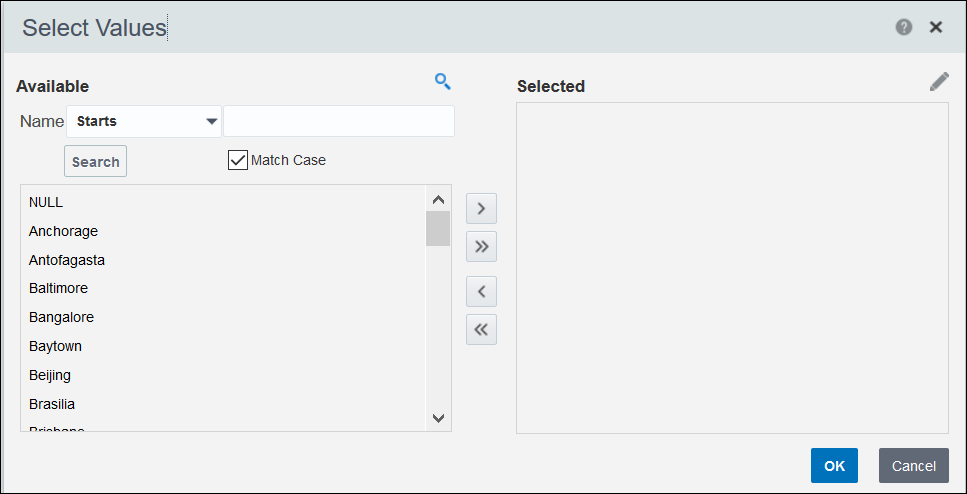
To search for a filter value in the Filters pane:
- From a filter's list of values, select Search....
For example, on the Project Listings page, select Search... from the Project Filter list.
- In the Select Values dialog box:
- Select Search to lookup filter values.
- In the Name field, enter a partial value that starts, ends, contains, or iis like (pattern match).
- Select the Match Case check box to opt for a case-sensitive search.
- Select the Search button to view values in the Available section.
- Use any of the following actions to select values:
- Select Move to move a specific value from the Available section to the Selected section.
- Select Move All to move all the values from the Available section to the Selected section.
- Select Remove to remove a specific value from the Selected section to the Available section.
- Select Remove All to remove all the values from the Selected section to the Available section.
- Select
 Edit to modify values in the Selected section.
 - Select the OK button to confirm the values selected for a threshold setting.
- Select the Cancel button to exit the Selected Values dialog box without selecting the threshold setting values.
- Use any of the following actions to select values:
- After selecting values, select the Apply button to display projects that meet the criteria.
Note: The filters applied are valid only for the duration of your current session of Construction Intelligence Cloud. .