Unifier Essentials 23.7
Business Process
Potential Change Order
The Potential Change Order business process is added to the Change Management node to handle potential changes to a contract. It is designed to be manually created by a contractor, supplementing the owner-created Change Request business process. A Potential Change Order (PCO) record can also be auto-created from a Request for Information. The line items of a Potential Change Order associate possible changes with project CBS codes.
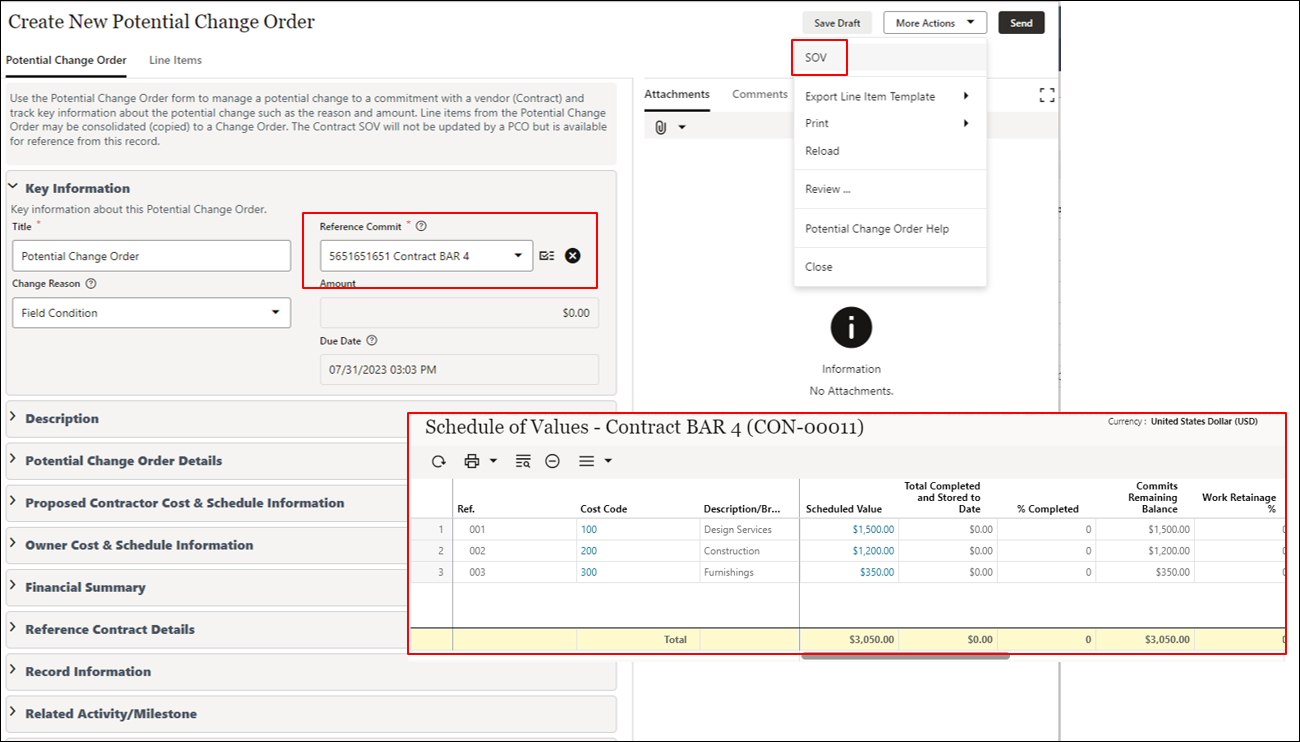
PCO records will not update the Schedule of Values of their associated Contracts, but the SOV can be viewed as a reference while creating or editing the PCO.
Line items from one or more Potential Change Orders may be consolidated to a Change Order. The project cost sheet in the Oracle Project Shell Template has a new column titled Potential Change Orders to report on approved PCOs.
Oracle Project Template
Support for Milestone Scheduling, WBS Sheet
The Oracle Project Template now features support for milestone scheduling and a WBS Sheet.
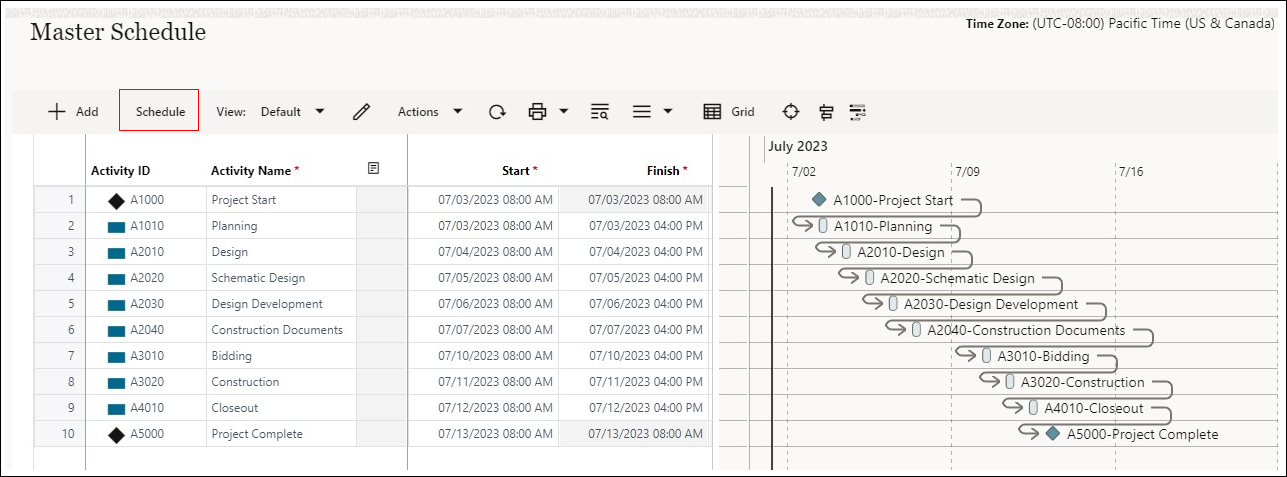
By default, the Project Cash Flow Baseline and Forecast Schedules in a project pull start and finish dates from the milestone schedule.
After editing the WBS, tasks, and setting durations, schedule the Activity Sheet and set a baseline, which will populate start and end dates for default cash flow curves.
See the online notes on Implementing New Features and Updates and the Manager's Reference Guide for information on the Activity Manager.
Activity Sheet
Identify Related Activities on Business Process Records
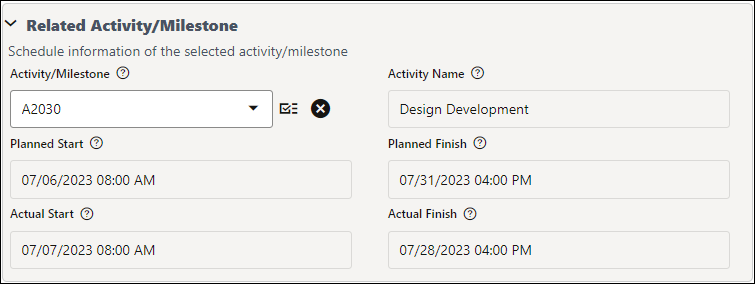
Activity pickers are added to six business processes, associating a BP record with a specific activity on the Activity Sheet. Note that the BP will not directly update the schedule.
- Change Order
- Change Request
- Issue
- Potential Change Order
- RFI
- Risk
Cash Flow
Estimate Cash Flow Curve Added to Template
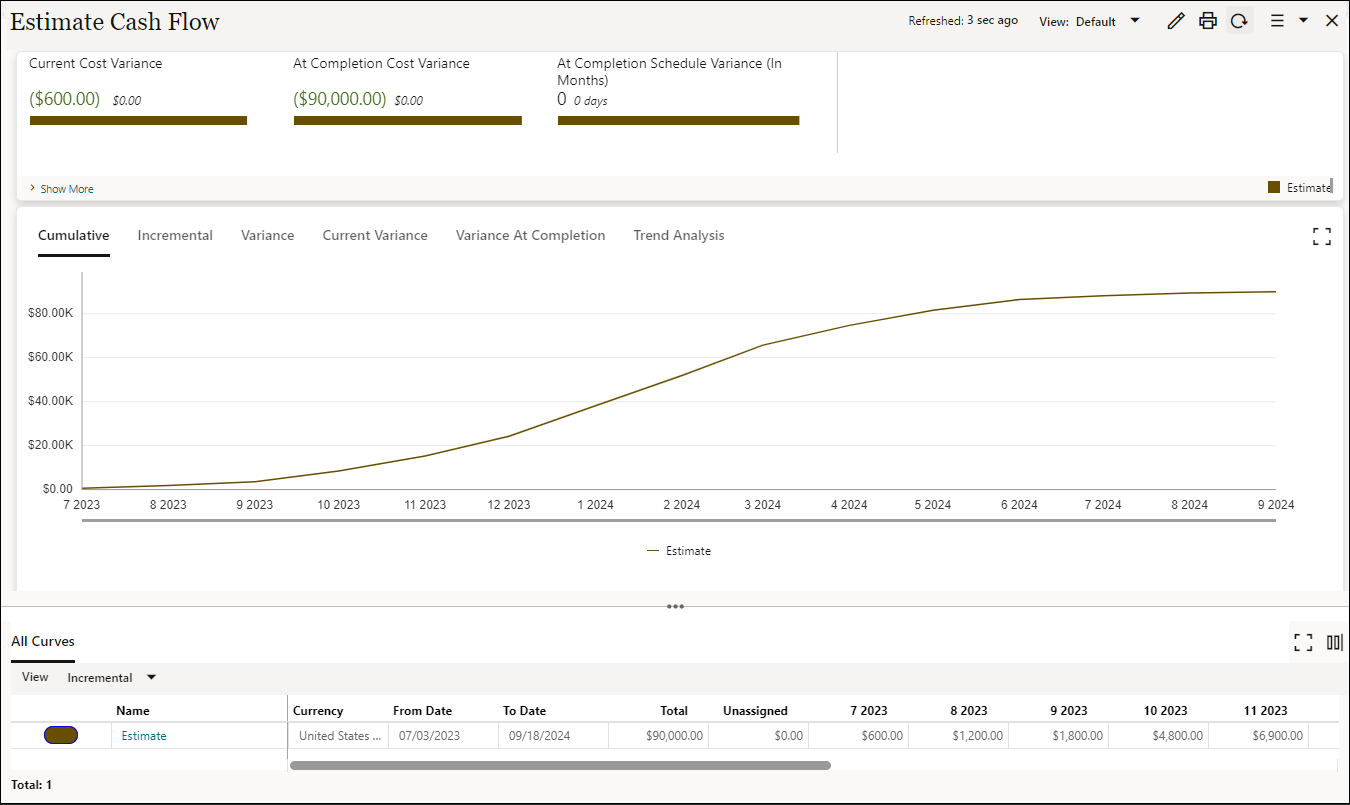
An Estimate Cash Flow Curve is added to the Oracle Project Template, This allows you to create an estimated cash flow for a project before you create an Initial Budget.
Permissions are already granted to Project Manager, Project Administrators, and Project Coordinators. Cash flow dates are drawn from an updated Master Activity Sheet.
The summed Estimate amount is drawn from the Approved Estimates column of the Project Cost Sheet. Use either predefined distribution curves or create them manually.
See Implementing and Configuring Cash Flow Curves under Administration for instructions.
Mobile
Auto Login Enhancement
When Auto Login is initiated within the app, only the Login screen is visible; the app itself will remain on the same screen where you were before Auto Login was triggered. This behavior applies only to non-SSO logins.
Additional Enhancements - Automatic
Request for Information Business Process: A checkbox was added to auto-create a Potential Change Order.
Change Order Business Process: Line item consolidation was updated to include approved Potential Change Orders. Also updated line item consolidation to allow only line items from Change Requests if they refer to the same contract.
Administration
Implementing and Configuring Cash Flow Curves
- Navigate to Company Workspace Admin Mode > Templates > Shells > Projects > Oracle Project Template > Cost Manager > Cash Flow.
- Select Project Level Cash Flow
- Select Properties from the Gear wheel
- Click on the Baseline curve and set the properties as follows:
- Cost = Approved Initial Budget
- Schedule = Use dates from Activity Sheet
- Select: Master Schedule
- Project Type = Baseline
- From Date = Planned Start
- To Date = Planned Finish
- Distribution = S Curve
- Variance = Inflow
- Click Update
- Click on the Forecast Curve and set the properties as follows:
- Cost = Forecast
- Schedule = Use dates from Activity Sheet
- Select: Master Schedule
- Project Type = Current
- From Date = Start
- To Date = Finish
- Distribution = S Curve
- Variance = Outflow
- Click Update
- Click on the Actuals Curve and confirm the properties as follows:
- Cost = Total Costs Incurred
- Variance = Outflow
- Click Update
- Save and Close to save the Cash Flow Properties
- Click on the Baseline curve and set the properties as follows:
- Select the Project Level Cash Flow in the log and Update Shell Templates to push the setup into your Project shell template.
- From your project shell template, update shells (existing projects) as desired.
- New projects created using your template will include these cash flow properties.
Setting Estimate Cash Flow Properties
- Navigate to Company Workspace Admin Mode > Templates > Shells > Projects > Oracle Project Template > Cost Manager > Cash Flow.
- Select Estimate Cash Flow
- Select Properties from the Gear wheel
- Click on the Estimate curve and set the properties as follows:
- Cost = Approved Estimates
- Schedule = Use dates from Activity Sheet
- Select: Master Schedule
- Project Type = Baseline
- From Date = Planned Start
- To Date = Planned Finish
- Distribution = S Curve
- Variance = Inflow
- Click Update
- Save and Close to save the Cash Flow Properties
- Click on the Estimate curve and set the properties as follows:
- Select the Estimate Cash Flow in the log and Update Shell Templates to push the setup into your Project shell template.
- From your project shell template, update shells (existing projects) as desired.
- New projects created using your template will include these cash flow properties.
Last Published Tuesday, November 21, 2023