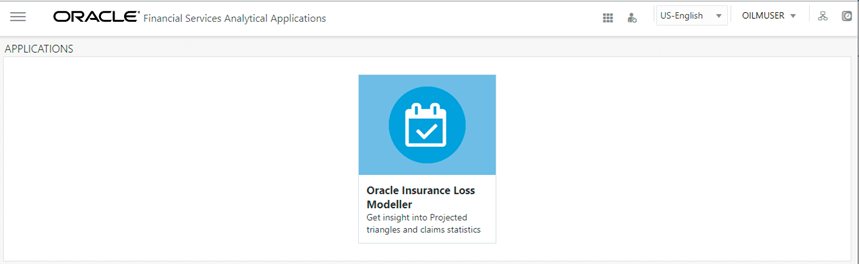
This section provides information and the functional flow of the Oracle Insurance Loss Modeller Application.
Topics:
The OILM application projects future cash flows based on the various actuarial methods. The output of the application would be useful in different processes such as Capital Modeling, Business Planning, Reserving, AvE, IFRS17 computation, and so on.
The overall application is segregated into two parts Landing Page and the Projection Page.
The Landing Page is a dashboard that summarizes key performance indicators such as GWP, Exposure, Losses, Loss Ratios, Major Drivers, incurred loss frequency and severity, etc. with an option to customize and view them at Business Unit (Towers), LoB, Product, Sub Product and further to coverage level.
The Projection Page facilitates working space for projection calculation under various approaches such as Chain Ladder, BF, etc. at Business Unit (Towers), LoB, Product, Sub Product, and further to coverage level.
To log in to the OILM Application, perform the following steps:
1. Access the OILM Application by using the login credentials (User ID and Password) provided and select the preferred language to navigate. The built-in security system ensures that you are only permitted to access the window and actions based on the authorization.
2. After logging in to the OFSAA Home screen, the landing page is displayed.
Figure 1: The OILM Landing Page
3. Use the information provided in the following table to set the application preferences.
Field |
Description |
|---|---|
User
Menu |
The following options are available in this drop-down: · Preferences · About · Change Password · Logout. |
Application |
Click this icon to view all the applications installed in your environment. |
Languag |
This menu displays the language you selected in the OFSAA Login Window. The language options displayed in the Language Menu are based on the language packs installed in your OFSAA instance. Using this menu, you can change the language at any point in time. |
Administration |
Click this icon to navigate to the Administration window. The Administration window displays modules such as: · Translation Tools · Object Administration · Utilities. |
Last
Failed Login Date & Time |
Click this icon to view the details of the last login and last failed login. |
Object Administration |
Object Administration is an integral part of the infrastructure and facilitates system administrators to define the security framework. See the OFS Advanced Analytics Infrastructure User Guide for details. |
Common Object Maintenance |
Common Object Maintenance is an integral part of the infrastructure system and facilitates system administrators to define the security framework with the capacity to restrict access to the data and metadata in the warehouse, based on a flexible, fine-grained access control mechanism. See the OFS Advanced Analytics Infrastructure User Guide for details. |
Processing Modelling Framework |
This module facilitates built-in tooling for the orchestration of human and automatic workflow interfaces. See the OFS Advanced Analytics Infrastructure User Guide for details. |
4. Select Oracle Insurance Loss Modeller on the OFSAA landing page.
5. Select Oracle Insurance Loss Modeller in the Left-Hand Side (LHS) pane.
The following diagram depicts the functional flow of the Oracle Insurance Loss Modeller application:
Figure 1: The Functional Flow of the Oracle Insurance Loss Modeller Application
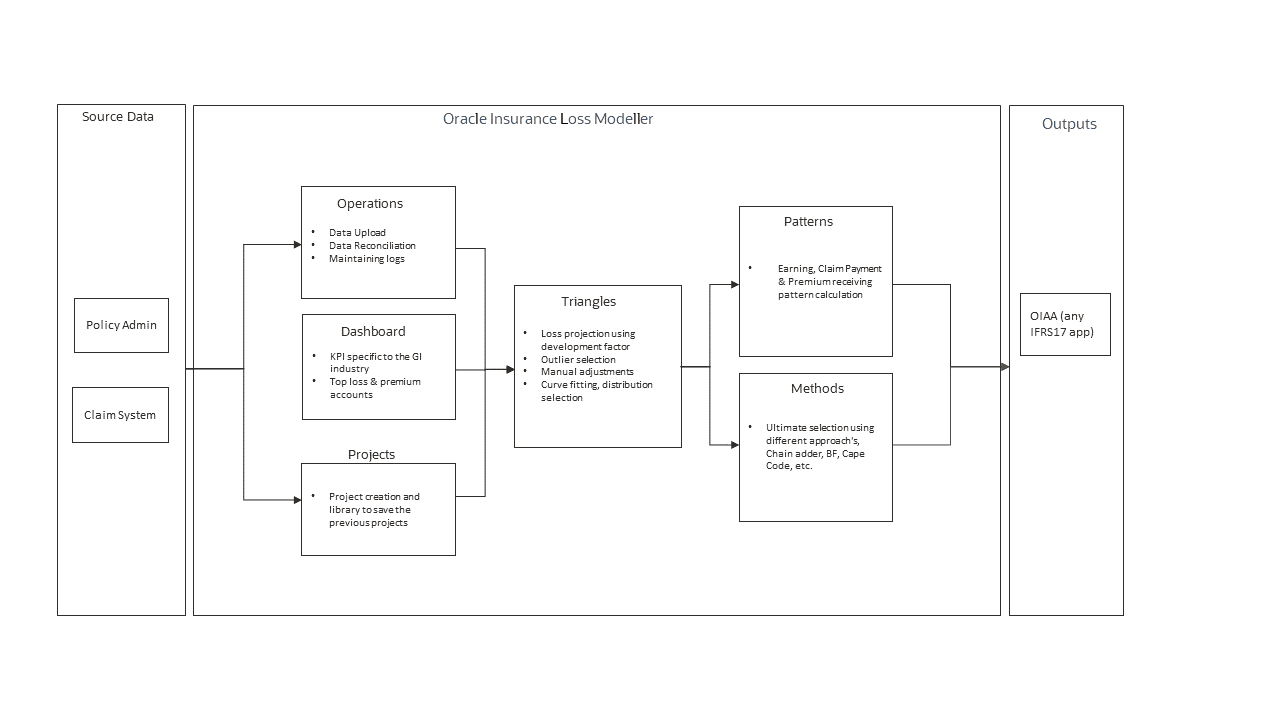
The Source Data flows from the Policy Admin and Claim system into the Dashboards
The Policy Admin is a system that has records of all policies written by insurance companies. It performs and stores all the key elements for rating, quote generation, binding, issuing, reinsurance, endorsement, renewals, and so on.
The Claim System is a system that has records of all the claims and related details reported to an insurance company. It stores all the key elements of the claims such as, claim amount, lines of business, coverage details, reported claims, approved claims, declined claims, and so on.
The Operations UI contains the status of the Data Upload, displays the As of Date of Data, Reconciliation of the uploaded data, and maintains the logs of activities. For more information, see the Oracle Financial Services Analytical Applications Infrastructure Administration and Configuration Guide.
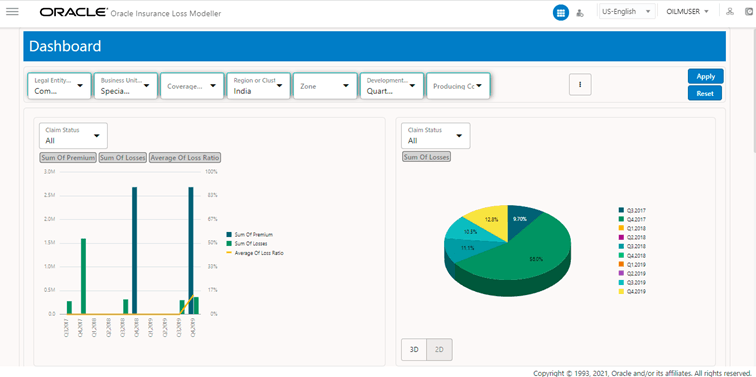
When configuring the OILM Configuration Tables, the client field is mapped against the fields mentioned in Dimension Tab. The Flag(Y) column denotes all the fields the user would like to have displayed on the Dashboard Page as a filter. Additionally, two filters are fixed for every user with a different color in the first row. On the Dashboard Page, all KPIs about the Insurance industry are displayed in the form of graphs. The user has the option to refine them for the Business Unit (Towers), LOB, Product, Sub Product, and at the Coverage Level. For now, the application displays 4 different charts on the screen.
The first graph contains a double Y-axis, on which one Y-axis contains the amount and the other Y-axis contains the percentage. The line graph in this graph represents the loss reports across different timelines. The bar represents the Premium and Claim across the same timeline.
Figure 3: The Dashboard Page
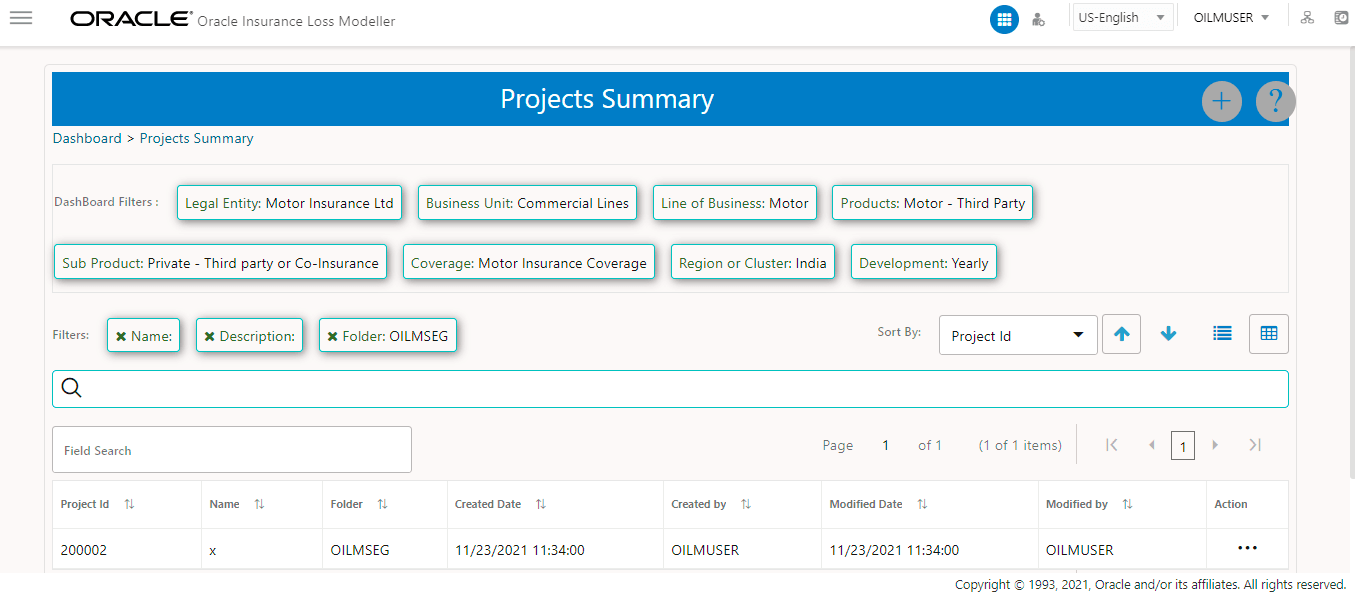
Projects is a library that is used to store all the monthly or quarterly, or annual projection exercises in the Loss Modeller. For the first time, the default project will be stored in the Projects folder. This folder can be renamed and you can work on the default project after uploading the data. From the next term onwards the user needs to Roll-Forward the existing project to create the next term project. For more information on how to use the Methods feature in the application, see the Projects Summary Section.
Figure 3: The Projects Summary Page
The Triangles Page displays the default Cumulative Triangle and it displays the Premium, Expenses, and Losses, on the Dashboard Page. For more information on how to use the Methods feature in the application, see the Triangles Section.
Figure 3: The Triangles Page
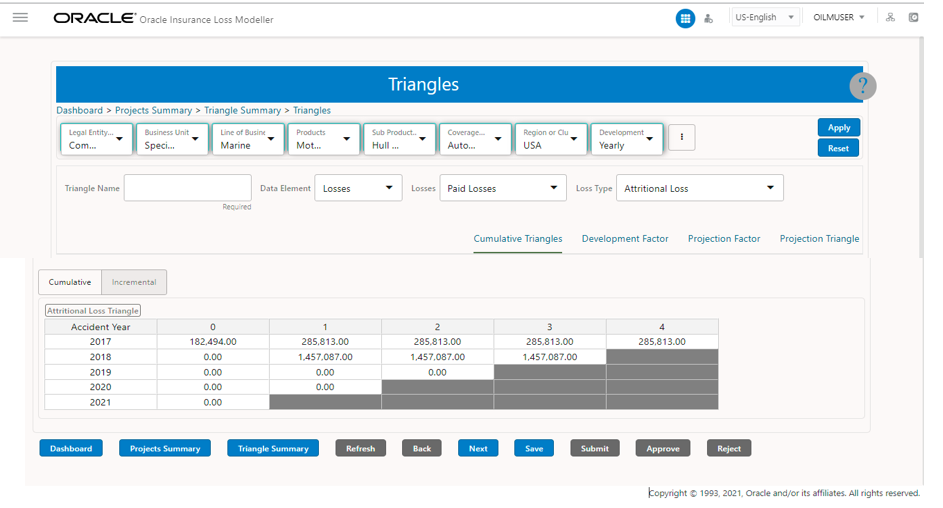
The following section details the various triangles available in the application
The Cumulative Triangle is derived from the Incremental Triangle and is a standard way of displaying the subsequent development of Losses and Premium from their Start Dates, Accident, and UW Years in this case. In the current release, only the Annual Development has been considered and other developments such as Monthly, Quarterly, and Half-Yearly will be covered in future releases. To derive the Cumulative Triangle from the Incremental Triangle, each value in the Incremental Triangle adds the previous number, left-hand side number, from the Cumulative Triangle. The number in the second position is the sum of the number in the first position in the Cumulative Triangle, and the number in the second position in the Incremental Triangle in each row.
The data that is displayed on the Triangles Page is from the configured LOB data. In case no information is available, 10 years of development is taken by default. The Triangles always display the latest years, for example, if 7 years is given for a LOB, then the Triangles Page considers 7 years starting from the latest year. If there are no values in the latest years, then the Triangle displays the value 0.
By default, multiple varieties of Triangles are pre-configured within the application and these Triangles can be copied or modified but cannot be deleted.
The Triangle can be Draft, Submitted, Approved, or Rejected based on the status of the work progress.
The user that has Admin rights has the option to Approve or Reject a Triangle. These options are only available when the status of a Triangle is Submitted.
Figure 3: The Triangles Page
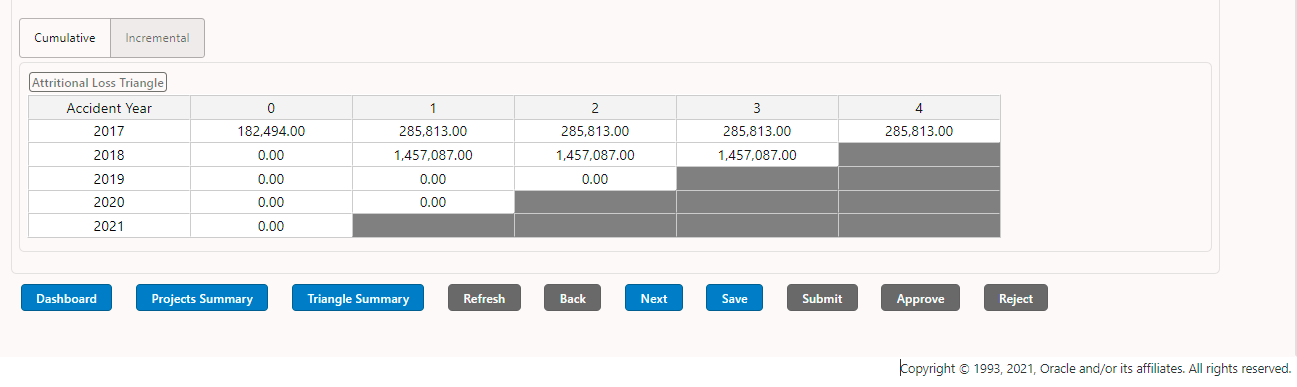
The Incremental Triangle represents the losses and premium for the given Accident or UW year respectively for a particular point of time when these triangles were created directly from the data. In case it is a loss Triangle such as Paid or Outstanding and Claim-related expense, the source table will be the Claim system and the triangle basis (left vertical axis) in the triangle will be Accident Year. The default setting can be modified to another basis. In the case of Premium & Policy related expense Triangle, the Triangle basis will be the underwriting year. The default setting can be modified to another basis.
If the Attritional Paid Loss Triangle is being created for a particular line of business, then the column selected from the database is Loss Type with selected value as Attritional Loss. For Paid Loss Triangle, the column to be considered is Paid Loss in the claim system, for the Outstanding Loss Triangle the Outstanding Loss column is being used. For the Gross Premium Triangle, the Premium column from Policy Admin is being used. These columns are in addition to other columns such as Lines of Business, Business Unit, Coverage, and so on based on the selection criteria in the dashboard filters. To create a Triangle, the logic used here is first to summarize data based on the filter selection such as Business Unit, lines of Business, Product, Sub Product, Coverage, Region, Currencies, Loss Type, and so on based on the dimension selected.
The Development Factor Triangle is created by using the Cumulative Triangle as a base. Irrespective of a selected Triangle, the Development Factor, and Age to Age Factor are always derived from the Cumulative Triangle.
The Development Factors are calculated by using the Cumulative Triangle and even if the Incremental, value is selected from the drop-down list, then the data is calculated by using the values from the Cumulative Triangles.
The following is the formula used for calculating the different averages:
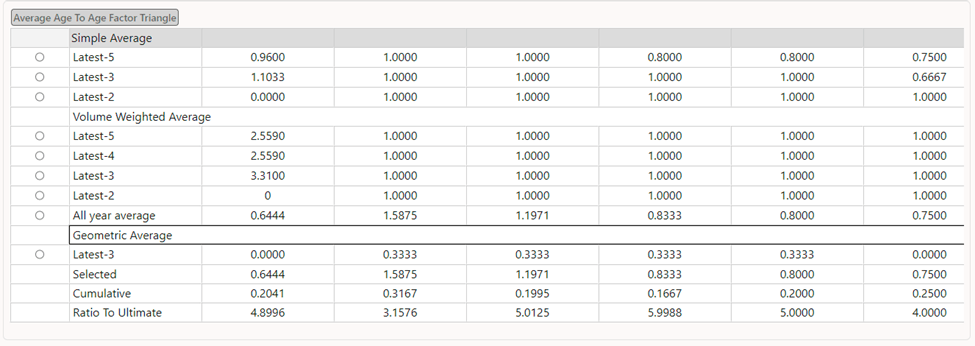
Simple Average - Latest 5: It calculates the simple average of the latest 5 years that are available in the Development Factor Triangle. Note that if the data is available till the year 2020, then the Development Factor will contain factors only till the year 2019. Based on this understanding the latest year, in this case, will be 2019 and not 2020. The simple 5-year average is calculated by using the years 2015, 2016, 2017, 2018, and 2019 years.
Simple Average - Latest 3: It calculates the simple average of the latest 3 years available in the Development Factor Triangle. For example, the years 2017, 2018, and 2019.
Simple Average - Latest 2: It calculates the simple average of the latest 2 years available in the Development Factor Triangle. For example, the years 2018 and 2019.
Volume weighted average - Latest 5: It calculates the Volume Weighted Average of the latest 5 years that are available in the Development Factor Triangle. It calculates the Weighted Average by using the Development Factors from the Development Triangle and the corresponding numbers from the Cumulative Triangle.
Volume weighted average - Latest 4: It calculates the Volume Weighted average of the latest 4 years that is available in the Development Factor Triangle. It calculates the Weighted Average by using the Development Factors from the Development Triangle and the corresponding numbers from the Cumulative Triangle.
Volume weighted average - Latest 3: It calculates the Volume Weighted Average of the latest 3 years available in the Development Factor Triangle. It calculates the Weighted Average by using the Development Factors from the Development Triangle and the corresponding numbers from the Cumulative Triangle.
Volume weighted average - Latest 2: It calculates the Volume Weighted Average of the latest 2 years that are available in the Development Factor Triangle. It calculates the Weighted Average by using the Development Factors from the Development Triangle and the corresponding numbers from the Cumulative Triangle.
All-year average: It calculates the Simple Average by using all the available years in the Development Triangle.
Geometric Average - Latest 3: It calculates the Geometric Average of the latest 3 years available in the Development Factors Triangle.
Selected: This section displays all the selected averages. This section is editable and can be modified after selecting an average. Users can select any of the above-average by clicking the radio button based on their observation or requirement.
Cumulative Development Factor: This section calculates the Cumulative Development Factor (CDF). The calculation uses a user-selected row as a base.
Ratio to Ultimate Factor: The Age to Ultimate Factor (ATUF) is calculated based on the Cumulative Development Factor.
The Projection Factor Triangle is created to get development patterns for future developments (such as future years, half years, quarters, or months). This triangle is derived from the Development Factor or Age to Age Factor Triangle.
Figure 3: The Additional Loss Triangle
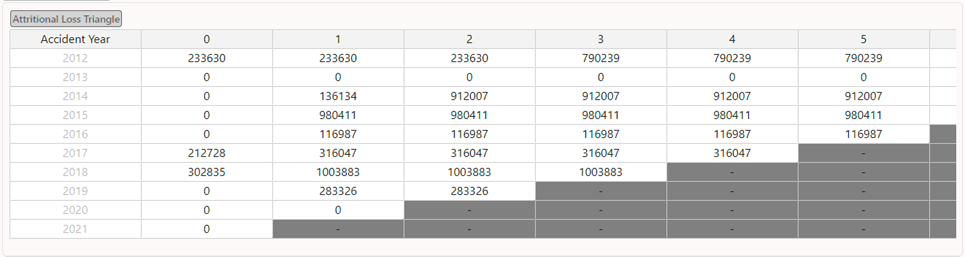
Figure 3: The Age to Age Factor Triangle
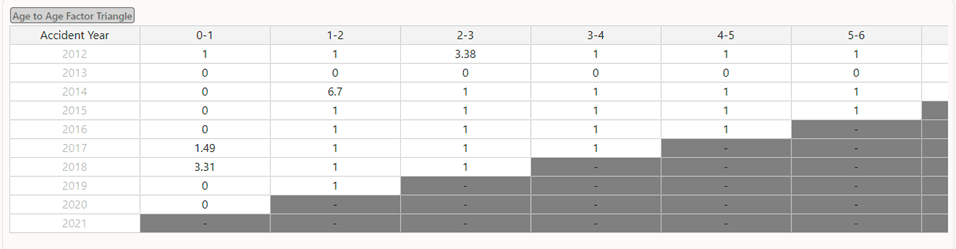
Figure 3: The Average Age to Age Factor Triangle
Projection Triangles produce the final output of the triangulation exercise. The Projection Triangle has two sections; the first section is the Cumulative Triangle, which is already generated under the Cumulative Triangle, and the second section is the projection numbers. Here, the Development Factors from the Projection Factor Triangle are multiplied with the latest cumulative numbers, brought in here from the Cumulative Triangle, to produce projected numbers.
A variety of trends and patterns are used in the general insurance industry to calculate some of the IFRS17 specific inputs. A few examples of these are Earning Patterns, Premium Receiving Patterns, Claims Payment Patterns, and so on. This section uses these patterns, calculated from either the previous sections (e.g. Triangles) or direct input provided by the user, to calculate IFRS 17 specific inputs. The feature will be available in a future release.
The Chain Ladder Method is used to forecast the reserve that must be established for a particular year to cover future losses. The exercise uses projected losses from the triangulation method. The Chain Ladder Method requires the Cumulative Paid Triangle and Cumulative Reported Losses Triangle as a prerequisite, however, the application allows the user to change the basis of these calculations and different triangles can be selected. For more information on how to use the Methods feature in the application, see the Methods Section.
The output generated in the application is consumed by various processes and applications. Some of the examples are Reserving Exercise and Capital Modeling. A large portion of these outputs are also required for the IFRS17 computation and thus these work as an input for Oracle Insurance Accounting Analyzer (OIAA). The outputs that will be mapped to OIAA are:
· The Ultimate is calculated from each of the Loss Triangles, for example, Paid and Incurred Triangles. These losses will form expected losses for a particular Accident Year in the IFRS17 Application and will be mapped to the respective Accident Year.
· The IBNR is calculated using different methods, for example, the Chain Ladder Method. In case, the Incurred Loss has a component of IBNR, these are mapped based on the accident years in the IFRS17 Application.
· The Output is calculated from each variety of patterns, for example, Earned Premium. Depending on the variety of patterns, it can be mapped to the Underwriting Year (UWY) or Accident Year (AY). For example, the Earned Premium is mapped based on the UWY, and claim payment is mapped based on the AY.


 e
e
