42 Upgrade Server Administration on SDS 7.x

Note:

Ensure the Upgrade State is either Accept or Reject. Do not execute this procedure if the Upgrade State is not either Accept or Reject. If the upgrade fails, the Upgrade State is Failed refer Recover from a Failed Upgrade.
  1. In the primary SDS NOAM GUI, use the VIP address to access the primary SDS NOAM GUI as described in Access the OAM GUI Using the VIP (NOAM/SOAM).
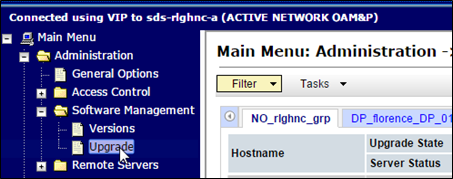
  2. Verify status and application version, expand Administration select Software Management click Upgrade. Select the Server Group tab for the server(s) to be upgraded.

    Figure 42-1 Select Servers

    Select Servers

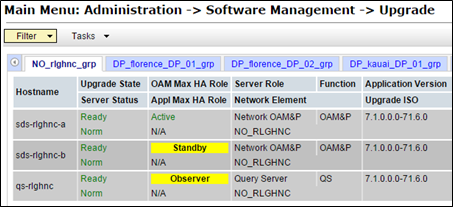
  3. Verify if the Upgrade Status displays as Ready for the server(s) to be upgraded.
  4. Verify the Application Version for the server(s) is the source software release version.

    Figure 42-2 Application Version

    Application Version

    Note:

    If executing Server Group Auto Upgrade, then skip to step 2 of this procedure. This procedure is allowed for DR NOAM, SOAM, and DP server groups only. If executing Single Server (or multiple selected) upgrade, then proceed with the next step of this procedure. Required for primary NOAM and DP server groups.
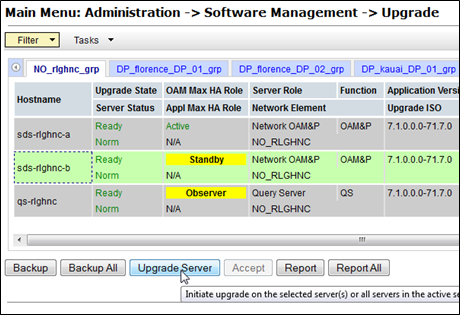
  5. In the Primary SDS NOAM VIP, upgrade server(s). Press and hold the Ctrl key to select multiple servers that need to be upgraded. Click Upgrade Server.

    Figure 42-3 Upgrade Server

    Upgrade Server

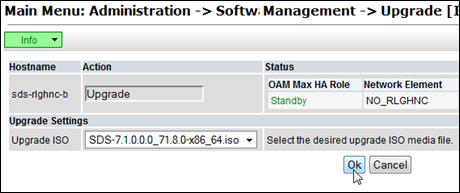
  6. Select the Upgrade ISO file to use for the upgrade. Click OK.

    Figure 42-4 Ok

    Ok

  7. Go to step 10 of this procedure.

    Note:

    During the server upgrade, multiple alarms are expected and can be safely ignored. These include but are not limited to Event IDs: 10009, 10073, 10075, 31101, 31102, 31106, 31107, 31109, 31114, 31225, 31282 and 31283. These alarms may display until all NOAM and DR-NOAM server upgrades have been completed.

    Note:

    If Alarm 10009 persists after the upgrade, reboot the server once using the sudo init 6 command on the effected server.
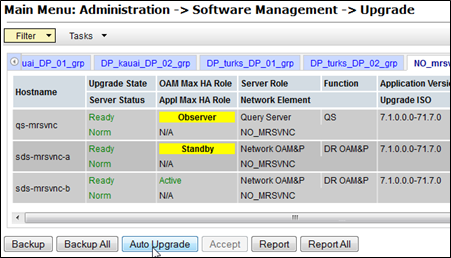
  8. Execute this step for Server Group Auto Upgrade only. Do not use the Auto Upgrade option when upgrading the primary SDS NOAM server group. To upgrade the servers click Auto Upgrade. Do not select any servers with this option is selected.

    Figure 42-5 Auto Upgrade

    Auto Upgrade

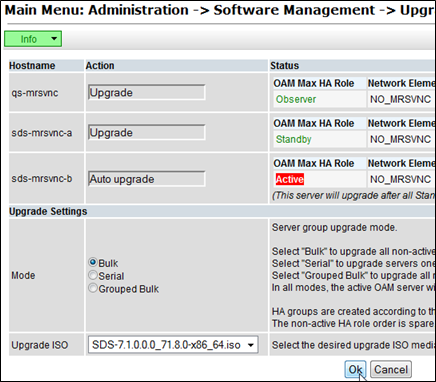
  9. Select the Bulk option. Select the Upgrade ISO file to use for the upgrade. Click OK. All non-active servers are upgraded first (for example, standby, query, and so on).

    Figure 42-6 Bulk Upgrade ISO

    Bulk Upgrade ISO

    Note:

    If upgrading the formerly active primary SDS NOAM server (that is, 2nd NOAM to be upgraded), then continue with the next step of this procedure; otherwise, skip to step 14 of this procedure.
  10. In the Primary SDS NOAM VIP, if upgrading the active primary SDS NOAM server, an HA failover occurs the user’s GUI session ends as the active primary SDS server goes through HA failover and becomes the Standby server.
  11. Click Logout to log out of the SDS NOAM GUI.

    Figure 42-7 Log out

    Log out

  12. Clear the cached data. JavaScript libraries, images, and other objects are often modified in the upgrade. Browsers can sometimes cause GUI problems by holding on to the old objects in the built-in cache. To prevent these problems, always clear the browser cache before logging into an OAM GUI that has just been upgraded:
    1. Simultaneously press and hold the Ctrl, Shift, and Delete keys (most Web browsers).
    2. Select the appropriate object types to delete from the cache (for example, Temporary Internet Files, Cache, or Cached images and files, etc.). Other browsers may label these objects differently.
    3. Clear the cached data.

    Note:

    Do not proceed until the browser cache has been cleared.
  13. Access the primary SDS NOAM GUI, use the VIP address to access the primary SDS NOAM GUI as described in Access the OAM GUI Using the VIP (NOAM/SOAM).
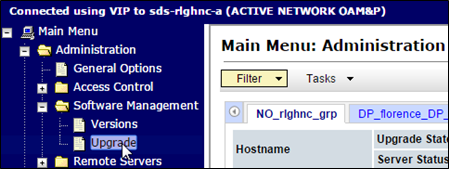
  14. In the Primary SDS NOAM VIP, monitor status. Expand Administration select Software Management click Upgrade.

    Figure 42-8 Upgrade

    Upgrade

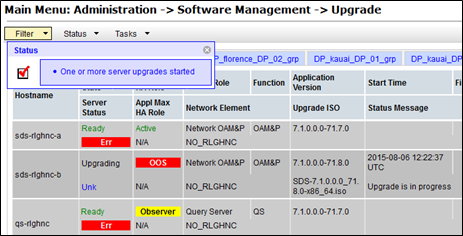
  15. Monitor the Upgrade State and the Status Message for the servers being upgraded.

    Figure 42-9 Status Message

    Status Message

  16. As the upgrade procedure executes, the following states can be observed:

    Table 42-1 Upgrade States

    Sequence Upgrade State Status Message
    1 Pending Pending upgrade
    2 Preparing Upgrade task started
    3 Validating Validating upgrade ISO image
    4 Upgrading Upgrade is in progress
    5 Rebooting Warn: failed to get TPD task state, server could be rebooting
    6 Not Ready Success: Upgraded server to new ISO
    7 Accept of Reject Success: Server upgrade is complete

    Note:

    Some states may transition faster than the screen refresh rate and appear to skip.

    Note:

    In the unlikely event SDS fails to restart after the upgrade, the Upgrade State will be Backout Ready and the Status Message displays Server could not restart the application to complete the upgrade. Perform Manual Completion of Server Upgrade to restore the server to full operational status and return to this procedure to continue the upgrade.
  17. View post-upgrade status of the server(s). Post-upgrade, upgraded servers have the Event ID (s): 32532 (Server Upgrade Pending Accept/Reject) expected alarm.
  18. In the Server CLI, update the tuned profile. After a successful upgrade has been verified, access the server on command line (using SSH or console) and update the tuned profile:
    $ sudo /usr/TKLC/sds/bin/sdsSharedMemTuned.sh
    Verify whether the tuned profile has been successfully set to comcol_app:
    $ sudo tuned-adm active

    Sample Output:

    [admusr@SOAM1 ~]$ sudo tuned-adm active
    Current active profile: comcol_app
    Service tuned: enabled, running
    Service ktune: enabled, running