3 Upgrade Planning and Pre-Upgrade Procedures
Caution:
For vSTP-related deployments, it is not allowed to do any adding/updating/deleting of configuration until the upgrade is completed on all sites and accepted.Note:
Be aware that once the upgrade starts and OAM level servers are on different releases than different sites, OAM level provisioning data is not replicated to sites that have not been upgraded. After the upgrade is completed, replication from OAM level server is restored and upgraded servers start receiving provisioning data.
Refer to Automated Site Upgrade section for details and limitations/solutions while planning upgrade cycles.
There are some limitations with upgrading the DC server in a C-level server group that are upgraded in a group of servers, for example, DA-MP, vSTP MP(s). While manually upgrading, ensure the DC server is not upgraded in the first upgrade cycle of the C-Level servers in its server group. Identify the DC server using Appendix N and Identify the DC server. In all cases, regardless of the number of cycles used to upgrade the DA-MP/vSTP server group, the DA-MP leader/vSTP MP leader should be the last server upgraded. By upgrading the MP leader last, the number of leader changes is minimized during the upgrade.
You can access the DA-MP leader by navigating to the Diameter Maintenance, then DA-MPs, and then Peer DA-MP Status active SOAM, where MP Leader = Yes. Also, check for the MP leader on the vSTP. This is done on the active SOAM CLI.
- From the MMI command using the REST Client for the vSTP configuration. Navigate to Main Menu, then MMI Guide to access the user guide.
- Use the /vstp/mpleader MO. The result is the host name of the MP leader server.
Note:
If the 31149 - DB Late Write Nonactive appears on the screen, ignore it. This alarm does not have any effect on functionality.Data Required for Upgrade
- Target-release application ISO image file or target-release application media
- The capability to log into the network OAM servers with administrator privileges
- User logins, passwords, IP addresses, and other administration information. For more details, see Table 3-1 table.
- VPN access to the customer’s network is required if that is the only method to log in to the OAM servers.
Note:
All logins into the DSR NOAM servers are made using the external management VIP unless otherwise stated.Application ISO Image File/Media
DSR-8.6.0.3.0_96.21.0.isoNote:
Before the execution of this upgrade procedure, it is assumed that the DSR ISO image file has already been delivered to the customer’s premises. The ISO image file must reside on the local workstation used to perform the upgrade, and any user performing the upgrade must have access to the ISO image file. If the user performing the upgrade is at a remote location, it is assumed the ISO file is already available before starting the upgrade procedure.The ISO is deployed as part of the pre-upgrade activities in Table 3-4.
Logins, Passwords, and Server IP Addresses
Table 3-1 Logins, Passwords, and Server IP Addresses
| Item | Description |
|---|---|
| Target Release | Target DSR Upgrade Release |
| Credentials | GUI Admin Username |
| GUI Admin Password | |
| DSR admusr Password | |
| DSR Root Password | |
| VPN Access Details | Customer VPN Information (if needed) |
| NOAM | XMI VIP address |
| NOAM 1 XMI IP Address | |
| NOAM 2 XMI IP Address | |
| SOAM | XMI VIP address |
| SOAM 1 XMI IP Address ( Site 1) | |
| SOAM 2 XMI IP Address (Site 1) | |
| PCA (DSR) Spare System OAM&P server – Site 1 Spare in Site 2, XMI IP Address | |
| SOAM 1 XMI IP Address ( Site 2) | |
| SOAM 2 XMI IP Address ( Site 2) | |
| PCA (DSR) Spare System OAM&P server – Site 2 Spare in Site 1, XMI IP Address | |
| Binding SBR Server Groups | Binding SBR SR1 Server Group Servers (Site 1) |
| Binding SBR SR2 Server Group Servers (Site 1) | |
| Binding SBR SR3 Server Group Servers (Site 1) | |
| Binding SBR SR4 Server Group Servers (Site 1) | |
| PCA MP Server Group | PCA MP Server Group Servers (Site 1) |
| PCA MP Server Group Servers (Site 1) | |
| IPFE Server Groups(For PDRA) | PCA IPFE A1 Server Group Server (Site 1) |
| PCA IPFE A 2 Server Group Server (Site 1) | |
| PCA IPFE B 1 Server Group Server (Site 1) | |
| PCA IPFE B 2 Server Group Server (Site 1) | |
| Binding SBR Server Groups | Binding SBR SR1 Server Group Servers (Site 2) |
| Binding SBR SR2 Server Group Servers (Site 2) | |
| Binding SBR SR3 Server Group Servers (Site 2) | |
| Binding SBR SR4 Server Group Servers (Site 2) | |
| PCA MP Server Group | PCA MP Server Group Servers (Site 2) |
| IPFE Server Groups (For PCA) | |
| PCA IPFE A2 Server Group Server (Site 2) | |
| PCA IPFE B 1 Server Group Server (Site 2) | |
| PCA IPFE B 2 Server Group Server (Site 2) | |
| vSTP MP Server Group | vSTP MP server(s) |
| Software | Target Release Number |
| ISO Image (.iso) file name | |
|
Misc4 |
Miscellaneous additional data |
Site Upgrade Methodology
- Auto Site Upgrade
- Auto Server Group Upgrade
- Manual Upgrade
Figure 3-1 Select Site Upgrade Methodology
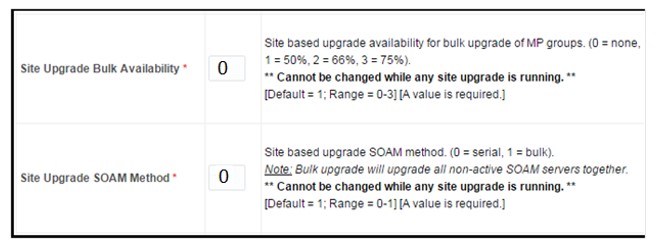
Again, Auto Server Group Upgrade is not for all customers or all configurations. The manual upgrade method gives maximum control to the customer and can be used for all configurations. The users can utilize a combination of upgrade methods to upgrade a given site to maximize efficiency with customer peace of mind. The following table is a worksheet for determining which upgrade method meets the needs of the customer while ensuring compatibility with the DSR configuration. Upon completion of the worksheet, a recommended upgrade method is identified.
Table 3-2 Traffic Analysis Checklist
| Criteria | Yes/No | Notes | |
|---|---|---|---|
| 1 | Do any of the site’s DA-MPs have fixed diameter
connections to any peer node, similar to this depiction?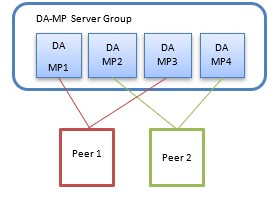 |
Automated Site Upgrade and Automated Server Group Upgrade, by default, do not consider fixed peer connections when selecting servers to upgrade. It is possible that all DA-MPs servicing a given peer (such as DA-MPs 1 and 3) could be upgraded simultaneously, thereby isolating the peer. For this reason, analyze the generic upgrade plan generated by the Automated Site Upgrade and Auto Server Group Upgrade carefully to ensure all DA-MPs servicing a given peer are not upgraded simultaneously. If the generic plan has the DA-MPs upgrading simultaneously, you must rearrange the upgrade and/or add cycles as necessary to develop a suitable plan. If yes, proceed to section 5.2.3 to rearrange or add cycles for ASU or proceed to step 8 for a manual upgrade. If no, continue with step 2. |
|
| 2 |
If peer nodes are configured via IPFE TSAs, are there any TSAs that are not distributed across all DA-MPs, similar to this depiction? 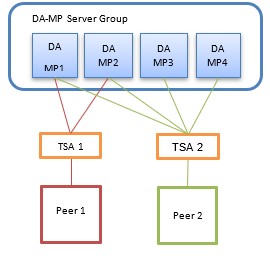 |
Automated Site Upgrade and Automated Server Group Upgrade, by default, do not consider non-uniformly distributed TSAs when selecting servers to upgrade. It is possible that all DA-MPs servicing a given TSA (such as DA-MPs 1 and 2) could be upgraded simultaneously, thereby isolating the peer. For this reason, analyze the generic upgrade plan generated by the Automated Site Upgrade and Auto Server Group Upgrade carefully to ensure all DA-MPs servicing a given TSA are not upgraded simultaneously. If the generic plan has the DA-MPs upgrading simultaneously, you must rearrange the upgrade and/or add cycles as necessary to develop a suitable plan. If yes, proceed to section 5.2.3 to rearrange or add cycles for ASU or proceed to step 8 for a manual upgrade. If no, continue with step 3. |
|
| 3 |
Do any of the site’s DA-MPs have specialized distribution of DSR features, similar to this depiction? 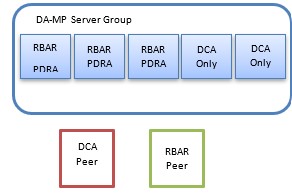 |
Automated Site Upgrade and Automated Server Group Upgrade, by default, do not consider non-uniform distribution of features when selecting servers to upgrade. It is possible that all DA-MPs hosting a given feature (such as DCA) could be upgraded simultaneously, thereby eliminating service functionality. For this reason, analyze the generic upgrade plan generated by the Automated Site Upgrade and Auto Server Group Upgrade carefully to ensure all DA-MPs hosting a given feature are not upgraded simultaneously. If the generic plan has the DA-MPs upgrading simultaneously, you must rearrange the upgrade and/or add cycles as necessary to develop a suitable plan. If yes, proceed to section 5.2.3 to rearrange or add cycles for ASU or proceed to step 8 for manual upgrade. If no, continue with step 4. | |
| 4 | Automated Site Upgrade is a candidate for this system. Automated Site Upgrade supports 50% minimum server availability by default. A general option allows availability percentage settings of 66% or 75%. Is 50%, 66%, or 75% server availability during upgrade acceptable to the customer? |
In general, a higher minimum availability setting increases the time required to upgrade a site. On the other hand, a lower minimum availability may reduce operational redundancy during the upgrade. If none of the minimum availability options are acceptable, Automated Site Upgrade should not be used to upgrade the site. If yes, continue with step 6. If no, proceed to step 7. |
|
| 5 | Is the customer comfortable with minimum user intervention (that is, user input) during the upgrade? | Once initiated, Automated Site Upgrade requires no additional user input to complete the upgrade. User control is limited to canceling the site upgrade task. If yes, Automated Site Upgrade is the recommended upgrade method. If no, proceed to step 7. | |
| 6 | Automated Server Group Upgrade is a candidate for this system. Is the customer comfortable with the level of control afforded by the Automated Server Group upgrade? | Auto Server Group upgrade allows the user to initiate the upgrade of each server group, while the individual servers within the server group upgrade automatically. If yes, Auto Server Group upgrade is the recommended upgrade method. If no, proceed to step 8. | |
| 7 | A manual upgrade affords the maximum level of control over upgrade
sequencing. With this method, the upgrade of each server is individually
initiated, allowing the user to control the level of parallelism and
speed of the upgrade.
Note: A site upgrade can include a combination of Automated Server Group upgrade and manual upgrades to improve efficiency. For example, SBRs can be upgraded with Automated Server Group upgrade, while the DA-MPs may be upgraded manually to control the order of upgrade for traffic continuity. |
A manual upgrade is the recommended upgrade method. |
Plan DA-MP Upgrade
Note:
If complete site upgrade is selected with 0% availability, then DA-MP upgrade planning is not required.Table 3-3 is an aid to laying out the sequence of the DA-MP upgrades, taking into consideration configuration and traffic continuity. This worksheet must be completed by the customer and provided to Oracle if Oracle personnel are performing the upgrade. It is highly recommended that the worksheet be completed for customer-driven upgrades as well.
Customers need to perform an analysis of the diameter application and connection configurations to assess any potential traffic loss due to the DA-MP upgrade. Complete the worksheet, specifying the order in which the DA-MPs will be upgraded, and which MPs, if any, can be upgraded in parallel.
The worksheet is divided into four upgrade Cycles. Each cycle represents an upgrade period during which one or more servers are upgraded. Distributing the DA-MPs servers over two or more cycles, takes advantage of parallels, thereby reducing the time required to upgrade the entire server group. To achieve 50% server availability, half of host names would be listed in Cycle 1 while the other half would be listed in Cycle 2, requiring two upgrade cycles. Similarly, 75% availability can be achieved by spreading the host name over all four cycles.
In all cases, regardless of the number of cycles used to upgrade the DA-MP/vSTP server group, the DA-MP leader/vSTP MP leader should be the last server upgraded. By upgrading the MP leader last, the number of leader changes is minimized during the upgrade.
- Navigate to Main Menu, then MMI Guide to access the MMI user.
- Use the the /vstp/mpleader MO to obtain the host name of the MP Leader server.
Note:
If needed, the users can upgrade DA-MPs serially, in which case, all host names would be listed in cycle 1. List the DA-MPs in the order in which they will be upgraded.Table 3-3 DA-MP Upgrade Planning Sheet
| Host Names | ||||
|---|---|---|---|---|
| Upgrade Cycle 1 or Serial Upgrade | ||||
| Upgrade Cycle 2 | ||||
| Upgrade Cycle 3 | ||||
| Upgrade Cycle 4 | ||||
Pre-upgrade Validation to Avoid Comcol Inter-connectivity Issue between MPs
Note:
This procedure resolves the inter-connectivity issue between the old-DC and non-DC MP at the time of upgrade for the BUG 27428669.Maintenance Window 1 (NOAM Site Upgrades)
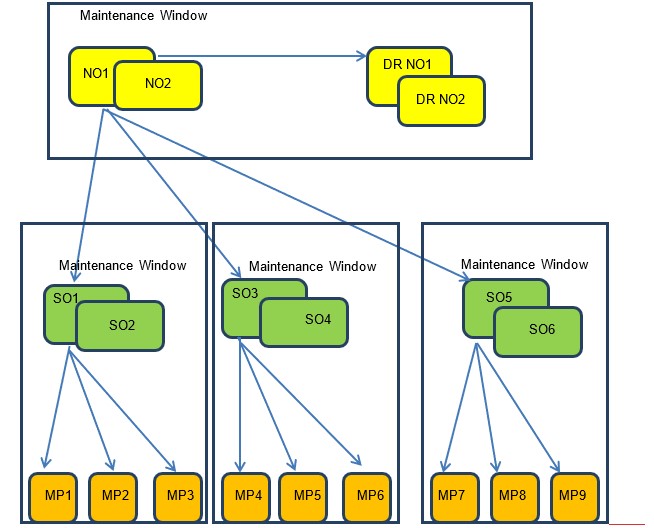
In the first maintenance window, the NOAM servers are upgraded .
|
Maintenance Window 1 (NOAM Sites) Date: Note: You can view the from the DSR NOAM GUI by clicking Configuration , then Network Elements. |
Record the Site NE Name of the DSR NOAM to be upgraded during Maintenance Window 1 in the space provided below: “Check off” the associated Check Box as upgrade is completed for each server. DR Standby NOAM (Guest): DR Active NOAM (Guest): Primary Standby NOAM (Guest): Primary Active NOAM (Guest): |
Maintenance Window 2 and Beyond (SOAM Site Upgrades)
During Maintenance Window 2, all servers associated with the first SOAM site are upgraded. All servers associated with the second SOAM site are upgraded during Maintenance Window 3. For DSRs configured with multiple mated-pair sites, or DSRs having multiple, distinct sites (for example, georedundant PCA installations), copy and use the following form for the subsequent SOAM site upgrades.
From release 8.1, vSTP MP support is available. While upgrading from pre 8.1 releases, vSTP MP server will not be in the system. So, after major upgrade is completed. In case vSTP MP server is required, it is freshly installed on 8.1 release using reference [1]. For release 8.1, planning should be done for vSTP MP incremental upgrades.
Note:
In release 8.1, there can be only one vSTP MP server in the STP server group and one server in one site. This means whenever the vSTP MP server is upgraded, there is traffic loss on that vSTP MP server.| Maintenance Window | Steps |
|---|---|
| SOAM Sites
Date: |
Standby SOAM (Guest): Active SOAM (Guest): |
| DA-MP 1:
DA-MP 2: DA-MP 3: DA-MP 4: DA-MP 5: DA-MP 6: DA-MP 7: DA-MP 8: DA-MP 9: DA-MP 10: DA-MP 11: DA-MP 12: DA-MP 13: DA-MP 14: DA-MP 15: DA-MP 16: |
|
| IPFE1:
IPFE 2: IPFE 3: IPFE 4: |
|
|
Binding Server Group 1 Standby SBR: Active SBR: Spare SBR 1 (Mate): Spare SBR2 (Mate): (If equipped) Binding Server Group 2 Standby SBR: Active SBR: Spare SBR 1 (Mate): Spare SBR2 (Mate): (If equipped) Binding Server Group 3 Standby SBR: Active SBR: Spare SBR 1 (Mate): Spare SBR2 (Mate): (If equipped) Binding Server Group 4 Standby SBR: Active SBR: Spare SBR 1 (Mate): Spare SBR2 (Mate): (If equipped) Binding Server Group 5Standby SBR: Active SBR: Spare SBR 1 (Mate): Spare SBR2 (Mate): (If equipped) Binding Server Group 6 Standby SBR: Active SBR: Spare SBR 1 (Mate): Spare SBR2 (Mate): (If equipped) Binding Server Group 7 Standby SBR: Active SBR: Spare SBR 1 (Mate): Spare SBR2 (Mate): (If equipped) Binding Server Group 8 Standby SBR: Active SBR: Spare SBR 1 (Mate): Spare SBR2 (Mate): (If equipped) |
|
| Session Server Group 1
Standy SBR: Active SBR: Spare SBR1 ( Mate): Spare SBR2 ( Mate): (If equipped) Session Server Group 2 Standy SBR: Active SBR: Spare SBR1 ( Mate): Spare SBR2 ( Mate): (If equipped) Session Server Group 3Standy SBR: Active SBR: Spare SBR1 ( Mate): Spare SBR2 ( Mate): (If equipped) Session Server Group 4Standy SBR: Active SBR: Spare SBR1 ( Mate): Spare SBR2 ( Mate): (If equipped) Session Server Group 5Standy SBR: Active SBR: Spare SBR1 ( Mate): Spare SBR2 ( Mate): (If equipped) Session Server Group 6Standy SBR: Active SBR: Spare SBR1 ( Mate): Spare SBR2 ( Mate): (If equipped) Session Server Group 7Standy SBR: Active SBR: Spare SBR1 ( Mate): Spare SBR2 ( Mate): (If equipped) Session Server Group 8Standy SBR: Active SBR: Spare SBR1 ( Mate): Spare SBR2 ( Mate): (If equipped) |
|
|
vSTP MP Server Group vSTP MP(s): (If equipped) |
Note:
Mated SOAM sites must be upgraded in separate maintenance windows.
Plan Upgrade Maintenance Windows
Figure 3-2 Upgrade Maintenance Windows for 3-Tier Upgrade
Note:
Mated SOAM sites must be upgraded in separate maintenance windows.Calculating Maintenance Windows Required
You can calculate the number of maintenance windows required for DSR setup and upgrade using the Maintenance Window Analysis Tool. For more information, see Maintenance Window Analysis Tool CGBU_010314. It takes setup details as input from the user and accordingly calculates the number of maintenance windows required for upgrade. The spreadsheet also specifies in detail which servers need to be upgraded in which maintenance window. Complete DSR upgrade maintenance window details and timings can be found in Maintenance Window Analysis Tool CGBU_010314. For more information, see the instructions tab.
Prerequisite Procedures
The pre-upgrade procedures shown in the following table are executed outside a maintenance window, if desiredneeded. These steps have no effect on the live system and can save upon maintenance window time, if executed before the start of the Maintenance Window.
Table 3-4 Prerequisite Procedures Overview
| Procedure | Elapsed Time (hr:min) | Procedure Title | |
|---|---|---|---|
| This Step | Cum. | ||
| Procedure 1 | 0:10-0:30 | 0:10-0:30 | Procedure 1Required Materials Check |
| Procedure 2 | 0:15-0:30 | 0:25-1:00 | Procedure 2DSR ISO Administration |
| Procedure 3 | 0:20-0:30 | 0:55-1:30 | Procedure 3Verification of Configuration Data |
| Procedure 4 | 0:15-0:20 | 1:10-1:50 | Procedure 4Data Collection for Source Release 8.0 and Later |
| Procedure 5 | 0:15-0:30 | 1:30-3:05 | Procedure 5TKLCConfigData backup |
| Procedure 6 | 0:10-2:00 | 1:40-5:05 | Procedure 6Full Backup of DB Run Environment for Release 8.0.x and later |
ISO transfers to the target systems may require a significant amount of time depending on the number of systems and the speed of the network. These factors may significantly affect total time needed and may require the scheduling of multiple maintenance windows to complete the entire upgrade procedure. The ISO transfers to the target systems should be performed prior to and outside of the scheduled maintenance window. Schedule the required maintenance windows accordingly before proceeding.
Check Required Materials
This procedure verifies that all required materials needed to perform an upgrade have been collected and recorded.
Table 3-5 Procedure 1: Check Required Materials
| Step | Procedure | Description |
|---|---|---|
| 1 | Verify all required materials are present | Refer to Data Required for Upgrade to view the list of required materials. |
| 2 | Verify all administration data needed during upgrade | Double-check that all information in Plan Upgrade Maintenance Windows is filled-in and accurate. |
| 3 | Contact My Oracle Support (MOS) |
It is recommended to contact My Oracle Support (MOS) and inform them of plans to upgrade this system. See Appendix Z for these instructions. Note: Obtaining a new online support account can take up to 48 hours. |
DSR ISO Administration
Note:
ISO transfers to the target systems may require a significant amount of time depending on the number of systems and the speed of the network. These factors may significantly affect total time needed and require the scheduling of multiple maintenance windows to complete the entire upgrade procedure. The ISO transfers to the target systems should be performed before, and outside of, the scheduled maintenance window. Schedule the required maintenance windows accordingly before proceeding.- Log in to the active NOAM GUI.
- Navigate to Status & Manage, then Files.
- Click the active NOAM server in the network to display all files stored in the file management storage area of this server.
- Ensure that this is actually the active NOAM server in the network by comparing the host name in the screen title vs. the host name in the session banner in the GUI. Verify they are the same and the status is Active in the session banner.
- Click Upload.
Active NOAM VIP
- Click Browse to select the file to upload.
- Select the target release ISO image file and click Open.
- Click Upload.
Active NOAM CLI: Change Permission of ISO
- Log in to the Active NOAM CLI and execute the following command:
sudo chmod 644
                            /var/TKLC/db/filemgmt/<DSR_ISO_Filename>
Active NOAM VIP: Deploy ISO to All the Servers to be Upgraded using NOAM GUI
- Navigate to Status & Manage, then Files.
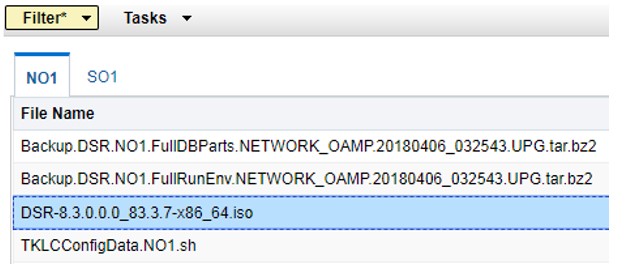
- Click the active NOAM server tab. All files stored in the file management storage area of this server display on the screen.
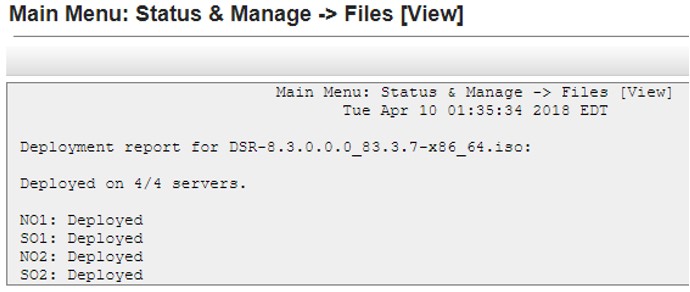
- Select the target release ISO, and click View ISO Deployment Report.
- In the resulting report, determine if the ISO has been deployed to all servers in the system.
- If the ISO has been deployed to all servers, this procedure is complete. Proceed to the next procedure per Table 3-4.
- If the ISO has not been deployed, select the target release DSR ISO in the file list, and click Validate ISO. Click OK on the confirmation screen.
- Verify the ISO status is valid. If the ISO is not valid, repeat this procedure beginning with step 1. If the ISO fails validation more than once, contact My Oracle Support (MOS).
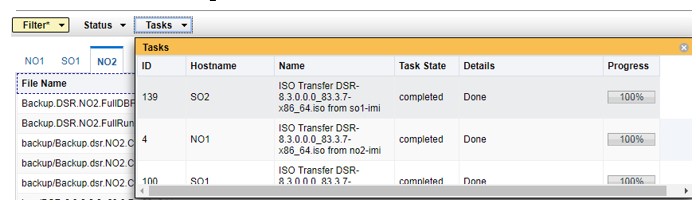
- If the ISO is valid, select the ISO and click Deploy ISO. Click OK on the
confirmation screen.


Data Collection - Verification of Global and Site Configuration Data
The procedures in this section are part of software upgrade preparation and are used to collect data required for network analysis, disaster recovery, and upgrade verification. Data is collected from both the active NOAM and various other servers at each site.
Verification of Configuration Data
Active NOAM VIP: Verify Application Version
- Navigate to Administration, then Software Management, then Upgrade.
- Verify the upgrade path to the target release is supported as documented in Supported Upgrade Paths to 8.6.0.3.0.
- Select the NOAM Server Group and verify the Application Version.
Data Collection for Source Release 8.0 and Later
Table 3-6 Release Specific Data Collection Procedures
| If the Source Release is | Use This Pre-Upgrade Data Collection Procedure |
|---|---|
| 8.0 and later | Procedure 4 |
Active NOAM VIP: Run the automated health checks on the active NOAM
- Navigate to Administration > Software Management > Upgrade.
- Select the active NOAM.
- Click Checkup.
- In the Health check options section, select the Advance Upgrade option.
- If the ISO Administration procedure has already been performed for the target ISO, select the target release ISO from the Upgrade ISO option. Otherwise, do not select an ISO.
- Click OK. Control returns to the Upgrade screen.
Active NOAM VIP: Monitor Health Check Progress
- Click the Tasks option to display the currently executing tasks. The Health Check task name appears as <NOServerGroup> AdvanceUpgrade Health Check.
- Monitor the Health Check task until the Task State is completed. The Details column displays a hyperlink to the Health Check report.
- Click the hyperlink to download the Health Check report.
- Open the report and review the results.
Active NOAM VIP: Analyze Any Health Check Failure
- Navigate to Status & Manage > Files.
- Select the UpgradeHealthCheck.log file and click View.
- Locate the log entries for the most recent health check.
- Review the log for failures.
Active NOAM VIP: Initiate SOAM Health Check
- Navigate to Administration, then Software Management, and then Upgrade.
- Select the SOAM server group tab.
- Select the active SOAM.
- Click Checkup.
- In the Health Check options section, select the Advance Upgrade option.
- For a major upgrade, select the target release ISO from the Upgrade ISO option. Do not select an ISO for an incremental upgrade.
- Click OK. Control returns to the Upgrade screen.
Active NOAM VIP: Monitor Health Check Progress
- Click the Tasks option to view the currently executing tasks. The Health Check task name appears as <SOServerGroup> AdvanceUpgrade Health Check.
- Monitor the Health Check task until the Task State is completed. The Details column displays a hyperlink to the Health Check report.
- Click the hyperlink to download the Health Check report.
- Open the report and review the results.
Active NOAM VIP: Analyze Health Check Failure
- Navigate to Status & Manage, then Files.
- Select the active SOAM tab.
- Select the UpgradeHealthCheck.log file and click View.
- Locate the log entries for the most recent health check.
- Review the log for failures.
Analyze and Plan MP Upgrade Sequence
- Analyze system topology data gathered in Verification of Configuration Data and steps 1 through 6 of the procedure. The Health Check reports from steps 3 and 6 can be found by navigating to Status & Manage, then Files on the active SOAM.
- It is recommended to plan for MP upgrades by consulting My Oracle Support (MOS) to assess the impact of out-of-service MP servers.
- Determine the manner in which the MP servers are upgraded: Manually or Automated Server Group Upgrade. If the MPs are upgraded manually, determine the exact sequence in which MP servers are upgraded for each site.
Back Up TKLCConfigData Files
Primary DSR NOAM VIP (GUI): Export Configuration Data for Each Server
- Navigate to Configuration, then Servers.
- Select each server in the topology and click Export.
- Repeat this for all servers.
Primary SDS NOAM Server: Back Up TKLCConfig Data
- Access the primary DSR NOAM server command line using ssh or a console.
ssh admusr@<NOAM_VIP> - Transfer the TKLCConfigData files for all servers in the
/var/TKLC/db/filemgmt directory to a remote location.
$ cd
                            /var/TKLC/db/filemgmt
$ scp TKLCConfigData.<Sever Hostname>.sh <username>@<remote-server>:<directory>Example: scp TKLCConfigData.DSRNO1.sh <username>@<remote-server>:<directory>
Full Backup of DB Run Environment at Each Server
The procedures in this section are part of software upgrade preparation and are used to conduct a full backup of the run environment on each server, to be used in the event of a back out of the new software release. The backup procedure to be executed is dependent on the software release that is running on the active NOAM.
Note:
Do not perform this procedure until the ISO deployment is completed to all servers in the topology. Failure to complete the ISO may disrupt ISO deployment/undeployment in the event of a partial backout (for example, backout of one site).
Note:
If back out is needed, any configuration changes made after the DB is backed up at each server is lost.Full Backup of DB Run Environment for Release 8.0.x and Later
This procedure backs up the DB run environment when the active NOAM is on release 8.0.x and later. This procedure conducts a full backup of the run environment on each server, so that each server has the required data to perform a backout.
Active NOAM VIP: Start Backup of All Servers
- Log in to the NOAM GUI using the VIP.
- Navigate to Administration , then Software Management, and then Upgrade.
- Click Backup All.
Active NOAM VIP: Select Network Elements to Backup
- In the Action column, mark the Back up checkbox for each network element.
- Ensure the Exclude option is selected.
- Click OK. This initiates a full back up on each eligible server.
Active NOAM VIP: Monitor Backup Progress
Active NOAM VIP: Verify Backup Files on Each Server
- Log in to the active NOAM.
- Navigate to Status & Manage, then Files.
- Click on each server tab.
- For each server, verify the following two files have been
created:
Backup.DSR.<server_name>.FullDBParts.NETWORK_OAMP.<time_stamp>.UPG.tar.bz2Backup.DSR.<server_name>.FullRunEnv.NETWORK_OAMP.<time_stamp>.UPG.tar.bz2
IDIH Pre-Upgrade
If IDIH is a component of a Network Element, it should be upgraded only after the DSR. However, note that certain compatibility limitations may exist while the two components (DSR and IDIH) are not on the compatible release. The IDIH upgrade procedures are provided in IDIH Upgrade at a Site and may be performed at any time after IDIH Upgrade Preparation as mentioned below.
IDIH Upgrade Preparation
Follow the hypervisor’s instructions to add the Mediation and Application OVAs to the cloud repository.
Software Upgrade Execution Overview
Before upgrading, users must perform data collection and system health check procedures in Prerequisite Procedures. This ensures the system to be upgraded is in an upgrade-ready state. Performing the system health check determines which alarms are present in the system and if an upgrade can proceed with alarms.
- The completion time for all the procedures shown in this document are estimates. These estimates may vary due to differences in database size, user experience, and user preparation.
- The shaded area within response steps must be verified in order to successfully complete that step.
- Where possible, command response outputs are shown as accurately as
possible. Exceptions are as follows:
- Session banner information such as time and date.
- System-specific configuration information such as hardware locations, IP addresses, and host names.
- Any information marked with XXXX or YYYY. Where appropriate, instructions are provided to determine what output should be expected in place of XXXX or YYYY.
- After completing each step and at each point where data is recorded from the screen, the technician performing the upgrade must initiate each step. For procedures which are executed multiple times, the checkbox displayed on the screen can be skipped, but the technician must initiate each iteration as a step is executed.
- Captured data is required for future support reference if a representative is not present during the upgrade.
- Answer these questions, and record:
- What is the DSR Application version to be upgraded?
- What is the DSR Application new version to be applied?
- Is this a Major or Incremental Upgrade?
- Are there IPFE servers to upgrade?
- Is SDS also deployed (co-located) at the DSR site?
Note:
SDS does not need to be upgraded at the same time.
- Is IDIH also deployed (co-located) at the DSR site?
Accepting the Upgrade
After the upgrade of all the servers in the topology has been completed and an appropriate soak time, the post-upgrade procedures in Site Post-Upgrade Procedures are performed in a separate maintenance window to finalize the upgrade. Accept Upgrade procedure accepts the upgrade and performs a final health check of the system to monitor alarms and server status. Accepting the upgrade is the last step in the upgrade. Once the upgrade is accepted, the upgrade is final and cannot be backed out.