23 Enterprise Managerのログイン・ページのカスタマイズのサポート
Enterprise Managerでは、企業のポリシーと標準に対応するためにログイン・ページをカスタマイズできます。
Enterprise Managerのログイン・ページのロゴ
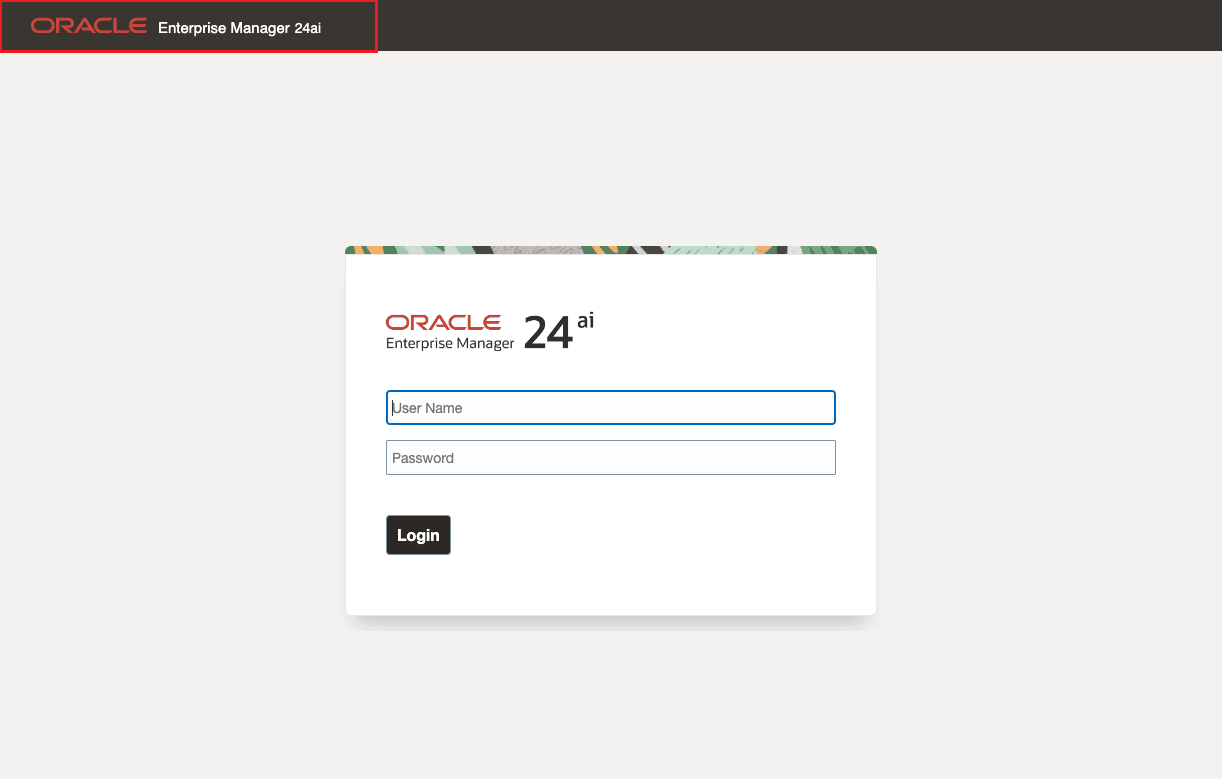
ロゴは、Enterprise Managerのログイン・ページのヘッダーに配置できます。サポートされているイメージの形式は、jpeg、jpg、png、gifです。イメージ・ファイルのロゴの比率は、割り当てられた領域に応じて調整されます。
指定された領域の現在のサイズは、"width:200px;height:70px"です。
提供されている領域に適切に収まるように、ロゴ・イメージを変更することをお薦めします。
図23-1 Enterprise Managerのログイン・ページ上のロゴ
イメージ・ファイルは、Weblogicサーバーを含む任意のWebサーバーでホストできます。Weblogicサーバーでの設定方法の例は、「イメージをホストするためのWeblogic Serverの設定」を参照してください。
イメージをホストするためのWeblogic Serverの設定
Enterprise Managerのログイン・ページに、カスタム・ロゴのイメージ・ファイルをロードするには、静的イメージ・ファイルを含むWebアプリケーションが管理サーバー上のWebLogicドメインにデプロイされている必要があります。Webアプリケーションをインストールする手順は、https://docs.oracle.com/middleware/1213/wls/WLACH/taskhelp/web_applications/InstallWebApplications.htmlを参照してください。
-
OMSホスト上で、EMログイン・ページに使用されるロゴのイメージ・ファイルを格納するディレクトリを作成します。たとえば、
/u01/oracle/gc_inst/em/EMGC_OMS1/temp -
ロゴ・イメージ・ファイルを新しく作成されたディレクトリにコピーします。たとえば、
/u01/oracle/gc_inst/em/EMGC_OMS1/temp/custom_logo.png -
新しく作成したディレクトリ内に、WEB-INFディレクトリを作成します。たとえば、
/u01/oracle/gc_inst/em/EMGC_OMS1/temp/WEB-INF -
WEB-INFディレクトリ内に、次の内容でweb.xmlと呼ばれるファイルを作成します。
<?xml version="1.0" encoding="UTF-8"?>
<!DOCTYPE web-app PUBLIC
"-//Sun Microsystems, Inc.//DTD Web Application 2.3//EN"
"http://java.sun.com/j2ee/dtds/web-app_2_3.dtd">
<web-app>
</web-app>
-
Weblogicコンソールにログインします。デフォルトのユーザー名はweblogic、パスワードは、sysmanパスワードです。
URL:
https://hostname:port/console例:
https://<fully_qualified_host_name>:7102/consoleノート:
WeblogicコンソールのURL (管理サーバーのURL)は、Enterprise Managerコンソールと同じURLではありません。ここで、hostとportは、emgc.propertiesファイルで、パラメータのAS_HOSTとAS_HTTPS_PORTにそれぞれ指定されている値です。このプロパティ・ファイルは、第1のOMSのOracle Management Serviceインスタンス・ベースの場所にあります。たとえば、/u01/oracle/gc_inst/em/EMGC_OMS1/emgc.propertiesです。管理サーバーのURLは<EM Home Dir>/install/setupinfo.txtファイルにもあります。 -
左側の「デプロイメント」メニューをクリックします。「インストール」ボタンはデフォルトで無効になっています。
-
「ロックして編集」をクリックして「インストール」ボタンを有効にします。
-
「デプロイ」画面で、「インストール」ボタンをクリックします。
-
ステップ1
( /u01/oracle/gc_inst/em/EMGC_OMS1/temp)から作成されたディレクトリへのパスを設定します。 -
「次へ」をクリックします。
-
次の画面で、選択したオプションのデフォルト値を受け入れます。デフォルトでは、「このデプロイメントをアプリケーションとしてインストールする」オプションが選択されます。
-
「次へ」をクリックします。
-
次の画面で、EMGC_ADMINSERVERをターゲットとして選択します。
-
「次へ」をクリックします。
-
次の画面でデフォルト値を受け入れます。
-
「終了」をクリックします。
アプリケーションが正常にデプロイされると、次のメッセージが表示されます。
すべての変更がアクティブ化されました。再起動は不要です。
デプロイメントは正常にインストールされました。
-
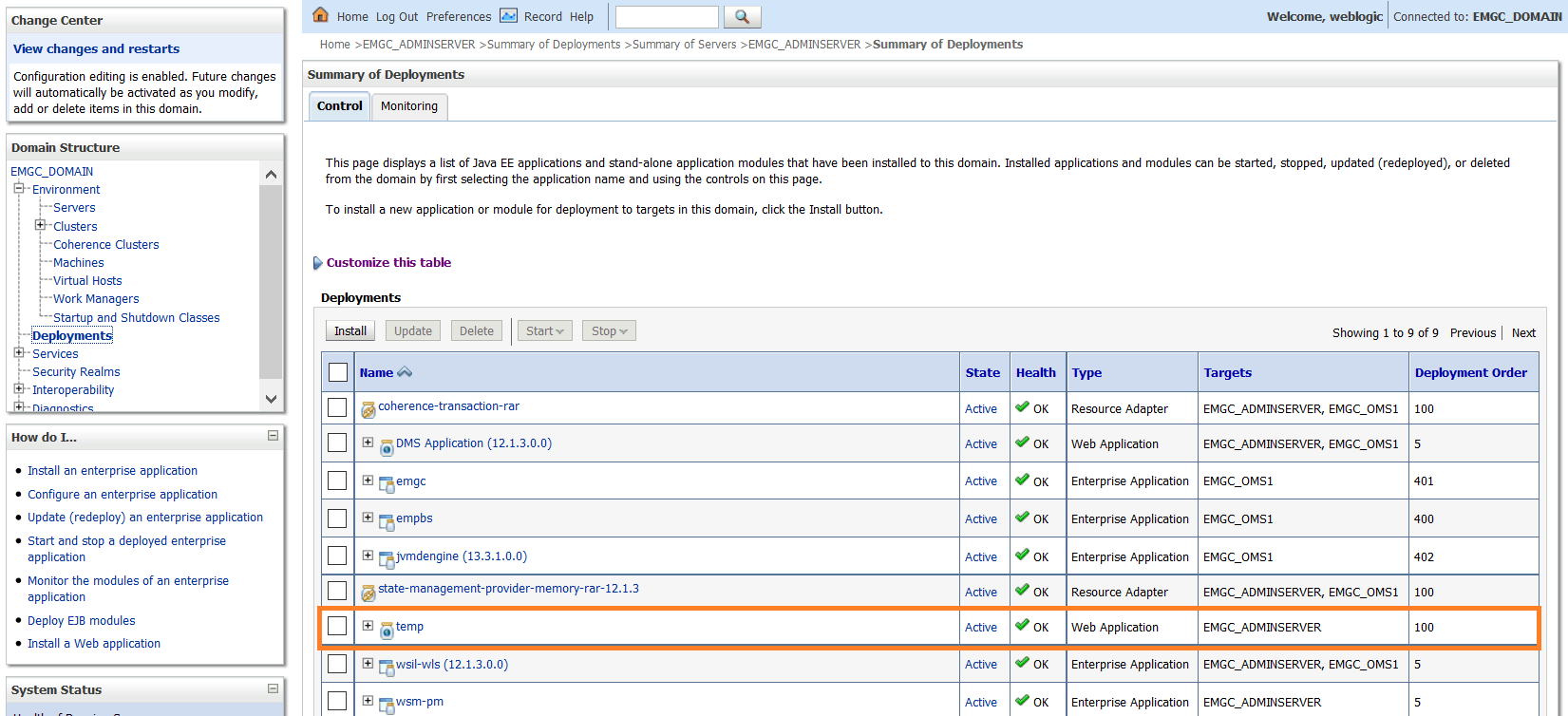
デプロイされた前述のWebアプリケーション'temp'のステータスが「アクティブ」状態であることを確認します。そうでない場合は、左上隅の「変更のアクティブ化」をクリックしてアクティブ化します。
-
'temp'のステータスがステップ18の後でも「準備済」と表示された場合は、表から'temp'を選択して、「起動」をクリックします。
ノート:
'temp'のステータスが「デプロイメント」表で「アクティブ」と表示されていることを確認してください。図23-2 Weblogic Server管理コンソールでのWebアプリケーションのデプロイ
-
ファイル・パスにアクセスしてイメージがブラウザ画面に表示されていることを確認します。
URL:
https://hostname:port/console/<newly created directory>/<logo image filename>例:
https://<fully_qualified_host_name>:7022/temp/custom_logo.pnghttpsベース・イメージの場所のみがサポートされます。
ロゴ・イメージを設定するためのEMCTLコマンドの実行
ログイン・ページのロゴは、EMCTLコマンドを使用して設定できます。詳細は、EMCTLコマンドの実行を参照してください。新しいプロパティ値を反映するためにOMSの再起動は必要ありません。
emctl set property -name oracle.sysman.core.uifwk.loginPageLogo –value ‘<HTTPS URL to the image file>’ -sysman_pwd <sysman password>
emctl set property -name oracle.sysman.core.uifwk.loginPageLogo –value ‘https://page.example.com:7022/temp/custom_logo.png’ -sysman_pwd password
bash-4.2$ ./emctl set property -name oracle.sysman.core.uifwk.loginPageLogo –value ‘https://page.example.com:7022/temp/custom_logo.png’ -sysman_pwd password

Oracle Enterprise Manager  24 Release 1
Copyright (c) 1996, 2025 Oracle Corporation.  All rights reserved.
Property oracle.sysman.core.uifwk.loginPageLogo has been set to value https://page.example.com:7022/temp/custom_logo.png for all Management Servers
OMS restart is not required to reflect the new property value
emctl set property -name oracle.sysman.core.uifwk.loginPageLogo -value null -sysman_pwd <sysman password>
emctl set property -name oracle.sysman.core.uifwk.loginPageLogo -value null -sysman_pwd password
ライセンス契約ポップアップ
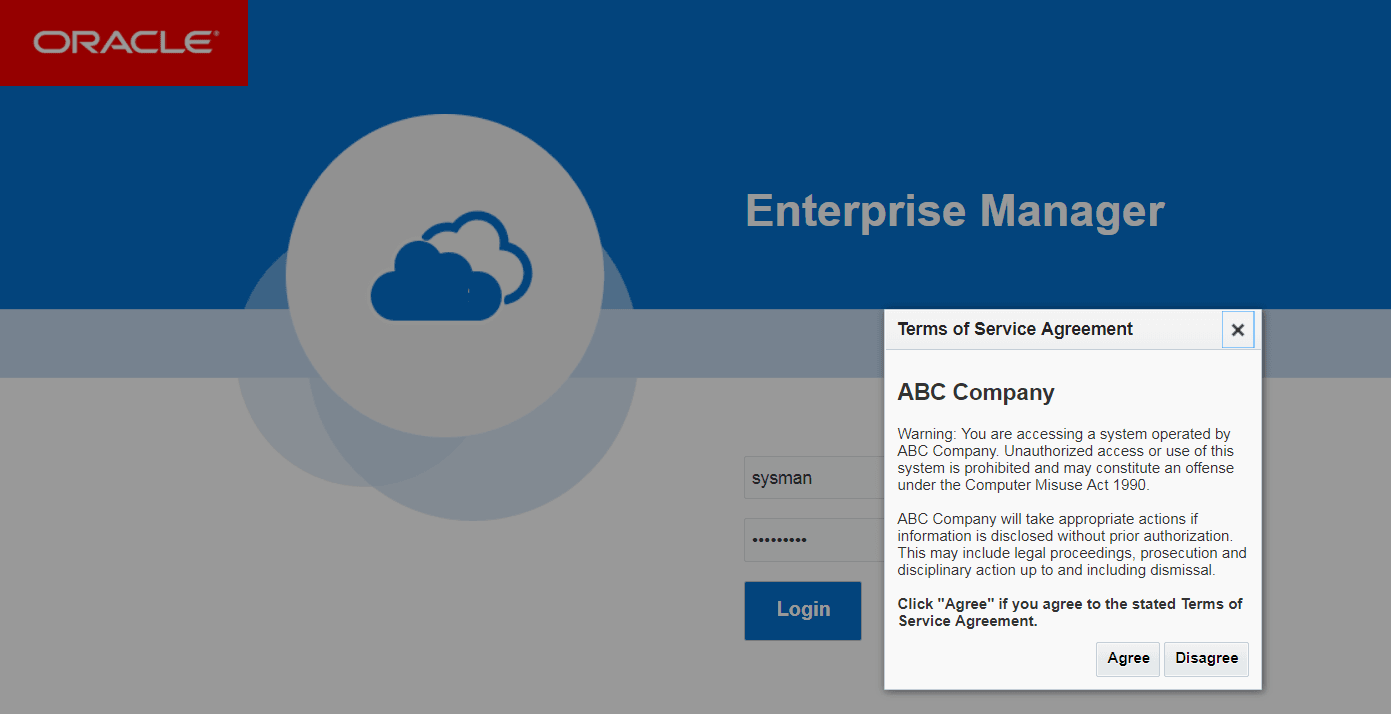
ライセンス契約ポップアップがEnterprise Managerのログイン・ページから「ログイン」ボタンをクリックした後に表示されるように構成できます。「ログイン」を押したときに、「同意する」か「同意しない」かをユーザーに確認するポップアップ・メッセージが表示されます。「同意する」を押すと、ユーザーは正常にログインできるようになります。「同意しない」または「閉じる」を押すと、ユーザーはログイン・ページに入ったままとなります。デフォルトでは、ポップアップ・タイトルは「サービス基本契約条項」で、ボタンのラベルは「同意する」および「同意しない」です。「ライセンス契約」ポップアップ・タイトル、メッセージ、ボタン・ラベルは、EMCTLコマンドを使用してカスタマイズできます。新しいプロパティ値を反映するためにOMSの再起動は必要ありません。
emctl set property -name oracle.sysman.core.uifwk.licenseAgreementMessagePopupTitle -value ‘<popup title>' -sysman_pwd <sysman password>
emctl set property -name oracle.sysman.core.uifwk.licenseAgreementMessagePopupTitle -value ‘ABC Company License Agreement’ -sysman_pwd password
emctl set property -name oracle.sysman.core.uifwk.licenseAgreementMessage -value ‘<popup message>’ -sysman_pwd <sysman password>
emctl set property -name oracle.sysman.core.uifwk.licenseAgreementMessage -value ‘Do you agree to the License Agreement?’ -sysman_pwd password
ポップアップ・メッセージはHTMLタグをサポートします。サポートされるHTMLタグのリストは、https://docs.oracle.com/html/E12419_09/tagdoc/af_outputFormatted.htmlを参照してください。
emctl set property -name oracle.sysman.core.uifwk.licenseAgreementMessage -value '<H2 align=center>ABC Company </H2> Warning: You are accessing a system operated by ABC Company. Unauthorized access or use of this system is prohibited and may constitute an offense under the Computer Misuse Act 1990. </b> <br><br> ABC Company will take appropriate actions if information is disclosed without prior authorization. This may include legal proceedings, prosecution and disciplinary action up to and including dismissal. <br><br> <b>Click "Agree" if you are authorized to access this application and agree to the stated Terms of Service Agreement. </b>' -sysman_pwd password
emctl set property -name oracle.sysman.core.uifwk.licenseAgreementMessage -value null -sysman_pwd <sysman password>
emctl set property -name oracle.sysman.core.uifwk.licenseAgreementMessage -value null -sysman_pwd password
emctl set property -name oracle.sysman.core.uifwk.licenseAgreementMessageAgreeButton -value ‘<Agree button label>’ -sysman_pwd <sysman password>
emctl set property -name oracle.sysman.core.uifwk.licenseAgreementMessageAgreeButton -value ‘Yes’ -sysman_pwd password
emctl set property -name oracle.sysman.core.uifwk.licenseAgreementMessageDisagreeButton -value '<Disagree button label>' -sysman_pwd <sysman password>
emctl set property -name oracle.sysman.core.uifwk.licenseAgreementMessageDisagreeButton -value ‘No’ -sysman_pwd password
図23-3 Enterprise Managerライセンス契約ポップアップ
Enterprise Managerのログイン・ページの情報テキスト
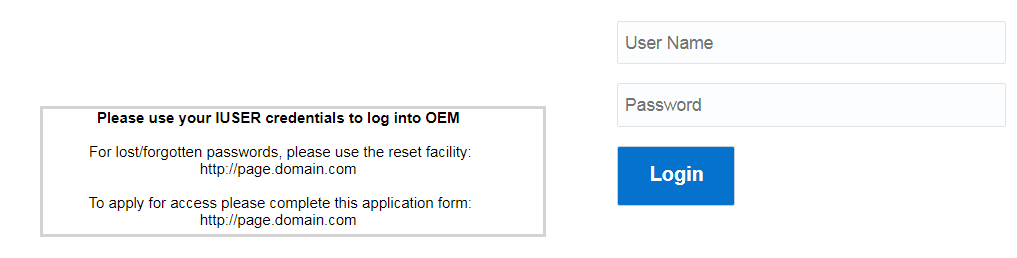
情報テキストは、Enterprise Managerのログイン・フィールドの左側に配置できます。情報テキストは、サイトを使用するコンテキスト・ヘルプを提供するために使用できます。使用方法の例として、アクセス、パスワード・リセット・ポリシーを適用する手順、およびサポートの手順などがあります。ライセンス契約ポップアップ・メッセージと同様に、情報テキストもHTMLタグをサポートします。新しいプロパティ値を反映するためにOMSの再起動は必要ありません。
emctl set property -name oracle.sysman.core.uifwk.loginPageInformationText -value ‘<informational text>’ -sysman_pwd <sysman password>
emctl set property -name oracle.sysman.core.uifwk.loginPageInformationText -value ‘<b> Please use your IUSER credentials to log into OEM </b> <br><br> For lost/forgotten passwords, please use the reset facility: https://page.example.com <br><br> To apply for access please complete this application form: https://page.example.com <br>' -sysman_pwd password
emctl set property -name oracle.sysman.core.uifwk.loginPageInformationText -value null -sysman_pwd <sysman password>
emctl set property -name oracle.sysman.core.uifwk.loginPageInformationText -value null -sysman_pwd password
図23-4 Enterprise Managerのログイン・ページの情報テキスト