Creating Search Categories and Generating Index
To Create Search Categories
- In Search Category Settings, add a new Category record, associate a Business
Component to the Category, for example: "Accounts ModernSearch", "Contacts
ModernSearch", "Literature ModernSearch". Refer to "Defining Index Categories
for Third-Party Search Engines" Chapter in Siebel Search Administration
Guide for step-by-step instructions. (Note: Weighting factor option is not
applicable when using Intelligent Search.)
Category Name BC Name Status Message Accounts ModernSearch Account Indexed Contacts ModernSearch Contact Indexed Literature ModernSearch Sales Tool Indexed Opportunities ModernSearch Opportunity Indexed Service Requests ModernSearch Service Request Indexed Note: Diacritic marks are not supported in Category names. -
Associate a Category with your Application and define the drilldown view.
-
Identify and configure fields of each category. These fields will be indexed during the indexing process. Administrator can determine which fields they want to present in the results page by setting Searchable Flag with “Y” .
In Redwood Theme, only 4 fields updated as searchable will be presented in Search Results Pane.
In Aurora Theme, only 3 fields updated as Searchable will be presented in Search Results Pane.
Note: If you change any searchable fields to Y or N, or add new fields, you must step out of the record for the changes to be saved.This table explains searchable fields that can be added for "Contacts ModernSearch" category:
Field Name Searchable Account Y First Name Y Last Name Y Organization Y Personal City N Personal State N Note: The last field marked as Searchable becomes the drillable field. Choose a required field to serve as the drillable field.Administrator has option to mention both the available fields and searchable fields for every category that will be indexed. For example - Contact category might have First Name, Last Name and City marked as "Searchable" while Service Request might have SR Number, Priority and Description as "Searchable" fields. All the available fields are returned but only the first 3 searchable fields for each category are displayed in the search results page. The order of display is the order in which the searchable fields are presented.
End-to-end flows to add a new Search Category in Siebel application and YAML file:
- Identify a new search category you want to include into Siebel Intelligent Search, apart from 5 seeded ones (Service Requests ModernSearch, Contacts ModernSearch, Accounts ModernSearch, Opportunities ModernSearch, Literature ModernSearch). For example, you want to add "Products" into the search scope.
- Go to
<Siebel_Build_Location>/ses/applicationcontainer_internal/webapps,
                        open modernsearchconfig.yaml
. - In , add "Products" and define embeddingData for this category.
- In , add "products" as the index name and "isIndexed: false". (index name in OpenSearch is in lowercase only and should not include spaces. Refer to Configuring OpenSearch Integration via YAML File for naming conventions.
- Create "Products" category in Siebel application. Refer to Creating Search Categories and Generating Index.
- Make sure you index the "Product" category in Siebel Application. Refer to Creating Search Categories and Generating Index.
- After you have added a new search category in Siebel application, you can either refresh the browser or re-log into Siebel application. The newly added category will appear in the Object Filter drop-down list from the Global Search Bar.
Configuring Parent-Child Hierarchy Categories
In Siebel CRM, a Parent-Child Business Component (BC) hierarchy defines how related records are linked, where the child BC depends on the parent BC through a foreign key relationship. The parent BC represents the main entity, while the child BC stores related details or sub-records.
Here is an example: Service Request-Service Request Attachments. Each Service Request can have multiple file attachments (e.g. images, documents). The Service Request Attachments BC is the child, linked by the foreign Key field 'Activity Id'. Other examples include Account-Account Attachments, Opportunity-Opportunity Notes, etc.
-
In Siebel Application, navigate to .
-
In Search Category Applet, add a Child BC Category record (e.g. 'SR Attachment'), associate it with the corresponding Child Business Component.
-
Associate your Child Category with your Application and define the drilldown view.
-
Go to , add the primaryRowIdField to the Child BC. For example, add 'Activity ID' for SR Attachment. In case the primaryRowIdField is required to be displayed in the Search Results page, you need to mark it as Searchable.
-
In modernsearchconfig.yaml file, find the upstream section, add your Child BC Category. For example: SR Attachment,
-
Include both the primaryBC and primaryRowIdField in your Child BC Category.
upstream: dataSource: - type: SiebelDB category: - SR Attachment ModernSearch: embeddingData: '{{ActivityFileName}}' primaryBC: Service Request primaryRowIdField: Activity Id -
In the downstream section, add a new Index name that maps to your Child BC Category. For example: 'srattachment'
downstream:
  name: OpenSearch
  username: <CHANGE_ME>
  password: <CHANGE_ME>
  version: <CHANGE_ME>
  url: <CHANGE_ME>
  port: 9200
  settings:
    defaultNumberOfShards: 2
    defaultNumberOfReplicas: 1
    knn: true
    defaultEnableCache: true
  locale:
    defaultLanguage: english
  index:
    category:
      - srattachment:
          isIndexed: false
Guidelines to map your Search Category to the category and index settings in YAML file:
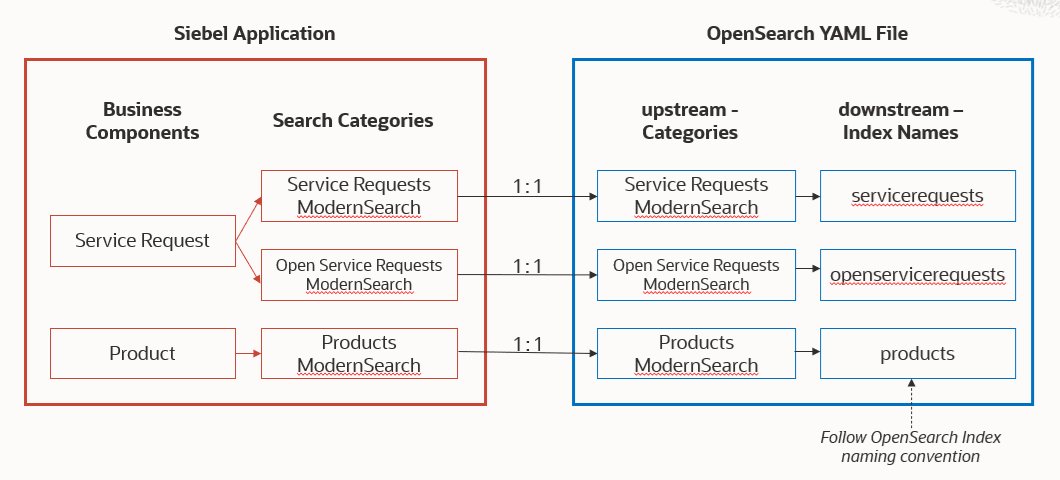
- In Siebel application , 1 business component can map to multiple search
categories. For example:
- Category 1: "Service Requests ModernSearch", Business Component: "Service Request"
- Category 2: "Open Service Requests ModernSearch", Business Component: "Service Request" with Filter set to "Open"
- In YAML file → upstream settings, make sure you have 1:1 mappings between the category names listed in this section and the categories defined in Siebel application.
- In , make sure you have 1:1 mappings between the category names listed in this section and the index names listed in downstream index settings.
Refer to Configuring OpenSearch Integration via YAML File for instruction. Follow the same sequence order when mapping the category name and index name.
Filtering the Index Record-Set
The index record-set can be filtered at the Category level, to incorporate custom business rules, using the Filter Search Spec field. This field takes SQL statements that comply with the syntax defined in Filter Search Specifications Syntax for Siebel Intelligent Search. For more information, please refer to Filtering the Index Record-Set in Siebel Search Administration Guide.
Use Case 1: Service Orders
- Category: Service Order
- Business Component: Order Entry - Orders
- Category Filter Spec: [Order Type Code] = LookupValue ('FS_ORDER_TYPE_CODE', 'Service')
- View: Order Entry - All Orders Across Organizations View
User Case 2: Sales Orders
- Category: Sales Order
- Business Component: Order Entry - Orders
- Category Filter Spec: LookupValue ('FS_ORDER_TYPE_CODE', 'Sales') AND [Order Type] <> LookupValue ("FS_ORDER_TYPE", "Bulk Request Template Order")
- View: All Orders Across Organizations View (Sales)
Generating Index
Full Indexing
Note: Administrators must remove or mask any sensitive information, including PII or PHI, before sending documents to OpenSearch for ingestion.
In Search Index Settings, index search category. Refer to Configuring Indexing for Third-Party Search Engines step-by-step instructions.
| Category Name | BC Name | Status Message |
|---|---|---|
| Accounts ModernSearch | Account | Indexed |
| Contacts ModernSearch | Contact | Indexed |
| Literature ModernSearch | Sales Tool | Indexed |
| Opportunities ModernSearch | Opportunity | Indexed |
| Service Requests ModernSearch | Service Request | Indexed |
- Index: Indexing a selected search category, one at a time.
- Index All: Indexing all the search categories at once.
- Indexing File Attachments:
- Use ‘Index’ only for Attachment Categories indexing. ‘Index All’ cannot be used to index file attachments.
- Delete Index: Delete an index.
- accounts:
isIndexed: true
isAttachment: false
- literature:
isIndexed: true
isAttachment: true
Incremental Indexing
To configure incremental indexing for OpenSearch search engine, you need to first enable the component groups for incremental indexing as follows:
-
Navigate to the .
-
Query for and then enable the following component groups. To enable each component group, select the component, and then click Enable.
-
Search
-
MobileSync
-
Once done, refer to the Configuring Incremental Indexing for Third-Party Search Engines for step-by-step instructions on how to configure incremental indexing for OpenSearch.
Set "Enable OpenSearch IncrFileIndx" system preference to 'Y' to enable incremental indexing of file content.
Initially a full indexing of a search category is performed, followed subsequently by incremental indexing. Incremental indexing works on both categories that have been fully indexed or partially indexed.
| Business Components | Examples | Full Indexing | Increamental Indexing |
|---|---|---|---|
| Primary BC's | Accounts, Contacts, Opportunities, Service Requests, Activities, Products, Literatures, etc. | Supported | Supported |
| Child/Non-Primary BC's | Service Request Attachments, Account Attachments, Opportunity Notes, Product Key Features, etc. | Supported | Not supported |