Working with Tables
Tables appear throughout the application to not only display information, but also to allow you to modify it, as permitted. The following general features are common to most tables.
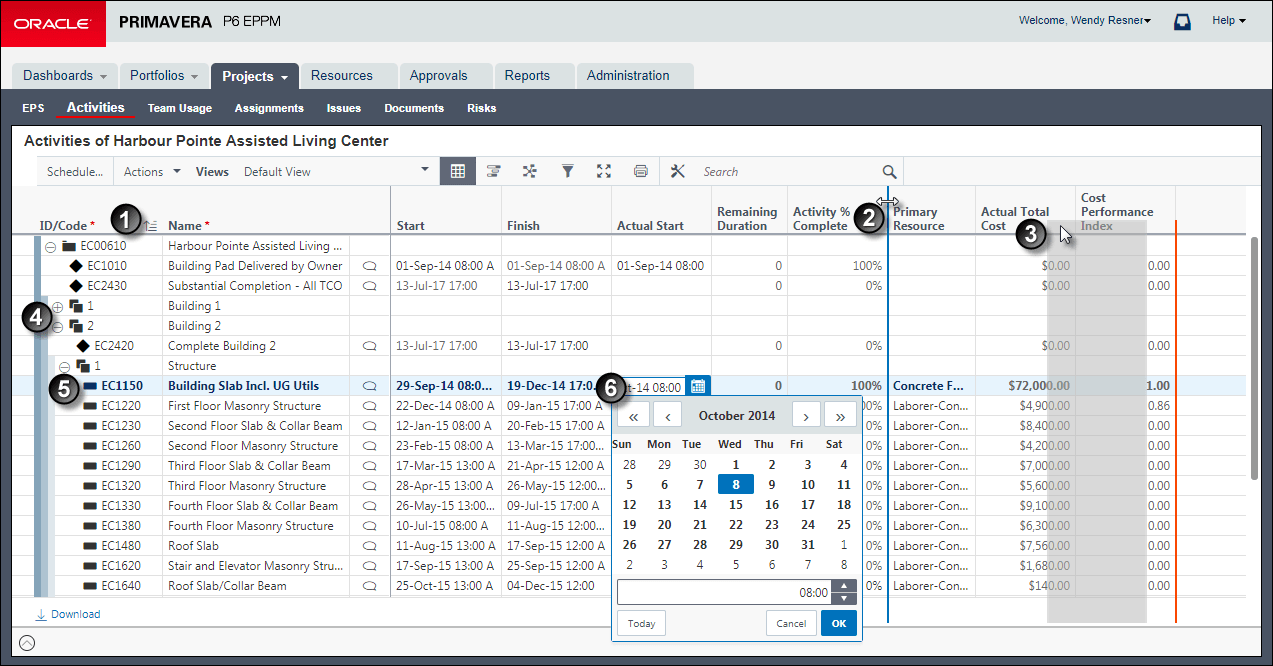
Table of Common Table Features
Item | Description |
|---|---|
| Sort Order Indicators: Indicates the column you have selected to sort the rows. Each time you click a column header, the sort order toggles from |
| Column Menu: You can adjust the sort order, alignment, width, and name of a column, pin it in place, and find and replace data in a column. |
| Column Resizing: You can drag to resize column widths. |
| Grouping Levels: Many tables group related rows into hierarchical levels you can click through to expand or collapse. Some tables use colored bands to help you view these levels. |
| Column Order: You can drag and drop column headings to customize your tables. |
| Selection Highlighting: The currently selected row is highlighted for you. You can directly click and drag to select one or more entries. Hold down the Ctrl key as you mouse click rows to select more than one. Hold down Shift as you click two entries to select all contiguous rows. |
| Data Entry Features: Tables allow you to directly edit data with convenient controls to assist you in entering the right type of data. For example, a date field will display a date picker that looks like the page of a calendar. |

 ascending order, to
  descending order, and, for some tables, it cycles back to unsorted order (the original order in which the entries were created).


Related Topics
Last Published Thursday, April 23, 2026