Working with the P6 User Interface
The user interface presents familiar screen elements you manipulate in your web browser. They include all of the following common types of user interface objects and several more special objects not listed:
- navigation structures
- shortcuts
- pages
- tabs
- dialog boxes
- detail windows
- portlets
- fields
- lists
- buttons
- links
- tables
- charts
- calendars
Refer to the sample images below to orient yourself with the P6 graphical user interface inside your web browser.
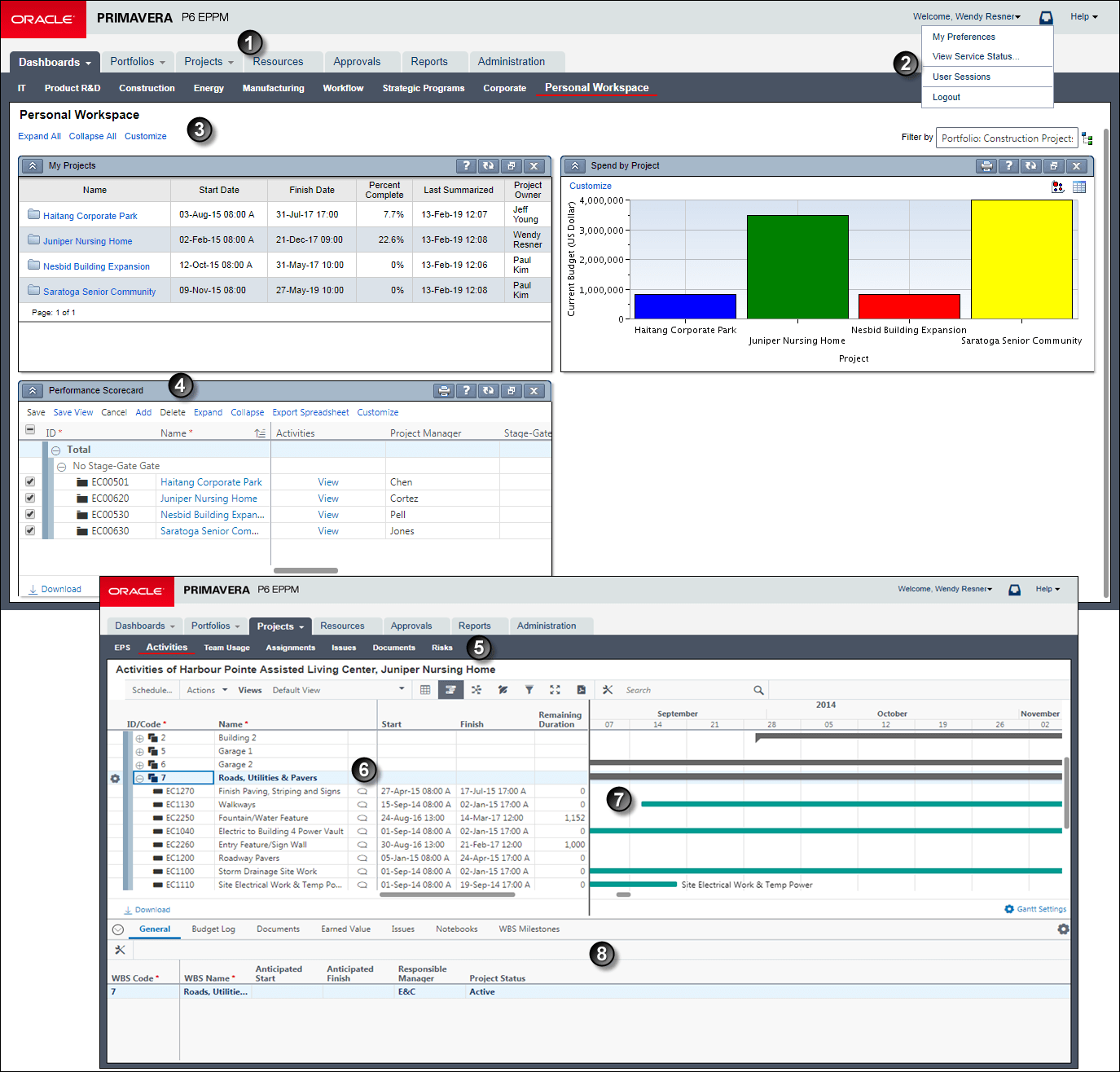
Table of Common User Interface Elements
Item | Description |
|---|---|
| Oracle O: Click here to go to the page you have configured as your start page on the View tab of My Preferences. |
| Personal Workspace dashboard: This default dashboard displays the portlets you have selected that are important to your work goals. In this example, notice the familiar hyperlinks including Customize which you can click to configure the dashboard for use by you or multiple users. |
| Scorecard portfolio view portlet: In this example, the user has customized this dashboard by adding a portfolio view of type scorecard within its own portlet. The scorecard can be customized to suit work goals. The colors of a bar chart or histogram are also visible in the Spend by Project portfolio view portlet. |
| Activity Table: One of the central work areas of the entire application, this table allows you to customize its columns (fields), grouping bands, and sort options, and apply filters. |
| Activity Gantt chart: Next to the Activity Table, the Activity Gantt chart represents your schedule. The Gantt chart offers robust customizable project management features including drag and drop editing, timescale, progress lines, relationship lines, spotlights, and helpful mouseover tips. |
| General detail window: To gather the related details associated with a particular item in certain tables, the application often provides one or more detail windows in a series along the bottom. On pages supporting applied views, you can determine which detail windows are shown or hidden with your view. |


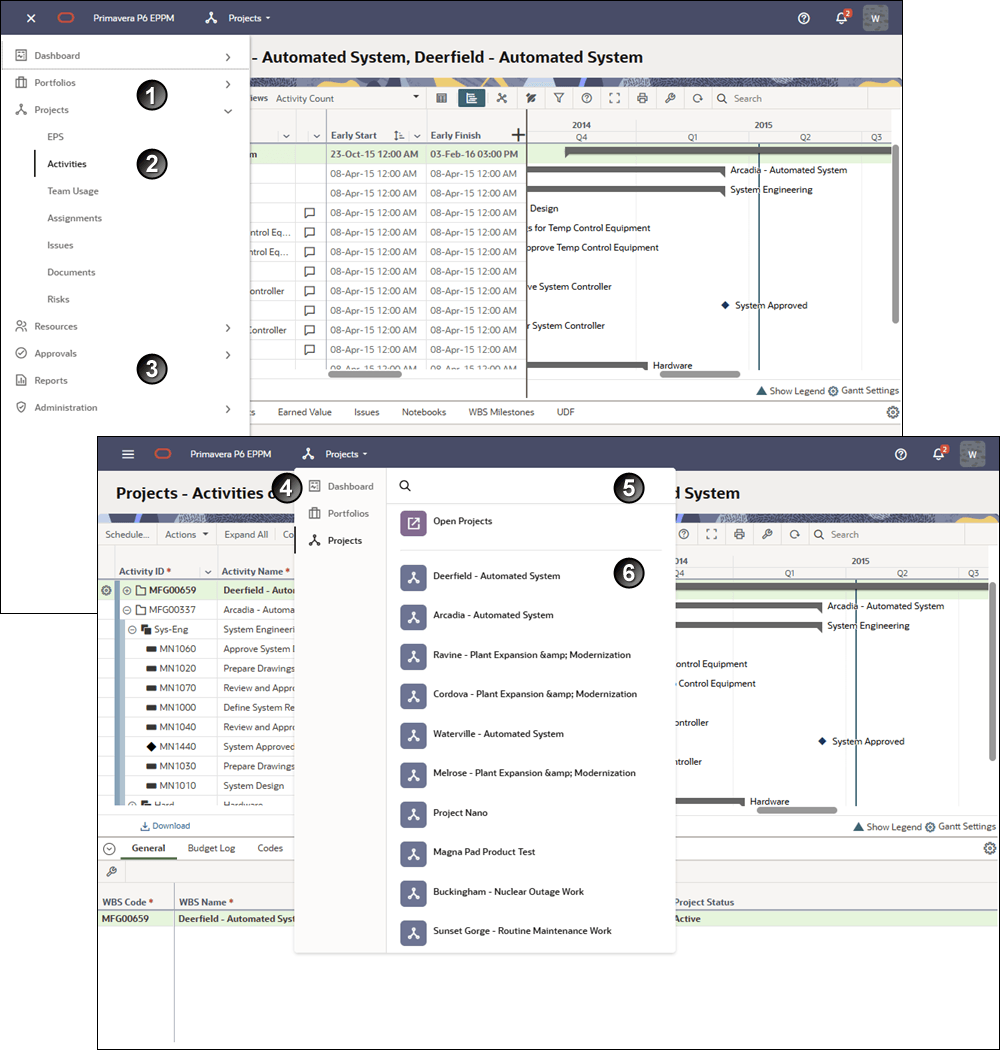
Table of Menus
Item | Description |
|---|---|
|
|
| Expanded Navigation Menu section: This user has expanded the |
| Collapsed Navigation Menu sections: This user has collapsed other branches of the navigation menu, but you can expand as many of the branches as you like. The branches you see are determined by your permissions. |
| Context Menu: Use the Context menu access the Manage Dashboards, Open Portfolio, Manage Porfolios, Manage Portfolio Views, and Open Projects dialog boxes. |
| Search field: This type-ahead search allows you to search the most recently used list. |
| Most Recently Used list: The |
 Navigation Menu: This menu provides access to all main modules of the application. Use it to navigate to the pages and menus in the dashboards, portfolios, projects, resources, approvals, reports, or administration sections of the application.
  Projects branch of the Navigation Menu to show the pages available there. Notice that the page you are viewing—in this case Activities—is highlighted in the Navigation Menu.
 Portfolios areas of the application provide a list of the projects and portfolios you have opened recently. Use the most recently used menu to switch between projects and portfolios quickly and efficiently.
Related Topics
Last Published Thursday, April 23, 2026