Lifting PS_APP_HOME and PS_CUST_HOME
Use the lift utility provided in Cloud Manager to package PeopleSoft application environment data (PS_APP_HOME and PS_CUST_HOME) into DPK format.
Follow these guidelines in using the lift utility:
Use only the PeopleSoft Admin user (for example, psadm2) to perform Application Lift.
Make sure to have sufficient free disk space for Application Lift (based on PS_APP_HOME and PS_CUST_HOME size). A minimum disk space of 10GB is required.
Ensure PS_APP_HOME and PS_CUST_HOME directories are available.
Ensure that the user running the Lift utility has the permission to create files or directories at the user's home directory, Lift utility directories, and the destination directory where the DPKs are saved, /tmp, PS_APP_HOME, and PS_CUST_HOME directories.
Note: Installing OCI-CLI is a prerequisite for the lift utility. See Installing Lift Prerequisites.
The lift utility packages PS_APP_HOME and PS_CUST_HOME.
To generate the lift utility:
Log in to the Cloud Manager instance with SSH.
Sign in as the psadm2 user and create a directory to hold the lift utility with these commands:
sudo su - psadm2
mkdir /tmp/lift_zip
Copy the Python script to create the lift utility into /tmp/lift_zip:
cp $PS_APP_HOME/cloud/pca_object_store_list_oci.py /tmp/lift_zip/Run this command on a single line.
$PS_APP_HOME/cloud/lnx_python/python /tmp/lift_zip/pca_object_store_list_oci.py zip $PS_APP_HOME /tmp/lift_zip $PS_CFG_HOME /tmp/lift_zip/The command generates LIFT_UTILITY.zip in /tmp/lift_zip.
To perform the one-step Lift automation procedure for the application:
Copy the LIFT_UTILITY.zip utility to the target machine to perform lift.
Note: If you have recently updated Cloud Manager with any PRPs that have fixes to the lift utility, then SSH to the Cloud Manager instance and delete the stale zip file from /tmp/LIFT_UTILITY.zip.
Extract the LIFT_UTILITY.zip.
Navigate to the below folder after extracting the LIFT_UTILITY.zip and set permissions:
chmod -R 777 <LIFT_UTILITY_PATH>
cd <LIFT_UTILITY_PATH>/setup
For Linux, run the sh psft-osl.sh command to perform lift.
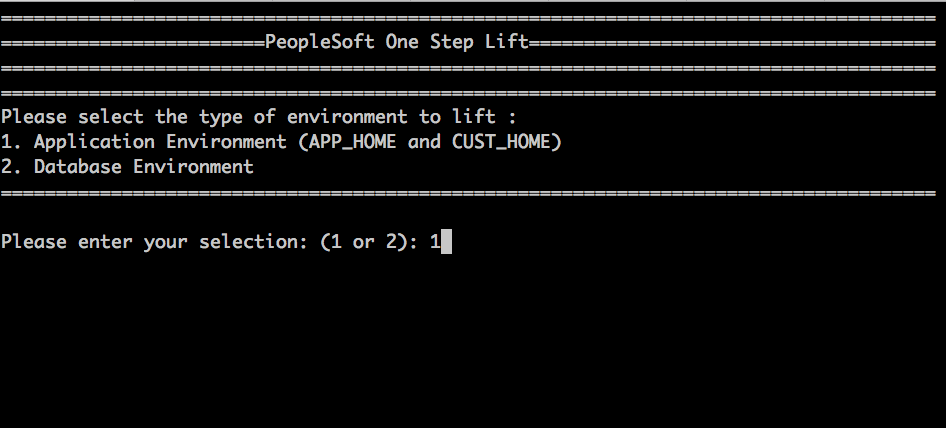
Select 1 at the prompt to select the type of environment to lift.
This example illustrates the prompt to lift the Application Environment.
To create the PeopleSoft App Server DPK, you need to provide the database name (or PDB name in case of supported Oracle multitenant databases) and destination directory.
Note: If the utility is unable to fetch the data from the environment (for example, app_type/oracle_home), it will prompt the user to input the same.
Choose any one of the below options:
1. Create and Save DPK in APP/DB Environment.
2. Create, Save DPK in APP/DB Environment and Upload the DPK to Oracle Cloud Infrastructure (Object Storage).
If you select option 1. Create and Save DPK in APP/DB Environment, you will need to manually upload the DPK to Object Storage. See Uploading the DPK Manually to Oracle Cloud Infrastructure.
If option 2 to upload the DPK to Oracle Object Storage is selected, then the script prompts the user to input the Oracle Cloud tenancy credentials as mentioned below in order to upload the DPK once created.
– Oracle Cloud Infrastructure Region Name
– Oracle Cloud Infrastructure Tenancy Name
– Oracle Cloud Infrastructure Tenancy ID
– Oracle Cloud Infrastructure User ID
– Private Key Location, indicates the API signing private key that was created during CM configuration, and which must be copied to the instance where lift utility will be run. This input refers to the full path to the file.
– Passphrase, refers to the passphrase that was used to encrypt the API signing keys.
Note: You need to manually copy the key file or copy the key file contents and save locally in the machine where you perform the lift. This is the corresponding Private Key to the Public Key that was set in the API Keys of the user setting.
After Application Lift is complete, the following Application DPK will be created based on the PeopleTools version on the application instance.
APP-DPK-<platform>-<app_type>-<db_name>-1of3.zip.
Note: The APP-DPK*-3of3.zip will not be created as part of the Lift utility, however the APP-DPK*- 3of3.zip DPK will be available from the PeopleTools DPK when the shift is triggered from Cloud Manager.
The Lifted DPKs created are available in the destination directory. If you had chosen to create and upload DPK to Oracle Object Storage, then the uploaded DPKs are available in Oracle Object Storage.