Setting Up Work Management for HCM WorkCenters
PeopleSoft HCM uses the Work Management Framework from Enterprise Components to view and manage transaction errors or warnings when they appear in My Work sections of a PeopleSoft WorkCenter.
To enable Work management for any work link ID in the WorkCenter, the first step is to populate relevant data (for each Work Link ID), into Work Management setup records. To automatically populate relevant data into the Work Management records, use the Work Management Setup (HCSC_WCLNKIDMAP_WM) component.
This topic provides an overview of setting up the Work Management to HCM WorkCenter Integration process and discusses the pages used to set up Work Management in HCM WorkCenters.
To understand the Work Management Framework before applying it to any WorkCenter, review Understanding the Work Management Framework.
|
Page Name |
Definition Name |
Usage |
|---|---|---|
|
HCSC_WCLNKIDMAP_WM |
Identify the WorkCenter and enable Work Management for a link ID transaction. |
|
|
HCSC_WCMAPFLDS_SEC |
Select fields you want to map to Work Management setup records. These fields will be used in uniquely identifying the transaction for which a Work Management Action is performed in the WorkCenter. |
|
|
HCSC_WCRELACTN_SEC |
Identify which Related Action Service IDs you want to enable for Work Management. |
Follow these steps to set up and use the Work Management integration with PeopleSoft HCM WorkCenters:
Note: This feature requires you have implemented PeopleSoft HCM image 54 or later.
Assign the required role and permission list:
Role: HCM Work Management Setup
Permission List: HCCPHCMWCINTGR
(HCM) Enable Work Management for any work item of product specific WorkCenter, using the HCM Work Management Setup Page.
You can use the following PeopleSoft HCM delivered WorkCenter configuration IDs or you can use your own:
Configuration ID
Description
Content Reference
BEN_FL
Benefits Fluid WorkCenter
HC_BEN_WC_RSLT_FL
GP_WC
Global Payroll WorkCentre
HC_GP_WC_RSLT_FL
PYCAN_FL
Canada Payroll Fluid WorkCenter
HC_PY_WC_RSLT_CAN_FL
PYUSA_FL
US Payroll Fluid WorkCenter
HC_PY_WC_RSLT_FL
TLWC_FL
Time and Labor Fluid WorkCenter
HC_TL_WC_RSLT_FL
(Enterprise Components) Set up the Work Management configuration pages in Enterprise Components.
Note: You must be assigned the EOXC_USER role to access these pages.
Select transactions (link IDs) you enabled in the previous steps and access the Work Management page using the Work Management Link ID's Page.
This will take you to the Enable Work Mgmt Exception Page where you can enable transaction links and define the default follow-up days and other configuration settings.
(Optional) Review or modify pillar product IDs and default record groupings on the Work Mgmt Product Default Page.
(Optional) View or modify a pillar record group, its status, and the corresponding record and comments on the Work Mgmt Record Group Default Page.
(HCM) Access the Fluid WorkCenter for a product to view and manage outstanding transactions in various views.
Note: User's must be granted the appropriate user role to access a WorkCenter.
Work Management is implemented in the following WorkCenters:
Benefits WorkCenters
Canadian Payroll WorkCenters
Global Payroll
Time and Labor
U.S. Payroll WorkCenters
Use the HCM Work Management Setup page (HCSC_WCLNKIDMAP_WM) to identify the WorkCenter and enable Work Management for a link ID transaction.
Navigation:
This example illustrates the fields and controls on the HCM Work Management Setup page.
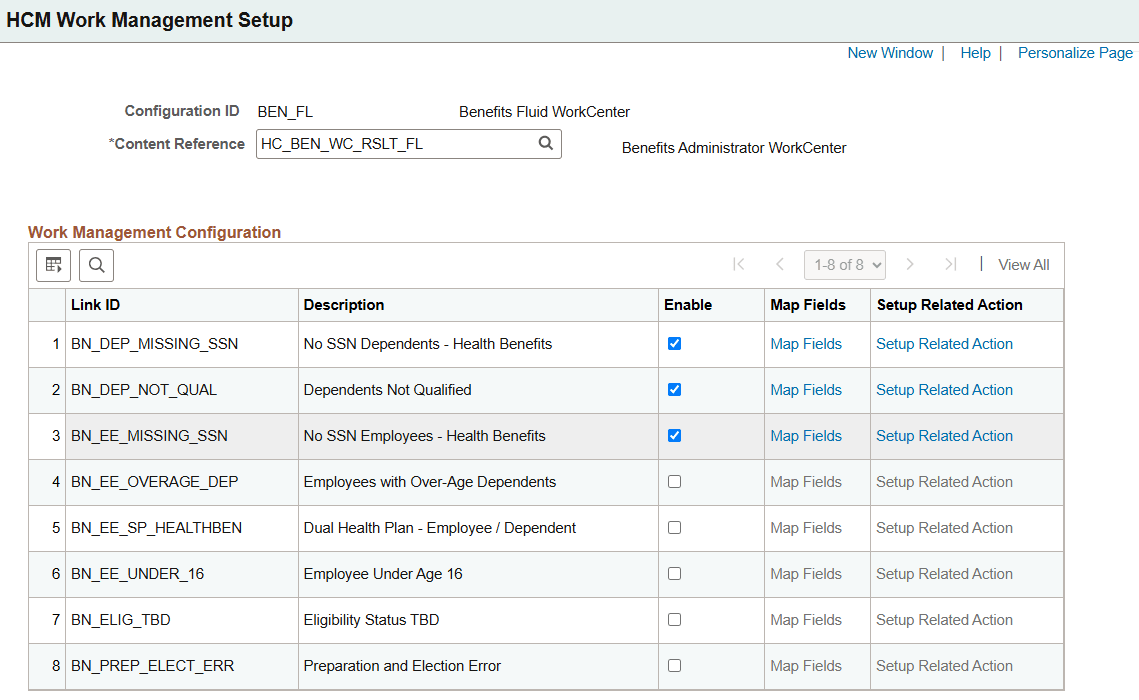
This page lists all the system work link IDs associated with the configuration ID.
Note: After you have defined all the necessary fields for mapping and related actions, the system will automatically populate the Work Management setup records (PS_EOXC_SETUP_HDR, PS_EOXC_SETUP_LN, and PS_EOXC_DATA_K_MAP). Work Management for work items is enabled only when all required setup data is populated in the Work Management Setup record.
|
Field or Control |
Description |
|---|---|
|
Content Reference |
Enter the product specific WorkCenter. Note: You must select a valid content reference to access related actions for the configuration ID. |
Work Management Configuration
|
Field or Control |
Description |
|---|---|
|
Enable |
Select this option to enable Work Management for a WorkCenter link ID. When you enable an ID, the Map Fields and Setup Related Action links become available for that row. |
|
Map Fields link |
Select this link to access the Map Fields Page to select the fields the Work Management framework should use to identify data rows during Work Management actions. |
|
Setup Related Action link |
Select this link to access the Configuring WorkCenter Related Actions Page and select which Related Action Service IDs you want to enable for Work Management. Note: You must enter a value in the Content Reference field to access related actions for the configuration ID. |
Use the Map Fields page (HCSC_WCMAPFLDS_SEC) to select fields you want to map to Work Management setup records. These fields will be used in uniquely identifying the transaction for which a Work Management Action is performed in the WorkCenter.
Navigation:
Select the Map Fields link for a link ID on the HCM Work Management Setup Page.
This example illustrates the fields and controls on the Map Fields page.
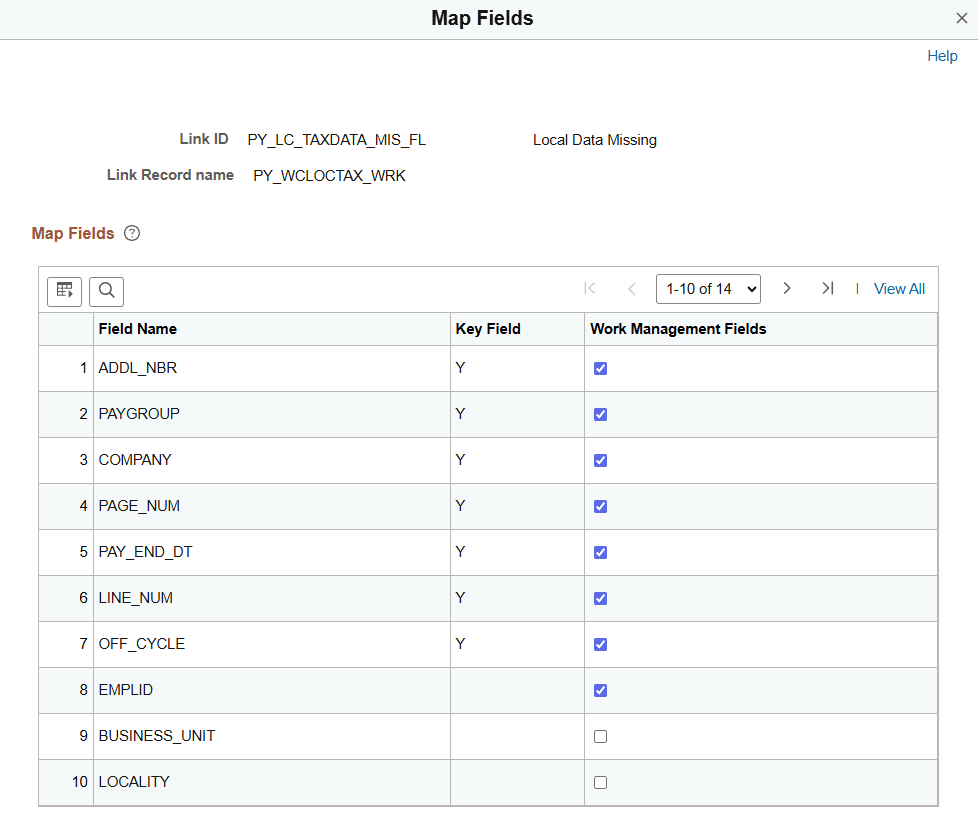
This page displays all the fields in a link ID record and is used to automatically populate the two Work Management setup records: EOXC_SETUP_HDR and EOXC_DATA_K_MAP.
The Work Management framework uses the selected fields to identify data rows during work management actions by automatically mapping the fields to the relevant Work Management fields.
|
Field or Control |
Description |
|---|---|
|
Work Management Fields |
Select to enable a field for Work Management. Note: You must select at least one field to enable Work Management. If you do not select any fields, deselect the Enable check box for the link ID on the HCM Work Management Setup Page. |
Use the Configuring WorkCenter Related Actions page (HCSC_WCRELACTN_SEC) to identify which Related Action Service IDs you want to enable for Work Management.
Navigation:
Select the Setup Related Action link for a link ID on the HCM Work Management Setup Page.
This example illustrates the fields and controls on the Configuring WorkCenter Related Actions page.
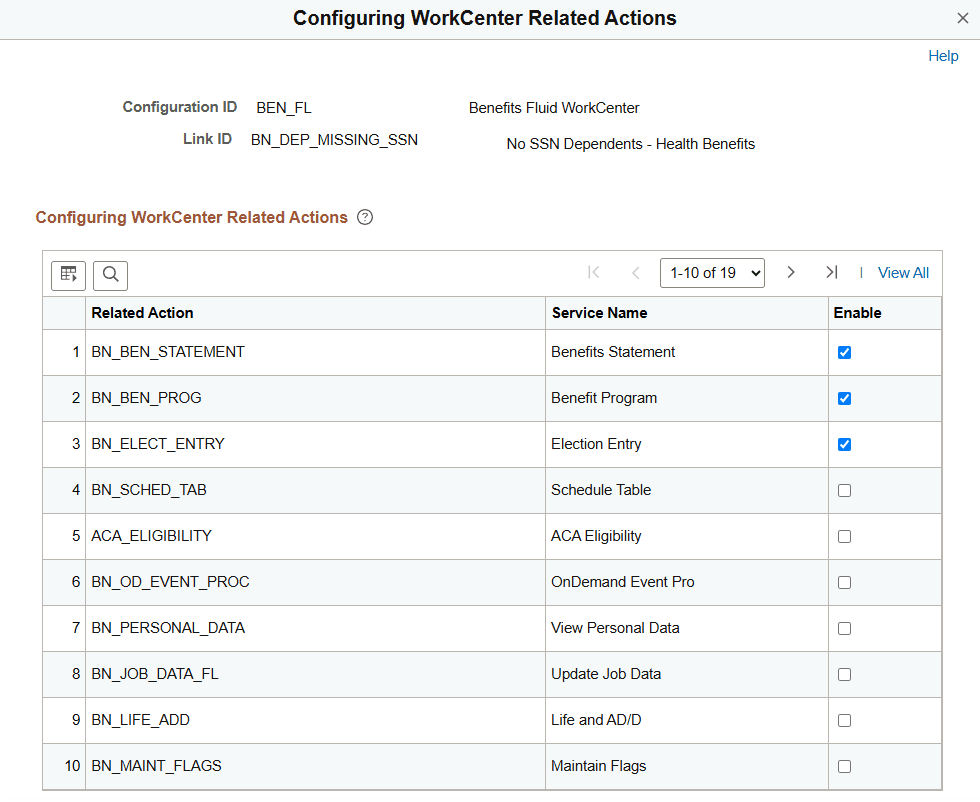
This page lists all the Related Action Service IDs for the WorkCenter.
|
Field or Control |
Description |
|---|---|
|
Enable |
Select to enable a related action to use Work Management. |