6.1 Prerequisites for Test Case Execution
Activation Manually (As done in release 9.0.1 and before Excluding DSA)
This section provides information about the prerequisites that must be met in the following sequence before running the test cases:
- Ensure no hyphen is present in the stack name of NOAM and SOAM while deploying the VDSR stack through VNFM.
- Location of the Test Cases
- The Cust-Roaming-Suite directory path is
/var/lib/jenkins/workspace/Regression/Cust-Roaming-Suite. - The Cust-Core-DSR directory path is
/var/lib/jenkins/workspace/Regression/Cust-Core-DSR. - The New-Features are located in
/var/lib/jenkins/workspace/New-Features - The Performance test cases are located in
/var/lib/jenkins/workspace/Performance/Radius_Traffic - All Cleanup pipeline test cases are located in
/var/lib/jenkins/workspace/Cleanup/Cust-Cleanup-DSR - All DSA stateless and stateful pipeline test cases are
located in the file
/var/lib/jenkins/workspace/DSA. The only option for all DSA stateless and stateful pipeline is to run the full suite. - All LDAP pipeline test cases are located in the
/var/lib/ jenkins/workspace/Ldapfolder. - All MDS pipeline test cases are located in
/var/lib/jenkins/workspace/MDSfolder. - All vSTP test cases are divided into four different
suites:
/var/lib/jenkins/workspace/vSTP_Regression/behave_test_framework/vSTP-Suite1//var/lib/jenkins/workspace/vSTP_Regression/behave_test_framework/Cust-vSTP-Suite2//var/lib/jenkins/workspace/vSTP_Regression/behave_test_framework/Cust-vSTP-Suite3//var/lib/jenkins/workspace/vSTP_Regression/behave_test_framework/Cust-vSTP-Suite4/
- The Cust-Roaming-Suite directory path is
- SUT Requirements
Table 6-1 DSR and SDS SUT Details
Server Quantity DSR SUT DSR NOAM Active 1 DSR NOAM Standby 1 DSR Signaling SOAM Active 1 DSR Signaling SOAM Standby 1 DA-MP 2 IPFE 2 SDS SUT SDS NOAM Active 1 SDS NOAM Standby 1 Query Server 1 SDS Signaling SOAM Active 1 SDS Signaling SOAM Standby 1 DP Server 1 Table 6-2 vSTP SUT Details
Server Quantity vSTP SUT vSTP NOAM Active 1 vSTP NOAM Standby 1 vSTP Signaling SOAM Active 1 vSTP Signaling SOAM Standby 1 MP 2 Note:
When the SUT is created using VNFM, ensure that Mediation, FABR, and RBAR features are enabled. - Update SUT Information in ATSFollowing are the mandatory steps for Cleanup, New-Features, Performance, Regression, LDAP, MDS, VDSR-HealthCheck suites:
- Update
/home/cloud-user/Verizon-drop1/dsr-atsV2/dut.yamlwith the SUT details. The same will be automatically copied to the required location when the execution starts from Jenkins.Update the
dut.yamlfile by referring to the following file:DSRVIP: - name: DSRNOVIP IP: 10.75.157.35 - name: DSRSOVIP IP: 10.75.157.239 #Pick the DSR XMI/XSI IPv6/ipv4 addresses from 'Main Menu: Configuration -> Networking -> Devices' GUI screen SIGNALING_IPs: - IP: 10.10.3.29 type: LocalIp - IP: 10.10.3.164 type: LocalIp - IP: 10.10.3.157 type: IpfeTsa - IP: 10.10.3.157 type: IpfeTsa ipfeInitiatorDampIp: - IP: 10.10.3.29 MP_XMI: - IP: 10.75.157.133 type: LocalIp - IP: 10.75.157.235 type: LocalIp MP_IMI: - IP: 10.75.188.236 type: LocalIp - IP: 10.75.188.251 type: LocalIp # If DSR ips are ipv6, entire dut file should be updated with ipv6 ips # If Ipv6 SDS is not available, make sure to comment each parameter in SDS or remove ipv4 ips from yaml file SDSVIP: - name: SDSNOVIP IP: 10.75.157.55 - name: SDSSOVIP IP: 10.75.157.44 - name: SDSQS IP: 10.75.157.120 SDS_IMI: - name: SDP00imi IP: 10.75.188.198 - name: SDP01imi IP: 10.75.188.202 UDR_IMI: - name: UDR00imi IP: 10.75.188.216 - name: UDR01imi IP: 10.75.188.224 UDR: - name: udr IP: 10.75.157.241 # xsi1 address of seagull server for both SIGNALING_IPs LOCAL: - SIGNALING_IPs: - 10.10.3.54 - 10.10.3.54 - RERUN_COUNT: 0 - SDS_ENABLE: N #DSR/SDS NOAM host and SOAM host IPs should be VIPs. #If host IPs are in IPv6 format, IP address should be enclosed with []. UI_data: - name: UIData PassWordUI: Gf++8r4J61KZ/Mmw8DCOMA== Ie2iXq+/G3eNmrWT lGKqWCdT+xjnizbVoqxT9w== UserNameUI: guiadmin UDR: https://10.75.157.241 noamHost: http://10.75.157.35 soamHost: http://10.75.157.239 #StandBysoamHost: http://10.75.191.33 #StandBynoamHost: http://10.75.191.92 sdsnoamHost: http://10.75.157.55 sdssoamHost: http://10.75.157.44 #StandBysdssoamHost: http://10.75.191.85 #StandBysdsnoamHost: http://10.75.191.85 ATSIP: - name: ATSXMIIP IP: 10.75.157.102 - Update
/home/cloud-user/Verizon-drop1/dsr-atsV2/auth.yaml. The same will be automatically copied to the required location when the execution starts from Jenkins. Server credentials, such as username and password, displayed in the following image can be updated if required. - Verify the following command to check if the jenkins is running:
ps -eaf | grep jenkinsOutput:
Figure 6-1 Output
 If not, then run the following command:
./jenkins_start.sh - The rerun functionality in the Roaming suite can be changed by updating the following values in
dut.yamlfile:- RERUN_COUNT: 1
- SDS_ENABLE: N
Following are mandatory tasks for vSTP-Regression suite:- Update
/home/cloud-user/Verizon-drop1/vSTP-ats/vstp_signalling_ips.yamlwith the SUT details for vSTP test cases. The same will be automatically copied to the required location when the execution starts from Jenkins. Edit thevstp_signalling_ips.yamlfile. Update thevstp_signalling_ips.yamlfile by referring to the following file:VSTP_SIGNALLING_IP: # MP XSI IP on which traffic is to be run - name: XSI1 IP: 121.131.152.209 MEAT_SIGNALLING_IP: # MEAT XSI IP from which traffic is to be run - name: meat1 IP: 121.131.152.207 ACTIVE_SO_IPS: #Current active SO XMI IP - name: so_sg1 IP : 10.75.162.138 - name: so_sg2 IP : 10.75.162.245 ACTIVE_NO_IP: #Current active NO XMI IP IP: 10.75.162.199 VSTP_TPCs: #TPC not to be changed to be kept as such - vstp_tpc_itui: 3-45-4 vstp_tpc_itun: '8734' vstp_tpc_ansi: 5-44-8 # XMI IP of meat machine from which traffic is to run MEAT_IP: 10.75.162.228 UDR: #UDR IP for future use - name: udr1 IP: 10.75.218.250 NUM_MP_PER_SITE: 2 ALL_SITE_XSI1_IP: # Name and XMI IP of all MP's present - name: so1mp1 IP: 121.131.152.209 - name: so1mp2 IP: 121.131.152.140 - Update
/home/cloud-user/Verizon-drop1/vSTP-ats/passwords/auth.yaml. The same will be automatically copied to the required location when the execution starts from Jenkins. Server credentials, such as username and password, displayed in the following image can be updated if required. - Verify using the command:
ps -eaf | grep jenkinsOutput:
Figure 6-2 Output
If not, then run the command:./jenkins_start.sh - Disable firewall from an active SOAM of vSTP from the path shown in below figure.
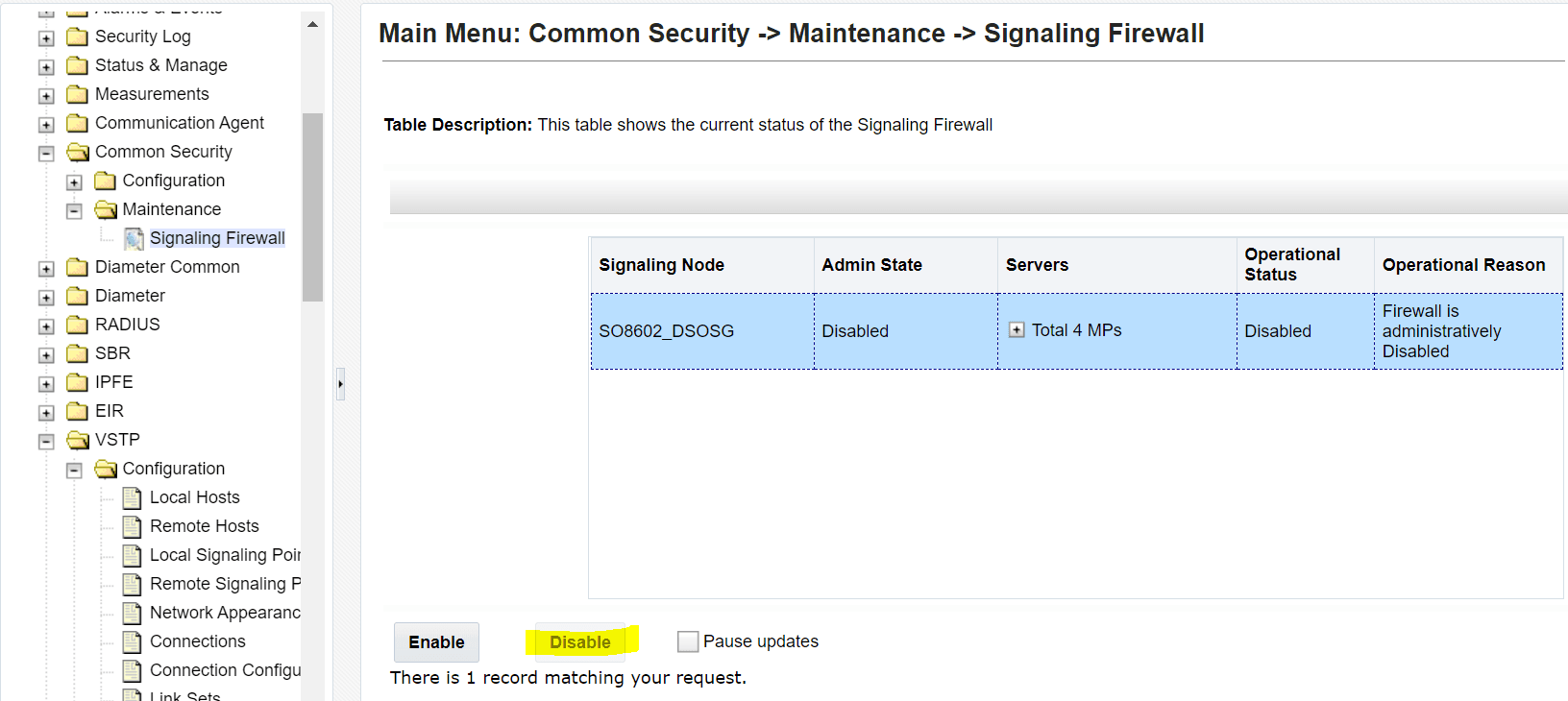
- To access the MPs from the ATS machine, you need to run the VSTP suite run, the following command for all MPs. <stp ip> to be replaced by XMI IP of one MP at a time:
cat ~/.ssh/id_rsa.pub | ssh admusr@<stp ip> "mkdir -p ~/.ssh && chmod 700 ~/.ssh && cat >> ~/.ssh/authorized_keys"
- Update
- Enabling the Feature on SUT
Following is a list of the Suites in ATS 9.0.2 onwards and their respective mandatory DSR features that are required to be activated:
Table 6-3 list of the suites in ATS 9.0.2
Suit Name DSR’s Features Required to be activated Regression Custom Roaming RBAR, Mediation Custom- Core FABR, Mediation, RBAR
New -Features RSA, RBAR DSA DCA Performance FABR MDS MDS Note:
Before activating and deactivating RSA and DSA using Jenkins GUI, delete both the files /root/.ssh/known_hosts and /home/cloud-user/known_hosts files.Activation through automation
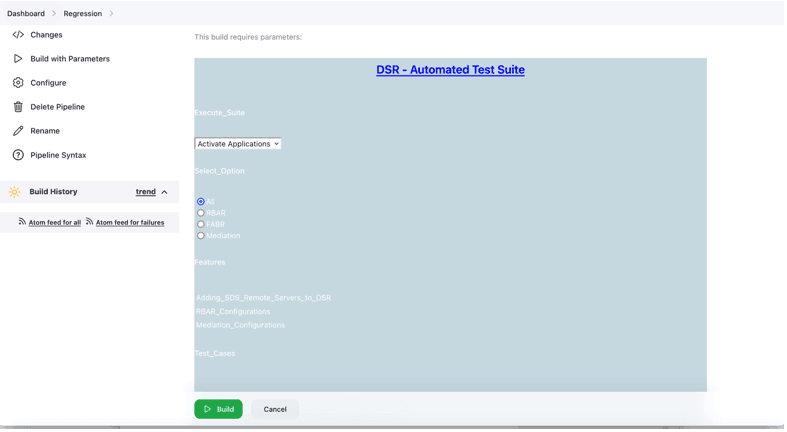
Before starting the execution of any test suites, it's essential to activate RBAR, FABR, and Mediation. The activation process for these features should be carried out through the Regression Suite. You can either choose the All option as shown below or, you can choose to run each Feature (RBAR, FABR, and Mediation) individually.
Figure 6-3 Choosing a Suite
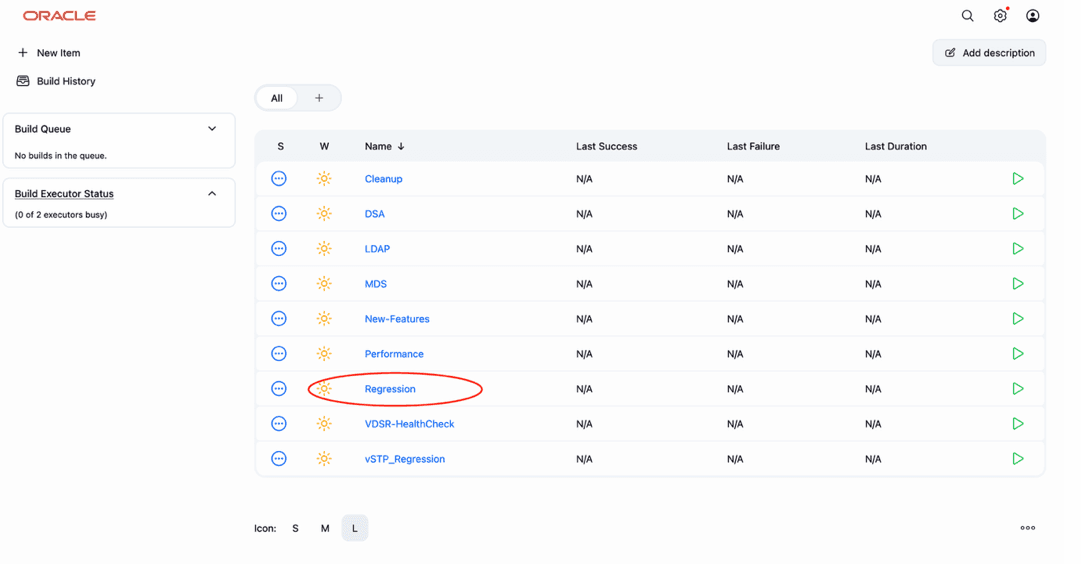
Figure 6-4 Activation of Applications
Location of all the activation related feature files:
- RBAR, FABR and Mediation
- The feature Activation file is in the following directory path
/var/lib/jenkins/workspace/Regression/Cust-Roaming-Suite/Activation.feature
- The feature Activation file is in the following directory path
- RSA
- The RSA activation file is the following directory path:
/var/lib/jenkins/workspace/New-Features/Activate_RSA.feature
- The RSA activation file is the following directory path:
- DSA
- File: The DSA activation file is the following directory path:
/var/lib/jenkins/workspace/DSA/Activate_DSA.feature
- File: The DSA activation file is the following directory path:
Activating the features
RBAR FABR Mediation:
- Log in to ATS Jenkins GUI
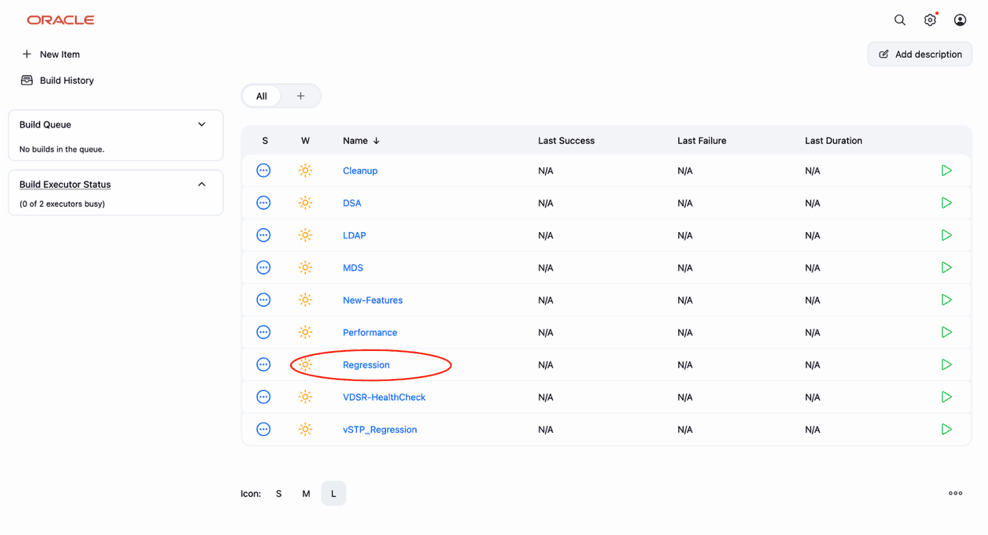
https://<ATS IP>:8443 - To activate ATS Jenkins GUI, click Regression, as shown in the following image:
Figure 6-5 Regression
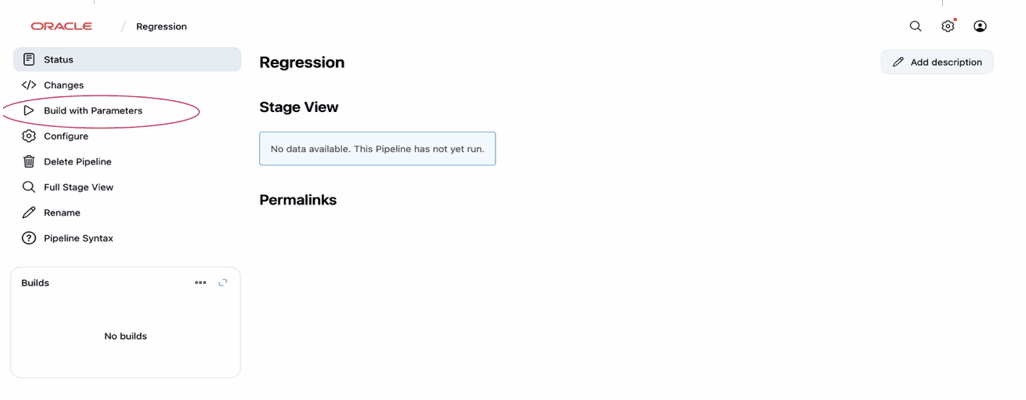
- Click Build with Parameters to build the parameters required for the activation.
Figure 6-6 Build with Parameters
- You can either select the All option as shown below or, you can select to run each feature (RBAR, FABR, and Mediation) individually.
- Click Build to Activate Applications.
Figure 6-7 Build
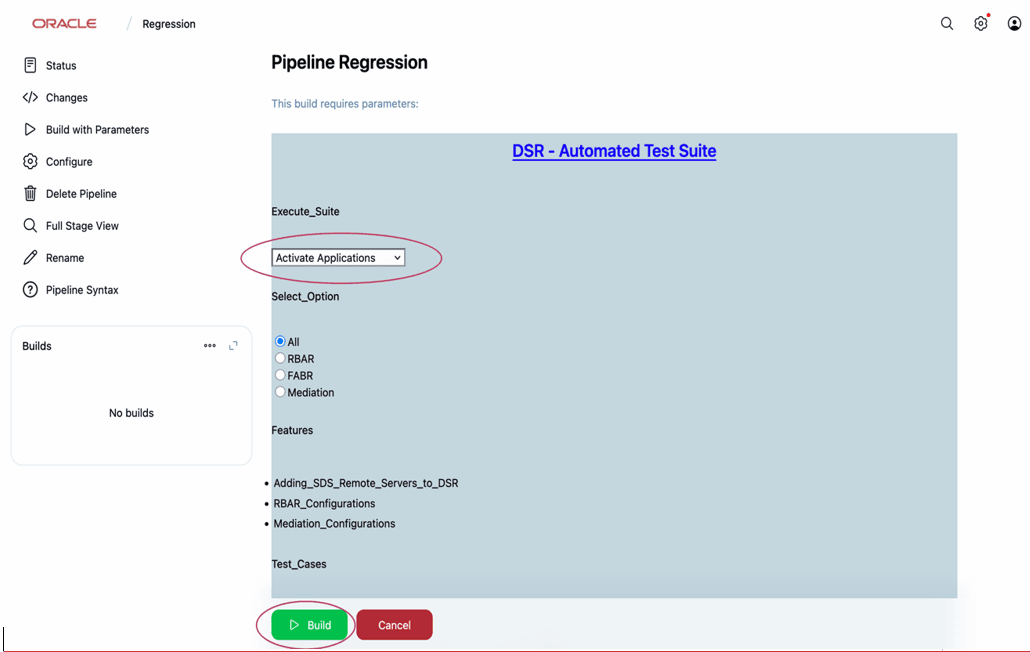
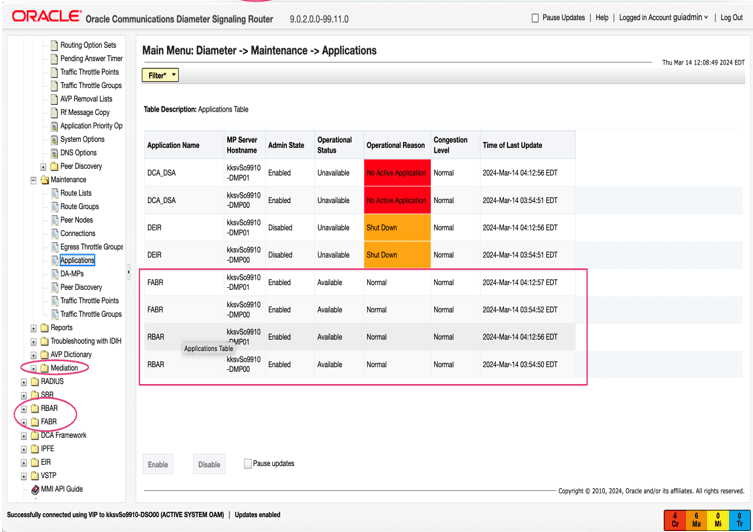
Figure 6-8 Applications
- RSA:
- Log in to ATS’s Jenkins GUI
https://<ATS IP>:8443. - Select New-Features, and then click Build with Parameters .
- Log in to ATS’s Jenkins GUI
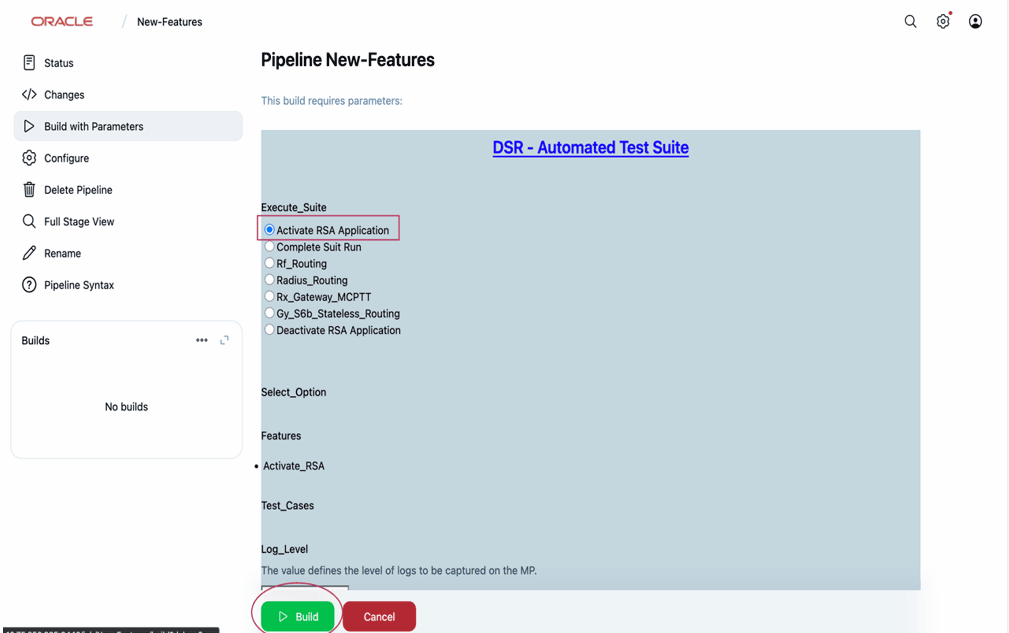
- Select Activate RSA Application, and click Build.
Figure 6-9 Activate RSA
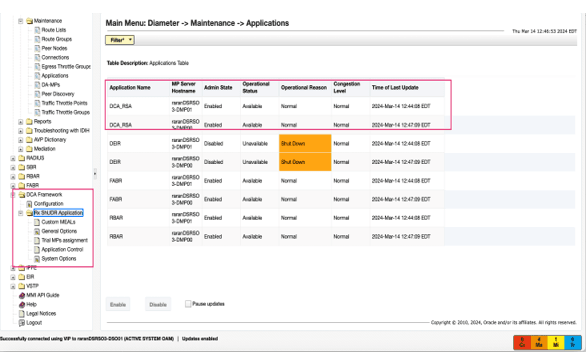
- The following image shows the result
Figure 6-10 Result
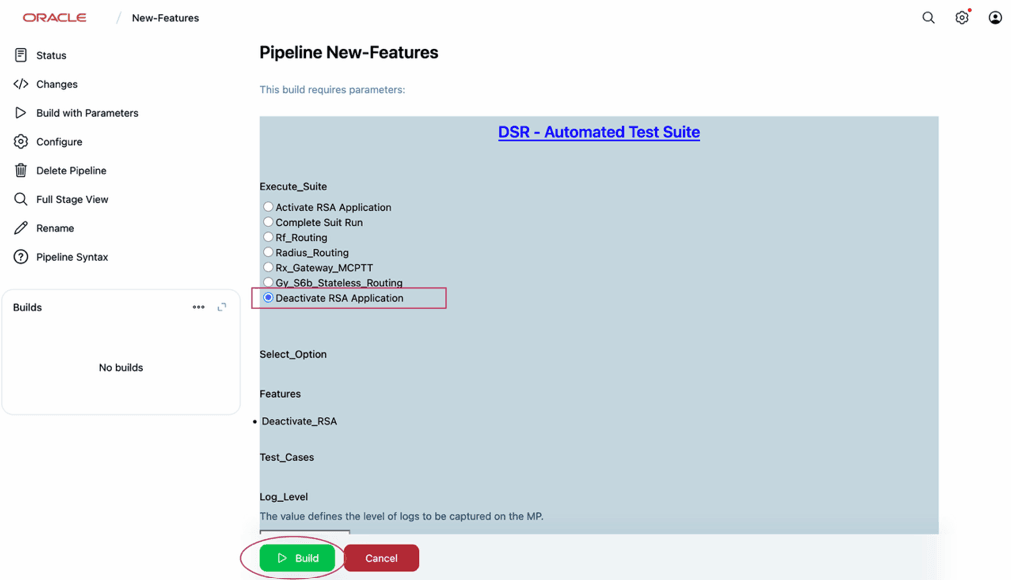
- To deactivate, select Deactivate RSA Application, and click Build.
Figure 6-11 Deactivate RSA
- To configure DSA:
- Log in to ATS Jenkins GUI
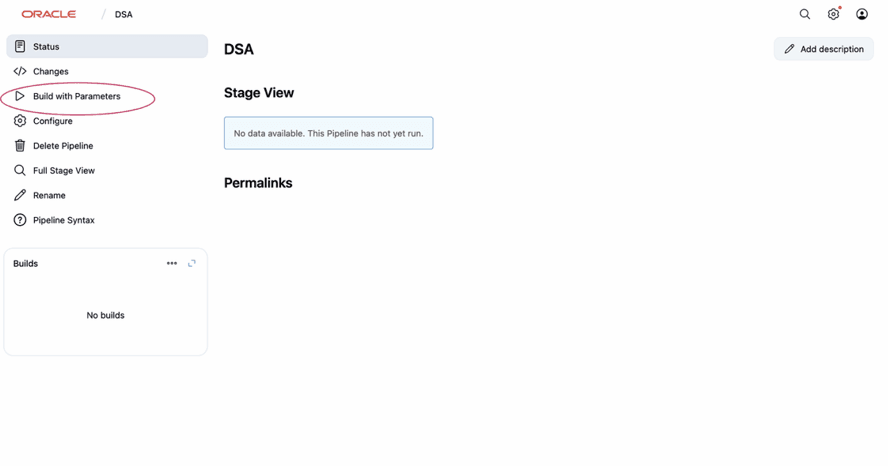
https://<ATS IP>:8443. - Select DSA, as shown in the following image, and then click Build with Parameters.
Figure 6-12 Configure DSA
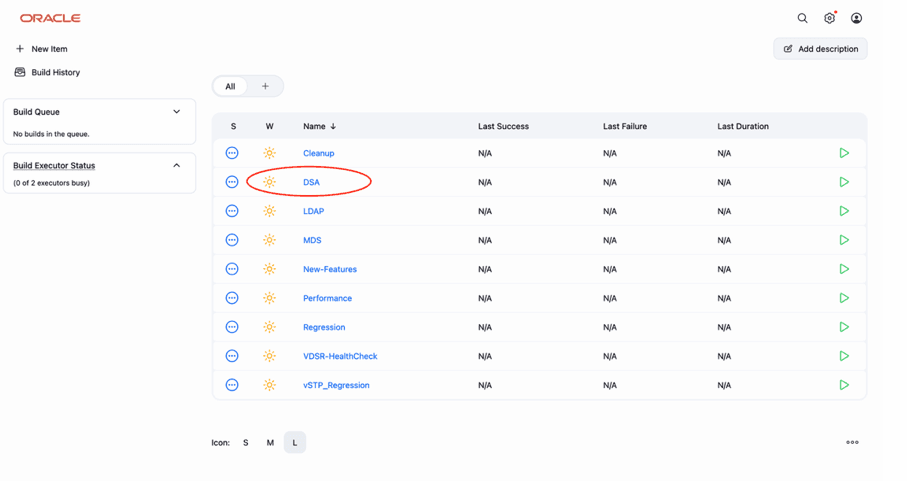
Figure 6-13 DSA Build with parameters
- Log in to ATS Jenkins GUI
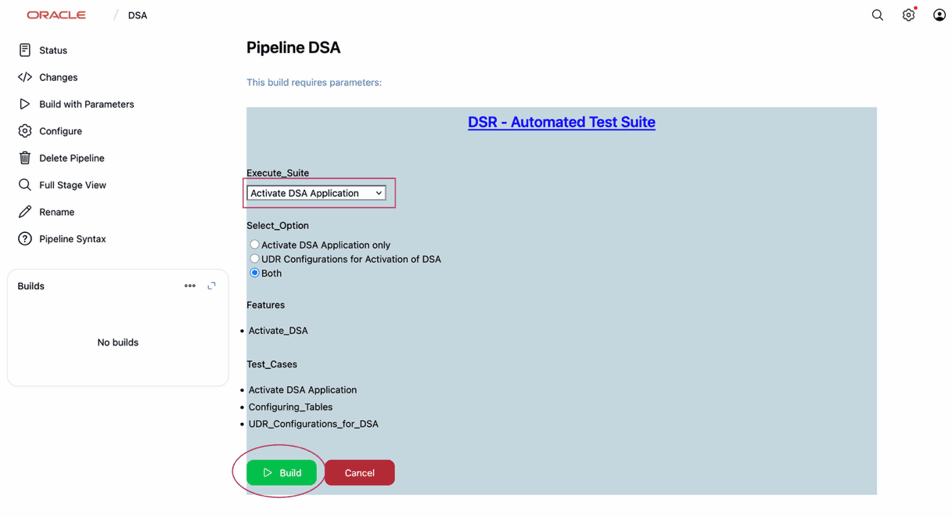
- To activate, select Activate DSA Application, and then click Build.
Figure 6-14 Activating DSA
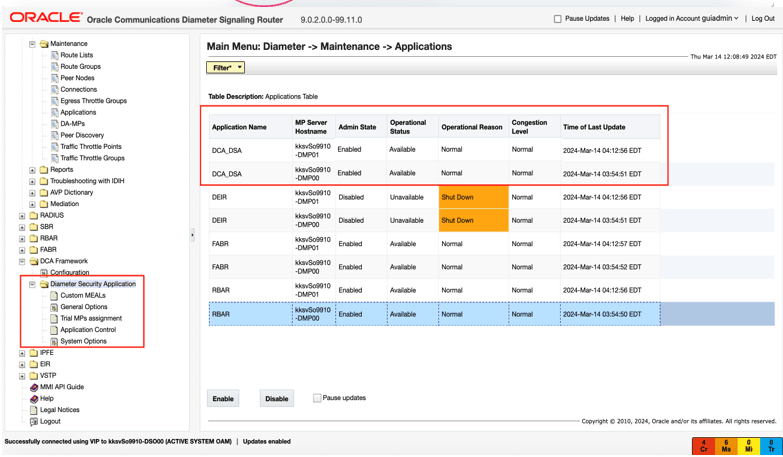
- Following is the result shown in the image:
Figure 6-15 Result
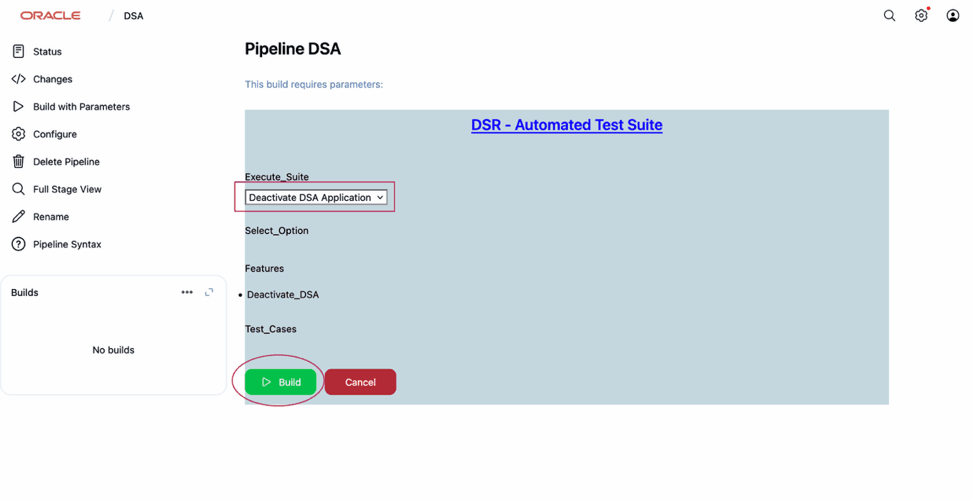
- To deactivate, select Deactivate DSA Application, and then click Build.
Figure 6-16 Deactivating DSA
Things to remember:- Deactivate DSA before Activating RSA, and vice versa.
- Activation and Deactivation option for respective suites are available in DSA and New-Features suites, respectively.
- For FABR, RBAR, and Mediation, there is no Deactivate option, since they serve as prerequisites for multiple suites.
- RBAR, FABR and Mediation
Note:
Ensure that there are no backup files in the /var/TKLC/db/filemgmt/backup location while executing the database restore test case on SOAM. If there are backup files, then the Mediation feature must be enabled in each backup file. Otherwise, sometimes the Mediation feature might get disabled while execution of this test case.- Log in to ATS Jenkins GUI.
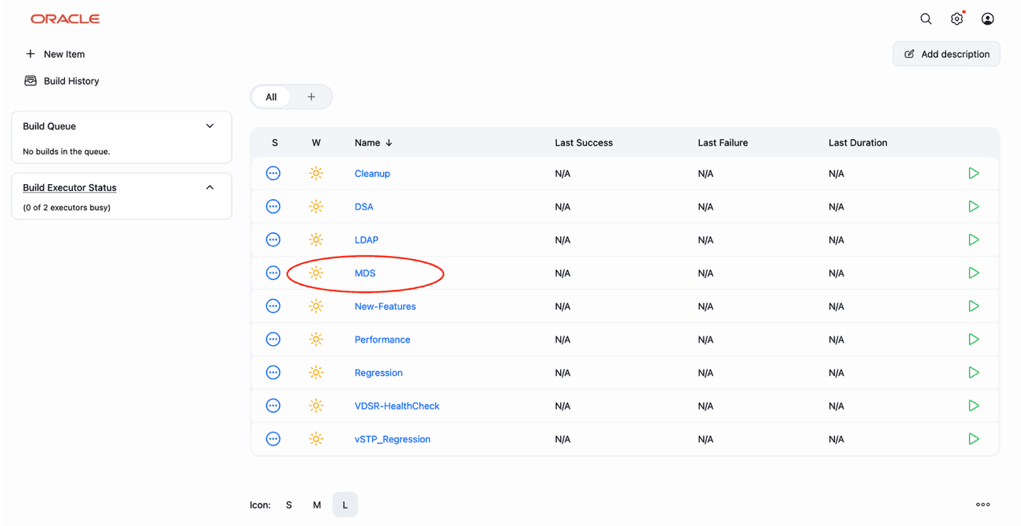
- Select MDS, as shown in the following image, and click Build with Parameters.
Figure 6-17 Running MDS Pipeline
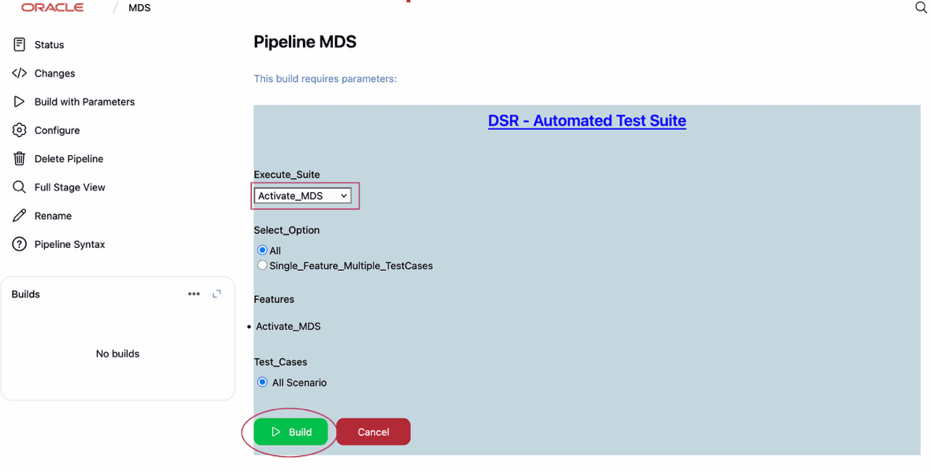
- To activate, select Activate MDS Application, and click Build.
Figure 6-18 Activating MDS
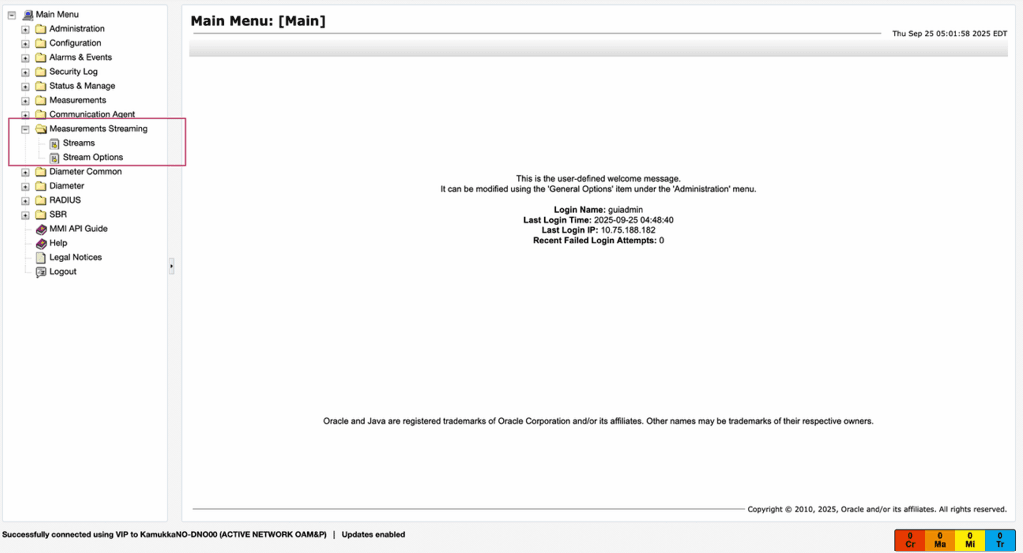
Following is an image that shows the result as displayed in the DSR GUI:
Figure 6-19 Results of MDS Activation
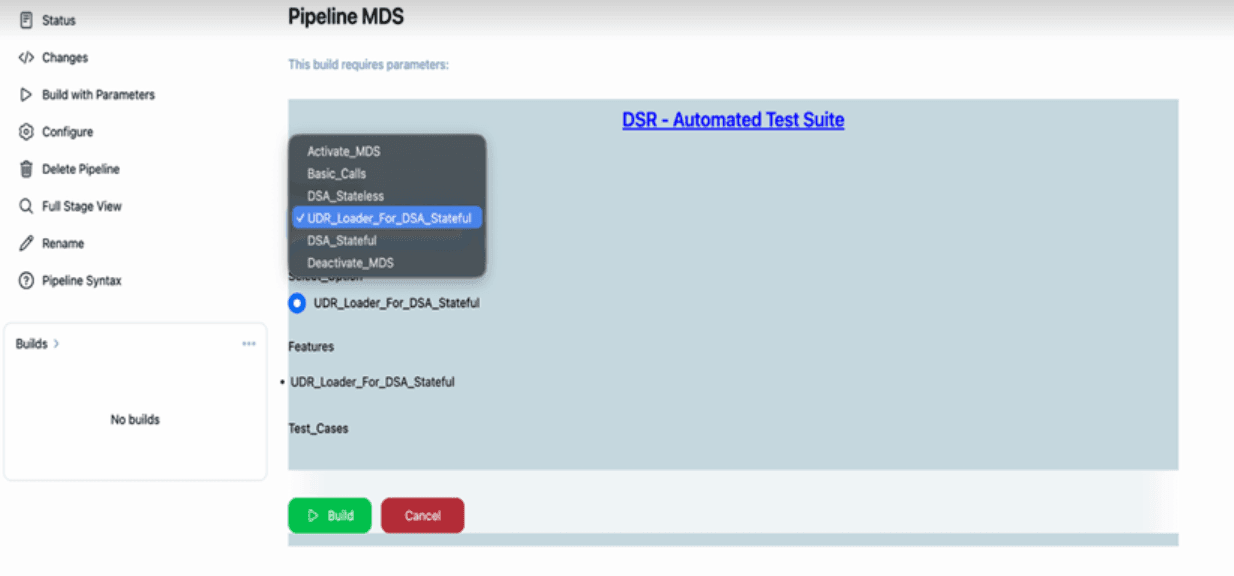
Note:
Before running DSA_Stateful with MDS, first run the udr_loader_for DSA_stateful.Figure 6-20 UDR Loader for MDS
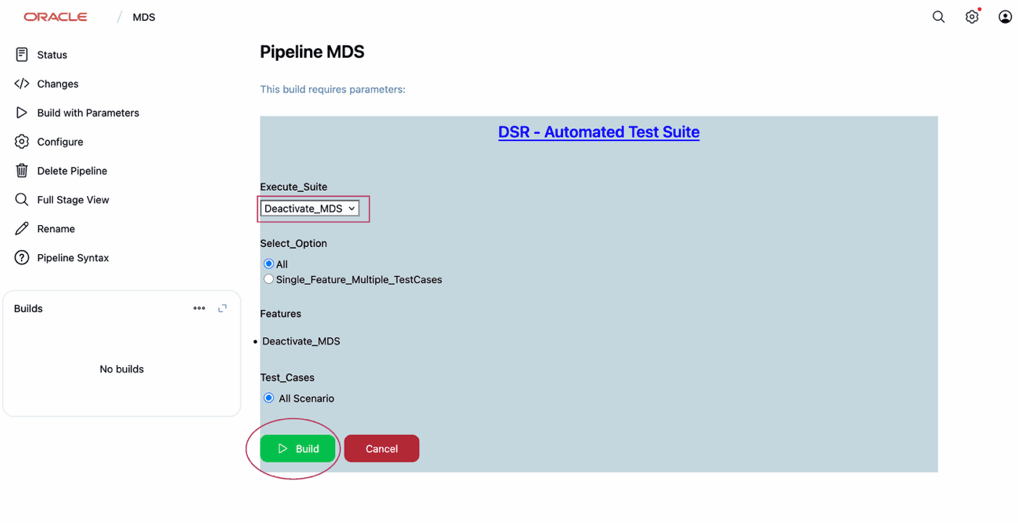
- To deactivate, select Deactivate MDS Application, and click Build.
Figure 6-21 Deactivating MDS
Note:
- Deactivate DSA before Activating RSA, and vice versa.
- Activation and Deactivation option for respective suites are available in DSA, MDS, and New- Features suites.
- For FABR, RBAR, and Mediation, there is no Deactivate option, as they serve as prerequisites for multiple suites.
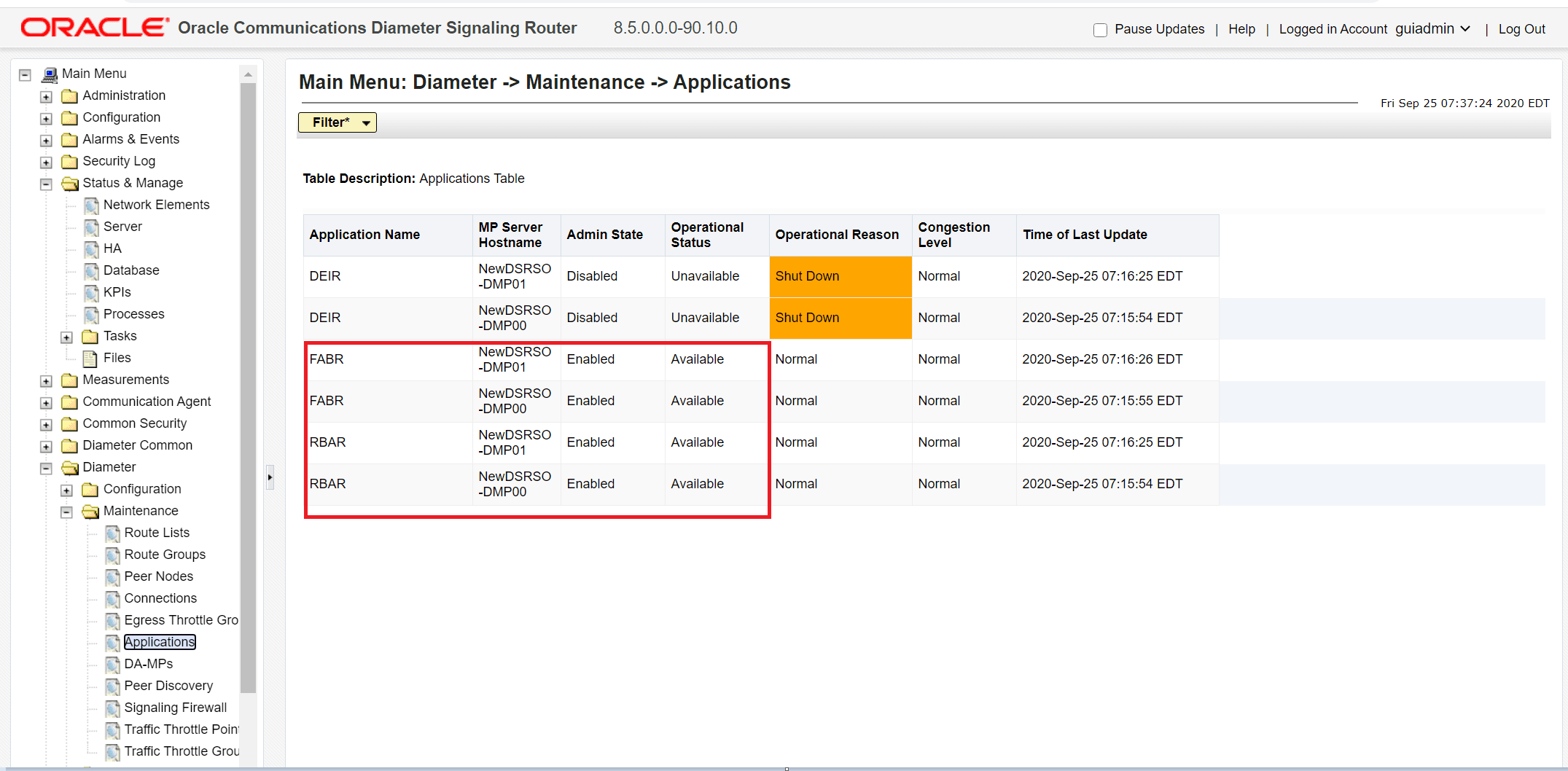
Ensure that RBAR and FABR are enabled as displayed in the following image:
Figure 6-22 RBAR and FABR Enabled on the DSR GUI
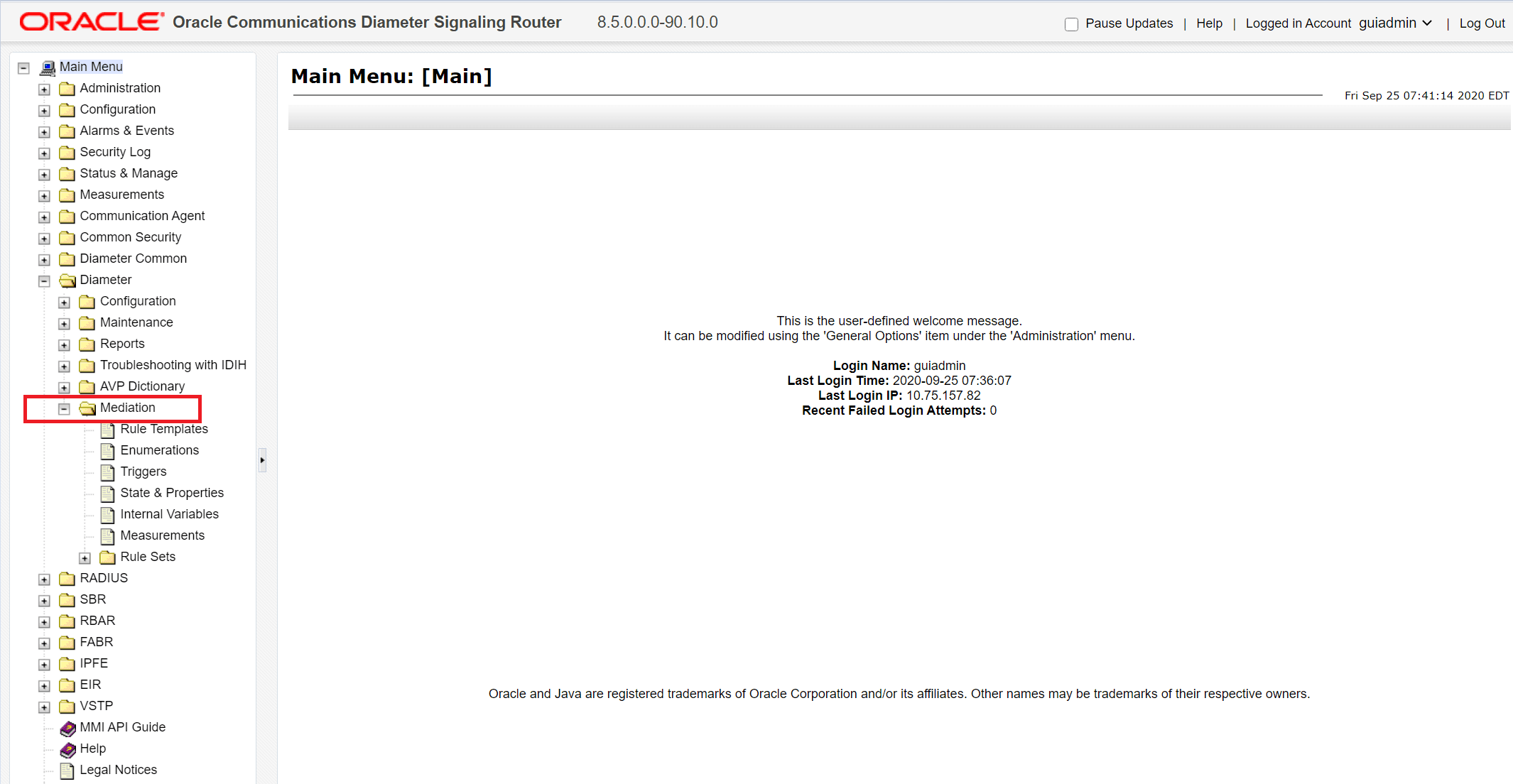
- Ensure that Mediation is enabled as displayed in the following
image:
Figure 6-23 Mediation Enabled on the DSR GUI
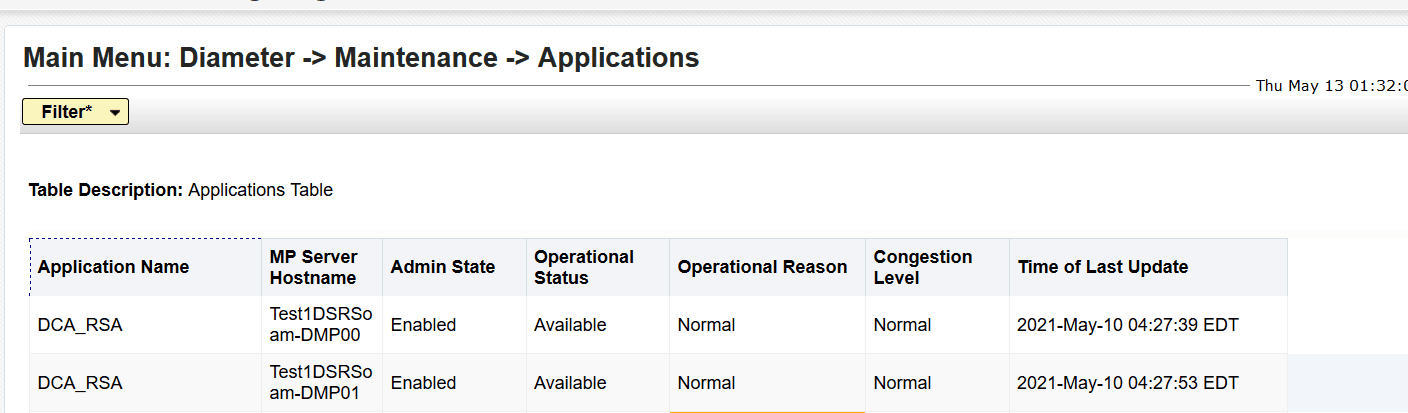
- Ensure that DCA is enabled as displayed in the following image:
Figure 6-24 DCA Enabled on the DSR GUI
- Configure ComAgent connections on DSR by referring to the Diameter Signaling Router Cloud Installation Guide.
Note:
The DSR BUG 29035530 can cause ATS GUI case failure due to the "Security Violation" error when you perform any common GUI operation. This can be identified in/var/TKLC/appw/logs/Process/AppWorksGui.logby searching for the Security violation by a user keyword.